🛒 Best Price Today on Amazon
Prime members get fast, free shipping on everything above, plus member-only deals. New members get a 30-day free trial — cancel anytime.
Choosing the right power supply starts with your CPU, graphics card, and other components, not a wattage guess. A power supply calculator: what psu do i need search should lead you to a practical estimate, a check of manufacturer requirements, and guidance on connectors, efficiency, and upgrade headroom before you purchase a PSU.
How to Choose the Right PSU for a Gaming PC
A PSU must supply enough power for the entire computer while supporting the connectors and physical dimensions your build requires. A calculator is a useful starting point, but the final decision should also account for the graphics card manufacturer’s recommendations, CPU power consumption, and any planned upgrades.
1. Start With Your Graphics Card and CPU
The graphics card is often the largest contributor to power demand during gaming, but the processor can also make a substantial difference. A mainstream GPU paired with an efficient CPU generally needs less capacity than a flagship GPU combined with a high-power desktop processor.
When using a power supply calculator, select the exact CPU and GPU models rather than relying on broad labels such as gaming PC or high-end build. Factory-overclocked graphics cards may have different power requirements from reference models, so check the specifications for your particular card.
2. Understand Wattage and Operating Headroom
A PSU’s wattage rating describes its rated output capacity, not the amount of electricity your computer continuously consumes. A system drawing 450 watts does not automatically require a 1,000W PSU; the appropriate capacity depends on its peak demands, component recommendations, and upgrade plans.
Headroom provides room for variations in workload and brief GPU power spikes. It can also make future upgrades easier. However, buying substantially more capacity than your build needs does not automatically improve gaming performance, and it may cost more without delivering a practical benefit.
3. Check Connectors and PSU Standards
Wattage alone cannot establish compatibility. Confirm that the PSU provides the motherboard’s 24-pin ATX connector, the required CPU EPS power connectors, and the correct GPU power connections. Modern graphics cards may use a 16-pin 12V-2×6 connection or an adapter supplied with the card.
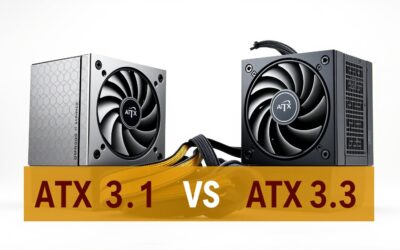
For a new high-performance build, an ATX 3.1 PSU with a native 12V-2×6 cable can simplify compatibility with supported graphics cards. Check the exact GPU and PSU manuals before purchasing: a connector that physically fits is not, by itself, proof that the cable is suitable.
4. Consider Efficiency, Size, and Upgrade Plans
An 80 PLUS rating describes power-supply efficiency at specified operating conditions; it does not independently establish build quality, electrical performance, or reliability. Compare reputable independent PSU reviews and warranty terms alongside the efficiency certification rather than selecting by badge alone.
Your case also determines which PSU formats fit. Standard ATX, SFX, and SFX-L units differ in dimensions, while some designs place modular cable connections on the side. Check the case’s supported PSU format, available clearance, and cable-routing space before ordering.
How to Use a Power Supply Calculator: Step by Step
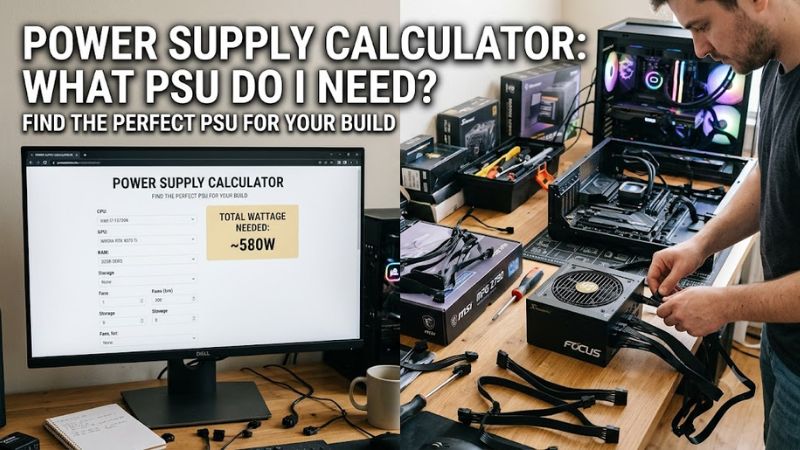
A reliable PSU estimate comes from entering your actual hardware configuration and then checking the result against official specifications. The CORSAIR PSU calculator accounts for CPU and GPU selection, additional components, overclocking, and upgrade headroom. ASUS also provides a calculator that recommends PSU capacities for selected CPU and GPU combinations. Neither should replace the requirements for your exact graphics card model.
CORSAIR
+1
Step 1: Enter Your Exact Components
Start with your CPU, graphics card, motherboard, memory, storage, and cooling configuration. Include additional fans, drives, and other components when the calculator supports them. If your processor or GPU is missing, use the manufacturer’s specifications and the power requirements of the closest relevant components rather than treating an approximate result as definitive.
A power supply calculator: what psu do i need search is most useful when you know the hardware you’re planning to install. If you’re building a PC from scratch, identify the intended GPU first, then select a compatible CPU and motherboard before estimating the PSU capacity.
Step 2: Compare the Estimate With Manufacturer Guidance
Once you have a wattage estimate, check the graphics card manufacturer’s recommended system power. These recommendations are intended for a complete system configuration, not merely the GPU’s own consumption. Requirements can vary with the processor, graphics card design, and operating settings.
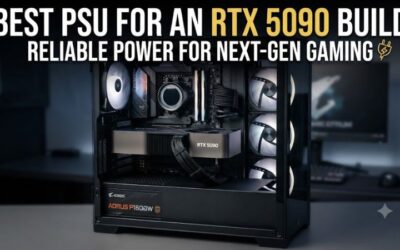
For example, NVIDIA lists a 1,000W minimum system power rating for the GeForce RTX 5090 Founders Edition, based on a system configured with a Ryzen 9 9950X. NVIDIA also specifies supported power-connector configurations. An aftermarket RTX 5090 may have different specifications, so check its own documentation before finalizing your choice.
Step 3: Check Connectors and Physical Compatibility
Before buying, compare the PSU’s included cables with the requirements of your motherboard and graphics card. Check how many separate PCIe power cables are required, whether a native 12V-2×6 cable is supported, and whether the PSU supplies enough CPU power connectors for your motherboard.
Do not reuse modular cables from another PSU unless the manufacturer explicitly confirms compatibility. Modular cables can have different pinouts even when their PSU-side plugs appear identical. Also check the PSU’s dimensions and the case’s clearance so the unit and its cables fit without obstructing installation.
Step 4: Choose Capacity With Sensible Headroom
After confirming the required wattage and connectors, select a capacity that accommodates the full system and its intended workload. For a standard gaming PC, the next reasonable capacity tier may provide useful flexibility, but there is no universal percentage of spare wattage that suits every build.
If you’re planning a major GPU upgrade, calculate the future configuration rather than choosing solely for today’s components. Conversely, if the system will remain unchanged and the existing PSU meets the requirements, replacing it with a much larger unit may not be necessary.
| Example configuration | Initial capacity to consider | Important qualification |
| Mainstream gaming PC with an RTX 5060-class GPU | 650W | Confirm CPU demand and the exact card’s recommendation. |
| Upper-mainstream system with an RTX 5070-class GPU | 650–750W | A more power-hungry CPU or future GPU upgrade can favor 750W. |
| High-performance system with an RTX 5080 | 850W | NVIDIA’s recommended PSU capacity should be checked against the exact card and system. |
| Flagship system with an RTX 5090 | 1,000W or higher | NVIDIA lists 1,000W for the Founders Edition; overclocking and other components can change requirements. |
These are starting points, not universal guarantees. Capacity guidance is based on CORSAIR’s calculator guidance and NVIDIA’s published RTX 5090 specifications. Confirm the requirements of the exact GPU and the complete system before buying.
FAQ
1. How do I know what PSU wattage my gaming PC needs?
Your PSU wattage depends primarily on your CPU, GPU, and the rest of your system. Use a calculator to estimate demand, then compare its recommendation with the GPU manufacturer’s system power requirements and confirm that the PSU has the necessary connectors.
2. Is a 750W PSU enough for a gaming PC?
A 750W PSU is sufficient for many gaming PCs, depending on the CPU, GPU, and other components. It may be appropriate for a mainstream or upper-mainstream build, but don’t assume it meets the requirements of every high-end graphics card.
3. Does a higher-wattage PSU increase FPS?
No, a higher-wattage PSU does not inherently increase FPS when the existing power supply already meets the system’s requirements. An inadequate or faulty PSU can contribute to instability, but additional rated capacity alone does not make a graphics card render frames faster.
4. Should I replace my PSU when upgrading my GPU?
Replace your PSU only if the upgrade requires more capacity, different connectors, or a newer compatible power-delivery solution that your current unit cannot provide. Check the exact GPU specifications, PSU model, cable compatibility, and manufacturer recommendations before deciding.
Final Thoughts
A power supply calculator: what psu do i need search should help you narrow the options, not make the purchase decision for you. Start with your exact CPU and GPU, verify official power and connector requirements, and choose a reputable unit with appropriate capacity. Check your case clearance and future upgrade plans before buying.