🛒 Best Price Today on Amazon
Prime members get fast, free shipping on everything above, plus member-only deals. New members get a 30-day free trial — cancel anytime.
The best games for a low end PC are the ones designed to run on modest hardware: pixel-art indies, older big-budget hits, and competitive titles built to reach as many players as possible. If your computer has integrated graphics, limited memory or an aging processor, you still have a huge library to choose from. This guide groups commonly recommended examples, shows how to read system requirements, and lists the settings and habits that help the most. Requirements change with patches, so confirm details on each store page.
What “low end” means for a PC
Low end is not a precise label. In practice it covers laptops with integrated graphics, office desktops with small memory, and older gaming machines whose graphics cards have fallen behind. The parts that matter most are the processor, the amount of memory, the graphics chip and the type of storage. A solid-state drive helps loading times but does not change frame rates, while a weak graphics chip limits what you can play more than anything else.
Integrated graphics have improved a lot, but they share memory with the rest of the system. That means they benefit from fast, dual-channel memory and suffer when background programs eat up space. A desktop with a dedicated entry-level graphics card sits in a different bracket from a thin laptop, even if both are called low end.
Knowing your own parts is the first step. On Windows, Task Manager’s Performance tab shows the processor, memory and graphics, and the DirectX diagnostic tool gives a summary. Write down the model names so you can compare them with the store page.
Lightweight indie games
Independent games are the safest category for weak hardware. Many use 2D art, simple lighting and small worlds. Commonly recommended examples include Stardew Valley, Terraria, Celeste, Hollow Knight, Undertale, Papers, Please, Slay the Spire and Factorio. Dead Cells and Darkest Dungeon are also frequently mentioned for their efficiency. Each runs on modest systems, though recent updates and specific settings can change that.
The main reason indies work is design. Stylized art does not require heavy lighting. Small teams also tend to optimize carefully because they know their audience may not own expensive hardware. Many are available with demos, which helps you try them first.
That said, not every indie is light. A 3D survival or open world indie can be demanding, and a 2D game can still stutter if it is poorly made. Check recent reviews for performance notes, especially those from players with similar hardware.
Older big-budget games
Games from earlier hardware generations often run well on current low end machines. Half-Life 2, Portal and Portal 2, Left 4 Dead 2, Skyrim, Fallout: New Vegas and Borderlands 2 are commonly mentioned. They were built to run on hardware that is now far behind an ordinary laptop, so you can often use medium settings or higher.
Older games come with their own quirks. Some need compatibility settings, fan patches or modern re-releases to work well on current versions of Windows. Check community guides and the store page for current notes. Mods can improve visuals but often increase demands, so skip them if performance is the priority.
Because these titles are widely available at lower prices during sales, they are a cost-effective way to build a library. Prices change, so check the store page for current details. They are also good for gauging how your system handles 3D games before you move to heavier ones.
Esports and competitive games
Competitive games are built for broad reach, so many run on modest systems. League of Legends, Dota 2, Rocket League and Teamfight Tactics are typical examples, and the shooter Valorant is often mentioned, though it may require specific system features, so read its current requirements. Counter-Strike 2 is more demanding than its predecessor on many systems, so verify its page too.
These games reward consistent frame rates over beautiful visuals. Lowering shadows, effects and anti-aliasing helps reduce input delay, and most have presets designed for weaker hardware. Our settings pages for Teamfight Tactics on a low-end PC and for Genshin Impact settings, including a low-end preset show how this works in practice.
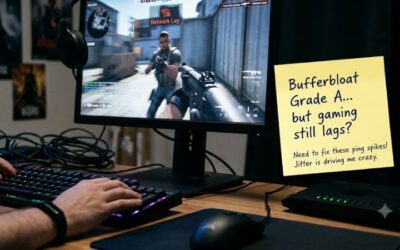
Online games also depend on your connection, so a low ping can matter as much as frame rate. If you see sudden freezes during matches, review the causes in our guide on stuttering causes, checks and fixes, since many of the checks apply to modest machines too.
How to read system requirements
Every store page lists minimum and recommended requirements. Minimum usually describes the weakest system on which the game will start, often at low settings and reduced resolution. Recommended describes a system for smoother play at higher detail. Neither guarantees a particular frame rate, because developers measure differently.
Compare the key items in this order: graphics chip, memory, processor and storage. If your graphics chip is below the minimum, expect trouble. If memory is just at the minimum, close other programs before playing. Check the free storage figure and the operating system version too.
If the page lists a graphics card name but you have integrated graphics, search for the model of your integrated chip and compare. Recent reviews are also valuable, since players often mention what hardware they used and how the game ran. Treat a single review as a clue, not a rule.
| Requirement | What it means | Where to check |
|---|---|---|
| Graphics | Biggest limit on frame rate | Task Manager, Performance tab |
| Memory (RAM) | Shortage causes stutter and crashes | Task Manager, Memory |
| Processor | Important for strategy and simulation | Settings, System, About |
| Storage | Install size and loading speed | File Explorer, This PC |
Settings and habits that help
You can often gain smoother play without spending anything. Start by updating graphics drivers from the official source for your hardware. Then close browsers, launchers and background apps before launching a game. Browsers with many tabs can use a surprising amount of memory.
Inside the game, lower resolution or use a resolution scale first, then reduce shadows, effects and view distance. Switch to windowed borderless mode if full screen causes issues, and cap the frame rate to a steady figure to avoid heat and swings. On laptops, plug in the charger and choose a higher performance power mode, since battery saving modes slow the processor and graphics.
Keep the machine cool. Dust and blocked vents cause throttling, which reduces performance as a system heats up. Clean intake areas carefully with the computer turned off and unplugged, and make sure the laptop is on a hard surface rather than a blanket. If you are unsure about opening a device, leave it closed and use compressed air only on external vents.
A step-by-step check before you install
Use this short routine for each new game and you will avoid most disappointments.
- Note your graphics chip, memory and free storage from Task Manager.
- Open the store page and read the minimum requirements carefully.
- Search recent reviews for words like performance, lag or low-end.
- Try a demo or a free version if one exists.
- After installing, set a low preset, then raise one setting at a time.
- Keep what works, and refund or uninstall what does not, within the store’s rules.
With a little patience, a weak PC can offer hundreds of hours of play. Choose games built for your hardware, and treat upgrades as optional.
Related guides
- Gaming Chairs For Back Pain With Lumbar Support
- Gaming Keyboards For Fps With Rapid Trigger
- Travel Backpack With Laptop Compartment
Frequently asked questions
Can integrated graphics run modern games?
Often yes, with limits. Integrated graphics can handle many indie games, older titles and lightweight esports games at low settings and reduced resolution. Heavy 3D games may be slow or unplayable. Check the minimum requirements on the store page and expect to lower resolution, shadows and effects for smooth play. Keeping the laptop plugged in also helps.
Does more RAM help a low end PC play games?
It can, particularly if the system has very little memory or if integrated graphics share it. Dual-channel memory can also help integrated graphics. Adding RAM will not turn a weak graphics chip into a strong one, but it can reduce stuttering caused by memory shortage. Check your motherboard or laptop manual for supported memory types first.
Which settings should I lower first?
Start with resolution scaling and shadows, since they are demanding on most hardware. Then reduce effects, anti-aliasing and view distance. Textures mainly depend on graphics memory, so lower them if you see hitching. Change one setting at a time so you can tell which one gave the biggest improvement. Restart the game when a setting says it requires it.
Are older games always lighter than new games?
Usually, but not always. Older titles were built for weaker hardware, so they often run well today. However, poorly optimized older games and some recent indies can still struggle. Treat age as a hint and rely on the store page requirements and recent user reviews, especially ones from players with similar hardware.
Should I upgrade my PC instead?
It depends on the goal. Many games run fine on modest hardware, and an upgrade is not always necessary. If you want newer titles, a solid-state drive, more memory or a graphics card are common upgrade paths. Compare what you want to play with the requirements before spending money, and start with the cheapest change that addresses your bottleneck.