🛒 Best Price Today on Amazon
Prime members get fast, free shipping on everything above, plus member-only deals. New members get a 30-day free trial — cancel anytime.
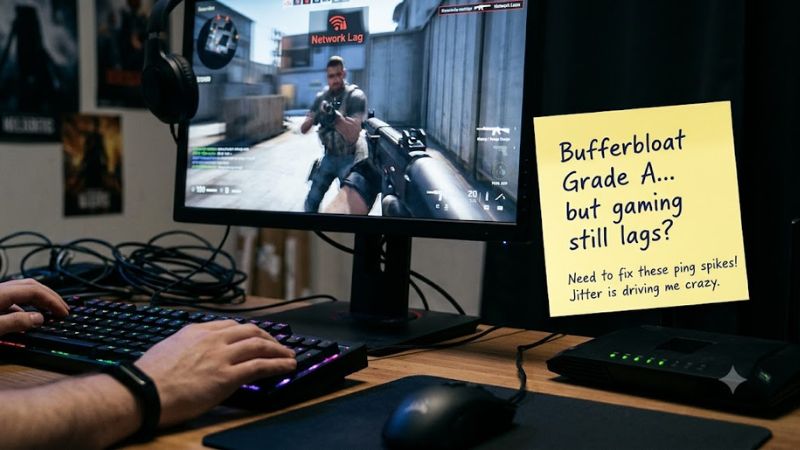
Getting an A on a bufferbloat test does not mean your gaming connection is completely stable. bufferbloat grade a but gaming still lags usually points to another problem, such as packet loss, Wi-Fi interference, high baseline ping, or poor routing to the game server. This guide explains how to isolate the cause and fix it.
Why Bufferbloat Grade A but Gaming Still Lags Happens
A good bufferbloat grade measures how much latency increases when your connection handles download and upload traffic. It does not measure every part of your gaming connection. Your PC can still experience unstable Wi-Fi, packet loss, distant game servers, or local performance problems. Start by comparing in-game ping with a continuous connection test before changing router settings.
1. An A Grade Does Not Mean Low Ping
Bufferbloat measures additional latency under network load, not your total ping to a game server. For example, a connection with 50 ms idle latency and 5 ms additional delay can receive a good grade while still having a relatively high baseline ping.
This distinction matters when investigating bufferbloat grade a but gaming still lags. A test server near your location might respond quickly, while a game server in another region adds considerable network distance. Always check the actual server region and in-game latency before blaming your router.
2. Wi-Fi Interference Causes Unstable Latency
Wi-Fi can introduce inconsistent response times even when your internet connection performs well during a browser test. Neighboring networks, physical obstacles, signal strength, and interference from other wireless devices can all affect packet delivery.
A laptop or desktop connected through a crowded 2.4 GHz network may experience occasional ping spikes during matches. The bufferbloat test might not reproduce the same wireless conditions as your actual gaming session, especially if interference changes throughout the day.
3. Packet Loss, Jitter, and Server Routing
Packet loss occurs when network packets fail to reach their destination. Jitter describes variation in packet delivery timing. Both can cause delayed actions, rubber-banding, and inconsistent gameplay even when average ping appears reasonable.
Your internet provider’s routing can also affect performance. A connection may reach a nearby speed-test server efficiently but take a less favorable route to a particular game’s server. Bufferbloat results alone cannot identify the exact network hop responsible for that problem.
bufferbloat.net+1
4. What Doesn’t Help
Repeatedly increasing your internet speed is unlikely to solve a problem caused by packet loss, wireless interference, or poor server routing. A higher download speed does not automatically reduce the distance between your PC and a game server.
Avoid changing random DNS addresses, disabling Windows security features, or buying a gaming router without identifying the cause. These changes may leave the original problem untouched. First determine whether the lag occurs on Ethernet, across multiple games, and during periods of network activity.
How to Fix Gaming Lag: Step by Step
Once you know that a good bufferbloat score does not rule out other network problems, troubleshoot one variable at a time. Start with a wired connection and compare latency during gameplay, then check packet loss, background traffic, and server routing. Avoid changing several settings simultaneously because that makes the actual cause harder to identify.
| Step | Where | How to Verify | Cost |
| 1. Compare Ethernet and Wi-Fi | PC and router | Play the same game using both connections | Free if Ethernet is available |
| 2. Monitor ping and packet loss | Windows Command Prompt | Compare ping results during and outside matches | Free |
| 3. Reduce background traffic | Windows Task Manager and router | Check whether ping spikes disappear | Free |
| 4. Configure SQM if needed | Compatible router settings | Repeat loaded latency measurements | Free on supported firmware |
1. Test Ethernet Before Changing Router Settings
Connect your gaming PC directly to the router using an Ethernet cable. Avoid powerline adapters and wireless repeaters during this initial comparison. Launch the same game, select the same server region, and observe ping, packet loss, and connection stability.
If bufferbloat grade a but gaming still lags only over Wi-Fi, investigate wireless interference rather than replacing your internet plan. If Ethernet improves the connection, check your wireless signal, router placement, and network band before considering new equipment.
Riot Games Support+1
2. Check Ping Spikes and Packet Loss in Windows
Open Command Prompt by pressing Windows + R, entering cmd, and pressing Enter. Run ping -t 1.1.1.1 to monitor a continuous connection to Cloudflare’s public DNS resolver. Leave it running while reproducing the gaming problem.
Look for sudden latency increases, request timeouts, and inconsistent response times. Press Ctrl + C to stop and review the statistics. Repeat with your router’s default gateway, found using ipconfig. This helps distinguish local network instability from problems farther along the internet route.
3. Identify Background Network Traffic
Open Task Manager with Ctrl + Shift + Esc and select the Processes tab. Click the Network column to sort applications by network usage. Look for Steam downloads, cloud synchronization, browser downloads, game updates, and other active transfers.
Pause unnecessary downloads and synchronization temporarily, then replay the same game. If the lag disappears, investigate which application was consuming bandwidth. This is especially useful when bufferbloat grade a but gaming still lags during busy household internet usage. Resume normal services individually after identifying the likely source.
4. Configure Smart Queue Management When Necessary
If ping increases significantly during uploads or downloads, check whether your router supports Smart Queue Management (SQM). Features such as CAKE and fq_codel help manage packet queues, reducing unnecessary waiting when a connection becomes congested.
On supported OpenWrt firmware, navigate to Network > SQM QoS and configure the appropriate interface, queue discipline, and bandwidth limits. The OpenWrt documentation recommends CAKE with the piece_of_cake.qos setup script as a common starting configuration. Start conservatively, measure actual connection throughput, and compare latency before and after applying changes.
OpenWrt+1
Do not copy bandwidth limits or advanced settings from another internet connection. Incorrect shaping rates can unnecessarily reduce throughput or leave congestion unmanaged. Save the original configuration before applying changes, and disable SQM or restore the previous settings if performance becomes worse. Router interfaces differ, so consult the firmware documentation for your model.
FAQ
1. Can You Still Have High Ping With an A Bufferbloat Grade?
Yes. An A grade measures additional latency under load, not your total ping to a particular game server. Your baseline latency may already be high because of server distance, ISP routing, or local network conditions.
For example, a stable connection can still have relatively high ping when connecting to an overseas server. Check the game’s server selection and compare its displayed latency with your normal idle ping.
2. Why Does Gaming Lag Even When Bufferbloat Is A+?
An A+ result does not rule out packet loss, Wi-Fi interference, server-side problems, or PC performance issues. Browser-based bufferbloat tests also cannot fully reproduce the network route used by an online game.
When bufferbloat grade a but gaming still lags, compare Ethernet and Wi-Fi, monitor packet loss, and check whether other games experience the same symptoms. These comparisons help narrow down the source without unnecessary upgrades.
3. Does Changing DNS Reduce Gaming Lag?
Changing DNS can help with certain domain-resolution problems, but it does not normally reduce the ongoing ping between your PC and an established game server. DNS primarily helps translate domain names into IP addresses.
If you suspect a DNS issue, temporarily compare your current provider with a reputable alternative. Record the original settings so you can restore them. Do not expect a DNS change to repair packet loss, wireless interference, or congestion.
4. When Should You Contact Your ISP?
Contact your ISP when connection instability also occurs over Ethernet, particularly when multiple devices experience the same problem. Provide timestamps, ping results, packet-loss observations, and the affected game server region.
If bufferbloat grade a but gaming still lags across multiple games and wired devices, ask your provider to investigate line quality, routing, congestion, and modem signal conditions. If only one game is affected, contact that game’s support team before replacing network hardware.
Final Thoughts
A bufferbloat grade a but gaming still lags result is a reason to investigate further, not an indication that your connection is perfect. Start with Ethernet, monitor ping and packet loss, and isolate background traffic before adjusting SQM. If wired tests remain unstable, ask your ISP to investigate the connection.