
🛒 Best Price Today on Amazon
Prime members get fast, free shipping on everything above, plus member-only deals. New members get a 30-day free trial — cancel anytime.
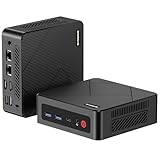
- Top Pick: OKAMUS Pre-Built PC, i5 CPU Up to 3.6GHz, Integrated Graphics Only, 256 GB M.2, 8 GB RAM Cheap Budget Gaming PC, RGB Fans x 3, Win 11 Home,WiFi 6 + BT 5.3, 400W PSU (i5+No GPU+8GB+256GB)
- Best Value: Lenovo ThinkCentre M710 SFF Desktop Computer PC, 6th Gen Core 3.70GHz, 8GB RAM, 256GB SSD, VGA, Keyboard and Mouse, WiFi, BT, Windows 11 Pro (Renewed)
- Premium Choice: Dell Gaming Tower Desktop PC – Intel Core i5-7500 7th Gen 3.4GHz – 16GB DDR4 RAM – 256GB SSD – GeForce GT 1030 – RGB Keyboard & Mouse – WiFi – Windows 11 Pro – Gaming Computer (Renewed)
Optimizing the best Teamfight Tactics settings for low end PC setups requires understanding how Riot Games’ auto-battler actually utilizes system hardware. While Teamfight Tactics (TFT) shares its engine foundation with League of Legends—a title engineered to run on modest hardware—it introduces unique computational bottlenecks that catch budget rigs off guard. TFT is heavily bound by single-threaded CPU performance and system memory latency. Every unit on the board requires individual pathfinding, trait calculation, item modifier tracking, and real-time combat simulation managed by the primary CPU thread.
When late-game stages arrive and eight players pack their boards with 3-star champions, radiant items, and active trait particle effects, hardware strain peaks. Traveling between opponent arenas triggers sudden asset streaming demands, causing severe frame time spikes on systems utilizing integrated GPUs, older dual-core processors, or mechanical hard drives. In 2026, even modern budget APUs and aging laptops can achieve a rock-solid 60 FPS in TFT, provided you eliminate GPU-bound dynamic lighting overhead and suppress the background resource consumption of the Riot Client.
As an Amazon Associate we earn from qualifying purchases at no extra cost to you.




Quick Preset
Use the target configuration below to quickly match your system specs with the ideal visual and performance tradeoff. The Low-End PC preset focuses strictly on frame rate stability and latency reduction during chaotic late-game hyper-roll stages.
| Setting | Competitive | Balanced | Low-End PC |
|---|---|---|---|
| Resolution | Native Monitor Res | Native Monitor Res | Native (or 720p/900p) |
| Display Mode | Fullscreen | Borderless | Fullscreen |
| Graphics Quality (Master) | Custom | Medium | Low / Very Low |
| Character Quality | High | Medium | Low |
| Environment Quality | Low | Medium | Very Low |
| Effects Quality | Medium | Medium | Low |
| Shadows | Off | Low | Off |
| Frame Rate Cap | Match Refresh Rate | 120 FPS / 144 FPS | 60 FPS |
| Anti-Aliasing | Off | On | Off |
| Character Inking | Off | Off | Off |
| Wait for Vertical Sync | Disabled | Disabled | Disabled |
Settings That Matter Most
To extract every bit of performance from integrated graphics (such as Intel UHD, Iris Xe, or AMD Radeon Vega/RDNA APUs), you must target the specific in-game options that tax the render thread without compromising visual clarity during scouting and carousel rounds.
Shadows
FPS Cost: High | Competitive Value: None
Dynamic shadows represent the single highest GPU resource hog in the League engine. Setting Shadows to High or Very High forces the game to render real-time shadow maps for every Little Legend, bench champion, and active unit on the hex grid. On integrated graphics, turning Shadows from High to Off yields an instant 20% to 25% bump in average frame rates. Because shadows offer zero tactical information in an auto-battler, always set this option to Off on low-end systems.
Effects Quality
FPS Cost: High (during combat) | Competitive Value: High
Effects Quality dictates the particle density, alpha transparency layers, and visual fidelity of spell casts, trait triggers (like Arcanist or Pyro activations), and item procs. Dropping this to Very Low reduces particle clutter significantly, but setting it too low can make subtle spell boundaries or area-of-effect indicators harder to read during contested fights. For low-end PCs, select Low or Medium. This prevents frame time drops during Stage 5 and 6 teamfights when 20+ champions cast abilities simultaneously.
Character Quality
FPS Cost: Moderate | Competitive Value: Moderate
This setting controls the polygon count and texture resolution of Little Legends, tacticians, and champion models. Lowering Character Quality frees up video memory (VRAM), which is critical for systems relying on shared system RAM. Setting this to Low maintains clear character silhouettes and star-level indicators while significantly easing the load on older graphics hardware. Avoid Very Low if you find it difficult to quickly differentiate champion tiers on the shop rack or bench.
Environment Quality
FPS Cost: Moderate | Competitive Value: Low
Environment Quality governs the geometric detail and background textures of the arena maps. Mythic arenas, skin boards, and interactive environments feature extra geometry and background animations that drain GPU clock cycles. Dropping Environment Quality to Low or Very Low flattens non-essential map geometry, giving you cleaner board visibility and preventing frame drops when panning your camera across rival players’ boards during scouting passes.
Resolution and Display Mode
FPS Cost: Extremely High | Competitive Value: High
Running at your display’s native resolution ensures crisp text readability for item tooltips, shop odds, and trait counters. However, if your GPU struggles at 1080p, scaling down to 1600×900 or 1280×720 yields substantial performance gains. Always select Fullscreen display mode on low-spec hardware. Fullscreen mode bypasses the Windows Desktop Window Manager (DWM) compositor, granting the game engine exclusive display access, minimizing input latency, and stopping background desktop apps from stealing GPU clock cycles.
Framerate Cap and Vertical Sync
FPS Cost: Low (Pacing Impact: High) | Competitive Value: High
Leaving your frame rate uncapped causes severe CPU usage swings as the engine attempts to output maximum frames during calm preparation phases, only to choke during heavy late-game fights. Cap your frame rate to a stable target—typically 60 FPS on budget setups, or matching your monitor’s native refresh rate. Always Disable V-Sync to eliminate controller/mouse input drag, ensuring snappy champ snapping during tight carousel rounds and quick roll-downs.
Upscaling and Frame Generation
Modern performance technologies like Nvidia DLSS, AMD FSR 2/3, and Intel XeSS are completely absent from TFT. The game operates on a legacy DirectX 11 render pipeline that lacks the temporal motion vector data required for temporal upscaling and frame generation. Furthermore, AI frame generation technologies would introduce frame interpolation lag, which hurts responsiveness during critical, fast-paced carousel rounds.
If your system cannot maintain 60 FPS at native resolution, you can rely on driver-level spatial upscaling solutions:
- AMD Radeon Super Resolution (RSR) / Nvidia Image Scaling (NIS): Set your in-game resolution to 720p or 900p in Fullscreen mode, then enable RSR or NIS within your GPU driver control panel. The driver will upscale the image to your display’s native resolution with an adjustable sharpening filter applied.
- Lossless Scaling (Third-Party App): On low-end systems lacking modern AMD/Nvidia drivers, utility software like Lossless Scaling allows you to apply spatial upscaling algorithms (like Spatial, FSR 1, or NIS) to windowed games. Keep scaling factors conservative to prevent item text and trait icons from becoming blurry.
For most players, reducing in-game settings to Low while keeping native display resolution offers better UI clarity than spatial upscaling, as low-resolution upscaling often degrades small HUD elements, champion star icons, and item tooltips.
Outside the Game
Because TFT is lightweight on paper, background software interference and improper client settings account for more than half of all stutter issues on low-end systems.
Riot Client and League Engine Settings
The League of Legends client is built on a web-browser framework (Chromium) that can consume upwards of 1.5 GB of system RAM and significant CPU resources if left unmanaged.
- Open the client settings (gear icon at the top right of the League client).
- Under the General tab, check Enable Low Spec Mode. This disables client animations, particle transitions, and background UI rendering while a match is active.
- Check Close Client During Game. On systems with 8 GB of RAM or less, this setting completely closes the heavy client process once your match loads, freeing massive amounts of system memory for the main game executable, then reopens the client automatically at the end-of-game screen.
Riot Vanguard Footprint
Riot’s Vanguard anti-cheat software operates at the kernel level. To ensure Vanguard runs cleanly alongside TFT without causing frame hiccups, eliminate background software conflicts. Close third-party overlay apps (such as Discord overlays, GeForce Experience, or aggressive anti-virus software) that hook into the game engine’s rendering thread.
Windows System Optimization
- Enable Windows Game Mode: Search for “Game Mode Settings” in Windows and toggle it On. This prioritizes CPU and GPU resources for `League of Legends.exe` while suppressing background Windows Update tasks.
- Disable Hardware-Accelerated GPU Scheduling (HAGS): On older integrated GPUs or older discrete cards (Nvidia GTX 10-series / AMD RX 500-series), HAGS can introduce unpredictable stuttering in legacy DirectX 11 titles. Disable it via Windows Display Settings.
- Power Plan Configuration: Ensure your system power plan is set to High Performance or Balanced (avoid Power Saver mode, especially on laptops, as it throttles CPU core clock speeds necessary for single-threaded pathfinding calculations).
Settings to Leave Alone
Not every setting in the menu impacts your frame rate. Modifying accessibility or competitive interface options will not restore lost performance and can negatively impact your gameplay strategy:
- Colorblind Mode: This toggle simply swaps team color palettes for improved visual accessibility. It carries zero performance penalty on any system.
- Show Health Bars / Display Unit Names: Hiding unit health bars or player names saves virtually zero CPU overhead and severely hinders your ability to gauge board strength, item distribution, and enemy positioning. Keep health bars enabled.
- Enable Movement Prediction: This network setting is designed to compensate for high ping in traditional action games by predicting unit movement on the client side. In TFT, enabling movement prediction under unstable connections can cause champions to visually rubberband during carousels. Leave this disabled unless specifically recommended by your network status.
FAQ
Why does my FPS drop during late-game TFT fights even on Low settings?
Late-game combat features dozens of active unit abilities, trait buffs, radiant item visual effects, and dynamic pathfinding queries occurring simultaneously. The League engine processes game state logic sequentially on a single primary CPU core. When late-game fights trigger dozens of simultaneous calculations, a CPU bottleneck occurs, causing frame drops regardless of how low you set your GPU graphics settings.
Does arena skin choice affect performance in Teamfight Tactics?
Yes. Mythic, dynamic, and interactive arena skins feature complex 3D geometry, animated backgrounds, dynamic lighting elements, and custom defeat animations. These arenas place a significantly higher load on system VRAM and GPU shader units than standard 2D-style maps. If you experience frame drops, switch to a basic or default arena skin, and disable board cosmetics in your loadout.
Is 8GB of RAM enough to play TFT smoothly?
Yes, 8 GB of RAM is sufficient, provided you configure the client properly. Ensure you enable “Low Spec Mode” and check “Close Client During Game” in the League client settings. This prevents the browser-based client from competing with the main game engine for your limited memory pool. Always close background web browser tabs before launching a match.
Should I play TFT in Fullscreen or Windowed Borderless mode?
You should always play in Fullscreen mode on a low-end PC. Fullscreen grants the game process direct control over the display presentation queue, bypassing the Windows desktop compositor. This eliminates desktop render overhead, lowers mouse input latency, and delivers a smoother frame time graph compared to Borderless mode.











