
🛒 Best Price Today on Amazon
Prime members get fast, free shipping on everything above, plus member-only deals. New members get a 30-day free trial — cancel anytime.
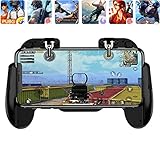
- Top Pick: Ytuomzi Mobile Phone PUBG Game Controller L1R1 Shoot and Aim Trigger Joystick Ergonomic Gamepad for PUBG Mobile/Knives Out,Phone Gaming Controller for 4.7''- 7.0'' Android & iOS (H6)
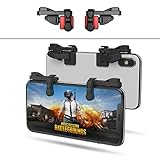
- Best Value: IFYOO 【1 Pair】 Z108 Mobile Gaming Controller Compatible with PUBG Mobile/Fortnitee Mobile/Call of Duty Mobile, Sensitive Shoot and Aim Trigger L1R1 Compatible with Android & iPhone
- Premium Choice: Progameplays Phone Triggers for Gaming – Mobile Triggers for PUBG Mobile iPhone & Android – L1 R1 Gaming Triggers for Phones, ZERO LAG, Fast Aim, No Screen Blocking – CODM Controller Shooter (2 Buttons)
PUBG: Battlegrounds has been a technical anomaly since launch, and it still runs on a heavily modified version of Unreal Engine 4 that defies the expectations set by newer UE4 and UE5 titles. The game is brutally CPU-bound, with its draw-call scheduling and physics simulation concentrated on a single core. GPU load scales more linearly with resolution and settings, but even a top-tier graphics card will hit a ceiling if your processor cannot feed it fast enough in hot drops like School or Pochinki. Memory subsystem matters too: PUBG’s map streaming is sensitive to RAM bandwidth and latency, meaning DDR4-3200 CL16 versus DDR5-6000 can produce a meaningful gap in 1% lows.
The engine’s other quirk is that several settings labeled “quality” on the GPU side are actually CPU-side post-processing pipelines. Post Processing at Very High triggers a chain of passes (bloom, lens flare, depth of field) that runs primarily on one thread. This is why dropping from Very High to High can yield 15 to 30 additional frames on systems with an RTX 4090 paired with an older CPU.
As an Amazon Associate we earn from qualifying purchases at no extra cost to you.




Quick Preset
| Setting | Competitive | Balanced | Low-End PC |
|---|---|---|---|
| Render Scale | 100 | 100 | 85-90 |
| Anti-Aliasing | TAA Low | TAA Medium | SMAA Low |
| Post Processing | Very Low | Medium | Very Low |
| Shadows | Low | Medium | Very Low |
| Textures | Medium | High | Very Low |
| Effects | Low | Medium | Very Low |
| Foliage | Low | Medium | Very Low |
| View Distance | Ultra | High | Medium |
| Motion Blur | Off | Off | Off |
| VSync | Off | Off | Off |
| Frame Rate Limit | Unlimited | Unlimited | 60 |
Settings That Matter Most
Post Processing
This is the single most misunderstood setting in PUBG. It does not refer to GPU-side tonemapping. The Ultra and Very High tiers activate CPU-executed bloom accumulation and depth-of-field passes that add real milliseconds to your frame time on the main thread. Competitive players see the largest frame time improvement here. Moving from Very High to Very Low typically gains 20 to 40 FPS on a 1080p/1440p system where the GPU is not the bottleneck. The visual cost is negligible: you lose atmospheric glow around the sun and the cinematic background blur that actually hinders target acquisition.
Render Scale
Render Scale multiplies your output resolution before upscaling to your display. At 100, you render at native resolution. PUBG’s internal TAA operates at this scale, so going below 100 degrades the anti-aliasing quality simultaneously. The game does not have a traditional resolution scale slider separate from anti-aliasing the way some titles do. If you are on a GTX 1650 or RX 580 and struggling at 1080p, dropping to 85 gives roughly 25-30% more GPU headroom while remaining legible. Do not go below 80; enemy silhouettes at long range become indistinguishable.
Shadows
Shadows in PUBG use a cascaded shadow map approach tied to View Distance. At High or above, the shadow map resolution for the entire visible area increases, costing both GPU and memory bandwidth. Competitive players should run Low. The practical downside is that you lose the drop shadows from your own character’s equipment when aiming downward, which some players use as a subtle visual cue. Medium introduces a noticeable cost with minimal competitive benefit.
View Distance
View Distance is not a pure GPU setting. PUBG uses server-side interest management, so the client’s View Distance setting determines the maximum draw distance the server will send data for. On Ultra, the server sends objects and terrain LODs out to 1,500 meters. This increases CPU parsing load for network packets and GPU draw calls. Most competitive players run Ultra because seeing distant vehicle headlights or parachute deployments has direct tactical value. If your CPU is older than an i5-7600K or Ryzen 5 2600, drop to High to relieve the server data parsing thread.
Textures
Textures are VRAM-bound with no FPS cost on GPUs that have sufficient memory. On a 4GB card, running Very High can cause stuttering as the game spills to system RAM during map streaming. Medium uses approximately 2.5GB of VRAM and looks identical to Very High at the viewing distances relevant in competitive play. The exception is close-range inspection of weapon skins and character cosmetics, which is irrelevant to frame performance.
Anti-Aliasing
PUBG offers TAA (with Low, Medium, and High quality tiers), SMAA, and Off. TAA Low introduces slight ghosting when the camera pans quickly but provides the most stable image at low cost. SMAA Low has no ghosting and slightly sharper edges but leaves more crawling on distant geometry, which matters at 1,000m+ sightlines. TAA High adds minimal GPU cost over Low but the visual improvement is marginal. Competitive players should use TAA Low or SMAA Low depending on tolerance for shimmer at extreme range.
Upscaling and Frame Generation
PUBG natively supports AMD FSR 2 and Intel XeSS through its settings menu. These operate as a post-frame reconstruction layer on top of Render Scale. The practical approach is to lower Render Scale to 70-80 and enable FSR 2 Quality or Balanced, which reconstructs detail using motion vectors. This gives you a sharper image than a native Render Scale of 70 alone because the upscaler reintroduces edge detail that TAA would have softened. DLSS is not officially supported. Frame generation is not available natively; third-party solutions like Lossless Scaling exist but introduce input latency that makes them unsuitable for competitive play.
On NVIDIA cards with less than 6GB VRAM, FSR 2 costs negligible extra memory. On Intel Arc A770, XeSS runs well and is preferable to FSR 2 due to Intel’s tighter integration. AMD users on RDNA 3 should prefer FSR 2 over Render Scale alone for the quality-to-performance ratio.
Outside the Game
PUBG runs through Steam. Set the launch option to “-malloc=tcmalloc64” if you are on a system with more than 16GB of RAM. This replaces the default Windows heap allocator with a faster alternative that reduces allocation overhead on the rendering thread and can improve 1% lows in crowded scenarios.
In NVIDIA Control Panel, set Power Management Mode to Prefer Maximum Performance. PUBG does not properly trigger the dynamic boost behavior in Optimus-equipped laptops, so this forces higher clocks from the first frame. In AMD Adrenalin, disable Radeon Chill and set the graphics profile to eSports.
Disable Windows Game Mode. PUBG’s engine interacts poorly with the Game Bar overlay and Game Mode scheduler, producing micro-stutters that correlate with Game Bar’s periodic polling. Instead, add PUBG as a desktop application exception in your antivirus real-time scan. The game’s anti-cheat (BattlEye) already competes for kernel-level access, and adding Defender’s file scanning on top causes measurable frame time spikes.
Settings to Leave Alone
Do not touch the “3rd Person Perspective Camera Angle” setting. Values above 90 do not widen your actual render frustum; they only shift the camera pivot point and create a distortion that makes recoil patterns harder to read. Do not disable TAA entirely. PUBG’s geometry has heavy aliasing on vegetation and vehicle edges, and turning anti-aliasing off produces strobing that is more visually distracting than any ghosting.
Leave Brightness at its default. Many players increase it to “see into dark buildings,” but PUBG’s brightness slider applies a uniform gamma shift that washes out midtones. Use the NVIDIA or AMD control panel brightness adjustment outside the game if you need to see better in dark interiors, which preserves the game’s internal contrast ratios.
FAQ
Does PUBG use multi-threaded rendering?
Partially. The render thread can offload some draw-call preparation, but the game loop logic, server packet processing, and the post-processing bloom chain all remain on the main thread. A CPU with strong single-core performance matters more than core count. An i5-12400 will outperform an i9-9900K in PUBG at identical GPU settings.
Why does my FPS drop when I enter Erangel but not Miramar?
Erangel has more dense foliage geometry and a larger number of unique material instances, which increases the draw-call count sent from the CPU to the GPU. Miramar is more open with fewer overlapping vegetation layers. If your FPS is consistently 15-20 lower on Erangel with identical settings, your bottleneck is the CPU’s draw-call submission rate, not your GPU.
Is Render Scale 100 better than using FSR Quality at 72?
For competitive play where spotting enemies at 400m+ matters, native Render Scale 100 with TAA Low produces more consistent edge definition on distant targets. FSR 2 at 72 internally renders at 770p and reconstructs to 1080p, which can introduce subtle softening on thin geometry like fence posts or distant tracers. Use FSR only when you cannot maintain your target framerate at native.
Do I need to change settings after a game update?
PUBG’s settings persistence is handled through a local configuration file (LocalSettings.ini in the Steam userdata folder). Major updates sometimes reset Post Processing or Foliage to defaults without warning. Check those two settings after each patch. The game has a history of pushing “quality of life” defaults that are visually impressive but competitively neutral or negative.









