🛒 Best Price Today on Amazon
Prime members get fast, free shipping on everything above, plus member-only deals. New members get a 30-day free trial — cancel anytime.
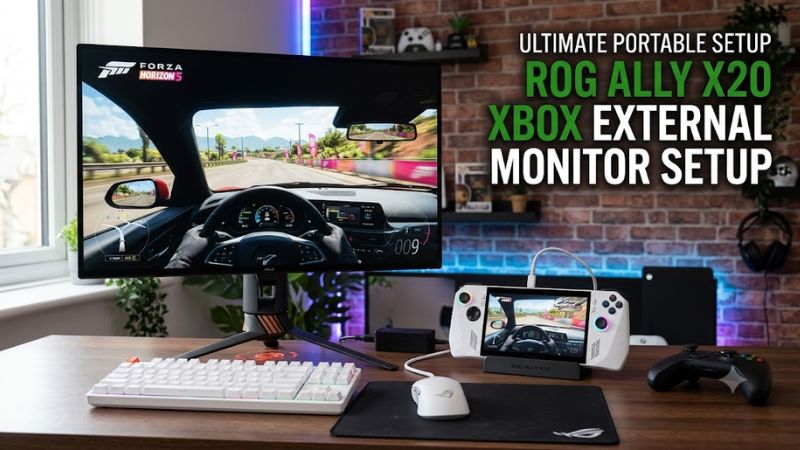
Connecting the ROG Xbox Ally X external monitor setup is straightforward because the handheld supports DisplayPort video output through USB-C. You can connect directly with a compatible adapter or use a dock for a desktop-style gaming station. The right connection, power supply, and Windows display settings help avoid black screens and performance problems.
What ROG Xbox Ally X External Monitor Setup Really Comes Down To
The ROG Xbox Ally X can output video through either USB-C port, so you do not need a proprietary display connection. You can use a direct USB-C video adapter for a simple monitor connection or a dock for charging, USB peripherals, and Ethernet. The important factors are display compatibility, cable bandwidth, power delivery, and Windows configuration.
1. Understand the USB-C Display Output
The 2025 ROG Xbox Ally X has two USB-C ports with video output. One supports USB4, DisplayPort 2.1, and Power Delivery 3.0, while the other supports USB 3.2 Gen 2, DisplayPort 2.1, and Power Delivery 3.0. The USB4 connection also supports Thunderbolt 4 compatibility.
This means you can connect an external display without purchasing a dedicated graphics dock. However, USB-C alone does not guarantee video output: the adapter, dock, cable, and monitor must support the required display signal. Check the adapter specifications before purchasing.
2. Choose Between a Direct Adapter and a Dock
A USB-C-to-HDMI adapter is sufficient when you only need one external monitor. Connect it to either USB-C port, then connect an HDMI cable to the monitor. This arrangement keeps the setup simple and leaves the other USB-C port available for charging or accessories.
A dock is more practical for a permanent desk setup. It can provide HDMI or DisplayPort output, additional USB connections, Ethernet, and power delivery through one connection to the handheld. Choose a dock based on its actual video specifications and charging capability rather than the number of advertised ports.
3. Match the Monitor’s Resolution and Refresh Rate
The Ally X has a built-in 1920 × 1080 display with a 120Hz refresh rate. An external monitor can use a different resolution and refresh rate, provided the entire connection supports the selected mode. A 1440p or 4K monitor can work, but its maximum refresh rate depends on the dock, adapter, cable, and monitor input.
Higher output resolution also increases the graphics workload in games. Connecting a 4K monitor does not mean demanding games will automatically run at 4K with high frame rates. You may need to lower the game’s rendering resolution or graphics settings to maintain a comfortable frame rate.
How to Set Up ROG Xbox Ally X With an External Monitor
A successful external display connection involves more than plugging in an HDMI cable. You need a compatible USB-C connection, a suitable video adapter or dock, and the correct display mode. The following steps cover direct connections, docked configurations, Windows settings, and common problems.
1. Connect Directly Using USB-C to HDMI
For a basic ROG Xbox Ally X external monitor setup, use a USB-C-to-HDMI adapter that explicitly supports DisplayPort Alt Mode. Connect the adapter to either USB-C port on the handheld, attach an HDMI cable, and connect the other end to your monitor. Select the correct HDMI input on the monitor.
Connection sequence: Ally X → USB-C adapter → HDMI cable → Monitor
Once connected, give Windows a few seconds to detect the display. If the picture appears, open Windows display settings to confirm the monitor’s resolution. A direct adapter is convenient for travel or a minimal desk setup, but it does not provide additional USB ports or wired networking.
2. Connect Through a USB-C Dock
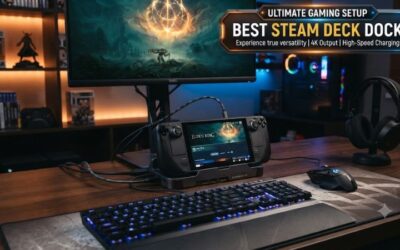
A dock is preferable when you want to use the Ally X as a desktop gaming PC. Connect the dock’s USB-C cable to the handheld, attach the monitor through HDMI or DisplayPort, and connect the dock’s power supply. You can then attach a keyboard, mouse, controller receiver, and Ethernet cable.
For a higher-bandwidth connection, use the Ally X USB4 port. ASUS lists USB4, DisplayPort 2.1, and Power Delivery 3.0 support on this port, alongside a second USB-C connection with DisplayPort 2.1. The dock’s own specifications still determine which display modes and peripheral features are available.
3. Configure Resolution and Refresh Rate
After connecting the monitor, open Windows Settings > System > Display. Select the external monitor in the display arrangement diagram, then locate Display resolution under Scale & layout. Choose the monitor’s recommended native resolution first to avoid unnecessarily soft images or incorrect scaling.
Next, navigate to Settings > System > Display > Advanced display. Select the external monitor and inspect the available refresh rates. Choose a supported option such as 60Hz, 120Hz, or 144Hz when available. The list depends on the monitor and complete connection chain, not just the handheld’s USB-C specification.
4. Select the Right Projection Mode
Press Windows + P to open the projection menu. Windows provides four modes: PC screen only, Duplicate, Extend, and Second screen only. For a permanent desk setup, Second screen only is usually the simplest choice because it directs the desktop to the external monitor and turns off the handheld display.
Choose Extend if you want to keep the handheld screen available for secondary applications, such as a browser, chat window, or monitoring software. Duplicate is useful for presentations or mirroring, but both displays must accommodate the shared display mode. You can switch modes whenever your setup changes.
How to Set Up ROG Xbox Ally X External Monitor: Step by Step
Once the physical connection works, configure the display for your preferred gaming environment. The following table summarizes four important setup decisions, including where to find each option, its effect, and potential limitations. Start with basic video detection before changing advanced display or gaming settings.
| Setting or Step | Where | Effect | Risk |
| USB-C video connection | Handheld USB-C port | Sends video to the monitor | Incompatible adapters may produce no signal |
| Projection mode | Windows + P | Selects external-only, duplicate, or extended display | Open windows may move between screens |
| Resolution | Settings > System > Display | Controls image sharpness and GPU workload | Unsupported modes may cause display problems |
| Refresh rate | Advanced display | Changes monitor refresh frequency | Higher rates may require compatible cables and ports |
1. Set Up a Docked Gaming Environment
Start by placing the handheld on a stable stand or in a compatible dock. Connect the monitor first, then attach the dock’s power supply and USB peripherals. Check that the dock supports video output and sufficient power delivery for your intended setup. A dock with multiple USB ports is useful for permanent installations.
For the power connection, use a suitable USB-C Power Delivery charger and follow the dock manufacturer’s input requirements. The Ally X includes a 65W charger, but the dock’s power budget and downstream delivery determine whether the handheld receives adequate power while connected to peripherals. A dock advertising 100W input does not necessarily deliver 100W to the handheld.
2. Configure Windows for External-Only Display
Press Windows + P and select Second screen only after confirming that Windows recognizes the monitor. This is a useful configuration for playing games on a larger screen without keeping the handheld panel active. It also provides a straightforward way to transition between portable and docked gaming.
Microsoft’s April 2026 Xbox docking update introduced improvements specifically for the ROG Xbox Ally family. Docked play can default to the television or external display, while the Game Bar Display Widget provides access to resolution, refresh rate, and projection settings. Availability depends on having the relevant software updates installed.
XBOX Wire+1
3. Optimize Game Resolution and Graphics Settings
Connecting a 1440p or 4K monitor does not automatically make games run at that resolution efficiently. The Ryzen AI Z2 Extreme and integrated Radeon graphics must render the game’s workload, so increasing resolution can reduce frame rates in demanding titles. Start with the monitor’s native resolution for Windows, then adjust individual game settings according to performance.
For demanding games, consider using a lower in-game rendering resolution while keeping the desktop at the monitor’s native resolution. Supported upscaling options can help balance image quality and performance. You can also reduce demanding settings such as shadows, volumetric effects, and ray tracing where available. Evaluate each game separately rather than applying one graphics profile to every title.
4. Configure Audio, Controllers, and Accessories
When connecting through HDMI, Windows may offer the monitor or television as an audio output device. Open Settings > System > Sound and select the desired output. If you prefer headphones or external speakers, choose the appropriate audio device instead. Some monitors have built-in speakers, while others only provide a headphone output or no audio connection.
For docked gaming, connect an external Xbox controller or compatible gamepad. Xbox recommends pairing a controller before docking for the smoothest experience. The April 2026 docking update also introduced automatic disabling of the built-in controls when a paired Xbox or Designed for Xbox controller takes control. This makes the handheld more practical for couch gaming.
XBOX Wire
ROG Xbox Ally X External Monitor Setup: FAQ
These answers address common questions about display compatibility, refresh rates, docking, and troubleshooting. The main distinction is between what the handheld supports and what the connected monitor, adapter, cable, and dock can actually deliver.
1. Can the ROG Xbox Ally X Connect Directly to an External Monitor?
Yes, the ROG Xbox Ally X can connect directly to an external monitor through either USB-C port using a compatible video adapter or cable. You do not need a dedicated graphics dock for basic display output.
For HDMI monitors, use a USB-C-to-HDMI adapter that supports DisplayPort video input. For DisplayPort monitors, choose an appropriate USB-C-to-DisplayPort cable. Verify that the monitor recognizes the selected input before troubleshooting Windows settings.
2. Can the ROG Xbox Ally X Output 4K at 120Hz?
The Ally X supports DisplayPort 2.1 output according to ASUS, but that specification alone does not establish a guaranteed 4K 120Hz operating mode for every adapter or dock.
Your actual display options depend on the monitor’s input specifications, dock or adapter bandwidth, cable capability, and connection configuration. Check the available refresh rates in Windows Advanced display after connecting everything. If 120Hz is unavailable, try another compatible input or a different cable.
3. Does the ROG Xbox Ally X Need a Dock to Use an External Monitor?
No, a dock is optional because the handheld supports direct USB-C video output. A compatible adapter and HDMI or DisplayPort cable are enough for a basic single-monitor connection.
A dock becomes useful when you want charging, Ethernet, multiple USB accessories, or a more permanent desktop setup. Choose one with appropriate Power Delivery and video-output specifications rather than assuming every USB-C hub supports external displays.
4. Why Is My External Monitor Not Working With the ROG Xbox Ally X?
The most common causes are an incorrect monitor input, incompatible USB-C adapter, loose cable, or a display mode that the connection cannot support.
Try these checks in order:
- Confirm that the monitor is powered on and using the correct HDMI or DisplayPort input.
- Disconnect and reconnect the USB-C adapter or dock.
- Try the other USB-C port on the Ally X.
- Press Windows + P and select Second screen only.
- Open Settings > System > Display and select Detect under Multiple displays.
- Try a lower resolution or refresh rate if the monitor remains blank.
If the display still does not appear, check for Windows, graphics driver, and dock firmware updates. Avoid changing BIOS settings or reinstalling drivers before ruling out cable and adapter compatibility.
Final Thoughts
A practical ROG Xbox Ally X external monitor setup only requires a compatible USB-C video connection and a monitor with suitable inputs. Add a powered dock for a permanent gaming station, then configure Windows resolution, refresh rate, audio, and projection mode. Start with a 1080p or 1440p gaming profile and adjust performance per game.