🛒 Best Price Today on Amazon
Prime members get fast, free shipping on everything above, plus member-only deals. New members get a 30-day free trial — cancel anytime.
An OBS streaming setup for beginners does not require an expensive gaming studio. A capable gaming PC, free broadcasting software, a clear microphone, and a reliable internet connection are enough to begin. This guide compares practical starter equipment, explains what each component contributes, and helps you choose upgrades without overspending.
How to Choose an OBS Streaming Setup for Beginners
The right starter setup depends on what you stream, your existing gaming hardware, and your budget. Prioritize reliable audio, stable gameplay capture, and an internet connection with sufficient upload capacity. A webcam, dedicated lighting, and streaming accessories can improve presentation, but none is essential for every beginner.
1. Start With Your Existing Gaming PC
A desktop gaming PC or gaming laptop can run OBS Studio while playing a game, provided its CPU, GPU, memory, and cooling can handle both workloads. Hardware encoding can reduce CPU encoding demands when supported, but demanding games and complicated scenes can still affect performance.
OBS Studio supports Windows 10 and Windows 11, with different requirements for macOS and Linux. Rather than buying a dedicated streaming computer immediately, run the Auto-Configuration Wizard and check whether your current system can maintain the desired game performance and stream quality.
2. Prioritize a Clear Microphone
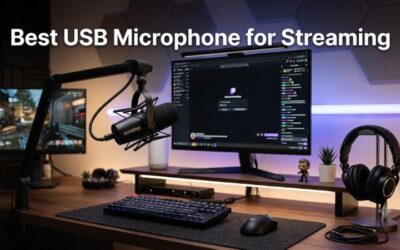
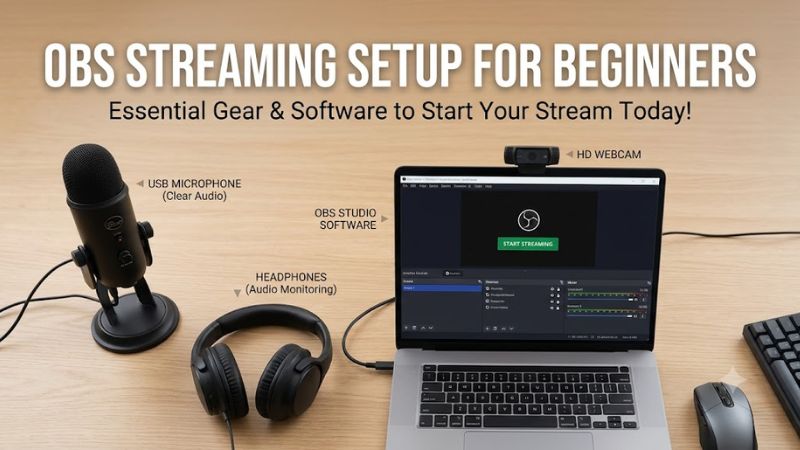
Audio deserves early attention because viewers need to understand commentary, callouts, and conversations. A USB microphone is a straightforward starting point: it connects directly to the computer without a separate audio interface. A gaming headset microphone can also work while you learn the basics.
Choose between a dynamic and condenser microphone based on your room and speaking distance, not just the advertised sound quality. A dynamic model can be a practical choice in a noisy room, but microphone placement, keyboard noise, room reflections, and gain settings also affect the result.
3. Decide Whether You Need a Webcam
A webcam is useful for face-cam gaming, reactions, tutorials, and community streams, but it is optional for gameplay-only broadcasts. If you already own a laptop webcam or a compatible USB camera, start there before spending money on a higher-resolution model.
Lighting and camera placement can matter as much as the camera specification. Position a light in front of you, avoid a bright window directly behind your head, and frame your face at a comfortable angle. A well-lit 1080p image is a sensible starting target for many new streamers.
4. Match Your Network and Streaming Goals
Streaming depends on upload speed and connection stability, not just download speed. Check your actual upload performance at the time you usually broadcast, then leave headroom for network variation and other devices. Ethernet is preferable when practical because it avoids wireless interference and signal fluctuations.
Choose resolution and frame rate together with your PC’s encoding capacity and platform limits. A 720p stream at 30 or 60 FPS can be a reasonable starting point on constrained hardware or networks; 1080p at 60 FPS requires more encoding capacity and bitrate headroom. Confirm the platform’s current limits before configuring output.
Top OBS Streaming Setup Picks for Beginners
A practical starter kit should solve the most noticeable problems without adding unnecessary complexity. The following four options cover different budgets and priorities: a complete low-cost starting point, a more capable USB microphone, a webcam upgrade, and dedicated lighting. These are category-based recommendations rather than a claim that one fixed bundle suits every PC.
| Product | Best For | Key Spec | Compatibility | Watch Out For |
| FIFINE K669B | Best budget microphone | USB connection; cardioid pickup pattern | Compatible computer with USB | Desk and keyboard noise can enter recordings |
| HyperX SoloCast | Best compact microphone | USB connection; tap-to-mute control | Compatible PC or Mac | Requires sensible placement near your voice |
| Logitech C920s HD Pro Webcam | Best webcam upgrade | 1080p video; privacy shutter | Compatible computer and USB connection | Lighting affects image quality |
| Elgato Key Light Neo | Best dedicated lighting | Adjustable brightness and color temperature | Check connection and power requirements for your setup | Adds desk space and another device to manage |
These products address separate needs, so you do not have to buy all four at once. Keep your existing headset if its microphone sounds clear, use a built-in camera if it is adequate, and add dedicated lighting only when your room makes the video difficult to see.
1. Best Budget Microphone: FIFINE K669B
The FIFINE K669B is a simple starting option for gamers who want a separate USB microphone without building an XLR audio system. Its cardioid pickup pattern is intended to emphasize sound from the front, making microphone direction important. Place it close enough for clear speech without obstructing your keyboard or mouse.
Its main limitation is that a desk-mounted microphone can pick up mechanical keyboard sounds, mouse clicks, and vibrations. Use a stable surface, adjust the input level, and speak toward the microphone. If your room is noisy, compare the results with a headset microphone before deciding that new hardware is necessary.
2. Best Compact Microphone: HyperX SoloCast
The HyperX SoloCast suits beginners who want a compact USB microphone with straightforward controls. Its tap-to-mute functionality makes it useful during gameplay, particularly when you need to silence yourself quickly. Check the microphone’s mute indicator and verify the audio meter in OBS before starting a broadcast.
The SoloCast is still a desk microphone, so it cannot automatically separate your voice from every sound in the room. It may also need a stand or compatible mounting arrangement to position it correctly. Consider it an alternative to the FIFINE rather than an essential second microphone; choose based on placement, controls, and your budget.
3. Best Webcam Upgrade: Logitech C920s HD Pro Webcam
The Logitech C920s is a sensible option for streamers who want Full HD face-camera video rather than a basic built-in laptop camera. Its 1080p video capability and physical privacy shutter address two practical needs: a clear picture and control over when the camera can see you.
The limitation is that resolution alone does not determine image quality. Poor room lighting, a backlit face, and an awkward camera angle can make a Full HD stream look less appealing. Position the camera near eye level and improve the light in front of you before considering a more expensive camera.
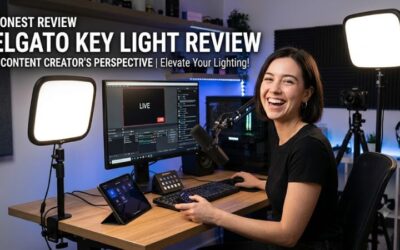
4. Best Dedicated Lighting: Elgato Key Light Neo
The Elgato Key Light Neo is intended for creators who want dedicated lighting for a webcam or camera. Better illumination can help your face remain visible without requiring a high-end camera. Place the light slightly off-center and angle it toward your face to avoid harsh, direct glare.
Dedicated lighting adds another device to your desk and requires checking power and connection arrangements for your particular setup. If you already have a suitable desk lamp, try that first with a diffused light source and safe placement. Upgrade only if your existing lighting leaves your face too dark or creates distracting shadows.
Build and Configure Your First OBS Stream
Once you have the basic equipment, focus on a working scene, understandable audio, and output settings your computer and network can sustain. OBS Studio is free, and its Auto-Configuration Wizard provides a useful starting point. The setup below keeps optional purchases separate from the steps needed to broadcast successfully.
1. Install OBS Studio and Configure Your Stream
Download OBS Studio from its official website, install it, and launch the application. Open Tools, select Auto-Configuration Wizard, and choose the option for streaming. Follow the prompts so OBS can suggest initial settings based on your hardware and network conditions.
Connect your streaming account through the Stream settings or the platform’s supported connection process. Treat the wizard’s recommendations as a baseline rather than a final performance assessment. If the game becomes choppy or the stream drops frames, reduce output demands before buying new equipment.
2. Create a Game Scene and Add Sources
In OBS, use the Scenes panel to create a scene named Game. In Sources, select the plus button and choose Game Capture on Windows for supported games. If that source does not work with your game, try Window Capture or Display Capture as appropriate for your operating system.
Add a Video Capture Device source if you want a webcam, then position and resize it in the preview. Put the webcam source above the gameplay source when it should appear as an overlay. Create a separate Starting Soon or BRB scene only if you need it; a simple game scene is enough for your first broadcast.
3. Set Video, Encoding, and Audio
Open Settings, then Video, to configure the base canvas resolution, output resolution, and frame rate. The canvas is your layout workspace, while output resolution determines the dimensions of the stream. Start with a manageable resolution and frame rate, then adjust based on the stream’s performance and platform requirements.
In Settings, open Output and review the streaming encoder and bitrate options. Use a supported hardware encoder if it suits your system, and select a bitrate within the streaming platform’s limits and your stable upload capacity. In Settings, Audio, choose the correct microphone and desktop audio devices, then speak while watching the Audio Mixer meters.
4. Record a Short Sample Before Going Live
Use Start Recording to capture a short sample of gameplay and commentary. Listen for microphone clipping, excessive keyboard noise, missing game audio, and audio that is too quiet. Review the picture for black screens, misplaced overlays, and unreadable text. A local recording can reveal issues before you broadcast to viewers.
If you encounter problems, open View and select Stats in OBS to inspect available performance information. Rendering lag, encoding lag, and network-related dropped frames point toward different areas to investigate. Change one setting at a time, repeat the recording or stream check, and keep the original configuration available so you can reverse an unsuccessful adjustment.
FAQ
1. What equipment do beginners need to stream with OBS?
Beginners need a computer capable of running their content, OBS Studio, a microphone or another suitable audio input, and a stable internet connection. A webcam, dedicated lighting, a second monitor, and a capture card are optional unless your particular setup requires them.
2. Is a capture card necessary for an OBS streaming setup for beginners?
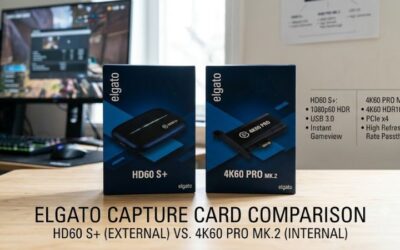
No, a capture card is not normally necessary when streaming PC gameplay from the same computer running OBS. It becomes relevant when capturing a console or routing video from another computer. Check your source device’s available outputs and your capture device’s input compatibility before purchasing one.
3. Should beginners stream at 720p or 1080p?
Beginners should choose the resolution that their computer, encoder, upload connection, and streaming platform can sustain reliably. Start at 720p if performance or bandwidth is limited, then consider 1080p after checking output quality and dropped frames. A higher resolution is not automatically better if the stream becomes unstable.
4. What should beginners upgrade first in their streaming setup?
Upgrade the component responsible for the clearest limitation in your current setup. A microphone may be the priority when speech is difficult to understand, while lighting may help if your face is poorly illuminated. If gameplay stutters, investigate encoding load and system performance before purchasing more peripherals.
Final Thoughts
An OBS streaming setup for beginners works best when it starts with the equipment you already own and adds upgrades only when needed. Prioritize clear audio, sensible output settings, and stable gameplay before spending on a webcam or accessories. Configure one simple scene, record a sample, and refine your setup from the results.