🛒 Best Price Today on Amazon
Prime members get fast, free shipping on everything above, plus member-only deals. New members get a 30-day free trial — cancel anytime.
Choosing the best pc case with screen means balancing an integrated display, component compatibility, cooling potential, and overall cost. For most enthusiasts, the HYTE Y70 Touch Infinite is the standout premium option, while a standard panoramic case with an optional LCD can suit builders who want more flexibility over their budget.
How to Choose a PC Case With a Screen
A screen-equipped case should do more than look impressive on a desk. Before buying, decide whether you need a touchscreen for system monitoring and widgets, a decorative display for custom graphics, or simply a way to showcase your components. Then check the chassis dimensions, cooling layout, and display connections against your planned build.
1. Integrated Touchscreen or Optional LCD?
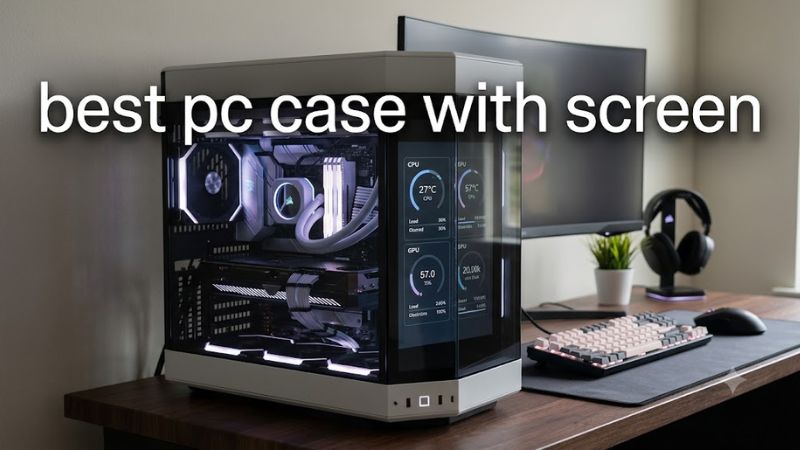
An integrated touchscreen offers a cleaner installation because the display is designed to fit the chassis. The HYTE Y70 Touch Infinite includes a 14.9-inch IPS touchscreen with a 682 × 2560 resolution, 60Hz refresh rate, and 10-point touch support. Its tall format works well for vertical dashboards and decorative content.
An optional LCD provides a different advantage: flexibility. You can choose a compatible case first and add a screen later, but you must account for the display’s mounting method, power, USB connection, and video input. Check whether the screen requires a dedicated internal USB header and a separate graphics output before purchasing.
2. Motherboard and Graphics Card Clearance
Check the motherboard form factor, graphics card length and thickness, CPU cooler height, and power supply dimensions before selecting a chassis. A case that supports ATX boards may still have limitations around radiator placement, cable routing, or unusually thick GPUs. Use the exact specifications for your chosen case revision.
The HYTE Y70 Touch Infinite supports Mini-ITX, Micro-ATX, ATX, and E-ATX motherboards, with E-ATX fit depending on the board’s dimensions. Its four-slot vertical GPU arrangement uses an included PCIe 4.0 x16 riser. Confirm your graphics card fits the stated clearance and check the riser’s PCIe generation and motherboard settings if compatibility issues arise.
3. Cooling and Airflow
Large glass panels and display hardware can make a case look distinctive, but airflow remains important for gaming performance. Look for sufficient fan positions, radiator support, unobstructed intake paths, and room for your chosen cooler. A spacious interior is useful only when the installed components and fans can move air effectively.
For the Y70 Touch Infinite, HYTE specifies support for up to 10 case fans and multiple radiator mounting positions, including top and side options. That gives builders flexibility with air or liquid cooling, although the radiator, fan thickness, GPU size, and cable routing must be considered together. Do not assume every mounting position can be filled simultaneously.
4. Total Cost and Display Software
A screen adds cost beyond the chassis itself. Compare the case price with the alternative of a conventional case plus a compatible LCD, including any extra cables, mounting hardware, and cooling fans. A lower-priced case may offer better value if the display is optional rather than essential to your build.
Software matters as well. HYTE’s integrated display uses Nexus software for customization and widgets. Consider whether you want system information visible at a glance or mainly want animated backgrounds and visual effects. If monitoring is the priority, verify that the software supports the information and layout you actually need before paying extra for a touchscreen.
Top PC Cases With Screens Worth Considering
The strongest choices are not all complete cases with a screen already installed. Some include a touchscreen, while others let you add a compatible display to a separate chassis. The comparison below distinguishes these options so you can weigh convenience, customization, and cost without confusing optional accessories with included hardware.
| Product | Best For | Key Spec | Compatibility | Watch Out For |
| HYTE Y70 Touch Infinite | Best Overall | 14.9-inch, 2.5K IPS touchscreen | ITX, Micro-ATX, ATX, E-ATX* | Premium price; large footprint |
| HYTE Y70 + display upgrade | Best Value for an integrated screen | Optional 14.9-inch touchscreen | Same chassis compatibility as Y70 | Upgrade cost brings the total to $399.99 at listed US pricing |
| HYTE Y60 + compatible DIY LCD | Best for DIY customization | Optional 12.6-inch, 1920 × 515 LCD | HYTE Y60 specifically | Installation and mounting require extra work |
*E-ATX fit depends on motherboard dimensions. Prices are manufacturer-listed US pricing where specified, checked October 23, 2026; retailer prices and availability may vary.
1. HYTE Y70 Touch Infinite — Best Overall
The HYTE Y70 Touch Infinite is the most straightforward choice if you want a large, integrated display without building a custom mounting solution. Its 14.9-inch IPS touchscreen runs at 682 × 2560 and 60Hz, supports 10-point touch, and works with HYTE Nexus software. The vertical layout gives system dashboards and custom graphics a distinctive place in a showcase build.
The chassis also supports ITX, Micro-ATX, ATX, and appropriately sized E-ATX motherboards. HYTE specifies up to 10 fan positions, multiple radiator mounting options, and an included PCIe 4.0 x16 riser. Its published US price is $399.99. The main drawback is the premium cost, and the case does not include every fan needed for a complete cooling setup. Choose another chassis if compact dimensions or a lower total build cost matter more than the integrated screen.
2. HYTE Y70 With Display Upgrade — Best Value for a Screen Build
The standard HYTE Y70 offers the same general dual-chamber concept and panoramic appearance without the touchscreen installed. HYTE lists the regular Y70 at $219.99 and offers a display-upgrade bundle that brings the case and compatible screen together for $399.99. This is worth considering if you prefer to select the touchscreen configuration at purchase rather than buy the screen-equipped model outright.
The standard Y70 supports the same broad motherboard categories and includes a PCIe 4.0 x16 riser, with cooling and GPU clearance depending on the exact installation. The important distinction is that the screen is not included with the standalone $219.99 case. If your goal is a finished PC with an integrated display, compare the bundle’s total price with the Touch Infinite before choosing. The standard case alone is a better fit for builders who may decide against a screen later.
3. HYTE Y60 With a Compatible DIY LCD — Best for Customization
The HYTE Y60 can be adapted with a dedicated LCD kit for builders who enjoy modifying their setup. The documented DIY panel uses a 12.6-inch display with a 1920 × 515 resolution. This wide format is suitable for system information, animated backgrounds, and other secondary-display content. Unlike the Y70 Touch Infinite, the Y60’s screen is an add-on rather than a factory-integrated touchscreen.
This route requires more planning. The specific DIY kit is designed for the Y60, and mounting may require a separately fabricated or 3D-printed bracket. Confirm the panel, controller, power connection, and video input before buying parts; generic laptop LCD panels are not automatically interchangeable. The trade-off is extra installation effort and less integrated touch functionality. Choose the Y70 instead if you want a more straightforward assembly process and a factory-fitted display.
FAQ
Is a PC case with a screen worth buying?
Yes, if you value a built-in dashboard or a distinctive showcase build enough to justify the additional cost. A display can show system information, widgets, or custom visuals, but it does not directly improve gaming FPS. If your priority is gaming performance, spend the extra money on the GPU, cooling, or storage instead.
Do PC cases with screens work with any motherboard?
No, compatibility depends on the case’s supported motherboard sizes and the display’s connection requirements. Check the chassis specifications for motherboard fit, then verify the required internal USB header, power connector, and graphics output for the screen. An included PCIe riser also has its own compatibility considerations.
Does the screen affect gaming performance?
A secondary display usually has a modest effect on system resources, but the exact impact depends on what it renders and how it connects. A static dashboard is different from continuously playing high-resolution video or running animated effects. The display’s resolution and refresh rate should not be confused with your main gaming monitor’s specifications.
Can I add a screen to a regular PC case later?
Yes, provided you select a display that fits the available space and has compatible mounting, power, and video connections. A dedicated kit for a specific case is generally easier to plan around than a bare LCD panel. Before buying, verify the mounting dimensions and installation requirements, including whether custom fabrication is necessary.
Final Thoughts
The best pc case with screen for most showcase builds is the HYTE Y70 Touch Infinite because its large touchscreen is integrated into the chassis and supported by dedicated software. The standard Y70 bundle is another option, while the Y60 suits DIY enthusiasts. Compare total cost, clearance, and cooling needs before choosing.