🛒 Best Price Today on Amazon
Prime members get fast, free shipping on everything above, plus member-only deals. New members get a 30-day free trial — cancel anytime.
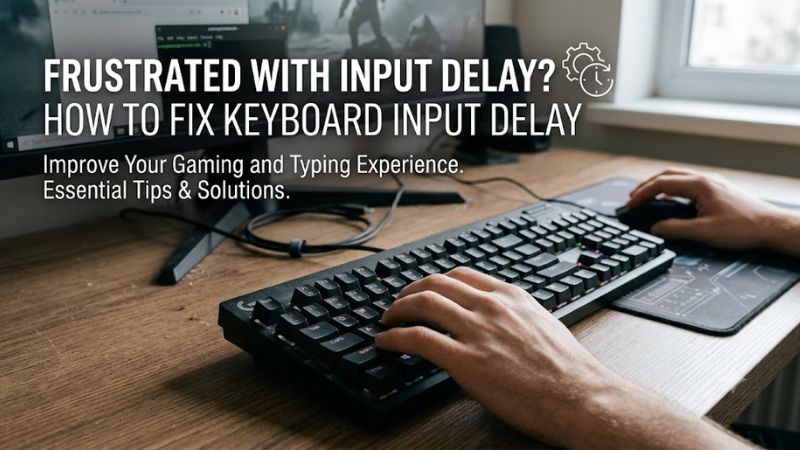
Keyboard lag can make typing frustrating and competitive games harder to play. To learn how to fix keyboard input delay, start by checking the connection, disabling unwanted keyboard accessibility features, and testing whether the problem affects one application or the entire PC. These steps help narrow down the cause before you change drivers or replace hardware.
Why Keyboard Input Delay Happens
Keyboard input delay usually comes from a connection problem, an unintended Windows setting, a driver or software conflict, or a computer under heavy load. First, open a plain text editor and type continuously, then compare the result with an affected game or application. This quick check helps distinguish delayed keystrokes from game performance problems.
1. Connection or Wireless Interference
A loose USB connection, an unreliable wireless receiver, a low battery, or Bluetooth interference can make keystrokes arrive late or appear to be missed. If you use a wireless gaming keyboard, check whether the delay occurs when the receiver is obstructed or the keyboard is far from the PC.
For a wired keyboard, reconnect the cable and try another USB port directly on the computer rather than through a hub. For a wireless model, charge it or replace its batteries, move the receiver closer, and reconnect the device. Test after each change so you can identify which adjustment matters.
2. Windows Accessibility and Repeat Settings
Windows includes Filter Keys, which can change how brief or repeated keystrokes are handled. If keys seem unresponsive until you hold them longer, this setting is worth checking. Sticky Keys and Toggle Keys can also alter keyboard behavior, although they do not necessarily cause input latency.
Open Settings, select Accessibility, then Keyboard in Windows 11. Review Filter Keys, Sticky Keys, and Toggle Keys, and turn off any feature you do not need. Next, search for Keyboard in Control Panel to review the character repeat delay and repeat rate. These settings affect repeated characters, not necessarily the time required for the first keypress to register.
3. System Load, Drivers, or Background Software
When a game or application saturates system resources, keyboard input may appear delayed because the application cannot process or display it promptly. This is especially noticeable when typing works normally on the desktop but becomes sluggish during demanding gameplay, recording, or multitasking.
A driver issue or conflicting background utility can produce similar symptoms. Gaming keyboard software, macro tools, overlays, and remapping utilities are useful when configured correctly, but they are worth temporarily closing during diagnosis. If several keyboards show the same delay on one computer, investigate Windows and background processes before assuming that every device is faulty.
How to Fix Keyboard Input Delay: Step by Step
Work through the checks in order, starting with simple connection changes and Windows settings before touching drivers. After each step, type in the same text editor or repeat the same in-game action. If the delay disappears, stop there; changing several settings at once makes it harder to identify the actual cause.
| Step | Where | How to Verify | Cost |
| 1. Check the connection | USB port, cable, receiver, or Bluetooth settings | Type continuously and check for missed or delayed keys | Free |
| 2. Review keyboard settings | Settings > Accessibility > Keyboard | Disable unwanted Filter Keys and retest | Free |
| 3. Check system load | Task Manager (Ctrl + Shift + Esc) | Close unnecessary apps and compare responsiveness | Free |
| 4. Update or reinstall the driver | Windows Update or Device Manager | Restart and repeat the same typing test | Free |
| 5. Test another keyboard or PC | Another USB port or compatible computer | Determine whether the issue follows the keyboard or PC | Free if equipment is available |
1. Reconnect the Keyboard and Check Its Power
Start with the physical connection because it is quick to inspect and easy to reverse. Disconnect a wired keyboard, wait briefly, then reconnect it to another USB port. Bypass any USB hub for the initial test. Inspect the cable and connector for visible damage rather than bending or forcing them.
For a wireless keyboard, recharge it or install fresh batteries, reconnect the USB receiver if applicable, and check Bluetooth connectivity. If the keyboard has a manufacturer-provided reset procedure, follow its manual. Avoid resetting saved profiles or macros unless you have recorded the configuration you want to keep.
2. Disable Unwanted Keyboard Accessibility Features
To check whether Windows is filtering keystrokes, open Settings > Accessibility > Keyboard and review Filter Keys. Turn it off if you do not intentionally use it. Check Sticky Keys and Toggle Keys as well, but change only settings that are unnecessary for your normal workflow.
Retest by typing a short paragraph and holding a key to check repeated characters. If the initial keypress now registers promptly, the setting may have contributed to the issue. If nothing changes, restore any accessibility feature you rely on and continue to the next diagnostic step. These options affect input behavior, not the keyboard’s physical polling rate.
3. Check Whether Your PC Is Under Heavy Load
Open Task Manager with Ctrl + Shift + Esc and inspect the Processes tab while the delay occurs. Look for unusually high CPU, memory, or disk usage from a game, browser, recording tool, or other application. Close only programs you recognize and do not need, then compare typing responsiveness under the same conditions.
If the keyboard responds normally on the desktop but lags in a game, temporarily disable overlays or recording features and lower demanding game settings. This helps determine whether the game is struggling to process or display input. Do not assume that the keyboard itself is slow simply because an on-screen character or action appears late.
4. Update or Reinstall the Keyboard Driver
First, open Settings > Windows Update and select Check for updates. Install relevant available updates, then restart if prompted. For a device-specific driver, use the keyboard manufacturer’s official support page and confirm the exact model and Windows compatibility before installing its software.
If the issue persists, search for Device Manager, expand Keyboards, right-click the relevant device, and select Update driver. If a restart or reinstall is needed, record any custom keyboard settings first. Uninstalling the device entry and restarting Windows can prompt the operating system to rediscover it, but it may not fix a problem caused by a background utility or failing hardware.
5. Isolate a Faulty Keyboard or Computer
Connect the keyboard to another compatible computer, if available, and repeat the same typing test. You can also connect a different keyboard to your own PC. If the original keyboard shows the same symptoms on another computer while a replacement works normally on yours, the original device or its software becomes a stronger suspect.
If multiple keyboards lag on the same PC, focus on Windows, background software, and system stability. When the delay began immediately after an update or software installation, review that recent change before attempting a rollback. Avoid registry tweaks, unofficial driver tools, or firmware updates without a clear diagnosis and a manufacturer-supported recovery procedure.
What to Check When Keyboard Lag Persists
If the basic fixes do not help, narrow the problem down by identifying when the delay occurs. A keyboard that responds slowly everywhere requires a different investigation from one that behaves normally in Windows but feels delayed in a single game. Repeatedly changing random settings can create new problems without identifying the original cause.
Distinguish Typing Delay From Gaming Input Lag
In a text editor, a delayed character points toward keyboard handling or general system responsiveness. In a game, the same symptom may be caused by frame-time spikes, a stalled application, or an input-processing issue. Compare desktop typing with gameplay before changing game settings or buying a different keyboard.
If the problem occurs only in one game, check its input settings, window mode, performance, and any overlays. Change one setting at a time and compare the same scene or action. Lowering graphics settings may help when performance is the bottleneck, but it will not repair a damaged cable or a keyboard with faulty switches.
Check for Background Software Conflicts
Keyboard utilities can control macros, remapping, lighting, and profiles. Temporarily exit these applications using their normal exit controls and test the keyboard again. If the lag disappears, reopen the utilities one at a time to identify a possible conflict. Save custom profiles before making changes so you can restore them if necessary.
If the issue affects all applications and remains after basic checks, Windows Safe Mode or a clean boot may help isolate third-party software. These procedures change the startup environment and can temporarily disable services or features, so follow Microsoft’s instructions and record your existing configuration before making changes. Restore normal startup settings once the diagnostic test is complete.
Know When to Consider Hardware Failure
Physical damage, liquid exposure, keys that intermittently fail, or repeated input on another computer can indicate a hardware problem. Check the manufacturer’s troubleshooting instructions and warranty conditions before opening the keyboard. For a laptop’s built-in keyboard, use a compatible external keyboard as a temporary workaround while you determine whether repair is necessary.
A replacement is reasonable when the problem follows the keyboard across compatible computers and basic connection or software checks have not helped. If several keyboards exhibit the same behavior only on one PC, replacing them is unlikely to be the best first move. Persistent system-wide lag may require further Windows diagnostics or assistance from a qualified repair professional.
What Doesn’t Help
Avoid RAM-cleaning utilities, registry booster scripts, and disabling Windows telemetry as supposed keyboard-lag fixes. These actions do not establish why input is delayed and can introduce unnecessary system changes. Likewise, disabling security features or changing USB power settings indiscriminately is not a reliable first-line solution.
Windows manages USB power behavior for compatible devices, and Microsoft documents selective suspend as a power-management feature. Do not disable it globally just because a keyboard feels slow. Start with the keyboard connection, accessibility settings, workload, and driver status; consider more advanced changes only when evidence points to a specific underlying issue.
FAQ
Why is my keyboard typing late in Windows 11?
Keyboard input can be delayed by Filter Keys, an unreliable USB or wireless connection, driver conflicts, background software, or heavy system load. Test the keyboard in a text editor, then compare the result with the application where the problem occurs to narrow down the cause.
How do I fix keyboard input delay while gaming?
Start by reconnecting the keyboard and checking Windows accessibility settings, then close unnecessary background applications and overlays. If the delay happens only in one game, compare its performance and input settings before changing the keyboard driver or replacing hardware.
Can a keyboard driver update fix input lag?
A driver update can help when the issue stems from a driver problem or device compatibility issue, but it will not fix every cause. Check Windows Update and the keyboard manufacturer’s official support page, and avoid unofficial driver-download utilities.
When should I replace my keyboard?
Consider replacement when the problem follows the same keyboard to another compatible computer and connection, power, and software checks have not resolved it. If several keyboards lag on one PC, investigate the computer’s software and performance first.
Final Thoughts
Learning how to fix keyboard input delay starts with isolating the problem, not buying new hardware or changing advanced system settings. Check connections, review Windows keyboard options, compare desktop typing with gameplay, and investigate drivers only when needed. If the delay follows the keyboard across computers, consult its manufacturer about repair or replacement.