🛒 Best Price Today on Amazon
Prime members get fast, free shipping on everything above, plus member-only deals. New members get a 30-day free trial — cancel anytime.
Modern PC platforms leverage Windows AI gaming features to upscale real-time graphics and process background voice channels without overtaxing core system resources. Built into recent Windows 11 updates, these artificial intelligence routines offload demanding tasks from primary graphics silicon to dedicated neural processing hardware.
What Windows AI Gaming Features Really Come Down To
Operating system level intelligence transforms how gaming machines allocate processing bandwidth during demanding rendering workloads. By handling upscaling and audio cleanup at the driver level, Windows AI gaming features keep dedicated graphic cards focused on main scene geometry, shading calculations, and frame delivery targets.
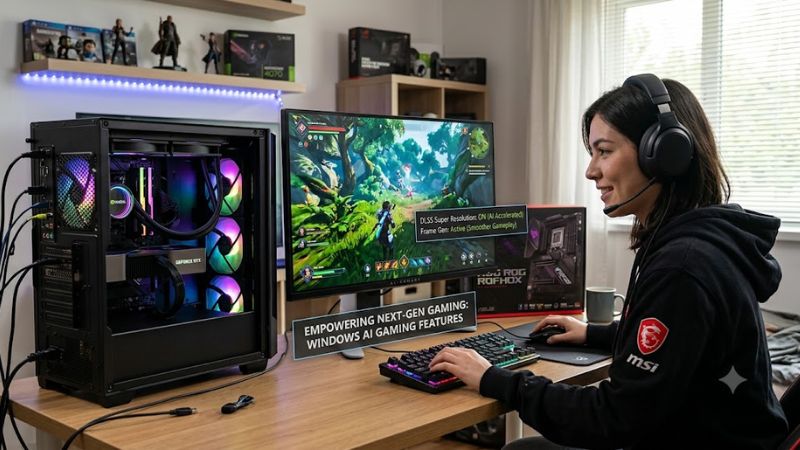
Automatic Super Resolution for Frame Rate Upscaling
As one of the core Windows AI gaming features, Automatic Super Resolution uses trained neural network models to enhance render resolutions. When games render internally at 800p or 1050p, the operating system applies machine learning upscaling, delivering sharper detail while preserving fast underlying display frame rates.
Benchmarks demonstrate clear performance gains when running titles with this upscaling technology enabled on compatible mobile hardware. In Microsoft developer benchmarks for Assassin’s Creed Valhalla on Intel Arc B390 graphics at 1600p, native High settings averaged 45 FPS, whereas Auto SR upscaling 1050p to 1600p at Ultra High reached 52 FPS.
DirectSR Integration Across Graphics APIs
DirectSR acts as a standardized Application Programming Interface that bridges game engines directly with various upscaling solutions. Developers integrate one unified runtime code rather than writing separate vendor pipelines for NVIDIA DLSS, AMD FSR, or Intel XeSS, streamlining graphics optimization across diverse PC builds.
This unified abstraction layer allows graphics card manufacturers to update underlying upscaling algorithms through driver updates without breaking game compatibility. Gamers benefit from immediate access to updated upscaling models in legacy titles, ensuring consistent performance scaling across multiple hardware generations.
Voice Clarity for In-Game Communications
Voice Clarity removes background noise, acoustic reverberation, and room echoes from microphone input streams in real time. The underlying low latency machine learning model runs continuously in the background, isolating human speech patterns from mechanical keyboard clicks, system cooling fans, and ambient household noise.
By running audio noise suppression on low power neural processing units or specialized audio digital signal processors, system responsiveness remains high. Voice communication stays clear during voice chat sessions in Discord or in-game channels without drawing compute cycles away from frame generation thread workers.
What Doesn’t Help
Third party memory cleaning utilities, aggressive registry modification scripts, and manual background service disabling do not improve game performance. Modern operating systems manage system memory allocation and background process priorities efficiently without requiring dangerous user interventions or external tweaks.
Disabling telemetry services or shutting down core system security features provides zero measurable frame rate gains in modern games. Focus optimization efforts on legitimate graphics driver configurations, power plan management, and supported system upscaling tools for verifiable performance gains.
How to Configure Windows AI Gaming Features: Step by Step
Configuring Windows AI gaming features requires adjusting system graphics settings, verifying driver dependencies, and selecting appropriate display resolutions. Follow these structured steps to configure operating system upscaling and background audio processing across supported desktop and laptop platforms.
| Setting | Where | Effect | Risk | | Automatic Super Resolution | Settings > System > Display > Graphics | Enables AI frame upscaling across supported games | Slight visual artifacts on low input resolutions | | Target Game Resolution | In-Game Video Settings Menu | Drops base render target to 800p or 1050p | Lower native image clarity before upscaling | | DirectSR API Selection | Game Graphics Settings Tab | Routes game frames through unified Windows SR | Game crash if graphics drivers are outdated | | Voice Clarity Filter | Settings > System > Sound > Properties | Cancels background mic noise via neural model | Minor microphone gain changes in rare setups |
Enable System Level Automatic Super Resolution
Open the Windows Settings application by pressing the Windows Key plus I, then navigate to System and select the Display tab. Click Graphics, choose Default Graphics Settings, and switch the Automatic Super Resolution toggle to On to enable baseline upscaling for all detected titles on your active primary display.
To configure specific game executables, return to the Graphics menu, select a title from the list, and open Custom Settings for Applications. Toggle Automatic Super Resolution to On or Off depending on whether you want native rendering or upscaled output, then restart the application to apply the graphic configuration.
Adjust In-Game Render Resolutions Correctly
Launch your target game and open the main display options menu to select an ideal base rendering resolution. Setting the internal rendering resolution to 1280×800 or 1680×1050 allows the operating system upscaler to reconstruct a high quality output image at native 1080p, 1440p, or 4K display targets.
Using Windows AI gaming features effectively depends on keeping the internal render resolution within supported limits. Setting the in-game display mode to Exclusive Fullscreen or Borderless Windowed ensures the desktop compositor correctly intercepts rendered frames before passing them to the display screen.
Manage DirectSR Settings per Application
In supported titles, navigate to the video options menu and look for the Super Resolution setting tab. Select DirectSR from the drop-down list to route rendering parameters through the standardized Windows API, which automatically applies the best supported upscaler for your installed graphics card hardware.
Verify driver compatibility in your GPU control panel to ensure DirectSR maps correctly to DLSS, FSR, or XeSS libraries. Updating display drivers regularly ensures that the unified API can invoke the newest neural reconstruction passes without requiring individual game patch downloads from developers.
Turn On Audio Voice Suppression Controls
Navigate to Settings, select System, and click on Sound to view connected audio input and output devices. Click on your active microphone under the Input section to access Device Properties, then verify that the Voice Clarity toggle switch is set to On for system wide audio background noise suppression.
Test your microphone input level using the built-in Windows sound test utility or through Discord voice test controls. If background fan noise or key clicks remain audible, toggle the feature off and on again to reset the audio stream, ensuring clear vocal transmission during competitive multiplayer matches.
System Requirements and Hardware Compatibility
Understanding platform hardware requirements ensures optimal functionality when configuring Windows AI gaming features on desktop and laptop systems. Offloading compute tasks to dedicated neural processors requires specific architectural support across central processors, discrete graphics cards, and system memory.
Neural Processing Unit Specifications
To run local OS upscaling without heavy GPU overhead, system hardware must feature a Neural Processing Unit rated for at least 40 TOPS of compute performance. Qualcomm Snapdragon X Series processors with Hexagon NPUs and Intel Core Ultra Series 3 platforms meet these hardware execution specifications.
In platforms featuring dedicated Windows AI gaming features, the NPU processes matrix multiplication loops in parallel with graphics rendering. This dedicated hardware execution pathway prevents frame rate drops that occur when traditional GPU shader cores handle complex machine learning upscaling algorithms.
Graphics Processor Requirements
Systems lacking dedicated neural processors can execute machine learning upscaling using modern discrete graphics cards. NVIDIA GeForce RTX 30 Series or newer GPUs equipped with at least 6 GB of VRAM support local model execution, provided updated display drivers and graphics runtime libraries are installed on the system.
Selecting high performance GPUs ensures adequate memory bandwidth when allocating VRAM for upscaling frame buffers. Operating system upscaling allocates a dedicated memory partition for intermediate frame reconstruction, making sufficient video memory essential for maintaining stable frame delivery.
Windows OS Build Requirements
Full support for operating system upscaling requires Windows 11 version 24H2 or later installed on your gaming PC. Check your current system build by pressing Windows Key plus R, typing winver into the Run dialog box, and confirming that the OS build number matches or exceeds build version 26100.
Keeping graphics drivers and neural processor drivers up to date through Windows Update or manufacturer companion software is critical. Missing driver packages can prevent the OS graphics sub-system from recognizing supported hardware acceleration paths, forcing games back to unscaled native resolutions.
Audio Device and Driver Compatibility
Integrated Voice Clarity requires compliant audio drivers that support Windows Audio Session API signal processing objects. Realtek High Definition Audio codecs and modern USB digital audio interface hardware support low latency voice filtering when paired with official vendor device driver packages.
Custom audio processing software provided by third party headset vendors should be configured carefully alongside Windows audio tools. Disabling duplicate background noise reduction features in third party apps prevents audio artifacts and ensures clean voice pickup during live streaming or multiplayer gaming.
Final Thoughts
Adopting Windows AI gaming features allows PC gamers to achieve smooth frame rates and refined visuals on modern hardware builds. By combining OS level upscaling with DirectSR APIs and dedicated NPU execution, Windows 11 provides a capable framework for modern PC performance tuning without extra software overhead.
Frequently Asked Questions
What hardware is required to run Windows AI gaming features?
Windows AI gaming features require a PC running Windows 11 24H2 with a 40 TOPS NPU or an NVIDIA RTX 30 Series GPU with 6 GB VRAM. Compatible processors include Qualcomm Snapdragon X Series and Intel Core Ultra Series 3 chips. Systems must also have updated graphics and neural processing drivers installed.
Does Auto SR increase input latency during gaming sessions?
Auto SR introduces minimal latency because upscaling calculations execute on dedicated NPU or GPU silicon outside the main frame rendering path. Most players experience smoother overall frame delivery that offsets micro latency additions. High refresh rate monitors help maintain snappy input response.
Can DirectSR replace NVIDIA DLSS or AMD FSR in games?
DirectSR does not replace DLSS or FSR but acts as a unified Windows API that allows games to invoke those vendor upscalers easily. Developers implement DirectSR once to support multiple upscaling technologies simultaneously. Gamers select their preferred vendor backend through in-game settings menus.
How do you turn off Automatic Super Resolution for specific games?
You can turn off Automatic Super Resolution for specific games in Settings under System, Display, Graphics, and Custom Settings for Applications. Select the individual game executable file from the list and switch the toggle to Off. The selected game will render at native resolution upon launch.