🛒 Best Price Today on Amazon
Prime members get fast, free shipping on everything above, plus member-only deals. New members get a 30-day free trial — cancel anytime.
- Safety comes before diagnosis
- Make a one-minute symptom record
- Run the four-way isolation test
- Branch A: brightness pulses with changing frame rate
- Branch B: flicker changes with the brightness control
- Branch C: black flashes, sparkles, or signal dropouts
- Branch D: Windows, drivers, or one application flickers
- Decide between workaround and service
- FAQ
Gaming Monitor Flickering Fix: Find the Cause
A gaming monitor can “flicker” in several unrelated ways. Dark scenes may pulse only when frame rate varies, the whole image may blink during a weak cable link, brightness control may produce a rapid modulation that bothers a sensitive viewer, or Windows may redraw an incompatible application. The correct fix starts by identifying which pattern you have—not by disabling every display feature at once.
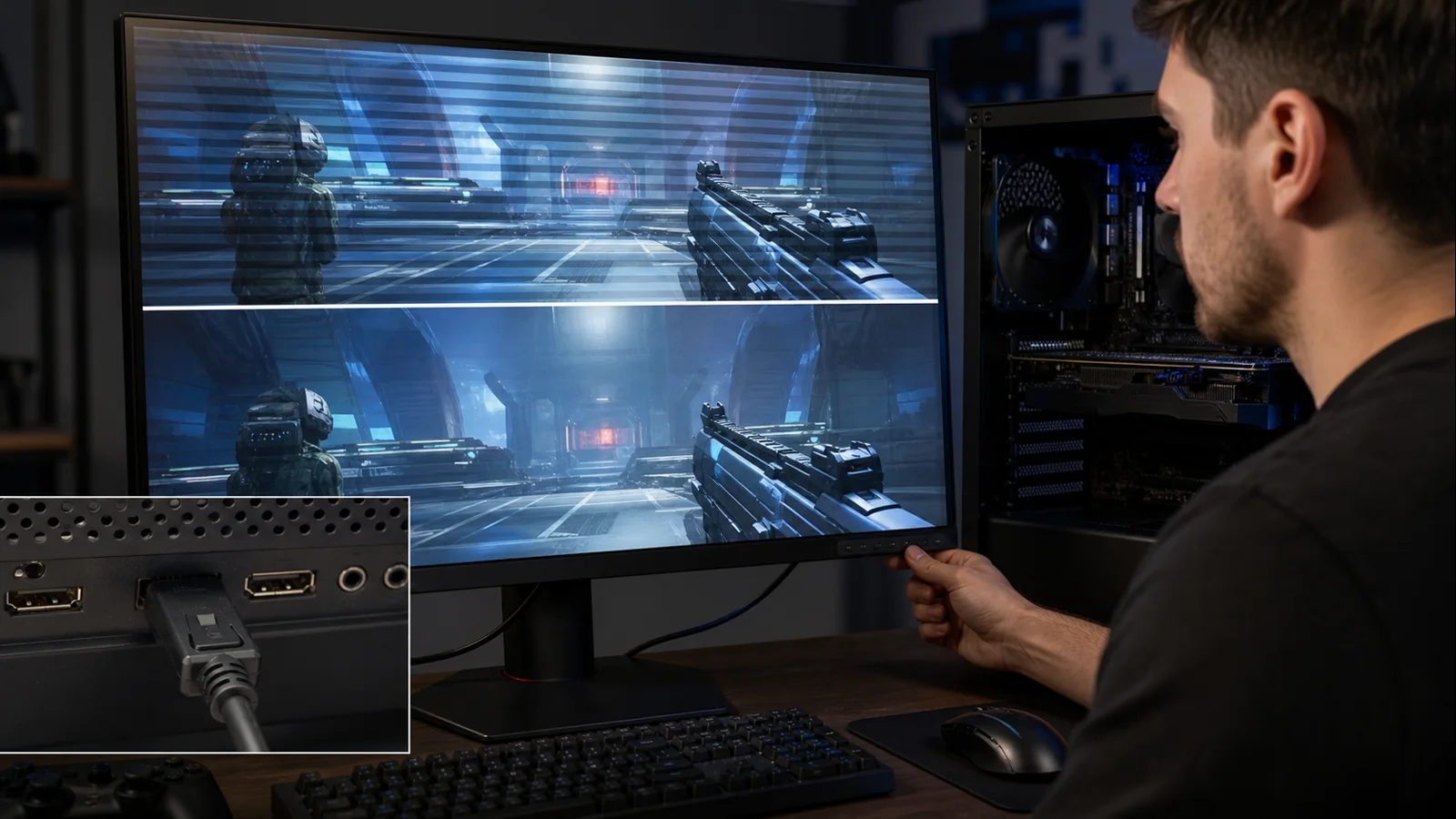
AI-created editorial illustration; not product photography or benchmark evidence.
As an Amazon Associate we earn from qualifying purchases at no extra cost to you.





Safety comes before diagnosis
Turn the display off and unplug it if you see smoke, sparks, liquid intrusion, a damaged power connector, repeated electrical popping, or an acrid smell. Do not open a monitor; its power section can retain hazardous charge. A screen that flickers alongside power cycling, clicking, or an unstable power indicator should go to the manufacturer or a qualified technician.
If flashing light triggers migraines, visual discomfort, or a medical condition, stop looking at the display. Ask someone else to perform tests or use another screen. A phone camera can reveal banding that helps compare settings, but its rolling shutter can also create bands that are not visible to the eye. It is not a medical or laboratory measurement.
Make a one-minute symptom record
Before changing anything, note the exact boundary:
- Does flicker appear before Windows, on the desktop, in one game, or in all games?
- Is it a subtle brightness pulse, rapid dimming, a full black dropout, colored noise, or horizontal bands?
- Does it follow frame-rate swings, a particular brightness level, HDR, alt-tabbing, or touching the cable?
- Does the monitor’s on-screen menu flicker too?
Record the GPU, monitor, cable and port, resolution, refresh rate, VRR range, HDR state, frame-rate range, and recent driver or hardware changes. A slow-motion phone video may document the rhythm, but preserve what you saw in words because camera artifacts can mislead.
Run the four-way isolation test
Create a stable baseline at the monitor’s native resolution and a supported 60 Hz mode. Disable HDR and variable refresh rate temporarily. Use a static desktop, then a game capped at a steady frame rate. If that baseline is stable, restore one feature at a time: high refresh, VRR, then HDR.
Next, use the monitor menu while the video cable is disconnected. If the menu or “no signal” box visibly flickers, the PC, GPU driver, and video cable are not generating it. Test another power outlet directly, without an overloaded strip, and seek monitor service if the behavior persists.
If only the PC image flickers, replace the display cable with a short known-good one and try another output. Bypass docks, adapters, KVMs, capture devices, and extensions for the test. Finally, cross-test the monitor with another source or the PC with another display. Keep each substitution separate so the result identifies an endpoint.
Microsoft’s external-display troubleshooting likewise uses alternate cables, ports, displays, and systems to isolate connection failures.
Branch A: brightness pulses with changing frame rate
VRR flicker usually appears as luminance pulsing in dark or near-black scenes while frame times fluctuate. Loading screens and shader-compilation stutter can make it obvious. A complete black dropout, colored sparkles, or corruption is more suggestive of a link or hardware fault.
Confirm the relationship instead of guessing. Use the same dark game scene, display refresh, and graphics settings. First enable VRR and let frame rate vary; then disable VRR while holding roughly the same frame rate. If only the variable-refresh run pulses, VRR behavior is the leading cause.
NVIDIA explains that G-Sync matches the monitor’s refresh rate to the GPU frame rate in its official G-Sync control-panel documentation. That timing benefit does not guarantee identical luminance at every refresh interval. VESA’s Adaptive-Sync compliance specification includes both static and variable flicker tests, showing that flicker performance is a distinct part of VRR quality.
Reduce rapid frame-time changes first: finish shader compilation, close unnecessary background loads, select settings the GPU can sustain, and use a sensible frame cap. If flicker remains objectionable, narrow the monitor’s VRR range only with a documented, reversible method, or disable VRR for the affected game. Low-framerate compensation may create additional refresh changes near the bottom of the range, so test just above and below that boundary.
Then confirm configuration with our G-Sync and FreeSync setup guide. If choosing a display or understanding compatibility labels, the FreeSync versus G-Sync comparison separates ecosystem branding from actual monitor behavior.
Branch B: flicker changes with the brightness control
Some displays regulate brightness by modulating light output; others use largely steady DC dimming over some or all of their range. OLED panels may also show scan or refresh-related behavior that a camera exaggerates. If discomfort or visible flicker appears only below a certain brightness, test in a comfortably lit room and raise the monitor brightness while reducing glare or ambient contrast. Do not stare at a pattern to force symptoms.
Turn off any backlight-strobing mode labeled MBR, ULMB, ELMB, Motion Blur Reduction, or similar. These modes intentionally pulse light for motion clarity and normally cannot operate with VRR. If disabling the mode removes the issue, the display is behaving as a strobed display, though that mode may not suit you.
A phone recording with dark bars proves only that the camera and display have interacting scan frequencies. Compare settings using the same camera exposure, but base personal comfort decisions on direct viewing. If the manufacturer advertises a flicker-free operating range, ask support for the exact model’s behavior and test conditions.
Branch C: black flashes, sparkles, or signal dropouts
Intermittent black screens under high refresh, HDR, or high resolution often point to bandwidth or signal integrity. Set native resolution at 60 Hz with HDR off. If stable, increase refresh first, then HDR. The mode that reintroduces dropouts marks the boundary.
Use a certified or manufacturer-supplied cable appropriate for the connection, avoid tight bends, and ensure plugs seat fully. Do not assume a marketplace “8K” label proves compliance. If one GPU port or monitor input fails while another works with the same cable and mode, document it for support.
Monitor overclock modes can also destabilize a link. Return to the panel’s standard maximum refresh rate. Remove custom resolutions and timings. A stable lower mode is a diagnostic result, not necessarily an acceptable permanent fix if the product was sold to support the higher mode.
Branch D: Windows, drivers, or one application flickers
Press Ctrl + Shift + Esc and observe Task Manager. Microsoft’s Windows screen-flicker procedure says that Task Manager flickering with everything else points toward the display driver, while Task Manager remaining stable can indicate an incompatible app.
If the driver branch fits, press Windows + Ctrl + Shift + B once to reset the graphics driver. Then update or roll back based on when the problem began. Use the correct package for the exact GPU and preserve version numbers; our GPU driver update guide provides a controlled sequence. Avoid combining a driver reinstall with BIOS changes and cable replacement.
If one app is implicated, disable its overlays, hardware acceleration, add-ons, or capture hooks one at a time. Update or remove the app only after reproducing the boundary. A game that flickers only in borderless mode should also be compared with exclusive fullscreen using identical VRR and frame-cap settings.
Decide between workaround and service
A frame cap or per-game VRR disable can be a reasonable workaround for limited VRR flicker. A lower brightness mode may be unsuitable if it causes discomfort. Cable replacement is a repair only when the same cable fails controlled cross-tests. None of these should excuse a monitor that cannot hold an advertised supported mode with compliant equipment.
Use warranty service when the on-screen menu flickers without a source, multiple sources reproduce dropouts, a port is physically loose, the panel flashes at all brightness and refresh settings, or the problem worsens after warm-up. Provide the isolation record and a short video. This turns “screen flickers” into a precise VRR, modulation, signal, software, or hardware case.
FAQ
Why does my monitor flicker only on loading screens?
Loading screens often have erratic frame times and very low frame rates. That can expose VRR luminance variation or low-framerate-compensation transitions. Test the same screen with VRR disabled to confirm the relationship.
Can DisplayPort or HDMI cables cause flicker?
Yes, but cable faults more often produce black flashes, sparkles, noise, or lost sync than gentle brightness pulsing. Test one known-good cable at the same mode and cross-test both endpoints.
Is all camera-detected flicker dangerous?
No conclusion follows from camera bands alone. Rolling shutters interact with display scanning and light modulation. If you experience symptoms, stop exposure and seek appropriate medical advice; for product diagnosis, use manufacturer data or instrumented measurements.
Should I disable VRR permanently?
Only if controlled testing shows it causes objectionable flicker and steadier frame delivery does not help. Per-game disabling preserves VRR’s tearing and stutter benefits elsewhere.
Top picks from this guide
 Philips Computer MonitorsPhilips 24 Inch Computer Monitor FHD 100Hz VA VESA Flicker-Free,…$80 \xc2\xb7 97/100
 ASUSASUS ROG XG27AQDMG 27 Inch 1440p 240Hz Glossy OLED Gaming…$572 \xc2\xb7 96/100
 ASUSASUS TUF VG279QM5A 27 Inch 1080p 240Hz Fast IPS G-SYNC…$189 \xc2\xb7 96/100
 AcerAcer 27in FHD 1920x1080 IPS 120Hz Gaming Monitor | Office…$100 \xc2\xb7 95/100