🛒 Best Price Today on Amazon
Prime members get fast, free shipping on everything above, plus member-only deals. New members get a 30-day free trial — cancel anytime.
A PS5 controller calibration guide can help you diagnose stick drift, inconsistent movement, and inaccurate inputs on a DualSense controller. The key is understanding that the PS5 console does not offer a general-purpose analog-stick calibration menu. You can still reset the controller, update its firmware, and adjust supported game or PC settings to narrow down the cause.
What PS5 Controller Calibration Really Means
Calibrating a DualSense controller means checking whether its sticks and triggers report the expected inputs, then correcting problems where supported. On PS5, start with a reset, firmware updates, and in-game deadzone settings. On PC, Steam offers additional input configuration options. These approaches address different layers, so choosing the right one depends on where the problem occurs.
Understand the Difference Between Calibration and Deadzones
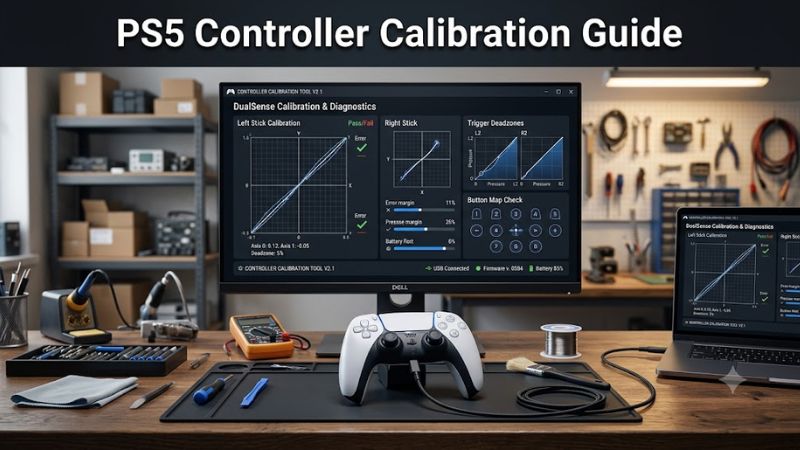
Calibration typically refers to correcting how a controller reports its input range or center position. A deadzone is the range of stick movement that a game or input configuration ignores. Increasing a deadzone can stop small unwanted movements from affecting gameplay, but it does not repair a worn analog-stick sensor.
This distinction matters when following a PS5 controller calibration guide. If your character moves without touching the stick, a deadzone adjustment may reduce the symptom. If the same movement persists across games or the stick struggles to reach its full range, investigate the controller itself rather than assuming a software setting will resolve everything.
Identify Which Controller You Have
The standard DualSense and the DualSense Edge offer different customization options. The standard controller supports basic troubleshooting and firmware updates, while the Edge provides adjustable stick sensitivity, deadzones, profiles, and replaceable stick modules through its supported configuration tools.
Check the model before following calibration instructions. If you own a standard DualSense, do not expect the Edge’s profile-management features to appear in the same menus. If you own a DualSense Edge, inspect its current profile and stick settings before changing anything, since a customized profile can affect how movement feels.
Determine Whether the Problem Is Game-Specific
A controller that behaves incorrectly in only one game may have a configuration problem rather than a hardware fault. Games can use different deadzones, sensitivity curves, aim settings, and controller support implementations. Compare the behavior in another game before deciding that the physical stick needs repair.
If the issue occurs across several games, look for a consistent symptom. Unwanted movement while the stick rests near center suggests possible drift, while missed inputs near the edge of its travel may indicate a range or hardware problem. Repeating the same check under similar conditions makes the results easier to interpret.
Know What Doesn’t Help
Randomly changing every sensitivity setting is unlikely to identify the root cause. Sensitivity controls how strongly the game responds to intentional input; it is not the same as calibrating the stick’s center. Likewise, increasing the deadzone too far can hide minor drift while making precise movement more difficult.
Avoid unofficial firmware files and calibration utilities that ask you to write undocumented values directly to controller memory. Such procedures can introduce additional problems. Begin with Sony’s documented recovery and update options, then use the settings supported by your console, game, or PC software.
How to Diagnose and Adjust a PS5 Controller
The right fix depends on whether the problem is unwanted movement, inconsistent input, or a controller that disconnects. Use the table below to choose a safe starting point before changing settings. Start with reversible software steps, compare behavior across games, and reserve hardware repair for symptoms that remain after basic troubleshooting.
| Symptom | Recommended action | Where | Main limitation |
| Stick moves without touching it | Check game deadzone; reset if needed | Game settings or controller reset | May not fix worn sensors |
| Movement feels too sensitive | Adjust sensitivity and deadzone | Game settings or Edge profile | Can affect aiming precision |
| Inputs behave incorrectly in one game | Check its controller configuration | Game settings | Other games may use different settings |
| Controller disconnects | Check cable, pairing, and firmware | PS5 settings | Does not diagnose every hardware fault |
| PC detects the controller incorrectly | Check Steam Input and game support | Steam settings | PC settings do not recalibrate PS5 console input |
Step 1: Reset the DualSense Controller
A reset is a useful first step when your controller behaves unexpectedly or has connection problems. Turn off the PS5, disconnect the controller, and locate the small reset button inside the hole on the back. Use a pin or similar tool to press it, then reconnect the controller to the console using a USB cable and press the PS button.
Sony states that this reset does not reconfigure the controller or affect its pairing settings. After reconnecting, open the same game and repeat the movement that caused the problem. If the drift remains, continue with the next checks rather than repeatedly resetting the controller. PlayStation Support documents this procedure in its DualSense controller support guide.
Step 2: Update the Controller Software
Outdated controller software can be worth checking when troubleshooting unusual behavior. On PS5, open Settings, select Accessories, then Controller (General), and choose DualSense Wireless Controller Device Software. Follow the on-screen instructions if an update is available.
You can also update the standard DualSense using Sony’s PlayStation Accessories application on a compatible Windows PC. Keep the controller connected as instructed during the update, and do not disconnect it while an update is in progress. Firmware updates are a maintenance step, not a guaranteed remedy for physical stick drift. If the problem continues, investigate the game’s settings and the controller’s physical condition.
Step 3: Adjust the In-Game Deadzone
For mild stick drift, increasing the affected stick’s deadzone is often the most practical software workaround. Open the game’s controller settings and look for options named Deadzone, Stick Deadzone, or Controller Sensitivity. Exact menu names vary by game, and some titles do not expose these controls.
Make small changes and test the same movement after each adjustment. If the camera stops moving while the stick rests, the new setting may be sufficient for that game. However, a larger deadzone means small intentional movements may no longer register. If accurate aiming becomes difficult, reduce the adjustment until you find a workable balance or return to the default value.
Step 4: Customize the DualSense Edge Profile
If you own a DualSense Edge, you have more direct control over stick behavior than standard DualSense owners. On PS5, go to Settings > Accessories > DualSense Edge Wireless Controller > Custom Profiles. Create or edit a profile, then choose Stick Sensitivity/Deadzone to adjust the relevant stick.
The Edge also supports sensitivity curves, trigger deadzones, and other profile settings. Use its Playtest option to observe stick response and compare the result in your game. Save a separate profile before making extensive changes so you can compare configurations without losing your preferred setup. These controls customize input behavior; they cannot restore a physically worn sensor. See Sony’s DualSense Edge profile guide.
Calibrate a PS5 Controller on PC
PC calibration is a separate process from troubleshooting a controller on the PS5 console. Windows, Steam, and individual games can handle controller input differently, so a setting that improves one PC game might not change another. Before modifying anything, confirm that the controller is recognized correctly and determine which software layer is handling its input.
Check the Controller in Steam
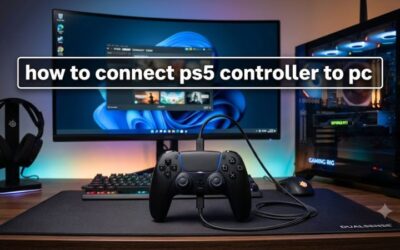
Connect the DualSense to your PC using a compatible USB data cable or Bluetooth, then open Steam and select Settings > Controller. Review the connected controller and available input-test or configuration options. The exact options depend on your Steam version and detected device.
Steam can manage button mappings and deadzones for supported configurations, but do not assume every controller exposes a dedicated calibration function. Valve’s legacy Steam Controller calibration instructions apply specifically to that controller, so they should not be treated as universal instructions for the DualSense. For a PS5 controller, use the controls Steam actually presents for the detected device.
Check Windows Input Recognition
If a PC game receives incorrect inputs, check whether Windows recognizes the DualSense and whether the game supports PlayStation controllers directly. Press Windows + R, enter joy.cpl, and press Enter to open the legacy Game Controllers panel. If the controller appears, select it and open Properties to inspect the available input-test controls.
The calibration option may be absent or ineffective for a particular device or game. Some modern games use their own input systems rather than Windows’ legacy calibration data. If the control panel does not offer a relevant option, do not install unofficial driver tools just to force one to appear. Check Steam’s configuration and the game’s documented controller support instead.
Avoid Conflicting Input Tools
Steam Input and third-party controller-mapping software can both translate controller signals. Running multiple mapping layers together may cause duplicate devices, unexpected button assignments, or inconsistent behavior. If the controller works in Windows but fails in one game, test the game’s normal controller support before adding another utility.
Change one input layer at a time, then restart the game and repeat the same input check. If disabling a mapping layer makes the controller work correctly, leave it disabled unless the game needs that software. Record your original settings so you can restore them if the change makes another game behave differently.
Confirm the Result in the Game
A successful controller adjustment should address the original symptom without creating a new one. For drift, leave the stick untouched and check whether the camera or character continues moving. For inaccurate movement, rotate the stick through its range and check whether the game responds consistently in each direction.
Repeat the check in another game if possible. If the controller works properly elsewhere, focus on the original game’s settings or input support. If the same fault persists across different applications and connection methods, a physical controller problem becomes more plausible. Browser-based gamepad testers can also show reported stick positions, but they cannot write calibration data to the controller or repair its hardware.
FAQ
Can you calibrate a standard PS5 DualSense controller on the console?
No, the standard DualSense does not provide a general-purpose analog-stick calibration menu on PS5. You can reset the controller, update its software, and adjust deadzones in games that support them. These steps may help with incorrect input, but persistent physical drift can require repair or replacement.
Does increasing the deadzone fix stick drift permanently?
No, increasing the deadzone usually masks minor unwanted input rather than repairing its cause. It tells supported games to ignore a larger range of movement near the stick’s center. This can help with mild drift, but excessive deadzones reduce fine control, and severe hardware problems may persist.
Can I calibrate a PS5 controller on Windows 11?
You can inspect and configure supported controller input on Windows 11, but a universal DualSense calibration procedure is not available for every device and game. Check Windows’ Game Controllers panel, Steam’s controller settings, and the game’s own input options. The results depend on which software layer handles the controller.
When should I repair or replace my PS5 controller?
Consider professional repair or replacement if drift remains across several games after basic troubleshooting, buttons repeatedly fail to register, or the stick has physical damage. Check the applicable warranty and PlayStation Repairs options before opening the controller. For a DualSense Edge, a replaceable stick module may provide an alternative to replacing the entire controller.
Final Thoughts
A PS5 controller calibration guide is most useful when it distinguishes software adjustments from physical repair. Start with a reset and firmware check, then adjust supported deadzones or PC input settings. If the same fault persists across games, consult PlayStation Repairs or investigate an eligible DualSense Edge stick-module replacement before buying another controller.