
🛒 Best Price Today on Amazon
Prime members get fast, free shipping on everything above, plus member-only deals. New members get a 30-day free trial — cancel anytime.
World of Warcraft presents a unique hardware challenge. Despite decades of engine overhauls—including DirectX 12 support, multi-threaded rendering pipelines, and advanced compute shaders—Blizzard’s MMORPG remains fundamentally bound by single-core CPU throughput and draw-call performance. Whether you are raiding with 30 players during a bloodlust phase or navigating crowded capital hubs in 2026, framerate drops are rarely caused by GPU bottlenecks alone. Instead, main-thread CPU frame times and Lua script executions from user addons dictate your 1% low frames per second.
To dial in the best World of Warcraft settings for FPS, you must strike a balance between relief for your processor and visual clarity for competitive play. Reducing render distance and heavy draw-call features stabilizes frame pacing, while keeping key combat indicators visible prevents mechanical wipes. This guide details the precise graphics options, upscaling techniques, and out-of-game tweaks required to maximize performance without compromising competitive awareness.

Thermalright Peerless Assassin 120 SE CPU Cooler, 6 Heat Pipes AGHP Technology, Dual 120mm PWM Fans, 1550RPM Speed, for AMD:AM4 AM5/Intel LGA 1700/1150/1151/1200/1851,PC Cooler
Included for 'Best World of Warcraft Settings for FPS in 2026: Competitive and Low-End Presets' because the listing specifies 6 Heat Pipes AGHP Technology and Dual 120mm PWM Fans, details this guide uses to compare options.
View on Amazon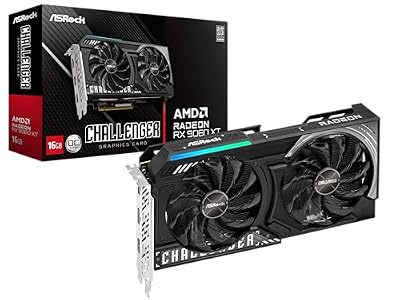
ASRock Radeon RX 9060 XT Challenger 16GB OC, RDNA 4, 3290MHz Boost, 16GB GDDR6 128-bit, PCIe 5.0, Dual Fans, 0dB Silent, LED Indicator, DisplayPort 2.1a, HDMI 2.1b
Included for 'Best World of Warcraft Settings for FPS in 2026: Competitive and Low-End Presets' because the listing specifies RDNA 4 and 3290MHz Boost, details this guide uses to compare options.
View on AmazonQuick Preset
Use this reference table to instantly configure World of Warcraft based on your system tier and playstyle goals. Apply these in-game under Options > Graphics.
| Setting | Competitive (Raid/M+/PvP) | Balanced (Modern PC) | Low-End PC |
|---|---|---|---|
| Graphics API | DirectX 12 | DirectX 12 | DirectX 12 (or DX11 Legacy) |
| Display Mode | Windowed Fullscreen | Windowed Fullscreen | Windowed Fullscreen |
| Render Scale | 100% | 100% | 67% – 85% (FSR Enabled) |
| Anti-Aliasing | CMAA 2 or Off | MSAA 2x / FXAA High | Off |
| View Distance | 3 – 4 | 5 – 7 | 1 – 2 |
| Environment Detail | 4 – 5 | 6 – 7 | 2 – 3 |
| Ground Clutter | 1 – 3 | 5 – 6 | 1 |
| Shadow Quality | Fair or Low | High | Low |
| Liquid Detail | Fair | Good | Low |
| Particle Density | High | High | Good |
| Spell Density | Dynamic | Everything / Dynamic | Essential |
| SSAO | Disabled | Good / High | Disabled |
| Depth Effects | Disabled | Good | Disabled |
| Compute Effects | Low | Good | Low |
| Outline Mode | High | High | Good |
| Ray Traced Shadows | Disabled | Disabled | Disabled |
Settings That Matter Most
Every graphics setting in World of Warcraft impacts performance differently. Some burden the graphics card’s compute units, while others saturate the CPU’s primary render thread with geometry draw calls. Below are the heaviest settings and their exact performance trade-offs.
View Distance and Environment Detail
These two sliders determine how far out the engine renders terrain, structures, and non-player entities. View Distance controls overall terrain culling, while Environment Detail controls the complexity of buildings, trees, and stationary objects. Both settings represent the single largest hit to CPU performance in the game.
Increasing View Distance from 4 to 10 doubles or triples the active draw calls submitted to your main CPU core. In open-world zones, this drops framerates significantly; in raids and capital cities, setting this above 5 can cause severe frametime spikes regardless of your graphics card. For optimal competitive performance, set View Distance to 3 or 4, and Environment Detail to 4 or 5. This maintains full visibility of fight arenas while preventing frame drops.
Shadow Quality and Ray-Traced Shadows
Shadow Quality scales from Low up to Ultra High, changing shadow map resolution and cascading distance. Ray-Traced Shadows (Directional, Point, and Spot lights) use hardware ray tracing to cast real-time soft shadows from world light sources.
Standard High/Ultra shadows demand substantial GPU processing and add shadow-pass overhead to the CPU. Enabling Ray-Traced Shadows can reduce your framerate by 30% to 50% in heavily populated zones, with virtually no mechanical advantage during combat. Drop Shadow Quality to Fair or Low and keep Ray-Traced Shadows permanently Disabled. Fair shadows still provide grounded spatial depth without tanking framerates during combat pulls.
Particle Density and Spell Density
Particle Density governs the visual fidelity of fire, smoke, void zones, and magic effects. Spell Density dynamically filters out ambient player spell visual clutter during group content to keep the screen readable.
While lowering Particle Density frees up GPU fill rate, setting it below High or Good can make dangerous ground mechanics invisible or faint. Keep Particle Density on High. To prevent frame drops during 20-man raid encounters when multiple heroisms/bloodlusts overlap, set Spell Density to Dynamic or Essential Only. Dynamic allows the engine to automatically cull non-critical visual effects (like secondary teammate abilities) while ensuring boss mechanics and your own spells remain fully visible.
Liquid Detail
Liquid Detail dictates water transparency, caustics, wave physics, and screen-space reflections. At Ultra, water uses advanced compute shaders and real-time screen-space reflections that re-render scene geometry on wet surfaces.
High and Ultra settings create massive GPU load spikes near bodies of water (such as coastal zones or aquatic raid arenas). Setting Liquid Detail to Fair removes heavy screen-space reflection passes while retaining basic transparency, instantly stabilizing frame rates near water feature zones.
Ground Clutter
Ground Clutter controls the density and draw distance of grass, small rocks, and flowers. At value 10, the engine spawns thousands of additional mesh instances across terrain patches.
Beyond being a minor CPU geometry bottleneck, high ground clutter actively obstructs ground telegraphs, swirlies, and quest items on the floor. Setting Ground Clutter between 1 and 3 cleans up the visual floor space, making dangerous mechanic boundaries immediately obvious while improving minimum framerates.
SSAO (Screen Space Ambient Occlusion)
SSAO adds soft contact shadows in corners and where geometry intersections meet, adding depth to the environment at the cost of GPU depth-buffer passes.
While ASSAO (Adaptive Screen Space Ambient Occlusion) looks sharp in solo play, it costs between 8% to 15% of total GPU performance at higher resolutions like 1440p or 4K. Turn SSAO Disabled for maximum framerates in competitive play, or set it to Good on mid-to-high-end GPUs if the game looks visually flat to you without ambient shading.
Upscaling and Frame Generation
World of Warcraft natively supports spatial and temporal upscaling technologies, including AMD FidelityFX Super Resolution (FSR) and Nvidia Image Scaling (NIS), alongside modern temporal upscalers and Frame Generation features.
Render Scale and FSR: If your GPU is struggling at native resolution (common on integrated graphics or older graphics cards at 1440p/4K), lower the in-game Render Scale slider to 67% or 85% and set Upscale Resampling to FidelityFX Super Resolution (FSR 1.0/2.2). FSR sharpens the upscaled image, yielding a 20% to 40% boost in GPU-bound scenarios with minimal image degradation.
Frame Generation: For GPUs supporting driver-level or engine-integrated Frame Generation, insertion of interpolated frames can artificially raise perceived fluidity in open-world zones or capital cities where CPU throughput normally limits performance. However, Frame Generation slightly increases input latency. Turn Frame Generation Off during high-level Mythic+ dungeons, rated PvP, or Mythic raiding where swift input response and kick timings are paramount.
Outside the Game
Optimizing in-game options is only half the battle. Because World of Warcraft relies heavily on background system resources, out-of-game OS and driver configurations directly affect frame time consistency.
- Nvidia Control Panel / AMD Adrenalin: Set Low Latency Mode (Nvidia) or Anti-Lag (AMD) to On or Ultra. Set Power Management Mode to Prefer Maximum Performance to keep GPU clock rates locked high during low-GPU-load raid mechanics. Ensure Threaded Optimization is set to On.
- Windows Game Mode & HAGS: Enable Game Mode in Windows settings to give WoW top CPU thread priority. Hardware-Accelerated GPU Scheduling (HAGS) should generally remain enabled on modern GPUs to reduce driver-level CPU overhead.
- Background Launcher Behavior: Configure the Battle.net App options under Settings > General to “When I launch a game: Exit Battle.net completely.” This frees up active system memory and prevents background web-browser renderer processes from taking CPU cycles away from the game.
- Addon Profiling (Lua Bottlenecks): Heavy UI overhauls, damage meters, and unoptimized WeakAura packs run on a single Lua thread within WoW’s engine core. Use the in-game command
/cpu(via performance addons like Addon CPU Usage) to audit which addons are causing micro-stutters. Disable unused WeakAura triggers and reduce update frequencies on combat meters to recover up to 20% of your 1% low framerates.
Settings to Leave Alone
When tuning for performance, players often disable settings that provide critical mechanical advantages or carry zero frame-rate penalty on modern systems. Do not lower or disable the following options:
- Projected Textures: Always keep this Enabled. Turning this off removes spell effect indicators, AoE damage circles, and boss mechanic zones projected onto the terrain floor. Disabling it renders high-end content unplayable.
- Texture Resolution: If your GPU has at least 4GB to 6GB of VRAM, keep Texture Resolution on High. Lowering texture resolution frees up VRAM allocation but provides zero boost to FPS if you are not exceeding your card’s total memory bandwidth limit.
- Texture Filtering: Set this to 16x Anisotropic. Modern GPUs process anisotropic texture filtering via dedicated hardware pipelines; lowering it makes ground textures blurry at oblique angles while yielding less than a 0.5% FPS gain.
- Outline Mode: Keep set to High or Medium. Outlines make quest objectives, interactive objects, and focus targets visible through dense player spell effects with negligible performance impact.
FAQ
Why is my FPS dropping in raids even with a high-end GPU?
Raids involve dozens of player avatars triggering abilities simultaneously, causing hundreds of dynamic combat log calculations and draw call requests per second. This overloads the primary CPU thread and Lua engine rather than the GPU. Upgrading graphics card settings will not fix this; reducing CPU-heavy options like View Distance, Environment Detail, and optimizing complex WeakAuras is required.
Does 3D V-Cache (such as AMD’s X3D processors) make a difference in World of Warcraft?
Yes, World of Warcraft benefits immensely from extra L3 cache. WoW’s engine constantly fetches large amounts of draw-call data and game-state information from memory. Processors featuring AMD 3D V-Cache keep more of these datasets on the CPU die, drastically reducing main-thread stalls and increasing 1% low frame rates in raids and capital cities by 30% or more compared to non-cache-stacked CPUs.
Should I cap my framerate in-game or via GPU drivers?
Use World of Warcraft’s built-in target frame rate limiter under Options > Advanced. Setting Max Foreground FPS slightly below your monitor’s refresh rate (for example, 141 FPS on a 144 Hz display) prevents GPU usage from spiking to 100%, keeps system input latency lower, and prevents screen tearing when paired with G-Sync or FreeSync.
How do addons affect my frames per second, and how can I test them?
Addons run within a single-threaded Lua environment inside the game engine. Complex addons that constantly scan the combat log or redraw custom UI frames force the CPU to wait for script execution before drawing the next frame. You can test this by typing /console scriptProfile 1, reloading your UI, engaging in combat, and inspecting addon CPU usage with profiling tools to pinpoint lag-inducing addons.









