The best graphics settings by GPU and laptop depend on three things: your screen resolution, how much video memory (VRAM) the graphics chip has, and how much power the laptop lets that chip use. Pick a resolution target first, turn on upscaling, then spend what is left on textures and shadows. This guide gives starting presets for RTX 5080, RTX 5070 laptops, RTX 2050 and Radeon cards.
- Quick Answer: A Starting Preset for Any GPU
- Understand What Each Setting Does Before You Change It
- Method: Tune Any Game in Five Minutes
- Starting Presets by GPU Tier
- Best Settings for an RTX 5080 Desktop
- Best Settings for RTX 5070 Laptops
- Best Settings for RTX 2050 Laptops
- Best Settings for Radeon Graphics Cards
- Power, Drivers and Windows Settings That Affect Everything
- Hardware That Helps: A Better Screen Helps More Than a Preset
- Adjust Settings by Game Type
- Budget Your VRAM Before You Raise Textures
- Laptop Checklist Before You Blame a Setting
- Troubleshooting Stutter Step by Step
- Upscaler Modes Explained in Plain Terms
- A Simple Rule for Choosing Between Settings
- Frequently Asked Questions
- Which Preset Should You Choose?
- Sources
Quick Answer: A Starting Preset for Any GPU
- Set the display to its native resolution and set the refresh-rate cap to your screen’s maximum, or to a number you can hold.
- Turn on an upscaler (DLSS on GeForce, FSR on Radeon or any card, XeSS where offered), starting at Quality mode.
- Pick Medium or High textures to match your VRAM, not your GPU’s speed.
- Lower shadows, volumetric effects and ray tracing before you touch anything else, because they cost the most performance for the least visible change.
- Use frame generation only if the game already runs smoothly without it.
- On a laptop, plug in and choose the performance power mode before judging any setting.
This page deliberately gives presets and a method rather than frame-rate numbers. Results change with the game version, driver, cooling and the laptop’s power limit, so we do not quote frame-rate figures.
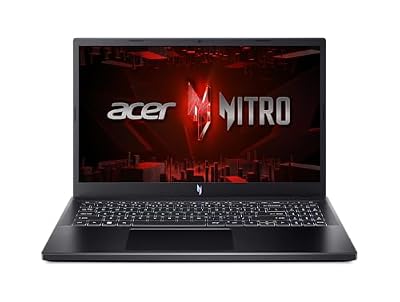
acer Nitro V Gaming Laptop | Intel Core i5-13420H Processor | NVIDIA GeForce RTX 4050 Laptop GPU | 15.6" FHD IPS 144Hz Display | 8GB DDR5 | 512GB Gen 4 SSD | WiFi 6 | Backlit KB | ANV15-51-51H9
Included for 'Best Graphics Settings by GPU and Laptop for Smooth FPS' because the listing specifies Intel Core i5-13420H Processor and NVIDIA GeForce RTX 4050 Laptop GPU, details this guide uses to compare options.
View on Amazon
Khadas Mind Graphics Card RTX 4060 Ti Desktop GPU, 16GB GDDR6, External GPU Dock with Speakers for Laptop, Up to PCIe 4.0 x8,128 GT/s, HDMI 2.1a×2, USB4×1, Supports 4K & 8K Display via Thunderbolt 4/3
Included for 'Best Graphics Settings by GPU and Laptop for Smooth FPS' because the listing specifies 16GB GDDR6 and External GPU Dock with Speakers for Laptop, details this guide uses to compare options.
View on Amazon
Acer Nitro V Gaming Laptop | Intel Core 7 Processor 240H | NVIDIA GeForce RTX 5060 Laptop GPU | 16" WUXGA IPS 180Hz Display | 16GB DDR5 | 512GB Gen 4 SSD | Wi-Fi 6 | Backlit KB | ANV16-72-70F4
Included for 'Best Graphics Settings by GPU and Laptop for Smooth FPS' because the listing specifies Intel Core 7 Processor 240H and NVIDIA GeForce RTX 5060 Laptop GPU, details this guide uses to compare options.
View on AmazonUnderstand What Each Setting Does Before You Change It
| Setting | Mostly limited by | Visual impact | Advice |
|---|---|---|---|
| Resolution | GPU speed | Very high | Keep native and use an upscaler instead of dropping the resolution |
| Upscaling (DLSS, FSR, XeSS) | GPU speed | Low to medium | Start at Quality, move to Balanced if you need more frames |
| Texture quality | VRAM | High | Match to VRAM, because running out causes stutter |
| Shadows | GPU and CPU | Low to medium | Medium is usually a good balance |
| Ray tracing | GPU speed and VRAM | Medium to high | Optional on mid-range and entry cards |
| Volumetric effects, fog, clouds | GPU speed | Low | Lower these first |
| Anti-aliasing | GPU speed | Medium | Often bundled with the upscaler |
| View distance, crowd density | CPU | Medium | Lower if the processor is the limit |
How do I know if my GPU or my CPU is the bottleneck?
Lower the resolution or turn on an upscaler. If the frame rate barely changes, the processor is likely limiting you. If it rises, the graphics card is the limit.
What is the difference between upscaling and frame generation?
Upscaling renders at a lower resolution and reconstructs a sharper image. Frame generation inserts extra frames between real ones, which raises the displayed frame rate but can add latency.
Method: Tune Any Game in Five Minutes
- Open the game’s benchmark or load a busy scene you know well.
- Choose the highest preset, then lower one group at a time.
- Start by lowering shadows, volumetrics and ray tracing.
- Keep textures high as long as the VRAM meter in the settings screen stays below the card’s limit.
- Turn on the upscaler and change one step at a time.
- Compare in the same scene each time and keep only changes you can actually see.
- Cap the frame rate slightly below your screen’s refresh rate for smoother pacing.
Starting Presets by GPU Tier
These are starting points, not promises. The type of game changes the picture. A competitive shooter tolerates low settings, while a slow adventure game can use more visual effects.
| GPU tier | Resolution target | Preset to start with | Ray tracing | Frame generation |
|---|---|---|---|---|
| High-end desktop (RTX 5080 class) | 1440p high refresh or 4K | High to Ultra, upscaler on Quality for 4K | On where the game supports it | Optional, for very high refresh screens |
| Upper mid-range desktop | 1440p | High, with Quality upscaling | Selective | Optional |
| Mid-range desktop | 1080p to 1440p | Medium to High | Off or low | Only if a smooth base frame rate already exists |
| Gaming laptop (RTX 5070 class) | 1080p to 1440p | Medium to High, with upscaling | Selective, mind the VRAM | Optional, check game support |
| Entry laptop (RTX 2050 class) | 1080p | Low to Medium, upscaler on Balanced | Off | Not available on this generation |
| Radeon cards | Match the tier above | Same logic, using FSR | Selective | Use FSR frame generation if the game offers it |
Best Settings for an RTX 5080 Desktop
NVIDIA lists the GeForce RTX 5080 as a high-end card with 16GB of video memory, so VRAM is rarely the first limit at 1440p. At 4K, a few heavy games can still pressure it, especially with ray tracing and high-resolution texture packs.
- 1440p high refresh: start at High or Ultra, upscaler on Quality or off if the frame rate is already high.
- 4K: turn on the upscaler at Quality and keep textures high. Lower only the heaviest shadow and volumetric options.
- Ray tracing: enable it where it makes a clear difference, such as reflections and global lighting, and lower the most expensive tier of path tracing if frame times spike.
- Multi frame generation: RTX 50 series cards support it in supported games. It is best for very high refresh displays and works poorly if the base frame rate is low.
Best settings for an RTX 5080 in a prebuilt desktop
Prebuilt towers, including popular ones from ASUS TUF and Aorus, use the same GPU logic. The difference is often cooling and power delivery, so check temperatures and the BIOS or software profile before blaming a setting.
Which monitor settings matter with a high-end card?
Match the refresh rate in Windows and in the game, then enable adaptive sync (G-Sync or FreeSync) if your monitor supports it. A high-end card is wasted on a screen set to 60 Hz.
Best Settings for RTX 5070 Laptops
NVIDIA lists the GeForce RTX 5070 Laptop GPU with 8GB of GDDR7 memory and support for DLSS 4. Laptop chips are configured by each maker, so the same name can behave differently in two chassis. Power limit and cooling matter as much as the chip.
- Plug in the power adapter. Many laptops reduce graphics power on battery.
- Set the performance mode in the maker’s app, and keep the cooling profile on its higher setting for long sessions.
- Use 1080p or 1440p with the upscaler on Quality as the default.
- Watch VRAM. With 8GB, a mix of high textures and ray tracing can exceed the budget in heavy games. If you see sudden stutter, drop textures one step first.
- Use frame generation sparingly, and only if the game already holds a smooth base frame rate.
Galaxy Book6 Ultra with an RTX 5070: what should I expect?
Thin laptops with high-end chips often run the GPU at a lower power limit than gaming-focused models, so start with Medium or High and use upscaling. Check the maker’s spec page for the exact GPU power rating, because we do not list it here.
Battlefield 6 stuttering on a ROG Zephyrus G16: where should I start?
Plug in, choose the performance power mode, update the graphics driver from NVIDIA or the laptop maker, and lower texture quality one step if VRAM is full. Then lower shadows and effects. If stutter persists, check temperatures and background apps.
Best Settings for RTX 2050 Laptops
RTX 2050 laptops are entry-level machines, typically listed with 4GB of video memory. Confirm the exact figure on your laptop’s specification page, because makers vary. The aim is a stable frame rate at 1080p, so turn down the settings that use VRAM and GPU time.
- Start at Low or Medium, with textures at Medium if 4GB is full.
- Use DLSS Quality or Balanced where the game supports it, or FSR if it does not.
- Turn ray tracing off and lower shadows, ambient occlusion and volumetric effects.
- Cap the frame rate at 60 for steadier pacing, or at 30 or 45 on battery.
- Do not rely on multi frame generation. It is a feature of newer card generations.
What is the best setting for Genshin Impact on an RTX 2050?
Start with a Medium preset at 1080p, set the frame cap you can hold steadily, and lower shadows and effects before resolution. Genshin Impact’s graphics menu changes between updates, so use the options you see in the game rather than a fixed list.
Best Settings for Radeon Graphics Cards
Radeon cards use the same method as GeForce, with FSR instead of DLSS. FSR works in many games, including some on non-AMD hardware, and some titles also offer FSR frame generation.
- Start at native resolution with FSR on Quality.
- Use AMD’s driver software to check for overlays or profiles that override the game’s settings.
- Keep ray tracing selective, since it tends to cost more on most Radeon cards than on GeForce cards of similar price.
- Use frame generation only on a stable base frame rate.
What are the best STALKER 2 settings for a Radeon card?
Start at High, enable FSR or the game’s built-in upscaler on Quality, and lower the heaviest shadow and effect settings first. Check the in-game options for a frame generation setting and enable it only if the base frame rate is steady.
Power, Drivers and Windows Settings That Affect Everything
| Item | What to do |
|---|---|
| Power mode (laptop) | Plug in and select the performance profile |
| Graphics driver | Keep it current, and re-check settings after major updates |
| Game Mode and GPU scheduling | Leave at defaults unless a specific problem points to them |
| Display refresh rate | Set the correct rate in Windows and enable adaptive sync |
| Storage space | Keep free space on the drive that holds shaders and the game |
| Background apps | Close browsers and overlays you do not need |
| Cooling | Clean vents and use a raised stand on laptops |
Does ray tracing matter more than resolution?
For most players, no. Resolution and upscaling quality are visible in every scene, while ray tracing helps mainly in reflections and lighting. Turn it on only after the frame rate is comfortable.
Is it better to lower resolution or settings?
Lower settings and use an upscaler first. Native resolution on your screen usually looks better than a lower resolution stretched to fit.
Hardware That Helps: A Better Screen Helps More Than a Preset
If you often change settings to chase frames, the cause may be the display and not the GPU. A monitor with a higher refresh rate and adaptive sync makes a moderate frame rate feel smoother, so it can be worth more than another step up in graphics preset. For laptops, a cooling stand or an external monitor can lower temperatures and free the GPU from thermal limits. Check each product’s specification before buying.
Adjust Settings by Game Type
The same tier of hardware needs different choices in different genres. Use the type of game to decide what to protect.
| Game type | Protect first | Lower first |
|---|---|---|
| Competitive shooters | Frame rate and low latency | Shadows, effects, post-processing, anti-aliasing quality |
| Open-world and survival games | Textures and view distance | Volumetric clouds, fog and shadow quality |
| Story-driven single-player games | Image quality and lighting | Frame rate cap, if you can accept 60 |
| Anime-style open-world games | Stable frame rate and a cool laptop | Shadows, reflections and effects |
| Strategy and simulation games | CPU headroom | Crowd density, simulation detail |
Our per-game settings guides on this site, including the RTX 5080 settings page and the Battlefield 6 stuttering fix, cover individual titles in more detail. Use this page for the general method and those guides for game-specific toggles.
Budget Your VRAM Before You Raise Textures
Texture quality uses video memory, not much GPU speed. That makes it the one setting you can often raise for free, until the memory fills up. When it does, the game starts swapping data with system memory, and you get sudden stutter even though average frame rate looks fine.
| VRAM on the card | Sensible texture approach | Watch out for |
|---|---|---|
| 4GB | Medium or lower textures at 1080p | Texture packs, ray tracing and high resolutions |
| 8GB | High textures at 1080p, careful at 1440p | Ray tracing combined with high textures |
| 12GB | High textures at 1440p | 4K with ultra textures |
| 16GB | Ultra textures at 1440p, high at 4K | Path tracing at 4K in the heaviest games |
These are planning guides, not limits. Games differ, and many show a memory estimate in the settings screen. Use that estimate as your first check and treat it as approximate.
Laptop Checklist Before You Blame a Setting
- Plug in the original charger. A lower-wattage adapter can reduce graphics power.
- Select the performance or turbo mode in the maker’s control app.
- Check that the game uses the dedicated GPU, not the integrated graphics. Windows graphics settings let you assign it.
- Raise the laptop off the desk to improve airflow, and clear the vents.
- Close background apps that use the GPU or CPU, including browsers with video playing.
- Watch temperatures for the first few minutes and again after an hour. A frame rate that falls over time usually points to heat.
- Use the screen’s native refresh rate and cap the frame rate just under it.
Troubleshooting Stutter Step by Step
| Symptom | Likely cause | What to try |
|---|---|---|
| Short freezes when entering new areas | Shader compilation or loading | Let the game finish compiling shaders and play on an SSD |
| Frame rate drops after 20 to 30 minutes | Heat | Improve cooling and lower the frame cap |
| Stutter only with high textures | VRAM full | Lower textures one step |
| Low frame rate but low GPU use | CPU limit | Lower view distance and crowd settings |
| Fine when plugged in, poor on battery | Power limit | Play plugged in |
| Uneven frame pacing | Frame generation on a low base frame rate | Turn it off or raise the base frame rate |
Upscaler Modes Explained in Plain Terms
Upscalers offer several modes, and the names differ slightly between DLSS, FSR and XeSS. The logic is the same: a higher-quality mode renders more pixels internally and looks closer to native, while a performance mode renders fewer and runs faster.
| Mode | Image quality | Frame-rate gain | Use it when |
|---|---|---|---|
| Native or anti-aliasing only | Highest | None | You already have plenty of headroom |
| Quality | Very close to native | Small to moderate | Your default starting point |
| Balanced | Slightly softer | Moderate | The game is just short of your target |
| Performance | Noticeably softer at low resolutions | Large | 4K on a mid-range card, or an entry laptop |
| Ultra Performance | Softest | Largest | Last resort, mostly for very high resolutions |
Upscalers look best when the output resolution is high, so they work better at 1440p and 4K than at 1080p. On a 1080p laptop screen, stay at Quality or Balanced. Lower modes at that resolution tend to look soft, and lowering shadows or effects is often the better choice.
A Simple Rule for Choosing Between Settings
When you are not sure whether to lower a setting, ask two questions. Can I see the difference in the middle of play, not in a still screenshot? Does the setting cost a large share of my frame rate? If the answer to the first is no and the second is yes, lower it. This one rule removes most of the guesswork, and it applies equally to a desktop RTX 5080 and an entry-level laptop.
Frequently Asked Questions
What are the best graphics settings for a gaming laptop?
Plug in, choose the performance power mode, use 1080p or 1440p with an upscaler on Quality, and set textures by VRAM. Lower shadows and effects before resolution.
How much VRAM do I need?
It depends on the game and resolution. As a rule, 8GB is workable at 1080p to 1440p with careful textures, while 16GB gives more room at 4K. Check each game’s stated requirements.
Should I use DLSS or FSR?
Use DLSS on GeForce RTX cards where the game offers it, and FSR on Radeon cards or when DLSS is missing. Compare both at Quality mode if the game offers a choice.
Why does my game stutter even with a fast GPU?
Common causes are full VRAM, shader compilation, low storage space, thermal limits, or the CPU. Check temperatures and lower textures one step to test.
Is frame generation worth using?
It is worth using when the base frame rate is already smooth and you want a higher displayed rate. It is a poor fix for a game that runs badly.
Do the settings differ between a desktop and laptop version of the same GPU?
Yes. Laptop versions often have lower power limits and less VRAM, so the same name can perform differently. Start one preset lower than the desktop equivalent.
Should I cap my frame rate?
Yes. A cap just below your refresh rate reduces heat and noise and gives steadier frame times, especially on laptops.
Which Preset Should You Choose?
On an RTX 5080 desktop, start high and let upscaling carry 4K. On an RTX 5070 laptop, plug in, use Medium to High with Quality upscaling, and watch VRAM. On an RTX 2050 laptop, aim for a steady 1080p at Low to Medium and ignore ray tracing. On Radeon, use FSR with the same logic. Then check each game you play, because every title responds differently to these settings.
Sources
- NVIDIA GeForce RTX 50 series announcement and product pages
- NVIDIA DLSS and AMD FidelityFX Super Resolution documentation
- Laptop and prebuilt desktop maker specification pages
- Game developers’ in-game settings descriptions
Last updated: November 2026