
🛒 Best Price Today on Amazon
Prime members get fast, free shipping on everything above, plus member-only deals. New members get a 30-day free trial — cancel anytime.
Call of Duty: Warzone pushes the IW engine harder than any other entry in the franchise, and that matters when you are dialing in settings. The engine is a hybrid of a heavily modified id Tech foundation and Infinity Ward’s proprietary toolchain, and it has a particular profile: it is brutally CPU-bound in dense areas, VRAM-hungry even at moderate texture settings, and prone to frame-time spikes from texture streaming rather than pure GPU bottlenecks. The DirectX 12 path is the only rendering backend, so legacy DX11 tricks no longer apply. Understanding these quirks lets you separate settings that actually cost frames from ones that merely look impressive in a benchmark pass. This guide covers the current iteration of the game in 2026, where the latest engine revision improved streaming behavior but did not eliminate the core bottlenecks.
Verdict at a glance
Last reviewed October 10, 2026, against the Warzone menu as it stands after the Black Ops 7 integration and its 2026 seasonal updates. Menu names and options can shift with each season, so recheck after major patches.
- Biggest FPS gains: Shader Quality Low, Screen Space Reflections Off, Ambient Occlusion Off and Volumetric Quality Low. Switchblade Gaming’s 2026 guide estimates these four together account for the largest share of lost frames.
- Keep for visibility: Texture Filter Anisotropic High (near-zero cost) and Shadow Quality at Normal or Low rather than off, so enemy shadows stay readable.
- Upscaling: native with FidelityFX CAS sharpening at 1080p; DLSS Quality (RTX) or FSR 4 Quality (RX 9000) at 1440p; Performance modes at 4K.
- Frame generation: off for competitive play. DLSS Multi Frame Generation looks smooth but adds input latency; it is fine for casual lobbies on a high-refresh monitor.
- Latency: NVIDIA Reflex On + Boost, V-Sync off, frame cap a few fps below your refresh rate.
How we compared: these recommendations are based on published sources rather than our own testing: Activision’s PC settings documentation, DSOGaming’s Black Ops 7 DLSS 4 and ray-tracing analysis, 2026 Warzone settings guides from Switchblade Gaming, Dexerto, Sportskeeda and Beebom, and owner reports. Use the game’s built-in benchmark tool to confirm results on your own hardware.
Quick Preset
| Setting | Competitive | Balanced | Low-End PC |
|---|---|---|---|
| Texture Resolution | Standard | High | Low |
| Detail Level | Medium | High | Low |
| Shadow Map Resolution | Very Low | Low | Off |
| Screen Space Shadows | Off | On | Off |
| Ambient Occlusion | Off | Medium | Off |
| Motion Blur | Off | Off | Off |
| Film Grain | Off | Off | Off |
| Depth of Field | Off | Off | Off |
| Render Resolution | 100 | 100 | 75-80 |
| Upscaling / Sharpening | Native + Sharpening 3 | Native + Sharpening 2 | FSR Balanced + Sharpening 1 |
| Anti-Aliasing | SMAA T2x | Filmic | SMAA T2x |
| Field of View | 105 | 90 | 80 |
| On-Demand Texture Streaming | Minimal | Optimized | Minimal |
Warzone presets by GPU tier
The quick preset above is organized by goal. These tables are organized by hardware, using the menu names in the current Black Ops 7-era Warzone build. Example cards are grouped by performance class, and frame-rate targets are typical ranges reported across 2026 settings guides, not our own measurements.
Low tier: 6-8GB cards (GTX 1660 Super, RTX 3050, RX 6600, RTX 4060 8GB)
| Setting | Value | Note |
|---|---|---|
| Render Resolution | 100 at 1080p | Lower this only as a last resort; upscaling looks better |
| Upscaling / Sharpening | FSR or XeSS Balanced, or DLSS Balanced on RTX | Use CAS sharpening around 70-85 to offset softness |
| Frame Generation | Off | Base frame rate is too low for it to feel responsive |
| VRAM Scale Target | 70-80 | Leaves headroom so the game does not overflow VRAM |
| Texture Resolution | Very Low or Low | The main cause of stutter on 6-8GB cards |
| Texture Filter Anisotropic | Normal | Cheap even on older cards |
| Shader Quality | Low | Largest single FPS lever |
| Particle Resolution | Very Low | Reduces clutter and cost in fights |
| Shadow Quality | Low | Keep shadows on for positional cues |
| Screen Space Shadows / Ambient Occlusion / Screen Space Reflections | Off / Off / Off | Large combined cost, little competitive value |
| Volumetric Quality | Low | Fog and smoke volumes are expensive |
| On-Demand Texture Streaming | Minimal | Limits background texture downloads and disk use |
| Typical target | 60-100 fps at 1080p | Per Switchblade Gaming’s 2026 tier guide |
Mid tier: 8-16GB current cards (RTX 5060, RTX 5060 Ti, RX 9060 XT, Arc B580, RTX 4070)
| Setting | Value | Note |
|---|---|---|
| Render Resolution | 100 | Native at 1080p; 1440p with upscaling |
| Upscaling / Sharpening | 1080p: native + CAS; 1440p: DLSS Quality (RTX) or FSR 4 Quality (RX 9000) or XeSS Quality (Arc) | DLSS uses the transformer model on RTX cards |
| Frame Generation | Off for ranked; optional in casual modes | Only with a 60 fps-plus base |
| VRAM Scale Target | 80-85 | Use 80 on 8GB cards |
| Texture Resolution | Low on 8GB cards; Normal on 12-16GB cards | Raise only if VRAM allows |
| Texture Filter Anisotropic | High | Near-zero cost |
| Shader Quality | Low | Keep low even on capable cards for higher 1% lows |
| Shadow Quality | Normal | Preserves depth cues |
| Screen Space Shadows / Ambient Occlusion / Screen Space Reflections | Off / Off / Off | Same reasoning as low tier |
| Volumetric Quality | Low | Improves visibility through smoke |
| On-Demand Texture Streaming | Minimal or Optimized | Optimized on fast connections and large SSDs |
| Typical target | 100-165 fps at 1080p or 1440p | Per 2026 settings guides |
High tier: 16GB-plus cards (RTX 5070 Ti, RX 9070 XT, RTX 5080, RTX 4080, RTX 5090)
| Setting | Value | Note |
|---|---|---|
| Render Resolution | 100 | Native 1440p is realistic |
| Upscaling / Sharpening | 1440p: native + CAS 50-70, or DLSS/FSR 4 Quality for 240Hz-plus; 4K: DLSS or FSR 4 Performance | Choose based on whether you are GPU- or CPU-limited |
| Frame Generation | Off for competitive play; DLSS Multi Frame Generation acceptable in casual play | DSOGaming found the DLSS 4 implementation clean on RTX 50 cards |
| VRAM Scale Target | 85-90 | Plenty of headroom on 16GB |
| Texture Resolution | Normal or High | Costs little on 16GB cards |
| Shader Quality | Low or Medium | Low still gives the steadiest frame times |
| Shadow Quality | Normal or High | Visual preference |
| Ray tracing | Off | Switchblade Gaming notes even an RTX 5090 at native 4K dropped from above 75 fps to the 36-47 fps range with RT reflections on |
| Screen Space Reflections / Ambient Occlusion | Off / Off | Still not worth the cost in competitive play |
| On-Demand Texture Streaming | Optimized | Fine with a fast SSD and connection |
| Typical target | 144-240 fps-plus at 1440p | CPU becomes the limit at the top end |
Upscaler and frame generation quick reference
| GPU family | Best upscaler in Warzone | Frame generation available | Competitive recommendation |
|---|---|---|---|
| RTX 50 series | DLSS (transformer model) | DLSS Multi Frame Generation | Upscaling yes, frame generation off |
| RTX 40 series | DLSS (transformer model) | DLSS Frame Generation (2x) | Upscaling yes, frame generation off |
| RTX 20/30 series | DLSS | No DLSS frame generation; FSR frame generation works | Upscaling yes, frame generation off |
| Radeon RX 9000 | FSR 4 | FSR frame generation | FSR 4 Quality, frame generation off |
| Older Radeon and GTX cards | FSR (non-ML) or native + CAS | FSR frame generation | Native + CAS where possible |
| Intel Arc | XeSS | Depends on game support | XeSS Quality; enable Resizable BAR, which Activision lists as required for Arc |
Settings That Matter Most
Texture Resolution
This is a VRAM gate more than a framerate knob. High textures in Warzone consume upward of 10 GB of VRAM in Verdansk-scale environments. On an 8 GB card, pushing past Standard causes the engine to page textures in and out of system RAM, producing stutters that are far worse than a locked low framerate. Competitive players on 12 GB or more can run High without penalty. Low-end users with 6 GB cards should stay on Low and accept the blur; it is vastly preferable to hitching.
Detail Level
Controls geometry complexity for objects like fences, debris, and environmental props. The IW engine submits these as individual draw calls rather than batched instancing, so Detail Level directly scales CPU-side overhead. Moving from Low to Medium typically costs 3-5 percent average FPS and 8-12 percent on 1% lows in dense zones like downtown areas. High adds marginal visual benefit at this draw-call cost. Competitive players should use Medium; it preserves the CPU headroom you need for stable 1% lows during gunfights in buildings.
Shadow Map Resolution
Warzone uses traditional shadow mapping, not ray-traced shadows, and the cost is purely GPU fill-rate. Very Low looks acceptable when you are moving and shooting; the primary competitive concern is seeing an enemy’s shadow, which remains perfectly readable at Very Low. Each step up roughly costs 4-7 percent FPS on mid-range GPUs. Off removes all dynamic shadows including character shadows, which is a genuine competitive disadvantage since you lose positional information. Stay at Very Low or Low.
Screen Space Shadows
This adds contact shadows beneath objects using a post-process pass. It costs approximately 8-12 percent FPS on its own and produces shadows from objects that are already culled or behind you. The visual contribution is negligible during movement. Turn it off in every preset. There is no competitive scenario where this setting helps you see an enemy.
Ambient Occlusion
The IW engine’s SSAO implementation is a screen-space pass that darkens crevices and corners. It is expensive because it samples a variable number of points per pixel, and Warzone’s post-process chain stacks it after tonemapping. Expect a 10-15 percent FPS hit at Medium or High. The competitive value is zero since enemies standing in a doorway are already silhouetted against backlighting. Off is correct for any preset where framerate matters.
On-Demand Texture Streaming
This setting sounds harmless but is the single largest source of frame-time inconsistency in the game. The engine streams high-resolution textures over the network during matches, which can cause frame-time spikes on slower systems or connections. In the current build the option can no longer be switched off completely; it offers Minimal and Optimized modes. Minimal limits background downloads and is the safer choice for competitive play, slower connections or smaller drives, while Optimized suits fast connections and large SSDs.
Upscaling and Frame Generation
Warzone supports DLSS, FSR (including FSR 4 on Radeon RX 9000 cards), Intel XeSS, and native render resolution as separate axes. DLSS Quality is the best upscale option when you need frames because the engine’s temporal sharpening is aggressive and DLSS’s reconstruction handles the resulting aliasing better than FSR. However, if you are already hitting your target framerate, native rendering with the in-game Sharpening slider at 2-3 produces cleaner edges than any upscaled mode because the engine already applies its own anti-aliasing pass before upscaling.
Frame generation via DLSS (including Multi Frame Generation on RTX 50 cards) or FSR is available but carries specific risks in a fast-twitch shooter. The added latency from the generated frame (approximately one full frame cycle) is perceptible in close-quarters engagements even with Reflex enabled. The Reflex Auto mode in Warzone’s graphics tab does an adequate job of capping input lag, but competitive players on a 240 Hz monitor should avoid frame generation entirely. Low-end users playing at 60-90 Hz may find the smoothness improvement worth the latency trade in casual lobbies.
Settings to Leave Alone
Several toggles exist in the graphics menu that do not meaningfully affect performance in any direction: Lens Distortion and Film Grain intensity (when the master toggle is already off). Do not waste time experimenting with these. They are engine leftovers or cosmetic-only options with negligible GPU cost.
Outside the Game
Shader compilation: Warzone compiles pipeline state objects on first run and after each major update. You will see a progress bar in the launcher. Let it finish completely before entering a match. If you skip this, the engine compiles shaders on-demand during gameplay, producing multi-hundred-millisecond freezes that look like server lag but are not.
NVIDIA control panel: Set Power Management Mode to “Prefer Maximum Performance.” This prevents the GPU from downclocking during the brief gaps between match transitions. Shader Cache Size should be set to “Unlimited” or at minimum 10 GB, as Warzone’s shader library is among the largest in any title.
Windows: Hardware-Accelerated GPU Scheduling should be enabled on Windows 11. Game Mode is neutral to Warzone specifically; it does not help and occasionally introduces background process restrictions that conflict with the anti-cheat. Disable Xbox Game Bar overlays and Discord hardware acceleration if you are CPU-limited, as both hook the same DX12 swapchain.
Storage: Install Warzone on an NVMe SSD. The engine reads approximately 3-5 GB per match from disk during initialization. On a SATA SSD this adds 2-3 seconds of load time; on an HDD it can produce visible texture pop-in during the first 30 seconds of gameplay that persists into early engagements.
Hardware upgrades that actually help Warzone
If settings alone cannot hold your target frame rate, the most common bottlenecks in Warzone are VRAM, CPU and storage. These upgrades address them directly.
ASRock Radeon RX 9060 XT Challenger 16GB OC
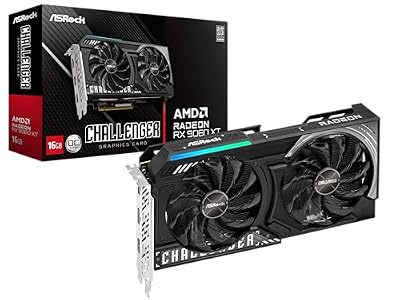
ASRock Radeon RX 9060 XT Challenger 16GB OC, RDNA 4, 3290MHz Boost, 16GB GDDR6 128-bit, PCIe 5.0, Dual Fans, 0dB Silent, LED Indicator, DisplayPort 2.1a, HDMI 2.1b
Included for 'Best Call of Duty Warzone Settings for FPS in 2026: Competitive and Low-End Presets' as a representative home product in this roundup; selection reflects the product set returned for this topic.
View on AmazonWarzone’s texture streaming and VRAM Scale Target system punish 8GB cards, which is why the 16GB RX 9060 XT is a sensible upgrade for players stuck on Low textures. ASRock’s Challenger OC has a 3,290 MHz boost clock, 16GB of GDDR6 on a 128-bit bus, a full PCIe 5.0 x16 interface and a quiet dual-fan cooler with 0dB idle mode, at a board power around 160W on a single 8-pin connector.
With 16GB you can run Normal or High textures and a higher VRAM Scale Target without the stutter described above, and FSR 4, which Activision lists as supported in the current Call of Duty PC build, gives clean upscaling at 1440p. Frame rates at 1080p competitive settings typically sit well into high-refresh territory for this class of card.
Strengths: 16GB VRAM, FSR 4, low power draw, full x16 interface for older PCIe 3.0 boards.
Drawbacks: no DLSS or NVIDIA Reflex; AMD’s Anti-Lag is the latency equivalent.
Who it suits: players on 6-8GB cards who want to stop fighting texture stutter.
PNY GeForce RTX 5060 Ti 16GB OC Dual-Fan
The NVIDIA alternative, with 4,608 CUDA cores, 16GB of GDDR7 on a 128-bit bus, a PCIe 5.0 x8 interface and a board power around 180W. Its advantages in Warzone are DLSS with the transformer model, NVIDIA Reflex On + Boost for lower input latency, and the same 16GB buffer that removes VRAM as a limit. DLSS Multi Frame Generation is available for casual lobbies.
Strengths: 16GB VRAM, DLSS and Reflex, compact dual-fan cooler.
Drawbacks: the x8 interface loses some bandwidth on PCIe 3.0 boards, and it usually sits a tier above the RX 9060 XT.
Who it suits: competitive players who want Reflex and DLSS. Make sure the listing says 16GB, not 8GB.
Crucial P310 2TB PCIe Gen4 NVMe

Crucial P310 2TB SSD, PCIe Gen4 NVMe M.2 2280, Up to 7,100MB/s, for Laptop, Desktop (PC), & Handheld Gaming Consoles, Includes Acronis Data Recovery Software, Solid State Drive - CT2000P310SSD801
Included for 'Best Call of Duty Warzone Settings for FPS in 2026: Competitive and Low-End Presets' as a representative home product in this roundup; selection reflects the product set returned for this topic.
View on AmazonWarzone and the wider Call of Duty install take up well over 100GB, and the game streams assets from disk constantly. Crucial’s P310 is a Gen4 NVMe M.2 2280 drive rated for up to 7,100 MB/s reads, with a 2TB capacity that leaves room for Warzone, its texture cache and other games.
Moving from a hard drive or SATA SSD to NVMe shortens load times and reduces texture pop-in when you land, which the “Outside the Game” section above covers. A large drive also lets you raise the on-demand texture cache size without worrying about space.
Strengths: fast Gen4 reads, 2TB capacity, single-sided M.2 that also fits handhelds and laptops.
Drawbacks: a DRAM-less, QLC-based design, so sustained large writes are slower than premium drives such as the Samsung 990 Pro; for game loading this rarely matters.
Who it suits: anyone still running Warzone from a SATA SSD or hard drive.
ASUS TUF Gaming VG27AQM5A 27-inch 1440p 300Hz
Once your settings produce well over 144 fps, a faster monitor is how you actually see the benefit. ASUS’s TUF VG27AQM5A is a 27-inch 2560×1440 panel with a refresh rate up to 300Hz and G-SYNC compatibility, which pairs well with the high tier presets above and with the frame-cap advice in the FAQ below.
Strengths: 1440p at up to 300Hz, adaptive sync, a sensible size for competitive play.
Drawbacks: to use 300Hz in Warzone you need a high-tier GPU and a fast CPU; mid-tier systems will sit closer to 144-200 fps.
Who it suits: players already above 165 fps who want smoother motion and lower display latency.
How we compared
We did not run our own Warzone benchmarks for these tables. Settings are based on Activision’s published PC options and requirements, DSOGaming’s Black Ops 7 DLSS 4 and ray-tracing analysis, and 2026 settings guides from Switchblade Gaming (updated for Season 3 in April 2026), Dexerto (updated for Season 5 in July 2026), Sportskeeda and Beebom, cross-checked against owner reports. Where sources disagree, for example on On-Demand Texture Streaming, we note both options. Hardware picks are based on manufacturer specifications.
FAQ
Is DirectX 12 faster than DX11 in Warzone?
Warzone has no DX11 path. The IW engine was converted to DX12-only in a prior major update, and the renderer assumes a DX12 command list architecture throughout. If you see DX11 options, you are looking at a non-Warzone CoD title or a modded menu.
Why do my FPS drop when I enter a building?
Buildings increase draw-call count and trigger interior-specific texture loads. If you have Detail Level set to High or On-Demand Texture Streaming enabled, the CPU spikes processing the transition. Drop Detail Level to Medium and set On-Demand Texture Streaming to Minimal. If the issue persists on a high-end CPU, your VRAM is likely overflowing and the engine is evicting and reloading textures.
Does increasing Field of View cost FPS?
Yes. The engine does not scale its culling volume linearly with FOV, so raising FOV from 90 to 120 increases visible geometry by roughly 20-25 percent in screen area, translating to a proportional GPU cost. On a mid-range card, the difference between 80 and 110 FOV can be 15-20 percent average FPS. Competitive players typically settle between 100 and 110 as the balance between situational awareness and framerate.
Why does the game stutter even with 165+ FPS locked?
Warzone’s frame pacing is uneven due to the engine’s render-thread scheduling. Use the in-game FPS cap set to 1-2 frames below your monitor refresh rate (for example, cap at 142 on a 144 Hz display) rather than running uncapped or at a higher cap. This prevents the GPU from queueing frames ahead of the display refresh window, which is what produces the perception of micro-stutter despite a high average.
What is VRAM Scale Target and what should I set it to?
It controls how much of your graphics memory the game is allowed to use. Values around 80-85 leave headroom for Windows and background apps, which reduces stutter. Use about 70-80 on 6-8GB cards and 85-90 on 16GB cards.
Should I use DLSS Multi Frame Generation in Warzone?
Not in ranked or competitive play. It raises the frame counter but adds input latency because generated frames do not respond to your inputs. In casual modes on an RTX 50 card with a base above 60 fps, it makes motion look smoother.
Is FSR 4 supported in Warzone?
Yes, on Radeon RX 9000 cards. Activision lists FSR 4 among the current PC options. Older Radeon cards use earlier FSR versions or native rendering with CAS sharpening.
Do these settings change with new seasons?
Often. Seasonal updates have added and renamed options in the past, so recheck the menu and rerun the built-in benchmark after each major update.









