🛒 Best Price Today on Amazon
Prime members get fast, free shipping on everything above, plus member-only deals. New members get a 30-day free trial — cancel anytime.
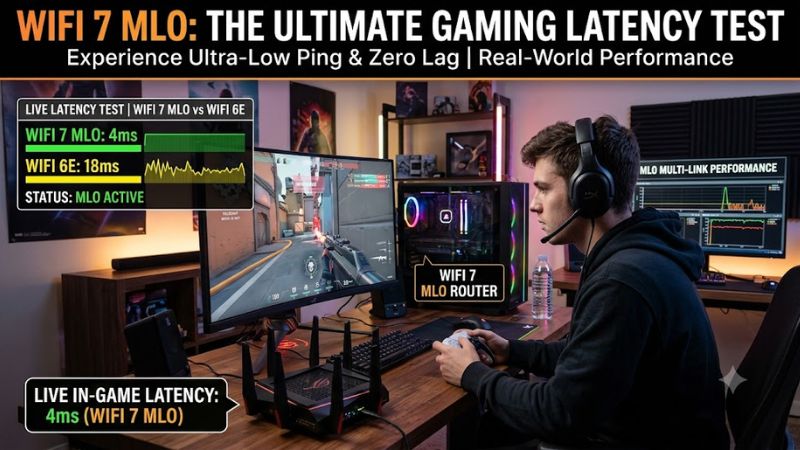
Wifi 7 mlo gaming latency test helps determine whether Multi-Link Operation actually improves your gaming connection or simply increases available bandwidth. MLO can improve responsiveness under interference, but results depend on your router, wireless adapter, driver, and network conditions. This guide explains how to configure, measure, and compare it against a single Wi-Fi connection.
What Wi-Fi 7 MLO Gaming Latency Really Comes Down To
A Wi-Fi 7 MLO gaming latency test measures more than download speed. It examines ping, jitter, packet loss, and latency consistency while comparing Multi-Link Operation against a single wireless link. The main question is whether multiple links reduce network interruptions during gameplay, particularly in busy wireless environments.
1. Understanding Multi-Link Operation
Multi-Link Operation allows compatible Wi-Fi 7 devices to establish connections across multiple frequency bands, such as 5 GHz and 6 GHz. Rather than relying on one wireless link, an MLO-enabled client and access point can coordinate multiple links to improve connection flexibility and responsiveness.
However, MLO does not always transmit gaming packets simultaneously across every available band. Its behavior depends on the supported operating mode, wireless chipset, and router implementation. Consequently, a Wi-Fi 7 connection does not automatically provide the same latency improvement on every laptop.
ASUS Global+2
2. STR vs. EMLSR: Why the Operating Mode Matters
Simultaneous Transmit and Receive (STR) allows supported radios to transmit and receive across separate links simultaneously. This can provide more opportunities to move traffic when one frequency experiences interference, although actual performance still depends on the radio design and surrounding network conditions.
Enhanced Multi-Link Single Radio (EMLSR) takes a different approach. It allows a single-radio device to monitor multiple links and dynamically select one for data transmission. This can improve responsiveness without requiring multiple fully independent radios, but it should not be confused with simultaneous data transmission across every band.
ASUS Global+1
3. Ping, Jitter, and Packet Loss Are Different Measurements
Ping measures the round-trip time between your computer and a destination, usually expressed in milliseconds. Lower ping generally means less network delay, but a single reading cannot describe the quality of a gaming connection throughout an entire match.
Jitter describes variation in packet delay, while packet loss measures packets that fail to reach their destination. For competitive games, consistent latency and low packet loss can matter more than a higher theoretical Wi-Fi throughput figure. Record all three when comparing MLO with a single-link connection.
What Doesn’t Help: Looking Only at Wi-Fi Speed
A router advertising extremely high Wi-Fi 7 throughput does not necessarily provide lower gaming latency. Download speed, wireless link speed, and internet ping measure different aspects of network performance. A faster connection can still experience congestion, interference, or delays beyond the wireless network.
Similarly, running one speed test immediately after enabling MLO is insufficient. Background downloads, server distance, ISP routing, and other connected devices can influence the results. A meaningful comparison requires repeatable measurements under similar conditions.
How to Run a Wi-Fi 7 MLO Gaming Latency Test
A reliable comparison requires the same laptop, router location, game server, and internet connection in both configurations. Start with a single-link connection, record baseline latency, and then repeat the measurements with MLO enabled. Keep other network activity as consistent as possible so that changes are more likely to reflect the wireless configuration.
1. Check Your Router, Laptop, and Windows Compatibility
Before running a Wi-Fi 7 MLO gaming latency test, confirm that both your router and laptop support MLO. Having a Wi-Fi 7 router alone is insufficient because the client wireless adapter must also support the relevant MLO capabilities.
Check your laptop’s wireless adapter in Device Manager under Network adapters. Look up its exact model on the manufacturer’s support page, then confirm its driver and operating-system requirements. For Intel Wi-Fi 7 adapters, Intel identifies Windows 11 24H2 as the starting point for Wi-Fi 7 features.
Intel+1
2. Enable MLO on Your Wi-Fi 7 Router
Open your router’s administration interface and locate its MLO configuration. Menu names vary by manufacturer and firmware. On supported ASUS routers, the web interface provides an option under Network, Main network profile, and Advanced Settings to enable Multi-Link Operation.
Save the configuration and connect your laptop to the MLO-enabled network using its designated network profile or SSID. Do not assume that enabling MLO on the router automatically means your laptop has negotiated an MLO connection. Check the router’s connected-client information or wireless diagnostics to confirm the association.
ASUS Global+1
3. Establish a Single-Link Latency Baseline
First, connect your laptop to a conventional single-band Wi-Fi network. Open Command Prompt and enter:
ipconfig
Find the Default Gateway under your active wireless adapter. This is usually your router’s local IP address. Next, run a continuous ping:
ping -n 300 192.168.1.1
Replace the example address with your actual gateway. Record the average, minimum, maximum, and packet-loss results. Repeat the process against a stable external destination to measure internet-facing latency, recognizing that this second measurement also includes ISP routing and remote-server delays.
4. Repeat the Measurements With MLO Enabled
Connect to the MLO network and repeat the same commands with the same destinations. Keep the laptop in the same position and avoid changing the router’s channel, bandwidth, or other wireless settings between comparisons.
Record the results in a spreadsheet, including the time of measurement and whether other devices were using the network. Repeat the comparison during both relatively quiet periods and normal household activity. This helps reveal whether MLO provides a practical advantage when wireless congestion increases.
Recommended comparison table:
| Setting or Step | Where | Effect | Risk |
| Single-link baseline | Windows Command Prompt | Establishes reference ping and packet loss | None |
| Enable MLO | Router administration interface | Allows compatible clients to use MLO | Client compatibility required |
| Verify connection | Router client list or diagnostics | Confirms MLO association | Menu availability varies |
| Repeat latency measurements | Command Prompt and game statistics | Compares ping consistency and loss | Internet conditions can vary |
5. Interpret the Results Instead of Chasing Lower Ping
Compare the average ping first, then examine maximum latency and packet loss. If MLO produces a similar average but fewer large latency spikes, it may still provide a better experience during busy gaming sessions. Conversely, higher maximum latency or additional packet loss suggests that the configuration needs further investigation.
There is no universal ping reduction that every Wi-Fi 7 system should achieve. A result that changes by a few milliseconds may simply reflect normal internet variation. Look for repeatable differences across multiple measurement sessions rather than treating one favorable result as evidence of improvement.
Independent research also shows why expectations should remain realistic. In February 2026, RTINGS analyzed 25 Wi-Fi 7 routers and found that 22 implemented EMLSR as their reported MLO baseline. Its findings highlight the gap between the full capabilities described by the Wi-Fi 7 specification and implementations available in consumer routers.
RTINGS.com
6. Compare Independent Research With Your Gaming Results
The Wireless Broadband Alliance (WBA), working with CableLabs and Intel, published residential MLO field-trial findings in February 2026. Its setup used a tri-band Wi-Fi 7 access point and an Intel BE200 client operating with eMLSR architecture.
The reported results included a 35–48% reduction in application-layer latency and up to 40% lower MAC-layer jitter under the trial conditions. These findings demonstrate potential benefits in residential environments, but they are not universal gaming benchmarks or a prediction of the improvement your laptop will receive.
Wireless Broadband Alliance
The distinction matters because cloud gaming, competitive multiplayer, and ordinary online gaming have different network demands. A connection that performs well during a file transfer may still experience latency variation during a competitive match. Use your own game statistics alongside local and external ping measurements to reach a practical conclusion.
FAQ
1. Does Wi-Fi 7 MLO Reduce Gaming Ping?
Yes, MLO can reduce latency variation and improve responsiveness under certain wireless conditions, but it does not guarantee lower average ping. Its benefits depend on router implementation, client capabilities, interference, and internet routing.
If your existing Wi-Fi connection already has stable latency and little congestion, enabling MLO might produce only a small difference. Its potential advantage is more noticeable when wireless interference or competing network traffic affects connection consistency.
2. Do You Need Windows 11 to Use Wi-Fi 7 MLO?
Windows 11 24H2 or later is required for the Wi-Fi 7 features of Intel’s supported Wi-Fi 7 adapters. Other wireless manufacturers may have different operating-system and driver requirements.
Check the specific adapter manufacturer’s documentation before upgrading your operating system or purchasing a wireless adapter. A compatible router cannot independently provide MLO functionality to an unsupported laptop.
3. Is Wi-Fi 7 MLO Better Than Ethernet for Gaming?
Ethernet is generally the preferred option for consistent competitive gaming because it avoids wireless interference and shared radio-channel contention. MLO improves wireless flexibility but does not remove every source of network delay.
If running an Ethernet cable is practical, it remains a useful reference when evaluating your wireless connection. Compare both connections using the same game server and similar testing conditions.
4. Why Does MLO Sometimes Increase Gaming Latency?
MLO can perform worse when its links experience uneven congestion, when the client and router have limited implementations, or when switching between links introduces additional delays.
Check the router’s firmware, wireless driver, MLO association status, and network congestion. If disabling MLO consistently produces better results across repeated comparisons, return to the single-link configuration and investigate whether a future firmware or driver update improves compatibility.
Final Thoughts
A meaningful wifi 7 mlo gaming latency test should prioritize consistent ping, low jitter, and minimal packet loss rather than maximum wireless speed. MLO has measurable potential, but hardware implementations differ. Compare both configurations under identical conditions before deciding whether to keep MLO enabled for gaming.