🛒 Best Price Today on Amazon
Prime members get fast, free shipping on everything above, plus member-only deals. New members get a 30-day free trial — cancel anytime.
Updating chipset software helps your Ryzen X3D gaming PC communicate correctly with its motherboard and Windows. This ryzen x3d cpu chipset driver update guide explains how to identify your chipset, download the appropriate AMD package, install it safely, and troubleshoot common errors without unnecessarily changing BIOS settings.
What Ryzen X3D Chipset Driver Updates Really Come Down To
Ryzen X3D processors, including models with 3D V-Cache, benefit from a correctly configured software environment, but a chipset driver update is not a guaranteed FPS boost. The key is choosing the package for your motherboard platform, checking its release notes, and distinguishing chipset software from BIOS firmware and graphics drivers.
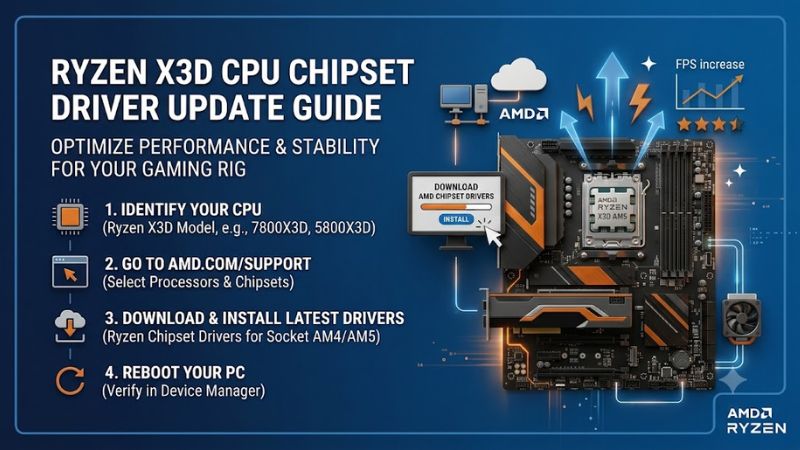
1. Understand What a Chipset Driver Does
AMD Ryzen chipset software is a collection of drivers and supporting components for motherboard and processor platform functions. Depending on the platform and package, these can include AMD Processor Power Management, PCI, GPIO, SMBus, and other system-related components. They help Windows manage and communicate with supported hardware.
This software is different from the AMD Radeon graphics driver, NVIDIA GeForce driver, and motherboard BIOS. Installing a graphics driver does not replace the chipset package, and updating chipset software does not flash the BIOS. Keeping these categories separate makes troubleshooting easier and reduces unnecessary changes to a stable system.
2. Identify Your Ryzen X3D Processor and Motherboard
Start by checking your processor and motherboard model. Press Windows + R, enter msinfo32, and press Enter. In System Information, check Processor, BaseBoard Manufacturer, BaseBoard Product, and BIOS Version/Date. Some prebuilt systems may display incomplete motherboard information, so check the system manufacturer’s specifications if necessary.
You can also open Task Manager with Ctrl + Shift + Esc, select Performance, and choose CPU to confirm the processor name. Record the motherboard model separately. For example, a Ryzen 7 9800X3D system using a B650 motherboard needs software appropriate for its AMD chipset, not a package selected solely because the processor belongs to the Ryzen 9000 family.
3. Know When an Update Is Worth Installing
A chipset update is particularly worth considering after a Windows installation, motherboard platform change, or persistent power-management or device-recognition issue. It is also reasonable to review new releases when AMD documents relevant fixes, operating-system support, or changes affecting your platform.
If your gaming PC is stable, you do not need to assume every new release will improve performance. Read the release notes first and compare the supported chipsets, processors, Windows versions, and known issues against your own configuration. A newer package is useful only when it supports your system and provides a reason to update.
What Doesn’t Help
Downloading a random driver from a third-party website, repeatedly reinstalling chipset software without a diagnosis, or flashing the BIOS just because a chipset installer fails adds risk without addressing the underlying cause. Likewise, changing Windows power plans or disabling background services is not a substitute for installing the correct driver package.
Avoid third-party driver-updater utilities that select packages without clear platform identification. For desktop Ryzen X3D systems, start with AMD’s official chipset support page or the motherboard manufacturer’s support page when its instructions are specific to your system. For laptops and all-in-one PCs, prioritize the system manufacturer’s validated drivers when recommended.
How to Update Ryzen X3D Chipset Drivers: Step by Step
The safest approach is to identify your motherboard chipset, download the corresponding package from AMD, and run its installer with administrator permissions. As of October 27, 2026, AMD’s B650 support page lists chipset driver package 8.09.28.1124, dated October 21, 2026. Treat this as a dated example, not a universal recommendation; the latest supported version can vary by chipset and operating system.
Step 1. Check Your Existing Driver and Windows Version
Before installing anything, open Settings → System → About to check your Windows edition and system type. Then use Win + R, enter appwiz.cpl, and press Enter. Look for AMD Chipset Software in the installed-programs list to establish whether a package is already present.
Record its displayed version if available, and note any recent driver-related problems. You do not need to uninstall a working package before every update. Keeping the current installation intact until the new installer is ready gives you a clearer starting point if the update encounters an error.
Step 2. Download the Correct AMD Chipset Package
Open AMD’s official Drivers and Support section and select your motherboard chipset under the chipset category. Choose the Windows version that matches your installation, then inspect the available driver details and release notes before downloading. Verify that your chipset and operating system are listed as supported.
For example, AMD’s B650 download page lists the Ryzen 7 9800X3D among its supported processors. That is useful evidence for a 9800X3D system with a B650 board, but it does not mean every X3D processor uses B650 drivers. Select the package for your actual motherboard platform rather than relying on the CPU name alone.
Step 3. Install the Package and Restart Windows
Close games, benchmarks, and other applications, then locate the downloaded AMD Chipset Software executable. Run it from an administrator account, allow the installer to extract its files, and review the supported components shown in the installation window. Leave the recommended components selected unless AMD’s instructions for your configuration specify otherwise.
Wait for the installation to finish and restart when prompted. Do not interrupt the installer or shut down the computer while it is working. A brief change in device behavior during installation can occur. If setup reports a failure, record the error message before trying again instead of repeatedly launching the same installer.
Step 4. Verify the Installation and Check Stability
After restarting, reopen Programs and Features and check the AMD Chipset Software entry. Compare the installed package version with the release you downloaded, noting that individual component versions may differ from the overall package version. A successful installer completion and a normal restart are useful first checks.
Next, use the PC as usual and launch a familiar game. Check for unexpected shutdowns, new device errors, unusual idle behavior, or changes in game stability. A single FPS result cannot establish that a chipset update improved performance; game patches, background tasks, temperatures, and graphics drivers can all influence frame rates.
| Setting or Step | Where | Effect | Risk |
| Identify chipset and Windows | System Information and Settings | Establishes the correct platform and OS | Very low |
| Review package and release notes | AMD chipset support page | Confirms supported hardware and documented changes | Very low |
| Install chipset software | AMD installer | Updates supported platform drivers and components | Low; restart required |
| Verify version and stability | Programs and Features, then normal gaming | Helps identify installation problems | Very low |
Troubleshooting Common Installation Errors
If this ryzen x3d cpu chipset driver update guide does not get you through installation on the first attempt, diagnose the reported error rather than jumping straight to a clean Windows installation.
- Installer will not launch: Confirm that the downloaded file completed successfully and that your account has administrator permissions. Download a fresh copy from AMD if the file may be incomplete.
- Installation fails with an installer error: Check Windows Update, available disk space, and whether another installation is running. Follow AMD’s documented troubleshooting steps for the specific error.
- The installer reports missing files during uninstall: AMD documents a recovery approach that involves installing the latest supported chipset package first, then attempting the uninstall again if necessary.
- The PC behaves differently after updating: Restart once more if required, check the release notes, and determine whether the problem began immediately after the update. Avoid changing several unrelated settings at once.
If a rollback becomes necessary, use Control Panel → Programs and Features to open AMD Chipset Software and follow the installer’s uninstall process where supported. AMD warns against manually removing individual chipset components through Device Manager or third-party driver-removal utilities. Reinstall a supported package afterward if needed.
FAQ
1. Do Ryzen X3D CPUs need a chipset driver update?
Ryzen X3D systems should have the appropriate chipset drivers installed, but they do not necessarily need an update every time AMD publishes a new package. Update when a release supports your platform and addresses a relevant issue, compatibility requirement, or documented improvement.
2. Will updating chipset drivers increase gaming FPS?
A chipset update may help when a relevant driver issue affects system behavior, but it does not automatically increase FPS. Performance depends on the CPU, GPU, game, graphics settings, Windows configuration, and other factors. Compare repeatable results under consistent conditions before attributing a change to the update.
3. Should I update my BIOS at the same time?
No, a chipset driver update does not automatically require a BIOS update. Check the motherboard manufacturer’s CPU-support list and BIOS release notes separately. Update firmware when there is a relevant compatibility, security, or stability reason, following the manufacturer’s instructions and recovery precautions.
4. Should I install chipset drivers from AMD or my motherboard manufacturer?
For a desktop Ryzen X3D system, AMD’s official chipset package is a suitable starting point when your chipset and Windows version are supported. Check the motherboard manufacturer’s instructions for platform-specific requirements. On laptops and all-in-one systems, prefer OEM-provided drivers when the manufacturer recommends them for system-specific compatibility.
Final Thoughts
A careful ryzen x3d cpu chipset driver update guide should help you update the right software without unnecessary BIOS changes or risky driver removal. Identify your motherboard first, read AMD’s current release notes, install the supported package, and verify stability after restarting. If an error persists, use its exact message to guide the next step.