🛒 Best Price Today on Amazon
Prime members get fast, free shipping on everything above, plus member-only deals. New members get a 30-day free trial — cancel anytime.
Learning how to connect ps5 controller to pc starts with choosing USB or Bluetooth. Sony’s DualSense works with compatible Windows PCs through either connection, but individual games support different controller features. This guide explains pairing, Steam configuration, connection checks, and practical fixes without requiring unnecessary software or hardware upgrades.
Quick answer: Our top pick in 2026 is the Setting — our #1 rated choice. See the full ranked comparison, alternatives and buying advice below.
What Connecting a PS5 Controller to a PC Really Comes Down To
Connecting a DualSense controller is straightforward once you distinguish the physical connection from game compatibility. Sony lists Windows 10 (64-bit) and Windows 11 as supported operating systems. USB is useful for a direct connection, while Bluetooth allows wireless play when your PC has Bluetooth capability.
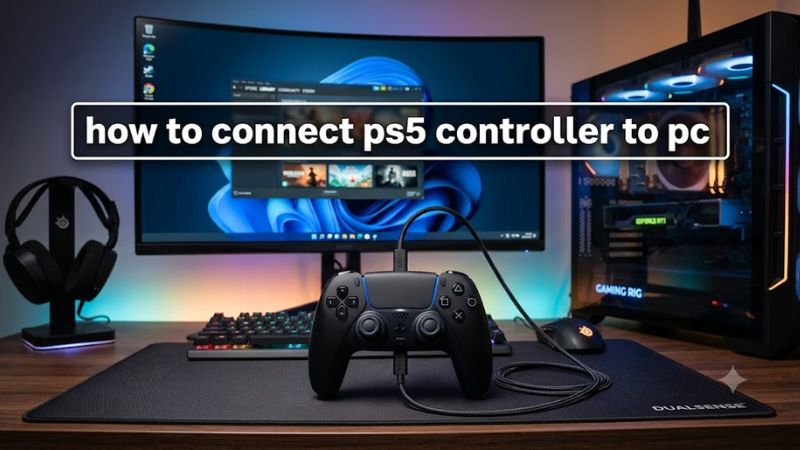
USB and Bluetooth Serve Different Needs
USB is a sensible starting point if you want a direct connection without pairing menus. Connect the controller’s USB-C port to a compatible PC port using a data-capable cable. A cable that supplies power but cannot transfer data may charge the controller without allowing Windows or a game to recognize it properly.
Bluetooth is useful when you want to play away from your desk or avoid a cable crossing your setup. Your computer needs built-in Bluetooth or a compatible USB Bluetooth adapter. Once paired, the controller can reconnect wirelessly, although switching it to another device may require pairing again through that device’s Bluetooth settings.
Check Windows Compatibility First
The DualSense supports USB and Bluetooth connections on Windows 10 (64-bit) and Windows 11. You do not need a particular gaming motherboard, graphics card, or processor just to connect the controller. For Bluetooth play, however, the computer must have functioning Bluetooth hardware and suitable drivers. A desktop without Bluetooth can use a compatible adapter.
Windows recognizing the controller does not mean every game will automatically accept its input. Game support depends on the title and its input system, so check the game’s controller settings before buying accessories or installing extra software. Sony’s compatibility guidance also notes that individual DualSense features can vary by device and game.
Understand DualSense Features on PC
Basic button, stick, and trigger input is separate from advanced features such as adaptive triggers and haptic feedback. Sony states that adaptive triggers work when supported by the game, while PC haptic feedback may require a USB connection. The controller’s built-in microphone and speaker are also available on Windows when supported by the software.
If your main goal is to experience a game’s advanced DualSense effects, start with a wired USB connection and confirm that the specific game supports those features. Bluetooth can still suit ordinary gameplay, but it should not be assumed to provide every feature available on a PlayStation 5.
What Doesn’t Help
Installing random controller drivers, changing BIOS settings, or buying a new graphics card is not a sensible first step when the controller simply needs pairing. Start with the connection method, Windows detection, and the game’s controller support. If a wired connection fails, check the cable and USB port before changing software.
Third-party tools may help with particular games or launchers, but they are not automatically necessary. Steam includes controller configuration options, and some games accept DualSense input directly. Adding several controller utilities at once can complicate troubleshooting by making it harder to identify which program is handling the input.
How to Connect a PS5 Controller to PC: Step by Step
Use the method that matches your setup, then confirm the controller works inside your game. The following table summarizes the main connection choices and their practical trade-offs. No benchmark claims are needed for this setup guide; compatibility and feature support are based on Sony’s official documentation.
| Setting | Where | Effect | Risk |
| USB connection | Controller USB-C port and PC USB port | Direct wired input; supports compatible wired-only features | A charge-only cable may not transfer data |
| Bluetooth pairing | Windows Settings > Bluetooth & devices | Wireless gameplay without a cable | Requires working Bluetooth hardware |
| Steam Input | Steam > Settings > Controller | Configures supported games and controller behavior | May change how a game handles input |
| Game input settings | The game’s settings menu | Enables or adjusts supported controller input | Some titles offer limited DualSense support |
Connect With a USB-C Cable
To connect a PS5 controller to PC using USB, first turn on the computer and connect the DualSense with a USB-C data cable. Use USB-A or USB-C at the computer end, depending on the available port and cable. Windows should detect the connected controller, allowing compatible applications to access it without Bluetooth pairing.
Open a game that supports controllers and check whether its menus respond to the buttons or sticks. If the controller only charges, try another USB port and a known data-capable cable. Avoid purchasing replacement hardware until you have checked these simple causes, because a cable problem can resemble a controller failure.
Pair the Controller Over Bluetooth
To connect wirelessly, first make sure the controller is off and disconnect its USB cable. Hold the Create button and the PS button together until the light bar flashes. On Windows 11, open Settings, select Bluetooth & devices, choose Add device, then Bluetooth, and select the controller when it appears.
After pairing, wait for Windows to confirm the connection and open a compatible game to check input. The controller can pair with only one device at a time, according to Sony, so moving between a console and a computer may require reconnecting. If the controller does not appear, confirm Bluetooth is enabled and repeat pairing mode.
Configure Steam Input
If your game runs through Steam, open Steam’s Settings and select Controller. Review the available PlayStation controller support options and make sure the controller is recognized. Steam’s controller configuration can help games use the DualSense even when their native input handling differs, but the exact options can change with Steam updates.
Launch the game through Steam and check its own controller settings. If input is missing or duplicated, temporarily review the game’s configuration and Steam Input behavior rather than installing multiple controller utilities. A game may display Xbox-style button prompts even while accepting DualSense input; that visual difference does not necessarily indicate a connection fault.
Verify Input and Advanced Features
Once connected, test the directional controls, face buttons, triggers, and sticks inside a game or its controller configuration screen. If the game does not respond, check whether it supports controllers and whether the launcher is detecting the correct device. For Steam titles, the store page identifies full or partial controller support.
For advanced effects, use USB first and check the game’s specific DualSense support. Sony notes that adaptive triggers depend on game support and that haptic feedback on PC may require USB. You can also update the controller’s device software using Sony’s PlayStation Accessories app on a compatible Windows PC if an update is needed.
Frequently Asked Questions
Can I connect a PS5 controller to a PC without Bluetooth?
Yes, you can connect a DualSense controller to a PC without Bluetooth by using a USB-C data cable. Connect it to a compatible USB port, then open a supported game to confirm that it responds. This method also avoids wireless pairing and can support certain advanced controller features.
Why is my PS5 controller not showing up on my PC?
A PS5 controller may not appear because Bluetooth is disabled, pairing mode was not activated, or a USB cable cannot transfer data. Disconnect the controller, check the connection, and try again. For Bluetooth, hold Create and PS until the light flashes, then search again in Windows settings.
Does a PS5 controller work with every PC game?
No, a DualSense controller does not work with every PC game automatically because controller support varies by title. Check the game’s settings and, for Steam games, its store-page controller support information. Some games accept basic input but do not support advanced haptics or adaptive triggers.
Do I need DS4Windows to use a PS5 controller on PC?
No, DS4Windows is not required for every PC game because Windows and supported games can recognize the DualSense directly. Start with a USB or Bluetooth connection and check Steam Input if necessary. Consider an additional compatibility tool only when a specific game or launcher needs it.
Final Thoughts
Learning how to connect ps5 controller to pc comes down to selecting USB or Bluetooth, confirming Windows recognizes the controller, and checking the game’s input support. Start with a USB data cable if you want the simplest troubleshooting path. Use Bluetooth for wireless play, and configure Steam only when your game needs additional input support.
Ready to decide? Our #1 pick for 2026 is the Setting.
Live price & availability on Amazon.