🛒 Best Price Today on Amazon
Prime members get fast, free shipping on everything above, plus member-only deals. New members get a 30-day free trial — cancel anytime.
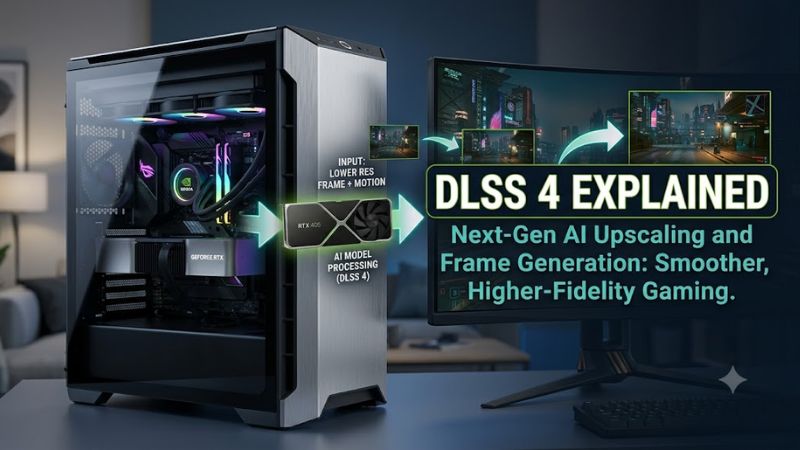
Having DLSS 4 explained helps gamers understand how modern artificial intelligence accelerates modern graphics. NVIDIA introduced this version alongside GeForce RTX 50 series graphics cards to increase real-time rendering speeds. By combining deep learning upscaling with Multi Frame Generation, systems achieve higher overall output.
What DLSS 4 Really Comes Down To
Understanding AI upscaling requires looking at how neural models process visual details in real time. Having DLSS 4 explained shows how hardware tensor cores work alongside game engine motion vectors to calculate missing pixels. The new suite focuses on four core areas to boost frame rates without exhausting system resources.
Transformer Neural Network Architecture
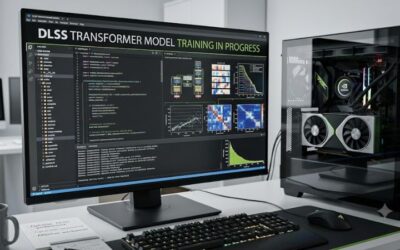
The transition to a Transformer Neural Network architecture marks a major shift for image reconstruction. With DLSS 4 explained as a shift away from older convolutional neural networks, the AI model processes twice as many parameters. This architectural revision improves temporal stability across fast moving scene elements.
By analyzing larger spatial and temporal data samples, the Transformer model reduces visual shimmering on thin geometry like fences and electrical wires. It also improves denoising efficiency when combined with Ray Reconstruction algorithms. As a result, rendered images maintain high clarity at low base resolutions.
Multi Frame Generation Technology
Multi Frame Generation expands upon previous single frame interpolation techniques by inserting up to three AI generated frames between traditional frames. Features in DLSS 4 explained by engineering documentation show that a single rendered frame can produce four displayed frames, quadrupling measured display refresh output.
To maintain image stability during complex particle effects, the system splits its frame generation network into two distinct execution pathways. One pathway handles optical flow calculations once per input pair, while a lighter secondary network constructs output frames. This dual structure maintains fluid motion during gameplay.
Reflex Frame Warp Latency Reduction
Generating multiple synthetic frames consecutively risks increasing input latency if control signals lag behind visual output. Features in DLSS 4 explained how Reflex Frame Warp addresses latency by reprojecting rendered frames based on current mouse input. Post-render reprojection shifts the camera perspective prior to display.
This reprojection step operates within the display pipeline to ensure user inputs feel responsive despite higher frame counts. By combining Reflex Frame Warp with standard NVIDIA Reflex technology, control responsiveness remains tight. Competitive action titles benefit from smoother motion without severe input delays.
What Doesn’t Help DLSS 4 Performance
Third party memory optimization utilities and registry tweaks do not increase frame generation efficiency. Third party software scripts often disable essential background services needed by graphics drivers, leading to unexpected crashes. Disabling telemetry does not free up GPU tensor cores required for deep learning upscaling.
Overclocking video RAM beyond factory specifications can destabilize tensor core processing during heavy AI workloads. If neural calculations drop packets due to memory instability, visual artifacts and frame stuttering will increase. Maintaining official GPU clock targets delivers consistent frame timing and visual accuracy.
How to Enable DLSS 4: Step by Step
Configuring AI features requires adjusting specific operating system options and game settings correctly. Having DLSS 4 explained across game setup menus ensures players pick parameters suited to their display resolution. Following structured steps helps avoid system bottlenecks while maximizing visual clarity and frame rates.
| Setting | Where | Effect | Risk | | Driver Version | NVIDIA App or Website | Enables Transformer neural network models | Driver installation errors require rollback | | Hardware GPU Scheduling | Windows Graphics Settings | Allows GPU to manage frame scheduling memory | Requires system reboot to activate | | Super Resolution Mode | In Game Graphics Menu | Renders game at lower resolution then upscales | Quality mode retains more image detail than Performance | | Multi Frame Generation | In Game Display Menu | Inserts up to 3 AI frames per rendered frame | Requires RTX 50 series GPU and adds latency |
Step 1: Update Graphics Drivers and Windows
Updating software components ensures that modern AI upscaling models operate with full hardware acceleration. With DLSS 4 explained in setup guides, installing current GeForce Game Ready Drivers grants access to updated Transformer profiles. Windows 11 updates also include key display pipeline optimizations for modern GPUs.
To update drivers, open the NVIDIA App and click Check for Updates under the Drivers tab. Select Express Installation to install driver files, display drivers, and audio components automatically. If installation issues occur, performing a clean installation through the installer restores factory configuration states cleanly.
Step 2: Enable Hardware Accelerated GPU Scheduling
Hardware Accelerated GPU Scheduling manages video memory directly to minimize CPU overhead during rendering. Open Windows Settings, navigate to System, click Display, and select Graphics Settings to find the option. Toggle Hardware Accelerated GPU Scheduling to the On position and restart the system to finalize the change.
This feature allows the GPU to control its own frame queue without relying on CPU interrupt requests. Lowering CPU scheduling overhead helps prevent frame delivery bottlenecks when Multi Frame Generation is active. Reverting this setting requires opening the same menu, switching the toggle to Off, and rebooting the PC.
Step 3: Configure In Game Resolution and Super Resolution
Selecting the appropriate upscaling profile balances internal rendering resolution against overall target clarity. Having DLSS 4 explained in game options allows players to pick Quality, Balanced, or Performance presets. Quality mode renders at 67 percent native resolution, providing high sharpness on 4K monitors during play.
Launch your target game and navigate to the video graphics settings menu. Locate the Super Resolution section and select Quality mode for displays at 1440p or 4K. If base frame rates drop below 60 FPS, switching to Balanced mode lowers internal rendering burden while maintaining clear object edges across dynamic lighting scenes.
Step 4: Toggle Multi Frame Generation and Reflex Warp
Enabling Multi Frame Generation instructs tensor cores to generate intermediate frames automatically. In the graphics menu of supported titles, locate the Frame Generation toggle and set it to Multi Frame or 2x/3x/4x mode. Ensure NVIDIA Reflex Low Latency is set to On plus Boost to keep input responsiveness fast during play.
Independent benchmarks in titles like Cyberpunk 2077 at 4K resolution show frame rates rising from 35 FPS natively to over 140 FPS with Multi Frame Generation active. If visual artifacts appear in fast camera movements, toggle Frame Generation back to Disabled or switch to standard 2x mode within the same graphics menu.
Frequently Asked Questions About DLSS 4
Gamers often have questions regarding hardware compatibility, latency impact, and generational differences. Having DLSS 4 explained through common community inquiries clears up misconceptions regarding support across older GPU architectures. Reviewing these facts helps players choose appropriate hardware upgrades for their rigs.
Is DLSS 4 Supported on Older RTX Graphics Cards?
DLSS 4 Super Resolution and Ray Reconstruction updates work on all GeForce RTX graphics cards, but Multi Frame Generation requires GeForce RTX 50 series hardware. Older GPUs like the RTX 40 series support standard 2x Frame Generation, while RTX 30 and 20 series cards utilize Transformer upscaling without frame insertion.
The hardware limitation stems from updated optical flow accelerators and 5th generation tensor cores present on RTX 50 series Blackwell GPUs. These components process multiple frame calculations simultaneously without overburdening shader pipelines. Users on older cards still gain clearer visuals from Transformer models.
Does DLSS 4 Multi Frame Generation Increase Input Lag?
DLSS 4 Multi Frame Generation adds slight processing latency, but integrated Reflex technology keeps input responsiveness close to native performance levels. Generating synthetic frames requires holding rendered frames briefly in buffer memory, which increases latency unless Reflex actively optimizes input queues.
Enabling Reflex Frame Warp helps offset buffer delay by reprojecting frames according to real time mouse input data. In fast action games, input delay stays within comfortable thresholds for casual and competitive players alike. Gamers seeking minimal latency in esports titles can run Super Resolution with Frame Generation disabled.
How Many Extra Frames Can DLSS 4 Generate?
DLSS 4 Multi Frame Generation can generate up to three AI frames for every single frame rendered by the GPU. This 4x output mode increases a base rendering rate of 30 FPS to an effective 120 FPS on high refresh rate monitors. Games displaying high base frame rates achieve smoother visual motion with minimal motion blur.
A higher base frame rate remains important because AI frame generation relies on accurate motion vector data between rendered frames. Starting with a base rate of 60 FPS or higher ensures generated frames maintain precise alignment with player movement. Lower base frame rates may exhibit minor visual artifacts during rapid movement.
What Is the Difference Between DLSS 3 and DLSS 4?
The primary difference between DLSS 3 and DLSS 4 lies in Transformer neural network models and Multi Frame Generation capabilities. While DLSS 3 introduced single frame generation using convolutional neural networks, DLSS 4 upgrades the upscaling model to Transformer AI and generates up to three extra frames per rendered frame.
Additionally, DLSS 4 introduces Reflex Frame Warp reprojection to reduce latency spikes caused by generating multiple consecutive frames. Transformer architectures also process double the parameters of older convolutional networks, providing cleaner anti-aliasing and less image noise across ray-traced lighting environments.
Final Thoughts
Having DLSS 4 explained demonstrates how AI rendering technology continues to transform modern PC gaming performance. Combining Transformer upscaling with Multi Frame Generation delivers smooth frame rates on demanding graphics titles. Upgrading drivers and configuring in game options helps players achieve optimal results today.