🛒 Best Price Today on Amazon
Prime members get fast, free shipping on everything above, plus member-only deals. New members get a 30-day free trial — cancel anytime.
Configuring video encoding settings requires balancing network upload capacity with frame rendering stability. Our stream bitrate guide outlines the exact data rates needed to stream gameplay smoothly across Twitch and YouTube Live. Following official platform parameters prevents buffering issues and dropped frames during broadcasts.
Quick answer: Our top pick in 2026 is the Setting — our #1 rated choice. See the full ranked comparison, alternatives and buying advice below.
What Stream Bitrates Really Come Down To
Selecting video bandwidth involves finding the threshold where image clarity matches network capacity. This stream bitrate guide breaks down how video resolution, frame rates, and codec algorithms dictate overall transmission health. Balancing these three variables keeps your stream responsive while maintaining crisp picture quality.
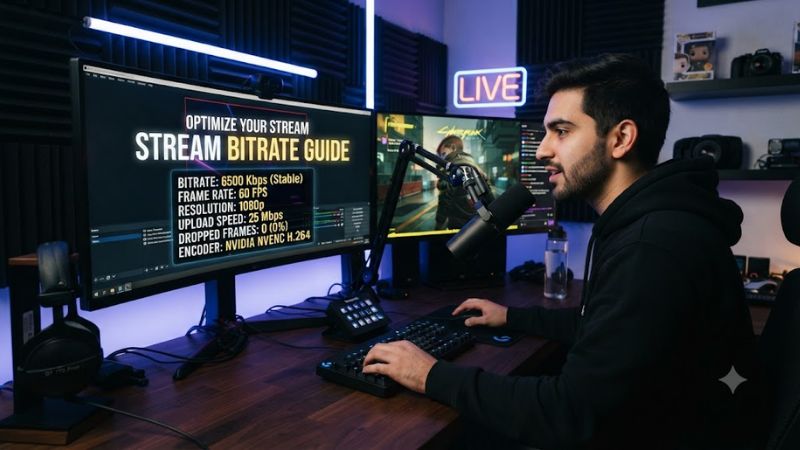
Video Resolution and Frame Rate Demands
Higher pixel counts require significantly more data bits per frame to prevent blur during fast motion. A standard 1080p stream at 60 frames per second processes 124 million pixels every second, whereas a 720p 60fps feed handles roughly 55 million. If you allocate insufficient bandwidth, fast camera movements create visible block artifacts.
Twitch publishing guidelines recommend 6000 kbps for 1080p 60fps broadcasting using Constant Bitrate mode. Lowering resolution to 720p at 4500 kbps reduces frame processing overhead while maintaining sharp visuals on smaller displays. Following this stream bitrate guide helps match video output to display targets.
Network Upload Bandwidth and Headroom
Your internet upload connection serves as the bottleneck for sending packet data to ingestion servers. Streaming requires leaving approximately 30 percent network headroom above your chosen video bit rate. If your home connection provides 10 Mbps upload, setting an 8000 kbps stream leaves inadequate margin for network jitter.
Unstable upload bandwidth forces OBS Studio to drop network packets, causing viewers to experience playback buffering. Connecting via Gigabit Ethernet instead of Wi-Fi prevents signal interference and packet loss. Testing upload speeds with Speedtest or Twitch Bandwidth Test confirms available throughput before launching.
Hardware Encoder Efficiency and Codecs
Hardware video encoders process compressed frames without placing heavy processing loads on system CPU cores. NVIDIA NVENC on RTX graphics cards, AMD VCN on RX 7000-series GPUs, and Intel QuickSync on Arc hardware feature dedicated silicon. These media blocks encode H.264, HEVC, and AV1 streams with minimal FPS impact.
Modern AV1 encoding delivers higher visual fidelity at 4000 kbps than H.264 achieves at 6000 kbps. YouTube supports AV1 and HEVC live ingestion over RTMP or HLS, whereas Twitch supports Enhanced Broadcasting using AV1 on RTX 40-series cards. Checking this stream bitrate guide ensures software matches your hardware capabilities.
What Doesn’t Help Stream Quality
Increasing video bitrate beyond platform ingestion caps does not improve stream quality for end viewers. Pushing 10000 kbps to a Twitch server capped at 6000 kbps leads to dropped network packets and ingest throttling. Excessive bitrates also prevent mobile viewers without transcoded playback options from streaming smoothly.
Using Variable Bitrate (VBR) instead of Constant Bitrate (CBR) causes rapid data spikes during intense gameplay. These sudden bitrate bursts saturate network buffers, inducing dropped frames despite average bandwidth remaining low. Adjusting Windows network registry values or running RAM cleaning scripts provides no improvement.
How to Set Stream Bitrates: Step by Step
Configuring streaming software requires adjusting output modes and encoder profiles to align with service guidelines. This stream bitrate guide explains how to set Rate Control, Keyframe Intervals, and Encoder Presets in OBS Studio. Following these steps stabilizes video transmission and prevents frame drops during gaming broadcasts.
| Setting | Where | Effect | Risk |
| Rate Control | OBS Output Settings > Advanced Mode | Holds constant bitrate across scenes | Data spikes if set to VBR mode |
| Keyframe Interval | OBS Streaming Encoder Tab | Sends full reference frames every 2 seconds | Ingest latency if left on 0 auto |
| Encoder Preset | OBS Streaming Encoder Tab | Controls compression efficiency per frame | GPU encoding overload if set too slow |
| Audio Bitrate | OBS Audio Settings > Track 1 | Allocates 160 kbps AAC audio track | Audio distortion if set below 96 kbps |
Select Rate Control and Target Bitrate
Open OBS Studio, click Settings in the bottom right corner, select Output from the navigation menu, and switch Output Mode to Advanced. Under the Streaming tab, locate Rate Control and choose CBR from the drop-down menu. Enter 6000 kbps for Twitch 1080p 60fps broadcasts or 10000 kbps for YouTube Live streaming.
Enforcing Constant Bitrate ensures the encoder transmits video packets at a uniform pace across both still menus and intense action sequences. If internet instability causes dropped frame alerts in OBS Studio, lower the target bitrate by 1000 kbps intervals until network statistics stabilize. Revert changes if network speed improves.
Configure Keyframe Interval and B-Frames
In the same OBS Output menu, set Keyframe Interval to 2 seconds. Leaving this value at 0 auto defaults to variable spacing, which violates streaming server ingestion specs on Twitch and YouTube. Set Max B-frames to 2 when using NVENC or x264 encoders to maintain proper predictive frame interpolation.
Enforcing a 2-second keyframe boundary requires the encoder to transmit a complete I-frame image every 120 frames at 60fps. This regular interval allows media player clients to quickly synchronize video decoding without buffering. Applying recommendations from this stream bitrate guide keeps playback stable across all platforms.
Set Video Encoder Preset and Profile
Select your primary video encoder in OBS settings under the Output section. Choose NVIDIA NVENC H.264 or AV1 for GeForce RTX hardware, or x264 for CPU encoding. Set Preset to Quality or P6 High Quality on NVENC, or Veryfast on x264 CPU setups, and set Profile to High to optimize spatial video compression efficiency.
If OBS Stats shows rendering lag or encoding overload warnings, select a faster preset like P4 Medium on NVENC or Superfast on x264. Faster presets reduce hardware processing overhead without compromising network stability. Avoid setting presets to Slow unless using a dedicated secondary stream PC setup.
Adjust Audio Bitrate and Sample Rate
Navigate to the Audio tab in OBS Output settings to configure sound allocation alongside video data. Set Audio Bitrate for Track 1 to 160 kbps, which matches maximum Twitch ingest guidelines for AAC stereo sound. Set Sample Rate to 48.0 kHz under general audio settings to align with modern Windows gaming audio hardware.
Audio encoding uses minimal upload bandwidth compared to video data, but improper settings induce audio desync. Maintaining 160 kbps ensures clear microphone output and game audio without consuming excessive video bandwidth headroom. Reviewing this stream bitrate guide keeps your broadcast audio in sync with video frames.
Frequently Asked Questions
Addressing common video streaming questions helps prevent encoding errors and network congestion. This section answers key technical inquiries regarding stream bitrates, bandwidth calculation, rate control choices, and hardware temperatures. Reviewing these facts ensures optimal broadcast stability before going live.
What bitrate is recommended for 1080p 60fps streaming?
Streaming at 1080p resolution at 60fps requires 6000 kbps for Twitch or 10000 kbps for YouTube Live using Constant Bitrate mode. Twitch enforces a 6000 kbps cap for standard H.264 streams to maintain uniform viewer playback. YouTube Live allows bitrates up to 12000 kbps for high-motion gameplay content.
Matching your target resolution to available bandwidth prevents network stuttering during fast gameplay transitions. Streamers using 720p 60fps require 4500 kbps CBR to maintain smooth picture quality. Lowering resolution yields clearer output when internet upload limits prevent streaming at full 1080p target rates.
Is VBR or CBR better for live streaming?
Constant Bitrate (CBR) is far better for live streaming because it delivers a predictable, steady stream of data to ingestion servers without bitrate spikes. Variable Bitrate (VBR) fluctuates wildly depending on on-screen action, which frequently overloads upload connections. Consulting a stream bitrate guide ensures CBR settings are applied.
Streaming platforms specify CBR mode so video decoders can anticipate incoming bandwidth demands accurately. While VBR works well for local video recording where storage space is flexible, live broadcasts demand strict data consistency. Setting CBR prevents sudden stream network drops during gameplay scenes.
How much upload speed do you need for streaming?
You need an internet upload speed equal to your target stream bitrate plus a 30 percent bandwidth buffer. For example, streaming at 6000 kbps requires a sustained upload bandwidth of at least 7.8 Mbps to prevent dropped packets. Having 12 Mbps to 15 Mbps total upload provides adequate network overhead for online gaming.
Running Speedtest or Twitch Bandwidth Test measures your upload speed and network jitter under current household traffic conditions. If background devices consume bandwidth while live, your available connection speed drops below the threshold. Lowering your video bitrate maintains connection health during peak internet hours.
Does a higher bitrate increase CPU or GPU temperature?
Increasing video bitrate does not increase hardware temperatures because bitrate affects network output rather than computational encoding complexity. GPU or CPU temperatures rise when you select slower encoding presets, higher frame rates, or higher render resolutions. Hardware temperatures remain steady when raising bitrate under CBR.
Hardware media engines process compressed frame data independently from core shader units. Dedicated ASIC chips like NVENC handle 6000 kbps to 12000 kbps streams while operating below 65 degrees Celsius under standard PC case cooling conditions. System thermal output remains controlled as long as encoder presets are reasonable.
Final Thoughts
Establishing reliable streaming parameters requires aligning video resolution, encoder presets, and upload bandwidth headroom. Applying this stream bitrate guide keeps OBS Studio settings configured correctly for Twitch and YouTube Live. Regular bandwidth speed checks ensure your broadcast remains stable across long gaming sessions.
Ready to decide? Our #1 pick for 2026 is the Setting.
Live price & availability on Amazon.