🛒 Best Price Today on Amazon
Prime members get fast, free shipping on everything above, plus member-only deals. New members get a 30-day free trial — cancel anytime.

Logitech Brio 101 Full HD 1080p Webcam for Streaming and Meetings - Black
Included for 'Webcam for Streaming: Complete Guide to the Best Setup' because the listing specifies Black, details this guide uses to compare options.
View on Amazon
Logitech StreamCam Premium Webcam for Streaming and Content Creation, Full HD 1080p 60 fps, Works with Microsoft Teams, Google Meet, Zoom, Nintendo Switch 2’s new GameChat mode, for PC/Mac – Graphite
Included for 'Webcam for Streaming: Complete Guide to the Best Setup' because the listing specifies Full HD 1080p 60 fps and Works with Microsoft Teams, details this guide uses to compare options.
View on Amazon
Logitech MX Brio Ultra HD 4K Webcam Collaboration and Streaming - Graphite
Included for 'Webcam for Streaming: Complete Guide to the Best Setup' because the listing specifies Graphite, details this guide uses to compare options.
View on Amazon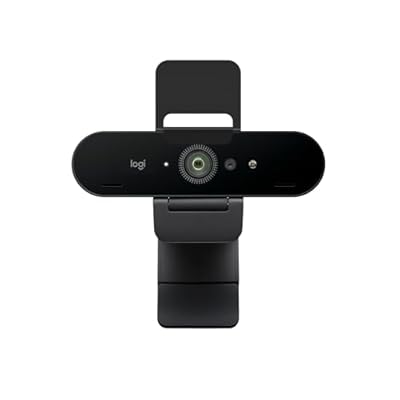
Logitech Brio Ultra 4K HD Webcam for Streaming and Meetings - Black
Included for 'Webcam for Streaming: Complete Guide to the Best Setup' because the listing specifies Black, details this guide uses to compare options.
View on AmazonFinding a webcam for streaming requires balancing sensor quality, frame rate, and system bandwidth. Broadcasters need clean video feeds that remain clear under studio lighting or dim room conditions. Modern hardware connects via USB and relies on dedicated software to manage color balance, exposure, and field of view.
How to Choose a Webcam for Streaming
Selecting a suitable webcam for streaming depends on four distinct criteria. Large sensors improve low-light capture on models like the Razer Kiyo Pro Ultra. Uncompressed 60fps throughput needs USB 3.0 on the Elgato Facecam MK.2. Budget creators need fixed focus like the Facecam Neo, while the Brio 500 offers flexible field of view options.
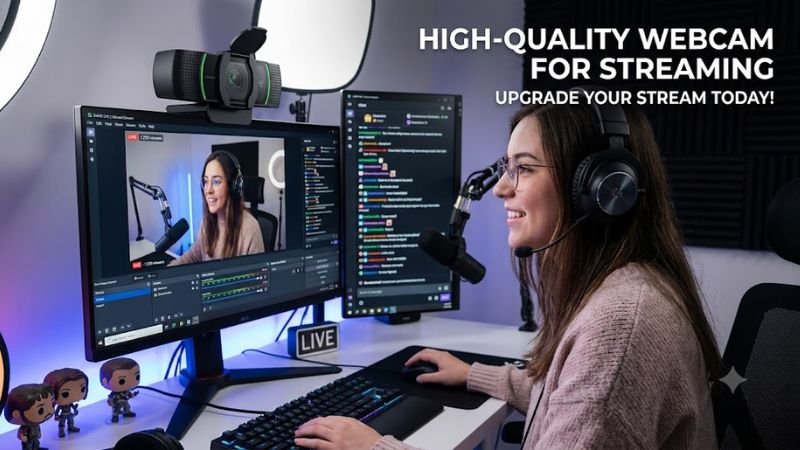
Image Resolution and Frame Rates
High refresh rates are vital when picking a webcam for streaming fast gameplay. A 1080p capture card or camera operating at 60 frames per second ensures motion matches high-refresh gaming monitors without stutter. While 4K capture offers detailed sharpness at 30 frames per second, 1080p at 60 frames per second yields smoother face camera motion in OBS.
Software encoding settings also impact broadcast clarity during high-motion scenes. Cameras recording in uncompressed NV12 or YUY2 formats avoid the compression artifacts found in basic MJPEG streams. Broadcasters running x264 or NVIDIA NVENC encoding preserve facial detail better when the camera source matches the native refresh rate of the main broadcast.
Sensor Size and Low-Light Optics
Camera sensors gather light to create clean video without digital grain. Larger sensors, such as 1/1.2-inch CMOS units paired with wide f/1.7 apertures, capture significantly more ambient light than standard 1/2.9-inch sensors. This physical light collection keeps background noise low during late night broadcasts without needing expensive softbox lights.
Aperture values determine how much light reaches the internal camera chip. Smaller numbers, such as f/1.7 or f/2.0, allow more light to hit the sensor than narrow f/2.4 lenses. Lenses with wider apertures naturally create a soft, blurred background effect known as shallow depth of field, which helps separate the streamer from room backgrounds.
Field of View and Lens Control
Field of view settings shape how much background is visible behind a setup. Adjusting a webcam for streaming between 65, 78, and 90 degrees allows creators to frame their head and shoulders tightly or show surrounding hardware. Narrow angles reduce room clutter, while wider angles accommodate dual hosts or interactive studio setups.
Fixed lenses and autofocus modules manage image crispness differently. Fixed focus models remain sharp between 30 and 120 centimeters without hunting for focus during hand gestures. Advanced autofocus lenses adjust dynamically when creators hold items up to show viewers, though software must allow manual lock to prevent unintended hunting.
USB Interface and System Compatibility
Interface speed directly determines available video quality and frame rates. Standard USB 2.0 ports max out at 480 Mbps, forcing heavy video compression that degrades color rendering. Modern camera hardware requires USB 3.0 Type-A or Type-C ports capable of 5 Gbps data rates to pass raw uncompressed video streams directly into encoding software.
Operating system requirements must match your motherboard hardware configuration. Most current capture devices run on Windows 10 64-bit, Windows 11, or macOS 11 builds via standard UVC drivers. Avoid connecting high-bandwidth cameras through unpowered USB hubs, as shared bus bandwidth can drop stream frame rates from 60fps to 30fps under load.
Top Picks for Streaming Webcams
Finding the ideal webcam for streaming involves evaluating image sensors, bandwidth demands, and software features. Below is a breakdown of top hardware models covering different price points and stream requirements. Each model caters to specific broadcast styles, from low-light desktop setups to high-frame-rate competitive gaming feeds.
| Product | Best For | Key Spec | Compatibility | Watch Out For | | Elgato Facecam MK.2 | Best Overall | 1080p 60fps, f/2.4 lens | Windows 10/11, macOS 11+, USB 3.0 | Lacks built-in microphone | | Elgato Facecam Neo | Best Value | 1080p 60fps, f/2.0 lens | Windows 10/11, macOS 11+, USB 2.0/3.0 | Fixed focus range | | Razer Kiyo Pro Ultra | Best Premium | 4K 30fps, 1/1.2 sensor, f/1.7 | Windows 10/11, USB 3.0 | Heavy body requires sturdy mount | | Logitech Brio 500 | Best Versatile | 1080p 30fps, 90 FOV | Windows 10/11, macOS 10.15+, USB-C | Max 30fps at 1080p resolution |
Elgato Facecam MK.2
The Elgato Facecam MK.2 serves as a top webcam for streaming games with high motion. Designed specifically for PC content creators, it delivers uncompressed 1080p video at 60 frames per second using a Sony STARVIS sensor. The 24mm equivalent lens features an f/2.4 aperture and an 84-degree field of view to capture sharp desk visuals.
Connecting over USB 3.0 Type-C, the unit requires Windows 10 64-bit or macOS 11. It omits a microphone entirely, assuming creators use a dedicated USB mic or headset. Buyers seeking integrated audio or 4K capture should look elsewhere, as this device focuses exclusively on providing low-latency, uncompressed 1080p 60fps video into OBS Studio.
Elgato Facecam Neo
Budget-conscious broadcasters wanting reliable high refresh rates will find the Elgato Facecam Neo compelling. It records crisp 1080p footage at 60 frames per second using a 1/2.9-inch CMOS sensor paired with an f/2.0 lens. The 77-degree diagonal field of view provides a clean frame that crops out room clutter while keeping the subject focused.
Plugging in through USB Type-C, the Facecam Neo operates on Windows 10/11 and macOS 11 software. The fixed-focus optics require sitting within 30 to 120 centimeters of the lens for optimal picture sharpness. Users who want dynamic autofocus or HDR contrast adjustments should avoid this entry-level model and consider higher tier hardware.
Razer Kiyo Pro Ultra
High-end content creation setups benefit from adding the Razer Kiyo Pro Ultra webcam for streaming broadcasts. Featuring a massive 1/1.2-inch Sony STARVIS 2 sensor and a wide f/1.7 aperture, it shoots uncompressed raw 4K video at 30 frames per second. The large physical optics render DSLR-like background bokeh without relying on software blur.
System requirements demand a USB 3.0 Type-A port and Windows 10 or 11 to process the massive video bandwidth. Weighing over 340 grams, the heavy housing requires a sturdy monitor mount or dedicated tripod arm to prevent tipping. Streamers wanting a lightweight, portable camera or 4K at 60 frames per second should choose a lighter 1080p unit.
Logitech Brio 500
The Logitech Brio 500 caters to creators who want quick adjustments and integrated audio. It captures 1080p resolution at 30 frames per second or 720p at 60 frames per second with auto-light balance and dual microphones. The adjustable field of view ranges between 65, 78, and 90 degrees, offering great flexibility for varied studio desk layouts.
Broadcasters plug the camera via a hardwired USB-C cable into systems running Windows 10/11 or macOS 10.15 and higher. However, frame rate limits restrict 1080p output to 30 frames per second, which can appear less smooth alongside 60fps gameplay. Gamers prioritizing high-fps video feeds for fast titles should pass on this 30fps maximum camera.
Frequently Asked Questions
Choosing a webcam for streaming raises questions regarding frame rates, lighting requirements, software management, and audio gear. Clear answers help simplify buying choices and streamline software configuration in programs like OBS Studio. Understanding these hardware variables ensures your live broadcast looks smooth and professional.
Is 1080p 60fps Better Than 4K 30fps for Streaming?
A 1080p video feed at 60 frames per second delivers smoother motion than 4K at 30 frames per second for game broadcasts. Most live platforms compress camera overlays into small screen corners where high pixel resolution is imperceptible. Higher frame rates match fast gameplay updates, preventing jittery camera movement in action titles.
Processing 4K video streams also places significantly higher computational demands on your central processor and graphic card. Running 1080p at 60fps through NVENC or QuickSync preserves GPU resources for game rendering. Unless your camera is displayed fullscreen for video podcasts, 1080p at 60fps remains the practical standard for live gaming.
Do I Need a USB 3.0 Port for Stream Webcams?
Connecting a webcam for streaming to a USB 3.0 port is necessary to transmit uncompressed high-frame-rate video signals. Legacy USB 2.0 ports lack the 5 Gbps throughput required for uncompressed 1080p 60fps or raw 4K video streams. Using older USB ports forces hardware encoders to compress video, resulting in visible image artifacts.
Direct motherboard connections provide stable electrical power and maximum bus bandwidth for continuous streaming sessions. Avoid routing camera connections through unpowered external USB hubs or front-panel extensions. Plugging directly into rear motherboard USB 3.0 Type-A or Type-C ports prevents sudden signal drops during long live streams.
Why Are Built-in Webcam Microphones Not Recommended?
Built-in webcam microphones pick up excessive room echo and mechanical keyboard noise due to small capsule sizes and poor positioning. Located far from the speaker on top of a monitor, these tiny internal mics capture ambient room reflections. Dedicated USB or XLR microphones position closer to your mouth, delivering vastly superior audio.
Dedicated audio devices also offer gain controls, physical mute buttons, and cardioid pickup patterns that reject background fan noise. High-end camera models like the Elgato Facecam MK.2 omit built-in microphones entirely to lower manufacturing costs and focus on optical performance. Pairing video hardware with a standalone microphone improves stream quality.
How Does Room Lighting Impact Camera Image Quality?
Proper room lighting dramatically improves video quality by preventing digital sensor noise and grain in low-light environments. Small camera sensors require sufficient ambient light to maintain low ISO settings and fast shutter speeds. Adding key lights or LED panels allows the camera software to keep color reproduction sharp and natural.
Relying solely on monitor glow causes auto-exposure algorithms to boost digital gain, creating distracting visual noise on screen. Positioning a soft key light at a 45-degree angle illuminates facial features evenly without causing glare on glasses. Balanced ambient lighting ensures the camera sensor operates within its optimal dynamic range.
Final Thoughts
Investing in the right webcam for streaming improves your overall broadcast quality without straining system resources. Matching resolution, frame rates, and USB connectivity to your PC hardware guarantees smooth video overlay during intense gaming. Combine your camera choice with key lighting and a dedicated microphone for the best live results.