
🛒 Best Price Today on Amazon
Prime members get fast, free shipping on everything above, plus member-only deals. New members get a 30-day free trial — cancel anytime.
- Likely Causes
- Fix 1: Launching in Safe Mode (Isolating Mods)
- Fix 2: Taming the Wargaming.net Game Center (WGC)
- Fix 3: Optimizing Core Engine Graphics (Ray Tracing & Tessellation)
- Fix 4: Purging the Wargaming AppData Cache
- Fix 5: Disabling Fullscreen Optimizations and High DPI Scaling
- Fix 6: Restructuring CPU Affinity and Power Delivery
- Fix 7: Reinstalling Clean Drivers via Display Driver Uninstaller (DDU)
- If Nothing Works
- FAQ
- Related Guides
Few things are more frustrating than lining up a perfect shot on an exposed lower glacis plate only for your screen to freeze, leaving you with a wrecked vehicle and a ticket back to the garage. While World of Tanks is highly optimized compared to many modern multiplayer titles, its proprietary Core engine presents unique hardware demands that can catch players off guard.
As we navigate the hardware landscape of 2026, the Core engine continues to push advanced physics rendering, dynamic destruction via the Havok engine, and complex lighting. Unlike generic shooters, World of Tanks is heavily CPU-bound, relying heavily on single-thread performance to process server-side synchronization, ballistic trajectories, and active armor calculations. When your frame rate drops, it is rarely a simple case of an underpowered graphics card. More often, it is a bottleneck caused by mod script overhead, corrupted cache files, or background launcher processes. This guide will help you isolate and resolve these performance hiccups systematically.

Thermalright Peerless Assassin 120 SE CPU Cooler, 6 Heat Pipes AGHP Technology, Dual 120mm PWM Fans, 1550RPM Speed, for AMD:AM4 AM5/Intel LGA 1700/1150/1151/1200/1851,PC Cooler
Included for 'World of Tanks Low FPS: Causes, Checks and Fixes' because the listing specifies 6 Heat Pipes AGHP Technology and Dual 120mm PWM Fans, details this guide uses to compare options.
View on Amazon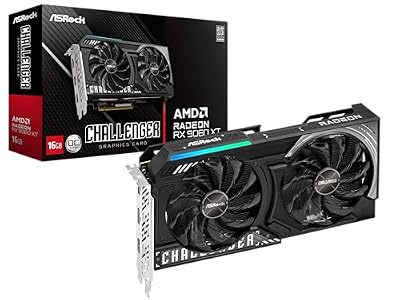
ASRock Radeon RX 9060 XT Challenger 16GB OC, RDNA 4, 3290MHz Boost, 16GB GDDR6 128-bit, PCIe 5.0, Dual Fans, 0dB Silent, LED Indicator, DisplayPort 2.1a, HDMI 2.1b
Included for 'World of Tanks Low FPS: Causes, Checks and Fixes' because the listing specifies RDNA 4 and 3290MHz Boost, details this guide uses to compare options.
View on AmazonLikely Causes
Before diving into the solutions, use this overview table to identify the potential root causes of your frame rate drops, how to verify them, and the technical difficulty of the corresponding fix.
| Potential Cause | How to Confirm | Fix Difficulty |
|---|---|---|
| Outdated or Corrupted Mods (XVM, Aslain’s) | FPS drops drastically when zooming in (Sniper Mode) or when many players are spotted. | Easy |
| Wargaming.net Game Center (WGC) Resource Hogging | Task Manager shows high CPU/disk usage from WGC processes while the game is running. | Easy |
| Overhead from CPU-based Ray Tracing Shadows | Frame rates tank specifically on heavily forested or highly detailed maps (e.g., Westfield or Erlenberg). | Easy |
Corrupted preferences.xml or Cache Files |
Persistent stuttering that remains even after lowering all graphics settings to minimum. | Medium |
| Windows Fullscreen Optimizations Conflict | Micro-stuttering or frame pacing issues when panning the camera or moving the mouse. | Medium |
| Suboptimal CPU Core Distribution & Power Plans | Low GPU utilization (under 70%) accompanied by low FPS during active brawls. | Medium |
| Corrupted Graphics Driver Stack | Frequent screen freezes followed by a driver recovery notification or crashes to desktop. | Hard |
Fix 1: Launching in Safe Mode (Isolating Mods)
Third-party modifications, particularly complex UI packages like XVM or custom crosshairs, run on ActionScript and Python scripts within the Core engine. When these scripts are outdated or conflict with a micro-patch, they can cause massive CPU bottlenecks, leading to severe frame rate drops.
How to check
Open your game directory (typically C:\Games\World_of_Tanks_NA\) and check the size of your python.log file. If it is rapidly expanding into tens of megabytes, it is likely being flooded with script errors from outdated mods. Alternatively, note if your FPS drops sharply whenever a new tank is spotted or when you switch to Sniper Mode.
What to do
- Close World of Tanks completely.
- Open the Wargaming.net Game Center (WGC).
- Locate the arrow button next to the orange Play button.
- Click the arrow to open the drop-down menu and select Launch game in safe mode.
- Play a trial match to see if your performance stabilizes.
How to undo it
To return to your normal setup, simply close the game and launch it again by clicking the standard Play button in the launcher. If Safe Mode resolved your issue, you will need to manually empty your mods/ and res_mods/ folders to permanently delete the problematic scripts.
Fix 2: Taming the Wargaming.net Game Center (WGC)
The WGC launcher is designed to run in the background to seed updates and scan for game files. However, its built-in torrent-like sharing protocols and hardware acceleration can consume valuable CPU cycles and disk bandwidth, directly starving the main game executable.
How to check
While World of Tanks is running in a match, press Ctrl + Shift + Esc to open the Windows Task Manager. Look for the Wargaming.net Game Center process. If it is consuming more than 1-2% of your CPU or actively utilizing your disk, it is impacting your in-game performance.
What to do
- Open the WGC launcher.
- Click on the Settings gear icon on the left-hand navigation panel.
- Under the General tab, uncheck the box that says Launch Game Center when computer starts.
- Check the box that says Exit Game Center when I close the main window.
- Under the Updates tab, uncheck Enable updates upload to stop background seeding, and check Pause updates download when playing.
How to undo it
Open the WGC settings panel again, navigate to the respective tabs, and recheck the boxes for background updating and automatic startup if you prefer the convenience of automated background patching.
Fix 3: Optimizing Core Engine Graphics (Ray Tracing & Tessellation)
World of Tanks implements high-fidelity shadows using Intel’s OneAPI rendering toolkit. This software-based ray tracing does not require RT cores, meaning it runs directly on your CPU and standard shader units. On many mid-range systems, this setting severely bottlenecks performance.
How to check
Navigate to the in-game Settings, select the Graphics tab, and click on Details. Look at the Ray Tracing Shadows setting. If this is set to High or Ultra, your processor is handling heavy ray-intersection calculations in real-time.
What to do
- In the Graphics -> Details menu, change Ray Tracing Shadows to Off.
- Scroll down to Tessellation (both in normal and sniper mode) and set them to Medium or Off. This prevents the engine from rendering highly complex geometric detail on terrain and tank tracks, which can choke the CPU’s draw calls.
- Ensure your 3D Render Resolution slider is set exactly to 100%. Setting it higher supersamples the game, which can cripple performance on moderate GPUs.
- Click Apply and then OK.
How to undo it
Return to the in-game Graphics menu and click the Recommended button at the top right of the screen to allow the game to auto-detect and re-apply its baseline settings.
Fix 4: Purging the Wargaming AppData Cache
Over time, local temporary files, cached shader configurations, and preferences stored in your Windows user profile can become corrupted. This corruption forces the Core engine to constantly rebuild assets on the fly, manifesting as sudden micro-stutters and low average frame rates.
How to check
If you experience hitching when opening your garage, browsing the tech tree, or when the match timer hits zero, a corrupted cache is a highly probable cause.
What to do
- Press the
Windows Key + Ron your keyboard to open the Run dialog box. - Type
%appdata%and press Enter. This will open yourAppData\Roamingdirectory. - Locate the folder named Wargaming.net.
- Double-click it, then delete the WorldOfTanks folder inside. Note: This will reset your in-game settings (graphics, keybinds, and audio volume) to default.
- Restart your computer and launch the game.
How to undo it
This action cannot be directly undone, as it permanently deletes local configuration files. You will need to reconfigure your preferred graphics, control, and audio settings within the game’s options menu upon your next launch.
Fix 5: Disabling Fullscreen Optimizations and High DPI Scaling
Windows attempts to optimize classic Win32 applications by running them in a borderless windowed state even when “Fullscreen” is selected in-game. This often causes frame pacing issues, micro-stutters, and lower overall FPS in World of Tanks.
How to check
If your frame rate feels stuttery and inconsistent despite a high FPS counter, Windows Fullscreen Optimizations may be interfering with the Core engine’s display pipeline.
What to do
- Open the WGC launcher, select World of Tanks, click Game Settings, and choose Show in Folder.
- Locate the main game executable. It is typically found under the
win64folder asworldoftanks.exe. - Right-click
worldoftanks.exeand select Properties. - Navigate to the Compatibility tab.
- Check the box next to Disable fullscreen optimizations.
- Click on the Change high DPI settings button.
- Check the box under High DPI scaling override that says Override high DPI scaling behavior, and set the drop-down menu to Application.
- Click OK, then Apply, and OK again.
How to undo it
Right-click the executable, return to the Compatibility tab, and uncheck both the “Disable fullscreen optimizations” and the “High DPI scaling override” boxes to return to default Windows behavior.
Fix 6: Restructuring CPU Affinity and Power Delivery
The Core engine relies heavily on Core 0 (the first physical core of your CPU) for its main render thread. If Windows is scheduling background tasks or system interrupts onto this same core, your frame rates will drop significantly. Furthermore, aggressive power-saving states can cause your CPU to downclock mid-match.
How to check
Download a system monitoring tool like HWMonitor or use Windows Performance Monitor. If you notice one CPU core locked at 100% utilization while the others hover under 20%, your main render thread is being starved.
What to do
- Press the
Windows Key, type Edit Power Plan, and press Enter. - Click on Power Options in the breadcrumb path at the top of the window.
- Select the High Performance or Ultimate Performance power plan. This prevents the CPU from dropping into low-power states during gameplay.
- To optimize thread affinity, launch World of Tanks and enter the garage.
- Open Task Manager (
Ctrl + Shift + Esc), go to the Details tab, and locateworldoftanks.exe. - Right-click the process, select Set affinity, and uncheck CPU 0. Leave all other cores checked. This forces Windows to run the game’s primary render thread on a clean, uninterrupted physical core. *Note: This affinity assignment must be redone on each launch unless managed via a third-party tool like Process Lasso.*
How to undo it
Revert your Windows power plan to Balanced and re-check the “All Processors” box in the Task Manager affinity settings to allow Windows to handle thread scheduling automatically.
Fix 7: Reinstalling Clean Drivers via Display Driver Uninstaller (DDU)
If you have upgraded your GPU or gone through multiple driver updates, residual files and registry entries can conflict with the Core engine’s rendering paths. A clean driver installation resets the graphics stack entirely.
How to check
Check your python.log file in the game directory. If you see repeated entries of [ERROR]: ... DXGI_ERROR_DEVICE_RESET or Device Removed, your graphics driver is crashing and recovering in the background, causing severe frame drops.
What to do
- Download the latest official graphics driver from NVIDIA, AMD, or Intel.
- Download the latest version of Display Driver Uninstaller (DDU).
- Disconnect your internet connection to prevent Windows from automatically installing basic drivers.
- Boot your PC into Windows Safe Mode.
- Run DDU, select your GPU type (NVIDIA/AMD/Intel), and click Clean and restart.
- Once Windows reboots normally, run the driver installer you downloaded in Step 1. Select the “Custom” or “Clean Installation” option if available.
- Reconnect your internet.
How to undo it
Because this process completely removes previous driver installations, you cannot undo it directly. However, if the new driver causes issues, you can download an older, known stable driver version and repeat the process to roll back.
If Nothing Works
If you have implemented the steps above and your frame rates remain unstable, the issue may lie in corrupted game installation files or thermal throttling.
First, run the built-in repair utility. Open the Wargaming.net Game Center, click on Game Settings, and select Check and Repair. The launcher will verify the integrity of your game files against the official manifest and replace any corrupted assets.
Second, monitor your hardware temperatures. The Core engine puts a sustained load on both your CPU and GPU. Download a utility like HWInfo64 and check your temperatures during a match. If your CPU or GPU is exceeding 85°C (185°F), your hardware may be thermal throttling—automatically lowering its clock speeds to protect itself from heat damage. Cleaning out dust from your cooling fans or replacing old thermal paste can often restore your lost performance.
FAQ
Why does my FPS drop specifically when I zoom into Sniper Mode?
When you zoom in, the game engine has to render high-resolution foliage, grass, and particle effects (like tank exhaust and muzzle smoke) in high detail. To fix this, go to your in-game Graphics settings and turn off Grass in Sniper Mode, and reduce Effects Quality and Flora Density.
Does World of Tanks support DirectX 12, and should I use it?
World of Tanks runs primarily on an optimized DirectX 11 API wrapper within the Core engine. While the engine handles multi-threading efficiently, there is no native DX12 toggle. Ensure your Windows OS and graphics drivers are fully updated so that the DirectX translation layers function with minimal overhead.
Can running XVM cause severe low FPS even on high-end PCs?
Yes. XVM (eXtensive Visualization Mod) continuously pulls player statistics from the Wargaming API during a match and renders dynamic UI elements on top of the base game. This process is highly CPU-intensive and single-threaded. Even the fastest modern processors can experience frame drops when running heavy XVM configurations.
Why is my GPU usage low but my FPS is still terrible in World of Tanks?
Low GPU utilization (e.g., 40% to 60%) alongside low frame rates is a classic symptom of a CPU bottleneck. Because World of Tanks relies heavily on a single primary thread to feed instructions to your graphics card, your CPU is likely maxed out on that core, leaving your GPU waiting idle for rendering commands.








