
🛒 Best Price Today on Amazon
Prime members get fast, free shipping on everything above, plus member-only deals. New members get a 30-day free trial — cancel anytime.
Rocket League may look deceivingly lightweight on the surface, but underneath its stylized arenas lies a heavily modified Unreal Engine 3 pipeline paired with a hard-coded 120Hz physics tick rate. Because the game engine evaluates collision geometry and ball physics every 8.33 milliseconds, frame delivery consistency is just as critical as your peak frame rate. Configuring the best Rocket League settings for FPS requires balancing GPU render limits with CPU frame-time stability, ensuring that high-speed aerial spins and fast kickoffs register without input lag or screen tearing.
On modern hardware, Rocket League frequently hits single-threaded CPU bottlenecks on Unreal Engine 3’s main render thread when driving 240Hz, 360Hz, or faster gaming monitors. Conversely, budget rigs and integrated graphics processors struggle with heavy shader effects like dynamic shadows and post-processing filters. Optimizing your graphics parameters removes visual noise, stabilizes frame pacing, and cuts system latency to the absolute minimum.

Thermalright Peerless Assassin 120 SE CPU Cooler, 6 Heat Pipes AGHP Technology, Dual 120mm PWM Fans, 1550RPM Speed, for AMD:AM4 AM5/Intel LGA 1700/1150/1151/1200/1851,PC Cooler
Included for 'Best Rocket League Settings for FPS in 2026: Competitive and Low-End Presets' because the listing specifies 6 Heat Pipes AGHP Technology and Dual 120mm PWM Fans, details this guide uses to compare options.
View on Amazon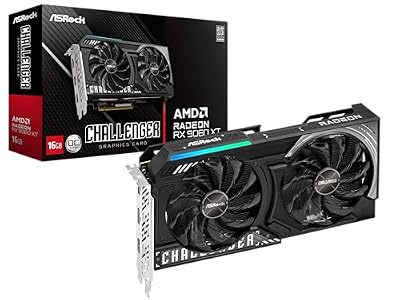
ASRock Radeon RX 9060 XT Challenger 16GB OC, RDNA 4, 3290MHz Boost, 16GB GDDR6 128-bit, PCIe 5.0, Dual Fans, 0dB Silent, LED Indicator, DisplayPort 2.1a, HDMI 2.1b
Included for 'Best Rocket League Settings for FPS in 2026: Competitive and Low-End Presets' because the listing specifies RDNA 4 and 3290MHz Boost, details this guide uses to compare options.
View on AmazonQuick Preset
Use this reference table to quickly apply baseline configurations depending on your performance goals and hardware capabilities:
| Setting | Competitive | Balanced | Low-End PC |
|---|---|---|---|
| Display Mode | Fullscreen | Fullscreen | Fullscreen |
| Render Quality | High Quality | High Quality | Quality / Performance |
| Render Detail | Performance | Quality | Performance |
| Max FPS | 240 FPS / Uncapped | Monitor Refresh Rate | 120 FPS Cap |
| Anti-Aliasing | Off | FXAA Low | Off |
| Texture Detail | High Performance | Quality | High Performance |
| World Detail | Performance | Quality | Performance |
| Particle Detail | Performance | Performance | Performance |
| High Depth of Field | Off | Off | Off |
| Dynamic Shadows | Off | Off | Off |
| Bloom / Light Shafts | Off | Off | Off |
| Motion Blur / Lens Flares | Off | Off | Off |
| Weather Effects | Off | Off | Off |
Settings That Matter Most
Every graphics option in Rocket League impacts either GPU pixel throughput or CPU draw calls. Focusing on the high-impact settings yields the biggest gains in visual clarity and frame-time stability.
Render Quality
Render Quality acts as the internal resolution scaler for the Unreal Engine pipeline. Setting this below High Quality downsamples the native rendering resolution, introducing harsh sub-pixel shimmering and blurring ball edges. On low-end integrated graphics, dropping to Quality or Performance offers a massive 30% to 50% boost in frame rates, but dedicated GPUs should always keep this set to High Quality to preserve tracking clarity across long field distances.
Render Detail
Render Detail governs geometry complexity, background crowd rendering, and non-essential arena assets. Setting this to Performance or High Performance strips out superfluous stadium geometry and cuts down on CPU draw calls. This optimization minimizes micro-stutters during intense set pieces when multiple cars bump and boost simultaneously inside the goal box.
Dynamic Shadows
Dynamic Shadows generate real-time player and car shadows across the arena surface. While helpful for depth perception in standard games, Rocket League’s engine applies dynamic shadow mapping with a heavy performance penalty on both the CPU main thread and GPU pixel shaders. Turning Dynamic Shadows Off eliminates frame drops during close-quarters challenges while drastically improving floor readability by removing confusing, moving shadow artifacts.
Anti-Aliasing
Rocket League offers basic post-processing anti-aliasing techniques (FXAA and MLAA) along with traditional MSAA. Post-processing solutions blur geometry edges, making long-distance shots harder to calculate visually. Standard MSAA creates an unnecessary GPU load at high frame rates. Setting Anti-Aliasing to Off delivers the sharpest visual representation of ball trajectories while saving roughly 5% to 8% in GPU render time.
Max Frame Rate
The frame rate cap directly influences frame-time variance and input queue latency. Uncapping frame rates entirely can cause frame-time fluctuations if your CPU hits thermal or execution limits. For maximum competitive consistency, set your Max FPS to a stable value that your system can maintain 99% of the time—ideally matched to or exceeding your monitor’s native refresh rate in multiples of the internal 120Hz physics rate (e.g., 120, 240, or 360 FPS).
Upscaling and Frame Generation
Because Rocket League runs on an older iteration of Unreal Engine 3, the game lacks native integration for modern temporal upscalers like NVIDIA DLSS, AMD FSR, or Intel XeSS. It also lacks support for frame generation technologies like DLSS Frame Generation or AMD Fluid Motion Frames (AFMF).
Even if driver-level frame generation (such as Lossless Scaling or AMD AFMF) is forced externally through control panels, you should strictly avoid using frame generation in Rocket League. Frame generation inserts synthesized frames between real engine frames, which inherently increases system latency and decouples visual output from the engine’s 120Hz physics calculations. In a game built around micro-adjustments and precise Dodge timing, added input latency creates a sluggish control feel.
If you are GPU-bound on an older graphics card, rely instead on the internal Render Quality slider or driver-level spatial scaling (NVIDIA Image Scaling or AMD Radeon Super Resolution). These spatial upscalers run at the display driver level without introducing latency queues, granting a clean frame rate lift on legacy GPUs.
Outside the Game
To squeeze maximum performance out of Rocket League, optimizing system-level settings outside the game client is essential for reducing background latency and CPU thread scheduling overhead.
Driver Settings (NVIDIA Control Panel & AMD Software)
- Low Latency Mode / Radeon Anti-Lag: Set Low Latency Mode to On or Ultra in your GPU control panel. This limits the pre-rendered frame queue size to zero, reducing the time between pressing a button on your controller and seeing the action manifest on display.
- Power Management Mode: Set to Prefer Maximum Performance. This prevents the GPU clock speed from downclocking during lighter render scenes or transition menus.
- Threaded Optimization: Set to On to ensure the Unreal Engine 3 render thread offloads task scheduling effectively across modern multi-core CPUs.
Windows OS Optimizations
- Fullscreen Optimizations: Right-click the `RocketLeague.exe` executable, select Properties > Compatibility, and check Disable fullscreen optimizations. This forces Windows to hand direct display control over to the application, eliminating Desktop Window Manager (DWM) composition latency.
- Game Mode: Keep Windows Game Mode enabled. In modern Windows builds, Game Mode prioritizes CPU thread allocation to the foreground game process while suppressing background updates.
- Hardware-Accelerated GPU Scheduling (HAGS): Enable HAGS in Windows Display Settings to allow the GPU to manage its own VRAM allocation, slightly lowering CPU overhead.
Launcher Command Lines
If running the game via the Epic Games Launcher or Steam, adding specific launch parameters can optimize engine thread prioritization. Input the following string into your launch options:
-high -useallavailablecores -nomemsafety
The -high flag instructs your OS to assign high priority to the Rocket League process, while -useallavailablecores forces the legacy UE3 engine worker threads to utilize all physical CPU cores.
Settings to Leave Alone
Certain options in Rocket League’s video menu add visual clutter, degrade field perception, and consume performance without offering any competitive utility. Disable the following post-processing options entirely:
- Motion Blur: Blurs the perimeter of your view when panning the camera quickly, destroying aerial precision and visual spatial awareness.
- Weather Effects: Adds rain, snow, and ambient environmental particles. These visual elements obscure field lines and drop frame rates on specific maps like AquaDome and Farmstead.
- Bloom & Light Shafts: Generates heavy lens flares and bright light streaks around arena stadium lights. These effects interfere with tracking high ball bounces directly overhead.
- High Depth of Field: Blurs objects far away from your camera focus, making it significantly harder to read opponent positions on the opposite side of the field.
- Lens Flares: Adds screen-space lighting reflections that block visibility when rotating toward the sun or bright stadium floodlights.
FAQ
Does uncapping FPS give an advantage in Rocket League?
Uncapping your FPS reduces overall input latency by displaying the most recent frame state possible, even if your display panel cannot refresh fast enough to show every frame. However, an uncapped frame rate can lead to fluctuating frame times if your CPU or GPU thermal throttles. Capping your frame rate at a stable, high threshold (such as 240 or 360 FPS) provides a more consistent, predictable feel for twitch reactions.
Why does Rocket League feel sluggish even with high FPS?
Sluggishness often stems from frame-time instability, running in Borderless Windowed mode (which introduces Desktop Window Manager V-Sync latency), or improper controller polling rates. Ensure your display is set to true Fullscreen mode, disable V-Sync, and verify that your system is not experiencing frame-time spikes caused by background processes or unstable GPU clock speeds.
Should I match my frame rate to the 120Hz physics tick rate?
While Rocket League’s internal physics engine evaluates inputs at a fixed 120Hz rate, running your render frame rate at higher multiples of 120 (such as 240 FPS, 360 FPS, or 480 FPS) decreases the delay between the physics engine processing a tick and the display displaying the updated frame. Even as esports monitors push beyond 500Hz in 2026, running rendered frames at higher multiples reduces visual jitter.
Is it better to play Rocket League in Fullscreen or Borderless Windowed mode?
Always play in true Fullscreen mode. Fullscreen mode bypasses the Windows Desktop Window Manager compositor, giving Rocket League direct control over frame presentation. Borderless Windowed mode adds at least one frame of buffer latency and can introduce noticeable micro-stuttering during quick camera swings.









