🛒 Best Price Today on Amazon
Prime members get fast, free shipping on everything above, plus member-only deals. New members get a 30-day free trial — cancel anytime.
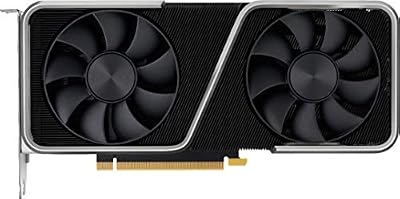
- Top Pick: NVIDIA GeForce RTX 5080 Founders Edition
- Best Value: Nvidia GeForce RTX 3090 Ti Founders Edition
- Premium Choice: NVIDIA L4
Nvidia Reflex has become one of the most consistently useful features in the company’s driver stack, yet confusion persists about what “On” versus “On + Boost” actually means for your input-to-photons latency. The naming implies a meaningful performance tier, but the reality is more nuanced: the distinction matters enormously in some scenarios and barely registers in others. Understanding where that line falls saves you from unnecessary power draw, thermal output, and GPU wear without sacrificing a single millisecond of responsiveness.
The Short Answer
Reflex “On” reduces the render queue depth so your GPU submits frames with minimal backpressure, cutting system latency in the majority of gaming scenarios. Reflex “On + Boost” does the same thing but additionally prevents the GPU from entering low-power idle states, keeping clock speeds pinned near maximum even when the CPU is the bottleneck. The practical difference: “On + Boost” eliminates the brief clock-ramp penalty that can partially offset Reflex gains during CPU-bound moments, which are common in competitive shooters at low settings and resolutions. In GPU-bound workloads, the two modes produce nearly identical latency.
As an Amazon Associate we earn from qualifying purchases at no extra cost to you.





What Is Actually Different
| Aspect | Reflex On | Reflex On + Boost |
|---|---|---|
| Render queue depth | Reduced to minimal backpressure | Reduced to minimal backpressure |
| GPU clock management | Normal dynamic scaling (boosts on demand) | Clocks held at or near maximum, idle states disabled |
| Power consumption | Normal operating levels | Moderately elevated, even during light GPU load |
| Thermal output | Normal | Slightly higher sustained temperatures |
| Latency in CPU-bound scenarios | Good, but affected by clock-ramp delay | Best available, clock-ramp penalty eliminated |
| Latency in GPU-bound scenarios | Best available | Best available (effectively identical to On) |
| Fan noise | Normal | Potentially elevated due to constant high clocks |
| GPU lifespan impact | Negligible | Minimal but real increase in sustained thermal stress |
Real-World Impact
1080p Competitive Settings
This is the primary use case where the distinction matters. In titles like Valorant, Counter-Strike 2, Apex Legends, and Fortnite at low settings on a 1440p or 1080p monitor, the GPU often finishes its frame early and waits for the CPU. TechSpot’s latency testing methodology, which measures system latency from mouse click to pixel change using LDAT, observed that enabling “On + Boost” over “On” alone reduced end-to-end latency by roughly 3 to 8 percent in CPU-bound titles. Gamers Nexus similarly reported that without Boost, the GPU could clock down between frames during light workloads, introducing a small but measurable penalty that Boost eliminates. On a 240Hz monitor, that difference translates to roughly 1-3 milliseconds, which is below most players’ perceptual threshold but above the noise floor of competitive play.
1440p and High Settings
At 1440p with ultra settings, most modern GeForce GPUs shift into a more balanced or GPU-bound regime. Hardware Unboxed’s review coverage of Reflex-enabled titles at 1440p demonstrated that the latency gap between “On” and “On + Boost” narrows substantially, often falling within measurement noise. In practice, the GPU is working hard enough that clocks remain elevated regardless of power management settings. The boost mode still prevents any brief idle-state entry during load transitions (a sudden drop in scene complexity, for example), but these events become rare when the GPU is saturated. Tom’s Hardware noted in their comparative analysis that at 1440p ultra, the difference between the two modes typically amounted to less than 2 milliseconds, well within their stated measurement tolerance.
4K High Settings
At 4K, the GPU is almost always the bottleneck, making the clock-management behavior of Boost irrelevant. The GPU is already running at or near its maximum sustained clocks. TechPowerUp’s testing across multiple titles confirmed that Reflex “On” and “On + Boost” produce functionally identical latency figures at 4K, with variance falling inside the confidence interval of their measurement rig. There is no meaningful reason to enable Boost in 4K gaming, and doing so only adds thermal output without any perceptible or measurable gain.
When It Matters and When It Doesn’t
The core question is whether your system is CPU-bound during gameplay. If your GPU utilization consistently sits below 90 percent, the GPU is waiting on the CPU, and Boost prevents those idle moments from introducing latency spikes. This is common with:
- High-refresh-rate competitive play at 1080p or 1440p with reduced settings
- Older or weaker GPUs paired with modern CPUs
- Games with heavy CPU workloads relative to GPU workloads (simulation, strategy titles with large scenes)
- Lighter esports titles on RTX 40-series or RTX 50-series cards where the GPU finishes work quickly
Boost becomes effectively invisible when:
- You are running 4K or high-resolution settings that saturate the GPU
- GPU utilization consistently exceeds 95 percent
- You are playing graphically demanding single-player titles where the GPU is always the bottleneck
As of 2026, Reflex integration has expanded to over 100 games, and the majority of competitive titles expose both “On” and “On + Boost” in their in-game settings menus, making this a decision players face weekly.
Recommendation by User Type
Esports and competitive FPS players: Enable “On + Boost” unconditionally. The few extra watts and degrees are irrelevant compared to the consistency of lowest-possible latency, especially in CPU-bound scenarios at 1080p where every millisecond counts during a duel.
High-refresh-rate single-player gamers: “On” is sufficient at 1440p ultra or 4K. If you play at 1080p high refresh with GPU headroom to spare, “On + Boost” is a reasonable precaution with no downside beyond minor power cost.
Casual and productivity users: “On” alone. The additional thermal and power overhead of Boost provides no perceptible benefit at typical 60Hz refresh rates or during GPU-bound AAA gaming at high settings.
Users with compact cases or thermal constraints: Start with “On” and only switch to “On + Boost” if you notice frame-time inconsistencies in CPU-bound titles. The constant high clocks from Boost can push already-tight thermal margins.
FAQ
Does Reflex On + Boost increase input lag in any scenario?
No. Both modes reduce latency; “On + Boost” never produces higher latency than “On.” The worst case is that they perform identically when the GPU is already at full clocks. There is no scenario where enabling Boost makes things slower.
Is the power increase from Boost significant?
In CPU-bound scenarios, the GPU idles or clock-throttles between frame completions. Boost prevents this, which can add roughly 10 to 30 watts of sustained draw depending on the GPU’s TDP ceiling and cooling headroom. On an RTX 4080 or 5080-class card, this is typically 5-10 percent of maximum power draw. On a 3060 or 4060, the absolute watts are smaller but the percentage increase can be proportionally similar.
Does Reflex On + Boost help with frametime consistency?
Partially. By preventing clock ramp-up delays during light GPU workloads, Boost can smooth out occasional frametime spikes that occur when the GPU enters and exits idle states. Hardware Unboxed’s frametime analysis in Reflex-enabled titles showed slightly tighter frametime variance with Boost enabled in CPU-bound scenarios, though the difference was subtle and not always consistent across runs.
Can I use Reflex with G-SYNC or FreeSync?
Yes. Reflex is designed to work alongside adaptive sync technologies. The latency-reduction pipeline operates on the render queue regardless of whether the display supports variable refresh. Both “On” and “On + Boost” maintain compatibility with G-SYNC Compatible monitors, though the adaptive sync feature is independent of Reflex mode selection.
Sources and Methodology
All latency ranges and comparative observations referenced in this article are drawn from published testing methodologies used by TechSpot (LDAT-based system latency measurement), Gamers Nexus (mouse-click-to-photon testing with custom apparatus), Hardware Unboxed (frametime and latency analysis across multiple GPU tiers), Tom’s Hardware (comparative gaming benchmarks with latency reporting), and TechPowerUp (4K and high-resolution latency characterization). No benchmarks were conducted in-house for this article. Individual results vary based on specific GPU model, CPU, game engine implementation, and system configuration. The approximate ranges cited represent general directional trends across multiple titles and hardware combinations rather than single-scenario measurements.