
🛒 Best Price Today on Amazon
Prime members get fast, free shipping on everything above, plus member-only deals. New members get a 30-day free trial — cancel anytime.
- Likely Causes
- Fix 1: Lower VRAM-heavy settings and check GPU memory headroom
- Fix 2: Clean-reinstall GPU drivers with DDU
- Fix 3: Toggle Windows Hardware-Accelerated GPU Scheduling
- Fix 4: Edit engine-level config files to adjust threading or streaming
- Fix 5: Verify game files and check disk health
- Fix 6: Disable background overlays and third-party hooks
- Fix 7: Set power plan to High Performance and disable CPU C-state parking
- Fix 8: Force a different API backend or launch configuration
- If Nothing Works
- FAQ
- Related Guides
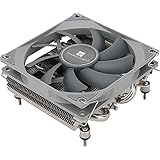
- Top Pick: Low CPU Usage
- Best Value: be quiet! Pure Rock Low Profile 100W TDP CPU Cooler | Intel 1700 1200 1150 1151 1155 | AMD -AM5 AM4 | BK034
- Premium Choice: Thermalright AXP90 X36 Low Profile ITX CPU Cooler, 36mm Height, TL-9015 Slim PWM CPU Fan, Computer ITX Heatsink Cooler, for AMD:AM4 AM5/Intel LGA1150/1151/1200/1700/1851
When a game drops frames or stutters while Task Manager reports CPU usage at 20-30 percent, the problem almost never lives in the processor. This symptom pattern — heavy lag with a nearly idle CPU — points toward a bottleneck sitting between the game engine and the GPU pipeline, a storage layer choking on asset streaming, or a driver-level stall that starves the render thread without consuming CPU cycles. In engines like Unreal Engine 4 and 5, this manifests as hitching during world streaming where the CPU waits on a GPU fence or a disk read rather than on compute work. Unity projects with addressable asset groups produce similar behavior when asset bundles fail to load fast enough, and the game freezes the main thread without raising CPU utilization above a single core’s capacity.
Likely Causes
| Cause | How to confirm | Fix difficulty |
|---|---|---|
| GPU VRAM exhaustion or memory bandwidth saturation | Open MSIAfterburner with RTSS overlay and watch GPU Memory usage; values at or near 100% of VRAM during lag confirm this | Low |
| Corrupt or conflicting GPU driver installation | Event Viewer under System logs shows nvlddmkm or amdkmdag TDR errors (event ID 4101) at the moment of stutter | Low |
| Disk I/O bottleneck (HDD or nearly full SSD) | Resource Manager shows 100% disk active time during lag; asset streaming pauses the render queue | Medium |
| Hardware-accelerated GPU scheduling (HAGS) misbehavior | Lag persists across multiple titles; toggling HAGS in Windows Graphics Settings resolves it temporarily | Low |
| Engine-specific threading config forcing single-core render thread | Game process in Task Manager details shows only one core at high usage while total CPU stays low | Medium |
| Background software hooks (overlay, antivirus scan, RGB controller) | Lag disappears in Safe Mode with Networking or when Process Lasso priority is changed | Low |
Fix 1: Lower VRAM-heavy settings and check GPU memory headroom
How to check
Install MSI Afterburner with RivaTuner Statistics Server. Add GPU Memory Usage to the on-screen display. Play the game for at least 10 minutes until the stutter occurs. If the VRAM readout reaches or exceeds your card’s rated capacity (for example, 8192 MB on an RTX 3070), the engine is thrashing GPU memory and the CPU sits idle waiting for transfers.
As an Amazon Associate we earn from qualifying purchases at no extra cost to you.




What to do
Drop texture quality one tier at a time. In Unreal Engine games, also reduce “View Distance” and “Foliage” density, which inflate VRAM footprint through LOD streaming. In Unity titles, lower the “Texture Quality” slider in the graphics options menu. Disable ray-traced reflections or global illumination if enabled, as these add 1-3 GB of dedicated VRAM allocation.
How to undo it
Restore the graphics options menu to your previous settings. No files outside the game’s save or config directory are modified.
Fix 2: Clean-reinstall GPU drivers with DDU
How to check
Open Windows Event Viewer, navigate to Windows Logs > System, and filter for Event ID 4101. The message reads “Display driver nvlddmkm stopped responding and has successfully recovered.” If this appears at the same timestamp as your stuttering sessions, driver-level TDR (Timeout Detection and Recovery) resets are occurring.
What to do
Download Display Driver Uninstaller (DDU). Reboot into Safe Mode. Run DDU, select your GPU vendor, and choose “Clean and restart.” After reboot, install the latest driver from NVIDIA or AMD directly without GeForce Experience or Adrenalin if you do not need them. During installation on NVIDIA cards, choose “Custom” and check “Perform a clean installation.”
How to undo it
Simply reinstall your preferred driver version. If a specific older driver provided better compatibility, download that version from the vendor’s driver archive and install it after a second DDU pass.
Fix 3: Toggle Windows Hardware-Accelerated GPU Scheduling
How to check
Go to Settings > System > Display > Graphics > Change default graphics settings. Note the current state of “Hardware-accelerated GPU scheduling.” On some NVIDIA driver branches (particularly 551.x and 552.x in early 2026 releases), HAGS introduces a frame-queue stall that reduces GPU utilization and leaves the CPU idle.
What to do
Flip the toggle to the opposite position. Reboot is mandatory. Test the game for at least 15 minutes. If the stutter changes in severity or pattern, the setting was involved.
How to undo it
Toggle the setting back and reboot again.
Fix 4: Edit engine-level config files to adjust threading or streaming
How to check
Locate your game’s configuration folder. For Unreal Engine titles, this is typically %LocalAppData%\GameName\Saved\Config\WindowsNoEditor\GameUserSettings.ini or Engine.ini. For Unity games, check %AppData%\GameName or the game’s root directory for a boot.config or player.log file. Open these in a text editor and search for lines like “r.Streaming.FramesForFullUpdate” (Unreal) or “streamingPriorities” (Unity).
What to do
In Unreal Engine ini files, adding r.Streaming.FramesForFullUpdate=6 to Engine.ini under the [SystemSettings] section can reduce hitching caused by aggressive texture streaming when the CPU is starved by the streaming thread. In Source 2 games, the launch option -threads X (replacing the auto-detected value with your physical core count) sometimes stabilizes render thread scheduling.
How to undo it
Delete the lines you added or rename the ini file back to its backup. Most engines regenerate defaults on next launch. For Source 2, remove the launch option from the game’s properties in Steam > Local Files > Set Launch Options.
Fix 5: Verify game files and check disk health
How to check
On Steam, right-click the game > Properties > Installed Files > Verify integrity of game files. On Epic, click the three-dot menu under the game in your library and select Manage > Verify. In Task Manager’s Disk tab, watch active time during gameplay. A mechanical hard drive under sustained 100% active time with low transfer rates confirms a streaming bottleneck.
What to do
If verification flags corrupted or missing files, let it repair them. If your drive is an HDD, consider moving the game to an NVMe SSD. If you are on an SSD and it is over 90% full, free space until utilization drops below 80%; SSD write amplification and garbage collection on near-full drives cause latency spikes that stall asset loading.
How to undo it
Verified files cannot be “un-verified” in a harmful way. If you move the game directory, use the launcher’s library management to point it back.
Fix 6: Disable background overlays and third-party hooks
How to check
Use Process Explorer or open Task Manager details view. Look for processes like DiscordOverlayUI.exe, rtss.exe (if not intentionally running), Razer Synapse services, MSI Afterburner, or antivirus real-time scanning processes injecting into the game.
What to do
Disable each overlay one at a time. In Steam, uncheck “Enable the Steam Overlay while in-game” under Settings > In-Game. In Discord, disable the overlay entirely. If you use MSI Afterburner, close RivaTuner before testing. Add your game’s executable folder to your antivirus exclusion list (not the drive root, just the game directory).
How to undo it
Re-enable each overlay or scan setting individually. Exclusions can be removed from your antivirus settings panel.
Fix 7: Set power plan to High Performance and disable CPU C-state parking
How to check
Open Command Prompt as admin and run powercfg /getactivescheme. If the result shows “Balanced,” your CPU may be parking cores aggressively. A parked core must wake before the game can assign threads to it, introducing micro-stutter that presents as lag with low average CPU usage because most cores are idle.
What to do
Run powercfg /setactive 8c5e7fda-e8bf-4a96-9a85-a6e23a8c635c to switch to High Performance. For a deeper fix, open regedit and navigate to HKEY_LOCAL_MACHINE\SYSTEM\CurrentControlSet\Control\Power\PowerSettings\54533251-82be-4824-96c1-47b60b740d00\0cc5b647-c1df-4637-891a-dec35c318583. Set both ValueMin and ValueMax to 0 (requires taking ownership of the key), then in Control Panel > Power Options > Change plan settings > Advanced > Processor power management > Minimum processor state, set to 100%.
How to undo it
Revert the registry values and set your power plan back to Balanced via powercfg /setactive with your previous GUID or by selecting it in the Control Panel.
Fix 8: Force a different API backend or launch configuration
How to check
Check which graphics API your game uses. In Steam, look at the game’s Properties > General > “Launch Options” or check the log file for strings like “Using D3D12” or “Vulkan.” On NVIDIA cards with certain Unreal Engine 5 titles (such as games using Nanite or Lumen), DX12 path renders can produce inconsistent frame pacing with low CPU usage.
What to do
Add -dx11 to the Steam launch options for Unreal Engine 4 games that support it. For Unity titles built with both Vulkan and DX11, try adding -force-d3d11 or -force-vulkan. In Epic Games, the option appears in the game’s settings menu under “Graphics API” for supported titles. This eliminates DX12-specific descriptor heap stalls.
How to undo it
Remove the launch option from Steam Properties or reset the setting in the launcher. The game will revert to its default API.
If Nothing Works
At this point, the issue may sit below the software layer. Test the game on a different drive, a different PCIe slot (if on a desktop with multiple x16 slots), or a different GPU if available. A failing PCIe riser, a power supply unable to sustain transient load spikes on the GPU rail, or a thermally throttled GPU (check with HWiNFO64 — look for “Perf Limitency: Power” or “Thermal” under GPU sensors) can all produce the same symptom: frames drop, GPU clock falls, and the CPU sits idle because it has nothing left to render.
FAQ
Why is my GPU also showing low usage during lag?
If both CPU and GPU appear underutilized, the bottleneck is almost certainly a third component: storage I/O, a synchronization stall between render threads, or a software hook injecting wait states into the frame loop. Monitor per-GPU-core usage in MSIAfterburner’s per-core graph rather than the aggregate percentage.
Does this mean my hardware is too weak?
Usually no. A genuinely underpowered GPU or CPU shows high utilization on the limiting component. Low CPU usage with lag means the CPU has spare headroom but cannot feed the pipeline — that is a coordination failure, not a capacity failure.
Will overclocking or undervolting help?
Undervolting the GPU can help indirectly if the card was hitting a thermal or power limit that caused clock drops. Overclocking typically makes the problem worse by reducing stability margins. Test a stock clock configuration first to rule out instability.
My laptop shows a dGPU at 0% while the game is running. Is this related?
Yes. This means the game launched on the integrated GPU. In Windows Settings > Graphics > Browse, add your game’s executable and manually set its GPU preference to “High performance.” Then retest. If the dedicated GPU was never active, that explains both the low CPU usage and the lag.
Top picks from this guide
 NoctuaNoctua NH-L9x65, Quiet High-Performance Low-Profile CPU Cooler | 65mm Height,…$70 \xc2\xb7 99/100
 ThermalrightThermalright AXP-90 X53 Black Low Profile CPU Air Cooler with…$22 \xc2\xb7 98/100
 be quiet!be quiet! Pure Rock Low Profile AMD and Intel CPU…$43 \xc2\xb7 96/100
 ThermalrightThermalright AXP90 X36 Low Profile ITX CPU Cooler, 36mm Height,…$20 \xc2\xb7 96/100







