
🛒 Best Price Today on Amazon
Prime members get fast, free shipping on everything above, plus member-only deals. New members get a 30-day free trial — cancel anytime.
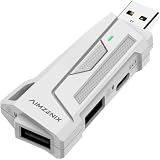
- Top Pick: leadjoy VX2 AimBox Keyboard Mouse Adapter for PS4, Xbox One, Xbox Series X/S, MnK Converter for Playing FPS, RTS, R6, Apex Legends
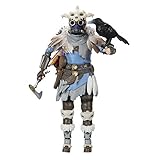
- Best Value: Apex Legends: Season 3- Bloodhound (OLD WAYS) 6" Figure (4L …
- Premium Choice: BenQ Zowie XL2586X+ 24.1 DyAc 2 600Hz Fast TN Gaming Monitor for Esports
Apex Legends is not a GPU game in the way most shooters are. Respawn’s modified Source engine loads entities, ability effects, and player models onto the CPU thread so aggressively that your graphics card often sits idle while your processor chokes on draw calls during a crowded final ring. This is the core performance truth of Apex: you are fighting the engine’s architecture, not your hardware’s limits. Every setting decision below revolves around that reality. Visual options that look like GPU concerns (shadows, fog, ambient occlusion) hit both threads simultaneously because of how the engine batches rendering passes. The result is a game where the wrong preset can cost you 80 frames in a fight while the right one keeps your average high enough that frame-time variance—the metric that actually determines whether your tracking feels smooth—stays tight.
Quick Preset
| Setting | Competitive | Balanced | Low-End PC |
|---|---|---|---|
| Model Detail | Low | Medium | Low |
| Effects Detail | Low | Medium | Low |
| Texture Streaming Budget | Medium (2-3GB) | High (4GB) | Low (1GB) |
| Texture Filtering Quality | Bilinear | Bilinear | Bilinear |
| Sun Shadow Coverage | Low | Medium | None |
| Spot Shadow Detail | Low | Medium | None |
| Ambient Occlusion Quality | Disabled | Low | Disabled |
| Volume Fog Scattering | Disabled | Medium | Disabled |
| Ragdoll Count | Low | Medium | None |
| Max FPS | 280 | 240 | 144 |
| Adaptive Resolution FPS Target | 0 | 60 | 60 |
| Anti-aliasing | TSAA | TSAA | SMAA 1x |
| Upscaling | Disabled | FSR 1.0 Quality | FSR 1.0 Balanced |
| Dynamic Spotlight Shadows | Disabled | Disabled | Disabled |
| Impact Marks | Disabled | Enabled | Disabled |
Settings That Matter Most
Sun Shadow Coverage
This is the single most expensive setting in Apex Legends relative to its competitive value. The engine renders shadow maps for every light source that touches terrain geometry, and on maps like World’s Edge with its vertical elevation changes, the cost is nonlinear. Going from Low to High can steal 40 to 60 frames in a fight because shadow pass batching scales with both on-screen entities and camera angle. Set this to Low. The visual difference at competitive ranges is negligible, and the frame-time spike during a Wraith blink into a shadowed rock formation is not worth it.
As an Amazon Associate we earn from qualifying purchases at no extra cost to you.





Effects Detail
Ability effects—Gibraltar’s bombardment, Caustic’s traps, Horizon’s dark gate—are the primary CPU bottleneck trigger in Apex. Each effect spawns a particle system that the engine processes on the main thread. High effects detail doesn’t just add visual layers; it increases the number of entity queries the CPU performs per frame. In a six-squad fight, this is the difference between 140 and 220 average FPS. Competitive players set this to Low. You lose some readability on ability telegraphs, but the frame consistency gain is the correct trade at any rank.
Ragdoll Count
Every eliminated player spawns a physics-simulated body that the engine tracks until despawn. Each ragdoll is a separate physics entity with collision queries. In the final ring with three squads dying simultaneously, you can accumulate 15 to 20 active ragdolls that eat CPU cycles dedicated to player movement prediction. Set this to Low for competitive play. The bodies despawn faster and the engine skips collision updates on distant ones. This is a pure CPU tax with zero competitive information value.
Texture Filtering Quality
Bilinear vs. Anisotropic 16x is a GPU memory bandwidth operation, not a compute operation. On cards with limited memory bandwidth (older midrange GPUs, integrated graphics), switching from Anisotropic 16x to Bilinear recovers 20 to 35 FPS because the engine samples ground textures heavily during movement. The visual cost is texture shimmer on distant floors, which only matters if you’re staring at the ground. Competitive players never stare at the ground.
Impact Marks
Every bullet hit spawns a decal that persists for a set duration and consumes a texture slot in the engine’s decal system. At high fire rates with the R-301 or Flatline, you can accumulate 40+ active decals on a single wall surface. The engine composites these as an additional rendering pass. Disabling them removes the pass entirely. If you’re on a GPU with under 4GB of VRAM, this setting causes VRAM pressure that triggers texture streaming stalls (visible as pop-in during fights).
Ambient Occlusion Quality
Apex implements screen-space ambient occlusion that samples the depth buffer and applies a per-pixel darkening pass. This is a straightforward GPU operation but one that adds a full-screen shader pass the engine wasn’t architected to skip cleanly. On low-end systems, disabling it removes an entire post-processing stage. On modern GPUs, the cost is 8 to 12 FPS. The visual benefit—softened contact shadows under objects—provides no competitive information and makes distant enemies marginally less visible against dark corners.
Upscaling and Frame Generation
Apex Legends supports AMD FidelityFX Super Resolution 1.0 only. This is a spatial upscaler, not a temporal one. It analyzes a single frame and reconstructs detail at the pixel level rather than accumulating motion vectors across frames. The practical result: FSR 1.0 introduces visible edge shimmer during rotation and can degrade target visibility at distance. It is not comparable to FSR 2 or DLSS 3 in quality. Use it only when your GPU cannot maintain 144 FPS at 1080p native, and set it to Quality mode (75% internal resolution) as the floor. Going below Quality on a 1080p display produces an image where hitboxes become ambiguous against cluttered backgrounds.
There is no frame generation in Apex Legends. The game does not support DLSS Frame Generation, FSR Frame Generation, or NVIDIA’s Reflex-based interpolation. This is an architectural limitation of the Source-derived engine’s frame pipeline, which was never designed to buffer and present synthetic frames. The only frame-rate strategy here is reducing GPU and CPU load to raise native FPS. If you’re targeting 360 Hz monitors on the competitive circuit, the path is hardware, not upscaling.
Outside the Game
NVIDIA Reflex is built into Apex’s video settings (enable Low Latency mode). This is not a performance setting—it reduces system latency by synchronizing the CPU and GPU queues so frames submit without buffering. Enable it if you have an RTX card. It costs 5 to 8 FPS but eliminates the input-to-display delay that makes tracking feel mushy during strafes. AMD cards can use Radeon Anti-Lag at the driver level for a similar effect.
Windows Game Mode should be enabled. The Source-derived engine’s main thread is sensitive to CPU scheduler interruptions from background processes. Game Mode pins the game process to preferred cores and suspends Windows Update service activity during sessions. This reduces frame-time variance by 2 to 4 milliseconds on systems with under 8 cores, which is audible as a reduction in microstutter.
Steam launch options: Add -high to set process priority to High. The Source engine does not request elevated priority on its own. On systems with multiple cores and background processes (Discord overlay, browser), this reduces thread preemption events that cause frame spikes.
Full-screen exclusive vs. borderless windowed: Use full-screen exclusive. The Source engine’s swap chain implementation does not benefit from DWM composition the way DirectX 12 titles do. Borderless windowed adds 4 to 8 milliseconds of present latency in Apex specifically because the engine’s render-to-present path was never optimized for compositor pass-through.
Settings to Leave Alone
Adaptive Resolution FPS Target: Set this to 0. Apex’s adaptive resolution dynamically lowers internal rendering resolution when FPS drops below your target. It triggers mid-fight, causes sudden visual degradation that disorients you, and the engine does not restore resolution smoothly—it oscillates. Let your hardware handle FPS through static settings. This option is a liability, not a safety net.
Viewmodel FOV: Keep this at default. The Source engine’s first-person camera matrix is coupled to the world FOV in ways that cause weapon model clipping at extreme values. Lowering viewmodel FOV does not meaningfully improve target visibility and introduces visual artifacts on weapon attachments.
Bloom: It’s either on or off and it costs almost nothing. The engine implements bloom as a single-pass post-process on a downsampled buffer. Leave it on if it helps you read ability effects. Remove it if the glare bothers you. There is no performance reason to touch this.
Dynamic Spotlight Shadows: The name sounds important but it only affects flashlight-style shadows on specific map props (lamps, vehicle headlights). Fewer than ten objects per map use it. It costs 3 to 5 FPS and you will never notice the visual difference in a competitive context. Disable it, move on.
FAQ
Why does my FPS tank during fights but stay high in the lobby?
The lobby renders one instance with minimal entities. In a fight, the engine processes up to 20 visible players, their ability effects, bullet tracers, impact decals, and ragdoll physics simultaneously on the CPU main thread. This is entity-driven load, not graphics-driven. The solution is aggressive effects, ragdoll, and decal settings reduction. No GPU upgrade fixes a CPU-bound entity bottleneck in Apex.
Should I cap my FPS or leave it uncapped?
Cap it. Uncapped FPS in Apex causes the engine’s physics substep counter to increase, which raises CPU load and can produce microstutter when the system can’t sustain the variable rate. Cap at 280 for a 240Hz monitor, 240 for a 144Hz monitor. The cap gives the CPU a predictable workload ceiling and eliminates the spike-then-stall pattern that occurs when the engine momentarily renders 400 frames and then drops to 180.
Does Apex Legends support DLSS?
No. The engine does not implement DLSS, FSR 2, FSR 3, or XeSS. Only FSR 1.0 is available as an in-game upscaler. Respawn has stated no plans to integrate temporal upscaling into the current engine iteration, as the motion vector pipeline required for FSR 2 or DLSS Quality would conflict with the entity rendering architecture they use for player model LOD and ability effect batching.
How do I fix input lag in Apex Legends on 2026 hardware?
Enable NVIDIA Reflex or Radeon Anti-Lag. Use full-screen exclusive mode. Set your Windows mouse polling rate to 1000Hz or higher and your USB polling rate in BIOS to the fastest option. Verify no background process is interrupting the game’s main thread (Game Mode helps). The Source-derived engine’s input-to-action path is direct—it does not use input buffering or prediction smoothing beyond network interpolation. If your system latency feels high, it’s almost always a scheduling interruption, not an engine limitation.










