- Top Pick: iolo – System Mechanic, Fix & Speed Up Your PC Automatically With Award Winning Software Solution
- Best Value: How to Fix and Speed Up Your Computer in 30 Minutes (No Technical Skills Needed): Step-by-Step Guide to Cleaning, Optimizing, and Improving PC Performance for Beginners
- Premium Choice: WinOptimizer 29 – Increase the performance, stability and system optimizer – for Win 11, 10
Few things ruin a gaming session faster than stuttering: those sudden hitches, micro-freezes, and frame-time spikes that break immersion even when your average frame rate looks fine on paper. Stuttering is different from low FPS, and the fix is almost never a single setting. It is usually a chain of culprits spanning drivers, background processes, storage, and thermals.
This 2026 guide walks through the most common causes of PC game stuttering in the order you should check them, from the five-minute software fixes that solve most cases to the deeper hardware issues that require a closer look. Work through it methodically and you will land on the real cause instead of guessing.
As an Amazon Associate we earn from qualifying purchases at no extra cost to you.


⚡ Save on Your Next PC — Amazon Prime
Prime members get fast free shipping on the systems above, plus early access to Prime Day & Black Friday PC deals. New members get a 30-day free trial.
Watch: How to Fix Game Stuttering on PC — Video Review
Understand Frame Time, Not Just Frame Rate
Average FPS hides stutter. A game can average 90 fps while dropping to a jarring 20 fps for a split second every few seconds, and that inconsistency is what you feel. Enable a frame-time graph in an overlay tool and watch for spikes, tall vertical bars that represent a frame taking far longer to render than its neighbors. A flat, consistent frame-time line feels smooth even at a lower average; a spiky line feels terrible even at a high one. Diagnosing stutter starts with watching that graph while you reproduce the hitching.
Start With Drivers and Background Processes
The single most common cause is a stale or corrupted GPU driver. Perform a clean driver install using the vendor’s tool or a display driver uninstaller, then apply the latest stable release. Next, close background apps that steal CPU cycles and disk bandwidth: browsers with dozens of tabs, overlay-heavy chat clients, cloud sync services, and aggressive antivirus scans are frequent offenders. Guides and utilities such as iolo System Mechanic or Ashampoo WinOptimizer automate a lot of this cleanup, but you can accomplish the same manually through Task Manager and startup settings.
- Set your GPU control panel’s power management to prefer maximum performance.
- Disable Xbox Game Bar background recording if you are not using it.
- Pause cloud backups and Windows Update during play sessions.
Check Storage and Shader Compilation
Modern titles stream assets constantly, so a slow or nearly full drive causes traversal stutter as you move through a level. Keep at least 15 to 20 percent of your game drive free, and install demanding titles on an NVMe SSD rather than a hard drive. A newer cause is shader compilation stutter, brief hitches the first time a game builds its shaders. Letting a game sit on its shader-compilation screen, or replaying the opening area once, often clears it for good.
Rule Out Thermal Throttling and Power Limits
If stutter appears only after 20 or 30 minutes of play, heat is the prime suspect. As the CPU or GPU crosses its thermal limit, it throttles clock speeds, producing sudden frame drops. Monitor temperatures during a long session; sustained readings above the low 80s Celsius on either chip point to a cooling problem, whether that is dust-clogged fans, dried thermal paste, or inadequate case airflow. Books like a PC hardware troubleshooting handbook can help you interpret the readings, but the fix is usually cleaning, repasting, or improving airflow.
Tips
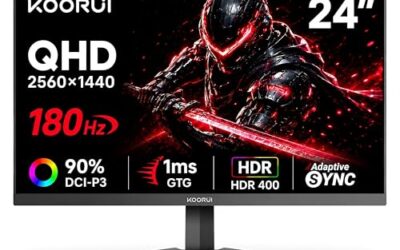
- Cap your frame rate: limiting FPS a few frames below your monitor’s refresh reduces frame-time variance and keeps you in your VRR window.
- Enable V-Sync or G-Sync/FreeSync, not both blindly: mismatched sync settings are a hidden source of stutter; match them to your monitor.
- Test with a fresh Windows power plan: some pre-installed vendor power profiles park CPU cores aggressively and cause hitches.
- Update the chipset driver, not just the GPU driver: outdated chipset drivers affect how the CPU schedules game threads.
Frequently Asked Questions
Why does my game stutter even with high FPS?
High average FPS with stutter almost always means inconsistent frame times. The GPU or CPU is momentarily starved, usually by a background process, a slow storage read, or shader compilation, causing individual frames to take far longer than the rest even though the average stays high.
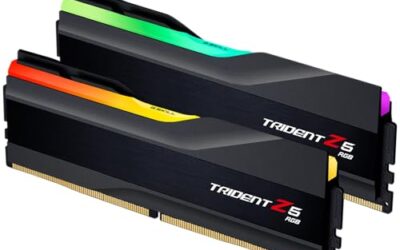
Can adding more RAM stop stuttering?
It can if you are running out of memory. If a game and your background apps exceed your installed RAM, Windows swaps to disk and causes severe hitching. Moving from 8GB to 16GB, or 16GB to 32GB for heavy multitaskers, resolves that specific cause but will not fix stutter from drivers or thermals.
Is stuttering caused by my CPU or GPU?
Watch usage during a hitch. If GPU usage drops while the CPU pegs a core near 100 percent, you are CPU-bound and the CPU is the bottleneck. If the GPU stays maxed and frame times spike, the issue is more likely storage, drivers, or thermals on the GPU side.
Does a full hard drive cause game stutter?
Yes. A drive with little free space fragments writes and slows asset streaming, producing stutter as you move through large levels. Freeing space to keep 15 to 20 percent of the drive open, and ideally installing to an SSD, is one of the easiest fixes.
Conclusion
Stuttering is a process-of-elimination problem, not a single toggle. Start with a clean driver install and trimmed background processes, verify your storage has headroom, then move on to thermals and power settings if the hitching survives. Use a frame-time overlay to confirm each change actually flattens the spikes. Methodical beats magical every time, and once you find your culprit the fix usually sticks for good.