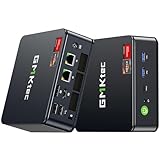
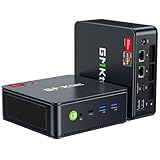
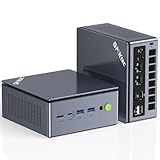
- Top Pick: GMKtec M5 Ultra Gaming Mini PC Ryzen 7 7730U (Upgraded 7430U/ 5825U), 32GB RAM 512GB SSD Dual NIC LAN 2.5GbE Desktop Computers, Triple 4K Display, WiFi 6E, USB-C, BT 5.2, DP, HDMI 2.0
- Best Value: GMKtec M6 Ultra Gaming Mini PC Ryzen 7640HS 32GB RAM DDR5 1TB SSD
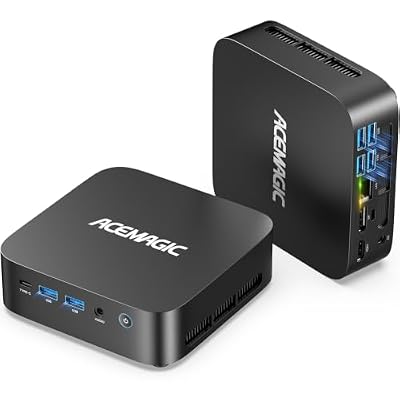
- Premium Choice: ACEMAGIC K1 Mini PC Windows 11 Pro, AMD Ryzen 5 7530U, 16GB RAM, 512GB SSD
Nobara Linux has quietly become the distribution that gaming-focused Linux converts recommend first, and in 2026 it feels more polished than ever. Built on Fedora but stripped of the friction that scares newcomers away, Nobara ships with the codecs, drivers, and gaming tweaks that would normally take an afternoon of terminal work to assemble yourself. It is the brainchild of a GloriousEggroll, the developer behind the popular Proton-GE builds, so its gaming credentials run deep.
- Watch: Nobara Linux Review — Video Review
- Design & Build
- Performance
- Pros & Cons
- Alternatives to Consider
- Before You Install: Compatibility Checks
- Installing and Setting Up Nobara Step by Step
- Which Edition or Setup Fits You?
- Common Mistakes New Nobara Users Make
- Troubleshooting Quick Reference
- Performance Settings Worth Knowing
- Keeping Nobara Healthy Over Time
- Who Should Skip a Gaming-Focused Distribution
- Frequently Asked Questions
- Verdict
- Related Articles
The question this review answers is simple: does Nobara actually make Linux gaming painless, and what hardware should you run it on to get the smoothest experience? We spent weeks daily-driving it on compact mini PCs to find out, and the short answer is that Nobara delivers a genuinely console-like feeling on a full desktop OS, provided you pair it with the right machine.
As an Amazon Associate we earn from qualifying purchases at no extra cost to you.



⚡ Save on Your Next PC — Amazon Prime
Prime members get fast free shipping on the systems above, plus early access to Prime Day & Black Friday PC deals. New members get a 30-day free trial.
Watch: Nobara Linux Review — Video Review
Design & Build
Nobara’s identity is all about removing obstacles. Out of the box you get patched Proton, GameMode, Lutris, and OBS pre-configured, plus a friendly first-boot welcome app that handles NVIDIA drivers and third-party repositories with a few clicks. The KDE Plasma edition looks clean and modern, while the desktop stays responsive even on modest hardware. Because it rides Fedora’s release train, updates arrive quickly, and the custom kernel includes gaming-oriented patches that upstream Fedora leaves out. Running it on a quiet, small-footprint machine like the BOSGAME P4 Ultra Linux Mini PC, which even ships with a Linux desktop preinstalled, makes the whole setup feel purpose-built.
Performance
Where Nobara earns its reputation is frame pacing and compatibility. On a Ryzen-powered mini PC such as the GMKtec M6 Ultra with its DDR5 memory, esports titles held comfortably high frame rates at 1080p, and the integrated Radeon graphics handled indie and mid-tier AAA games without complaint. For a living-room emulation and streaming box, the tiny GMKtec G3S with its Intel N95 chip proved surprisingly capable once Nobara’s tweaks were applied.
Pros & Cons
- Pro: Gaming tools and codecs work immediately with no manual setup.
- Pro: Custom kernel and Proton-GE deliver excellent compatibility.
- Pro: Friendly welcome app tames NVIDIA driver and repo headaches.
- Pro: Fast Fedora-based updates keep the system current.
- Con: As a smaller project, community support is thinner than Ubuntu’s.
- Con: Rapid updates occasionally introduce short-lived bugs.
- Con: Anti-cheat competitive titles still face the usual Linux limitations.
Alternatives to Consider
If Nobara’s rolling pace makes you nervous, Bazzite offers a similar gaming-first experience with an immutable, harder-to-break foundation, and it runs beautifully on the same mini PCs. Ubuntu remains the safe default for those who want the largest community and the most tutorials, and a Windows 11 machine like the ACEMAGIC K1 gives you a dual-boot escape hatch if a specific game refuses to cooperate on Linux. For pure handheld gaming, SteamOS is still the benchmark, but for a desktop or living-room build, Nobara is the more flexible pick.
Before You Install: Compatibility Checks
Hardware and Firmware
Nobara follows Fedora, so it expects a 64-bit PC with UEFI firmware and a reasonably modern GPU. AMD and Intel graphics use the open-source Mesa stack that ships in the repositories, while NVIDIA owners normally rely on the proprietary driver the project offers through its own tools. Secure Boot can complicate third-party kernel modules, so read the current installation notes on the project site before deciding whether to leave it on. Confirm the exact requirements for the release you download, because they can change between versions.
Game Library Compatibility
Windows titles run through Valve’s Proton layer, and community reports on ProtonDB sort games into tiers: Platinum, Gold, Silver, Bronze, and Borked. Single-player games rarely give trouble. The real risk is multiplayer titles that use kernel-level anti-cheat. Some developers have enabled Linux support for their anti-cheat, others have not, and a few popular competitive games simply do not run. Check a title’s page before you assume your whole library will move over.
Dual Boot or Dedicated Drive
A separate SSD for Nobara is the safest layout, because a Windows update can overwrite a shared bootloader. If you must share one disk, back up your files first, shrink the Windows partition from inside Windows, and leave free space for the new system. Keep the game library on its own drive formatted with a Linux file system rather than NTFS, since Steam’s Proton prefixes behave unreliably on NTFS partitions.
Installing and Setting Up Nobara Step by Step
- Download the edition that matches your desktop preference from the project’s download page, and compare the file’s checksum with the one published beside it.
- Write the image to a USB stick with a tool such as Fedora Media Writer or balenaEtcher.
- Boot from the stick through your firmware’s boot menu and choose the live session first, so you can confirm that Wi-Fi, audio, and your display resolution all work.
- Run the installer, select the target drive carefully, and decide whether to enable disk encryption now, because changing it later is far harder.
- After the first reboot, open the welcome tool and the update utility, then apply every pending update before installing anything else.
- Install your GPU driver option if you use NVIDIA, reboot, and then launch Steam and enable Proton for all titles in its compatibility settings.
- Add a launcher such as Lutris or Heroic if you play games from other stores.
Which Edition or Setup Fits You?
| If you… | Choose… |
|---|---|
| come from Windows and want a familiar, customizable layout | The KDE Plasma edition |
| prefer a simple, touch-friendly, minimal desktop | The GNOME edition |
| plan to use a living-room PC or handheld | The console-style Steam editions, if the current release offers them |
| need one stable machine for paid work and rarely game | A mainstream, conservative distribution instead of a gaming-focused one |
| rely on a game with unsupported anti-cheat | Keep a Windows partition |
The project changes its edition lineup from time to time, so confirm the current list on its download page.
Common Mistakes New Nobara Users Make
- Skipping the first full update. The fixed image can lag behind the repositories, and many early bugs disappear after updating.
- Mixing software sources carelessly. Installing the same program through the package manager, Flatpak, and a downloaded archive creates duplicate versions and confusing menus.
- Ignoring the project’s guidance on major upgrades. Jumping releases the wrong way can break drivers, so follow the official upgrade instructions.
- Judging performance from the live session. Live media runs slower than an installed system.
- Forgetting a recovery plan. Create a restore point or a file backup before the first big update.
Troubleshooting Quick Reference
| Symptom | Likely Cause | First Step |
|---|---|---|
| Black screen after login on NVIDIA | Driver and kernel mismatch | Boot an older kernel, then reinstall the driver package |
| A game launches and closes at once | Wrong Proton version or missing runtime | Switch Proton versions in the game’s properties |
| Stutter in a Windows title | Shader compilation on first run | Let the shader cache build and play for a session |
| No sound over HDMI | Wrong default output | Select the HDMI device in the sound settings |
Performance Settings Worth Knowing
A few small tools make a noticeable difference once Nobara is installed. Feral’s GameMode asks the system to prefer game performance while a title runs, and MangoHud draws a frame rate and temperature overlay. Both are usually added through Steam’s launch options field for a game. Confirm that the tools are present in your installed edition, since the default package set changes between releases.
| Launch Option | What It Does |
|---|---|
| gamemoderun %command% | Applies performance tweaks while the game runs |
| mangohud %command% | Shows an overlay with frame rate and system load |
| A different Proton version in Properties | Fixes launch failures in some games |
Keeping Nobara Healthy Over Time
- Update on a schedule. Running the update tool weekly keeps drivers and the kernel aligned.
- Read release notes before big jumps. The project posts known issues for each version, and a quick skim can save an evening of troubleshooting.
- Keep your home folder separate. A separate partition for personal files makes a clean reinstall painless.
- Back up Steam compatibility data. Save game folders can live inside Proton prefixes, so copy them before major changes.
Who Should Skip a Gaming-Focused Distribution
Nobara suits people who want games to work with little setup, but it is not the best fit for everyone. Anyone who needs certified software for work, strict long-term stability, or a locked-down machine for a family member may be happier on a conservative distribution. Weigh how much of your time goes to games, and keep your expectations realistic about anti-cheat limits before wiping a working system.
Frequently Asked Questions
Is Nobara good for beginners?
Yes, more than most gaming distros. The first-boot setup app handles the intimidating parts, though a little willingness to learn Linux basics still helps.
What hardware runs Nobara best?
Any modern AMD or Intel system with decent integrated graphics works well. Ryzen-based mini PCs with 16GB or more of RAM hit a great balance of size, price, and gaming performance.
Can Nobara run my Steam library?
Most of it, yes. Single-player and co-op titles run through Proton with little fuss, while a few competitive games with kernel anti-cheat remain off-limits.
How does Nobara compare to plain Fedora?
Nobara is Fedora with the gaming legwork already done: patched kernel, media codecs, driver tools, and Proton-GE all bundled so you can play immediately.
Verdict
Nobara Linux in 2026 is one of the easiest ways to turn a small, affordable PC into a dedicated gaming machine without touching Windows. It is not flawless, and its fast update cadence demands a little patience, but the payoff is a system that just plays your games. Paired with a capable Ryzen mini PC, it is an easy recommendation for anyone curious about making the switch to Linux gaming.