- Top Pick: XBOX Wireless Gaming Controller + USB-C Cable | Carbon Black | Consoles, PCs, TVs, mobile, and more | Textured Grip | Wireless, Bluetooth, USB-C Connectivity
- Best Value: PowerA Wired Controller for Xbox Series X|S – Black, gamepad, wired video game controller, gaming controller, works with Xbox One and Windows 10/11
- Premium Choice: GameSir G7 Pro Wired Controller for Xbox Series X|S, Xbox One, Wireless Gamepad for PC&Android with TMR Sticks, Hall Effect Analog Triggers, 1000Hz Polling Rate, 3.5mm Audio Jack – Black
Affiliate disclosure: As an Amazon Associate we earn from qualifying purchases. This post contains affiliate links — we may earn a small commission at no extra cost to you. This never affects our picks.
- Top 5 Xbox Controller For Pc Picks Compared
- The Five Criteria That Actually Matter
- The Six-Step Buying Checklist
- Mistakes Most Buyers Make
- Spec Primer: What the Numbers Actually Mean
- Wired, Bluetooth or Wireless Adapter: How Each Connection Behaves on Windows 11
- Pairing a Wireless Xbox Controller With a PC, Step by Step
- AA Batteries or a Rechargeable Pack: Choosing How a Wireless Pad Is Powered
- Stick Drift Explained: Potentiometer, Hall Effect and TMR Sensors
- Which Controller Features Fit Which Kind of PC Game, and How Remapping Helps
- Controller Not Detected or Disconnecting: A Troubleshooting Table
- Frequently Asked Questions
- Final Take
- Related Articles
- Related Guides
As an Amazon Associate we earn from qualifying purchases at no extra cost to you.


Quick answer: The best xbox controller for pc for you in 2026 is the one that matches your actual workload, your budget, and the rest of your setup — not whichever option wins the loudest spec-sheet headline. Use the six-step checklist below to land the right pick on the first try.
Buying a xbox controller for pc should not be hard, but the 2026 market is louder than ever. New launches every quarter, marketing copy that flattens real differences, and shopper reviews drowned in noise all conspire to make the choice harder than it deserves to be. This guide cuts through the fog with a simple, repeatable framework you can apply to any xbox controller for pc shortlist — and the same framework we use on the review desk every week.
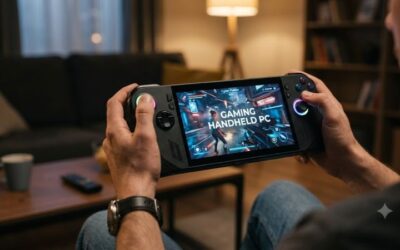
By the end of the read you will have a concrete shortlist of criteria, a clear sense of which trade-offs actually matter for your situation, and a six-step checklist to walk through before you click buy.
🛒 Best Price Today on Amazon
Prime members get fast, free shipping on everything above, plus member-only deals. New members get a 30-day free trial — cancel anytime.
Top 5 Xbox Controller For Pc Picks Compared
| Rank | Product | Price | Reviews | Buy |
|---|---|---|---|---|
| 1 | Backbone One Mobile Gaming Controller for iPhone – Turn Your iPhone in… | Check on Amazon | — | View on Amazon |
| 2 | Backbone One Mobile Gaming Controller Xbox Edition – USB-C Phone Contr… | Check on Amazon | — | View on Amazon |
| 3 | Razer Kishi V2 Mobile Gaming Controller for iPhone (Lightning) Xbox Ed… | Check on Amazon | — | View on Amazon |
| 4 | Backbone Pro Mobile Gaming Controller Xbox Edition – Phone Controller … | Check on Amazon | — | View on Amazon |
| 5 | BACKBONE One Mobile Gaming Controller (PlayStation Edition), USB-C Pho… | Check on Amazon | — | View on Amazon |
The Five Criteria That Actually Matter
Whatever xbox controller for pc you end up with, it has to clear five hurdles. Skip one and you almost always regret it within the ownership window.

- Documented performance. Independent benchmarks first, manufacturer datasheets second. If a unit only shines in first-party tests, treat that as a yellow flag.
- Value at street price. The launch price is rarely the price you pay — track the discount cadence over a few weeks before pulling the trigger.
- Build quality and longevity. Anecdotes from shopper feedback are gold here. A product with thousands of reviews spanning 12+ months has been stress-tested in ways no datasheet can replicate.
- Compatibility with the rest of your setup. Even the best xbox controller for pc flops if it does not pair cleanly with your existing kit. Check ports, standards, and supporting software before checkout.
The Six-Step Buying Checklist
It takes about 20 minutes per shortlist and saves hours of return-shipping later.
- Define your honest workload. What will this xbox controller for pc actually be doing 80% of the time? Be ruthless — aspirational use cases burn money.
- Set a hard budget ceiling. Include the platform cost (cables, mounts, software). Decide before you start shopping, not mid-spec-sheet.
- Pull a 5-item shortlist. Cross-reference our latest round-ups with shopper feedback for products that clear all five hurdles above.
- Verify availability and price. Confirm at least two reputable sellers stock the unit at a price you can defend.
- Read the bottom-third reviews. Top-rated reviews sell you the dream. The low-rated ones expose the gotchas. Both matter.
- Commit and document. Save the warranty start date, the return window deadline, and the configuration you bought so you can troubleshoot or upgrade later without guesswork.
Mistakes Most Buyers Make
If you walk away with nothing else, walk away with awareness of these three traps — they account for the vast majority of “I regret this purchase” posts we see on the xbox controller for pc forums each year.

- Chasing flagship specs you will never use. A mid-tier xbox controller for pc from a strong brand outperforms a flagship from a weaker one in every metric that matters for typical use. Pay for features you will reach.
- Ignoring the platform cost. The accessories, software licences, and supporting hardware can easily add 20-40% to the headline price. Budget for the whole stack from day one.
- Buying at launch without waiting for reviews. First-batch units sometimes ship with firmware quirks that get patched within weeks. Waiting 30-60 days after launch is almost always a good deal.
Spec Primer: What the Numbers Actually Mean
Marketing teams have a knack for turning meaningful specs into meaningless badges. The list below decodes the headline numbers you will see on every xbox controller for pc product page and tells you what each one actually changes in real use.
- Generation/series tier. Determines feature set, driver support window, and second-hand value. Newer is usually better within the same tier — across tiers, the picture is less clear.
- Headline performance number. Useful for comparing within a single generation; almost useless across generations or brands. Lean on independent benchmark suites instead.
- Connectivity and standards. Future-proofing lives and dies here. A xbox controller for pc that lacks the latest standard today may be obsolete in 24 months even if its raw spec still looks fine.
- Warranty terms. Two-year minimum, transferable preferred. Some brands honour a longer warranty in practice than their box says — check community feedback.
Wired, Bluetooth or Wireless Adapter: How Each Connection Behaves on Windows 11
Every controller in this roundup reaches a Windows 11 PC through one of three paths. The path matters more than most spec sheets admit, because it decides whether you need extra hardware, how the pad is powered, and what happens when something goes wrong. The table below summarizes the general differences, based on Microsoft’s published pairing documentation and the connection types named in the product titles above.
| Connection | What you need | Power source | Main trade-off |
|---|---|---|---|
| Wired USB | A data-capable USB cable and a free port | Drawn from the PC | Cable length and routing; simplest and most predictable setup |
| Bluetooth | A PC with a Bluetooth radio and a controller that supports it | Batteries or an internal pack | No extra hardware, but the PC’s radio quality and distance from it matter |
| Xbox Wireless Adapter or controller-specific dongle | A USB receiver (Microsoft’s own, or the one bundled with some third-party pads) | Batteries or an internal pack | Uses a USB port, but avoids dependence on the PC’s built-in Bluetooth |
Two practical points follow. First, an original Xbox One-era pad generally does not include Bluetooth, so on a PC it needs a cable or the Xbox Wireless Adapter. Controllers designed for the Series X|S generation add Bluetooth. Second, several listings above are wired-only designs. For a desk setup where the PC sits within a cable’s reach, wired is the lowest-maintenance choice because there are no batteries, no pairing and no radio to drop out.
On latency, published material generally treats a wired link as the lowest-latency option, with wireless adding a small delay that varies by radio, interference and polling rate. Verify any latency figure on a product page against independent measurements.
Pairing a Wireless Xbox Controller With a PC, Step by Step
Pairing is a one-time process, and most failed attempts come from skipping a step rather than from faulty hardware. The sequence below follows Microsoft’s documented Bluetooth flow for Windows 11.
- Open Settings, then Bluetooth & devices, and make sure Bluetooth is switched on.
- Choose Add device, then Bluetooth.
- Switch the controller on, then hold the small pairing button on the top edge until the Xbox button light flashes quickly.
- Select the controller from the list in Windows. The light turns solid once the link is made.
- If the pad was previously paired to a console, phone or another PC, pairing it again to a new host replaces the earlier link, so expect to re-pair when you switch back.
With a USB receiver instead of Bluetooth, the steps differ slightly: plug in the adapter, power the controller, hold the pairing button on the pad and press the adapter’s own button where it has one. Third-party wireless pads, such as the 8BitDo Ultimate 2C or the EasySMX X15 named in the picks above, ship with their own instructions and sometimes their own dongles, so follow the manual in the box rather than assuming the Xbox flow applies.
After pairing, it is worth installing the free Xbox Accessories app from the Microsoft Store if you own a first-party pad. It handles firmware updates and basic button remapping for Xbox hardware. Third-party brands usually have their own companion software, so check the listing for the app name before purchase.
AA Batteries or a Rechargeable Pack: Choosing How a Wireless Pad Is Powered
The power design is one of the least discussed differences between wireless controllers. Microsoft’s standard wireless pad takes two AA batteries, and a separately sold rechargeable pack is a common upgrade. Many third-party wireless controllers instead build in a lithium battery that charges over USB-C. Neither approach is universally better; it depends on how you play.
- Disposable AA cells: swap in a fresh pair in seconds and keep playing. Running costs add up over time, and mixing old and new cells shortens runtime.
- Rechargeable AA (NiMH) or a first-party pack: lower long-run cost and less waste, but you must remember to charge. Check the listing for whether a charging cable or dock is included.
- Built-in battery with USB-C charging: convenient and easy to top up while playing, but a worn-out internal cell is harder to replace than a pair of AAs.
One detail catches buyers out. On pads with an AA compartment, the USB-C port is generally for a data connection only, so plugging in a cable lets you play wired but does not recharge standard AA cells. If you want charge-while-you-play, either pick a model with a charging pack or one with a built-in battery. Battery-life figures on listings are manufacturer claims; compare them with buyer reviews that mention months of use rather than days.
Stick Drift Explained: Potentiometer, Hall Effect and TMR Sensors
Several picks here advertise Hall effect sticks or triggers, and the GameSir G7 Pro’s listing adds TMR sticks. These terms describe how the controller senses where a stick or trigger is, and they matter because of drift, the on-screen movement that happens when the stick is untouched.
| Sensor type | How it senses position | Wear behavior in general | Where you will see it |
|---|---|---|---|
| Potentiometer | A physical contact slides across a resistive track | Contact surfaces wear, which is the usual source of drift over time | Most traditional, lower-cost pads |
| Hall effect | Measures a magnet’s position without physical contact on the sensing element | Less contact wear in principle, so drift from track wear is less likely | Listings for the GameSir G7 SE, FLYDIGI VADER 5S and EasySMX X15 |
| TMR (tunnel magnetoresistance) | Also magnetic and contactless, using a different sensing element | Marketed as more precise and power-efficient than Hall; real-world gains vary | The GameSir G7 Pro listing |
A contactless sensor reduces one cause of drift but does not remove every cause. Dust or debris around the stick base, a worn rubber cap and badly set deadzones can all produce unwanted movement. If a pad drifts straight out of the box, the Windows Game Controllers calibration screen or the deadzone setting in the game or in Steam is the first place to look before blaming the hardware.
Which Controller Features Fit Which Kind of PC Game, and How Remapping Helps
A pad that suits a platformer is not automatically the right one for racing or shooters. This table links common genres to the features that tend to matter, using general design principles rather than any claim about a specific model.
| Genre | Features that help | What to look for in a listing |
|---|---|---|
| Racing and flight | Smooth, progressive triggers and a stable center on the sticks | Hall effect triggers, as in the GameSir and 8BitDo listings |
| Action and shooters | Responsive sticks, extra buttons to avoid lifting a thumb | Remappable rear buttons, such as the L4/R4 bumpers named for the 8BitDo Ultimate 2C |
| Platformers and fighting games | A reliable D-pad and crisp face buttons | Buyer reviews that describe D-pad feel in particular |
| Strategy and couch co-op | Comfort over long sessions, easy wireless range | Wireless support and a familiar layout |
| Voice chat on the pad | A headset jack on the controller itself | The 3.5mm audio jack named in the GameSir listings |
Most PC games from the last decade are built around the Xbox layout, which is why Xbox-style pads are the lowest-friction choice. If a game shows PlayStation button prompts on an Xbox-style pad, the game or Steam can usually be switched to the correct glyph set in its input options.
Input standards also shape the choice. XInput is the Xbox standard that almost every modern PC title understands, while older DirectInput devices can confuse games that expect Xbox signals, which is why a generic gamepad can behave differently from one presenting itself as an Xbox controller. Steam Input sits between pad and game and can remap buttons, adjust deadzones and save layouts per game, including non-Steam games added as shortcuts. Rear paddles only work in games that read them, so Steam or the maker’s software is how those buttons usually get assigned.
Controller Not Detected or Disconnecting: A Troubleshooting Table
Most connection problems fall into a short list of causes. Work through the table from top to bottom before concluding that a controller is faulty or starting a return.
| Symptom | Likely cause | What to try |
|---|---|---|
| Nothing happens when a wired pad is plugged in | Charge-only cable or a faulty port | Swap to a cable known to carry data and try a different USB port directly on the PC |
| Pad pairs but disconnects mid-game | Bluetooth interference or power saving on the radio | Move closer to the PC, reduce nearby wireless clutter, or switch to a USB receiver |
| Game ignores the controller | Game expects XInput, or Steam is capturing the device | Check Steam controller settings and the game’s input menu |
| Wireless pad will not pair a second time | An old pairing entry remains in Windows | Remove the device in Bluetooth settings, then pair again from scratch |
| Buttons or sticks behave oddly | Outdated firmware or a wrong mode switch | Update firmware through the maker’s app and confirm the correct input mode |
If a pad still fails on a second computer with a known-good cable, the fault is more likely to be in the controller, and that is the point to use the seller’s return window.
Frequently Asked Questions
How much should I spend on a xbox controller for pc in 2026?
Match the spend to your honest workload — most shoppers do well in the mid-tier where strong picks land. Going premium pays off only when the workload reliably rewards the extra capability.
When is the best time of year to buy a xbox controller for pc?
Late spring and early autumn historically deliver the strongest discount cadence outside of the big holiday sales. Track prices for two weeks before pulling the trigger if you can.
Is it worth waiting for the next generation?
Only if your current setup is still serviceable. Waiting for the next-gen launch usually means three more months of compromised performance plus a launch-day premium. Mid-cycle is often the sweet spot.
What do I do if my xbox controller for pc arrives faulty?
Document the issue with photos or video, contact the seller within the return window, and request RMA. Reputable sellers resolve these within a week. Keep packaging until you are sure the unit is a keeper.
Final Take
Choosing a xbox controller for pc in 2026 is about discipline, not specs. Walk through the five criteria, run the six-step checklist, and the right pick will almost always reveal itself. Skip the steps and you risk paying the regret tax — which is usually higher than the price difference between the right and wrong pick in the first place.
For shortlists of specific picks worth considering, browse our latest reviews and round-ups — each one applies the same framework you just read.
Top picks from this guide
 PowerAPowerA Wired Controller for Xbox Series X|S - Black, gamepad,…$28 \xc2\xb7 99/100
 BACKBONEBackbone One Mobile Gaming Controller Xbox Edition – USB-C Phone…$75 \xc2\xb7 99/100
 XboxXBOX Wireless Gaming Controller + USB-C Cable | Carbon Black…$52 \xc2\xb7 98/100
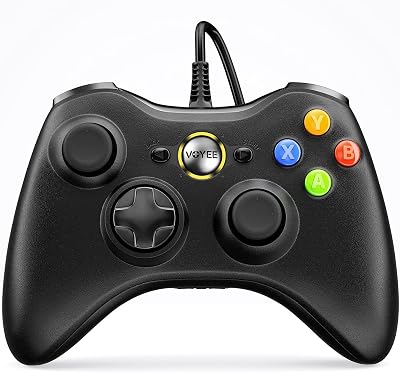
 VOYEEVOYEE PC Controller, Wired Controller Compatible with Microsoft Xbox 360…$18 \xc2\xb7 98/100