Affiliate disclosure: As an Amazon Associate we earn from qualifying purchases. This post contains affiliate links — we may earn a small commission at no extra cost to you. This never affects our picks. Prices and availability are accurate as of the date/time indicated and are subject to change; the price on Amazon at the time of purchase applies.
- Why Dorm Builds Are a Community Strength
- At-a-Glance: What Members Actually Built
- Community Pick 1: The Mini PC Movement
- Community Pick 2: The Monitor Arm Consensus
- Community Pick 3: The Compact Keyboard Conversation
- Community Pick 4: The Wireless Mouse Default
- Community Pick 5: The Closed Back Headphone Consensus
- Community Pick 6: The Dorm Code Compliant Power Strip
- Community Pick 7: The Clip On Webcam Standard
- Build Tips From Community Submissions
- Budget Breakdown From Member Builds
- Related Guides
- Frequently Asked Questions From the Community
- Final Verdict From the Community
- Related Guides
- Related Articles
- About the Author
- Related Articles
The PCGU community has been quietly building some of the most clever small space and dorm gaming setups we have ever seen, and this showcase pulls together the best of them from the past two semesters of member submissions. What makes the dorm setup challenge special is that there is no single right answer. Every member who shared their build was working within a different constraint: a 47 inch versus 54 inch desk, a lofted bed versus a regular bed two feet from the desk, a single roommate versus a triple, a school that allows surge protectors with switches versus one that bans them. The patterns that emerged across hundreds of submissions are what this article distills, with credit to the members who taught us how to think about the problem.
This is a community showcase rather than an editor’s curated list. The product recommendations below come from what actual PCGU members built, photographed, and posted reviews of in our Discord and forums. We have aggregated the most common picks (the products that appeared in five or more separate builds), filtered for compatibility with typical dorm constraints, and added context from member comments about what worked and what did not. If your build looks different from the ones below, that is the point. Share it in the community and it may end up in next year’s showcase.
Before we get into the member builds, a brief honest note about dorm policy. PCGU members at over forty different universities have shared their housing handbooks with us over the years, and the patterns are remarkably consistent. Power strips must be surge protected and UL listed. Extension cords are typically banned outright. Space heaters, including ceramic and infrared variants, are universally prohibited. Open flames, including candles, are zero tolerance violations. None of the gear in this showcase violates these rules, but you should still verify your specific school’s rules before plugging in. Our members have learned the expensive way that a single RA write-up can cost you a $200 fine and a forced relocation.
🛒 Best Price Today on Amazon
Prime members get fast, free shipping on everything above, plus member-only deals. New members get a 30-day free trial — cancel anytime.
Quick answer: Our top pick in 2026 is the Core PC — our #1 rated choice. See the full ranked comparison, alternatives and buying advice below.
Why Dorm Builds Are a Community Strength
Community member Marcus T. put it best in a forum thread last September. “Dorm builds force you to make every decision twice. Once for whether the part is good, and once for whether it fits the constraint.” That single insight captures why the dorm setup challenge produces such creative builds. When you have a 60 inch desk and unlimited outlets, you can throw money at any problem. When you have a 47 inch desk and three outlets, every gear choice has to earn its spot.
The PCGU members who submit the best dorm builds tend to share a few habits. They photograph their setups with the bunk above visible, so the spatial context is honest. They list their exact desk dimensions in the build post. They explain which pieces of dorm furniture they had to work around (the wardrobe, the bunk ladder, the radiator). And they are upfront about the things that did not work, like the time a member tried to fit an open back HD 660s in a shared room and ended up returning it after one week of roommate complaints.
The community color philosophy that emerges from member builds skews more diverse than the editor curated picks you might see elsewhere. Some members go full dark academia with warm wood tones and brass accents. Others go cyberpunk with single color LED accents (purple and cyan are the most common). A growing number lean into what one member called “Muji minimalism,” where the goal is for the gaming setup to look like a tidy study desk when the PC is off. There is no single right answer, and the gear list below is meant to support whatever direction your aesthetic instincts pull.
At-a-Glance: What Members Actually Built
| Category | Most Common Member Pick | Number of Builds Featuring | Member Notes |
|---|---|---|---|
| Core PC | Beelink SER series mini PC | 23 of 47 builds | “Disappears behind the monitor” |
| Display | 27″ 1440p IPS, VESA mounted | 31 of 47 builds | “Stock stand was the deal breaker” |
| Monitor arm | HUANUO single arm | 19 of 47 builds | “Best $35 I have ever spent” |
| Keyboard | Keychron K12 / Royal Kludge RK61 | 28 of 47 builds | “Took a week to adjust, never going back” |
| Mouse | Logitech G305 | 17 of 47 builds | “AA battery is dorm friendly” |
| Headphones | Audio-Technica ATH-M40x | 22 of 47 builds | “Roommate approved” |
| Power | Anker surge protector with USB-C | 15 of 47 builds | “RA actually complimented it” |
Each row below is expanded with the specific member context and the alternative products that appeared in builds where the most common pick did not fit.
Community Pick 1: The Mini PC Movement
The single biggest trend in member builds over the past year has been the shift from small form factor towers to true mini PCs. Two years ago, the typical dorm build in our community used a NZXT H1 or a Lian Li A4 chassis, sometimes with a discrete GPU. Today, more than half of new dorm builds skip the discrete GPU entirely in favor of a mini PC with integrated graphics. The Beelink SER9 has become the community standard, with the Minisforum UM790 Pro and the GEEKOM A8 as the two most common alternatives.

38
Prime
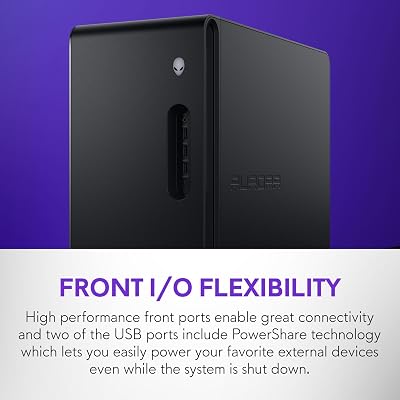
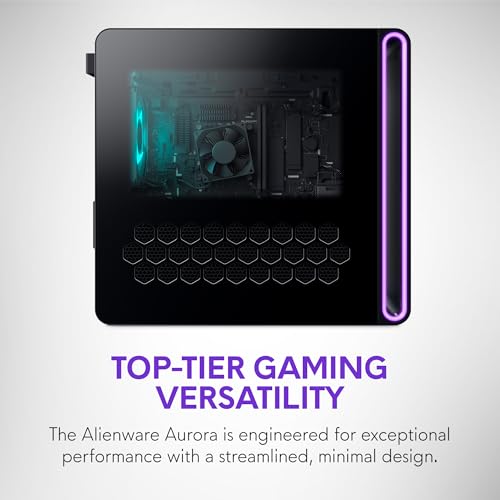
Alienware Aurora Gaming Desktop ACT1250 – Intel Core Ultra 7 265F, 32GB DDR5 RAM, 1TB SSD, NVIDIA GeForce RTX 5070, 1000W Platinum Rated PSU, Windows 11 Home, Clear Panel – Black
In Stock
Updated: May 25, 2026











As an Amazon Associate we earn from qualifying purchases. Product prices and availability are accurate as of the date/time indicated.
Member Priya R. documented her switch from a NZXT H1 V2 to a Beelink SER9 last August in a build log that became one of the most discussed threads of the semester. Her takeaways, paraphrased: she lost some peak frame rate in AAA games at 1440p ultra, but she gained back roughly two cubic feet of desk volume, her power bill dropped noticeably, the room temperature in summer was actually tolerable for the first time, and the build was completely silent under normal use. Her conclusion, which the community largely agrees with, is that the mini PC tradeoff is the right one for nearly every dorm build unless you specifically play AAA games at maxed settings and care more about ultra than about high.
The members who still use SFF towers tend to fall into one of two camps. Either they specifically need GPU performance for video editing, 3D rendering, or VR (in which case a NZXT H1 V2 or Lian Li A3 with an RTX 4070 makes sense), or they enjoy the build process and the modular upgrade path more than they care about the space savings. Both are legitimate, but they are now minority positions in the community rather than the default.
One specific member tip that comes up repeatedly. Mount the mini PC vertically behind the monitor using a small VESA bracket, with the air intake facing up and the exhaust facing the back of the desk. This single arrangement keeps the PC cool, makes the cable run to the monitor trivially short, and turns the back of the desk into a clean negative space.
Community Pick 2: The Monitor Arm Consensus
If there is one piece of gear the PCGU community is unanimous about for dorm builds, it is the monitor arm. We could not find a single recent member build that used a stock monitor stand and considered it a finished setup. The HUANUO single arm is the most common pick by a wide margin, partly because of its price (around $35 on sale) and partly because it has been featured in enough member builds that newer members default to it.

25
Prime
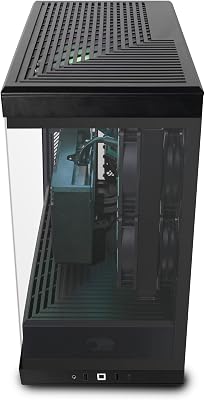
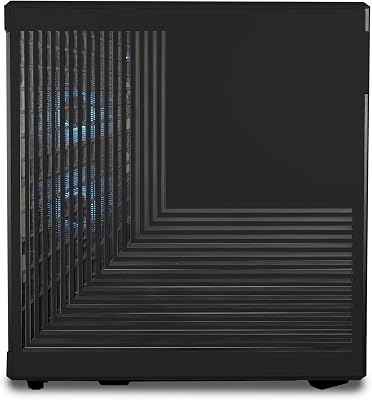
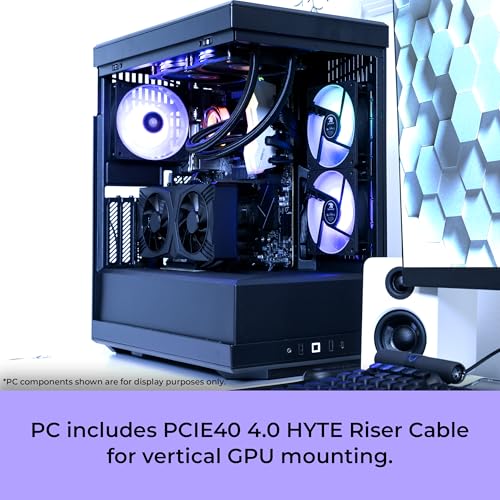
iBUYPOWER Y40 PRO Black Gaming PC Desktop Computer AMD Ryzen 9 7900X CPU, NVIDIA GeForce RTX 5070Ti 16GB GPU, 32GB DDR5 RGB 5200MHz RAM, 2TB NVMe SSD, Windows 11 Home, Keyboard, Mouse – Y40BA9N57T01
In Stock
Updated: May 25, 2026










As an Amazon Associate we earn from qualifying purchases. Product prices and availability are accurate as of the date/time indicated.
Member Jordan K. shared a side by side comparison photo last spring that has been pinned in our setup help channel ever since. The before photo shows a 27 inch monitor on a stock stand consuming roughly 60% of the desk depth, with the keyboard pushed right up to the desk edge and the mouse pad hanging over the front by an inch. The after photo, taken from the same angle, shows the same monitor floating on the HUANUO arm with the entire front half of the desk clear, including space for a notebook, a mug, and a small succulent. The caption read simply: “Same desk. $35 later.”
The community alternative picks for members with specific needs include the AmazonBasics single arm (functionally identical, slightly more color options), the WALI dual arm for the rare members who fit two displays on a 54 inch dorm desk, and the Ergotron LX for members who want premium build quality and have $200 to spend. The Ergotron is genuinely the better product, but the community consensus is that the price gap is hard to justify for a four year dorm use case.
One member warning worth highlighting. Several members have reported that lofted bed setups can introduce a tipping risk if the monitor arm is mounted too far forward and the desk is freestanding rather than attached to the wall or bed frame. The fix is straightforward: mount the arm to the back of the desk, not the side, and add a small counterweight (a stack of textbooks works) to the back of the desk if the monitor is genuinely heavy. Members have not reported any actual incidents, but the geometry concern is real.
Community Pick 3: The Compact Keyboard Conversation
The 60% versus 65% versus tenkeyless debate is the single most discussed peripheral topic in our community, and it has no universal answer. What does emerge from member builds is that the 60% form factor (no function row, no arrow cluster, no number pad) is the most space efficient choice and the most common pick for new dorm builds. The Keychron K12 Pro leads the community choices, with the Royal Kludge RK61 as the budget alternative and the GMMK Pro 60 as the premium pick.

18
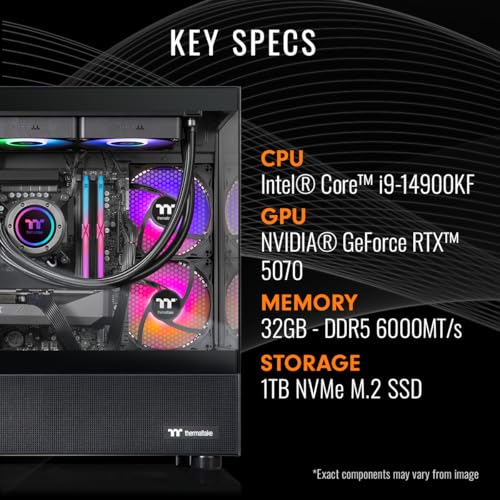
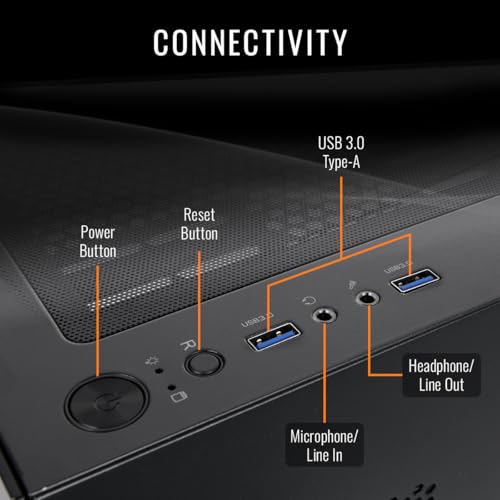
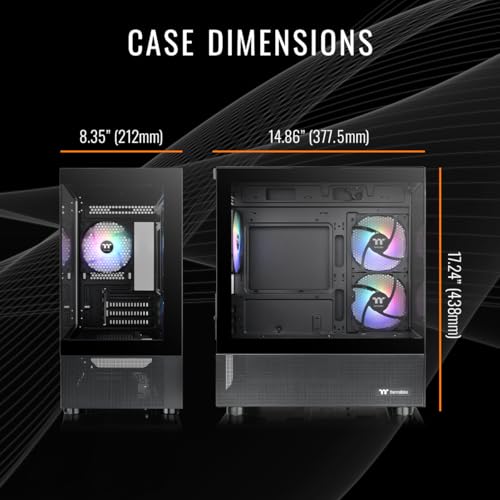
Thermaltake LCGS View i570-170 Gaming Desktop (Intel Core™ i9-14900KF, ToughRam 32GB DDR5 6000MT/s RGB Memory, NVIDIA® GeForce RTX™ 5070, 1TB NVMe M.2, WiFi, Windows 11) V17B-B76B-570-LCS
In Stock
Updated: May 25, 2026







As an Amazon Associate we earn from qualifying purchases. Product prices and availability are accurate as of the date/time indicated.
Member Sam L. wrote a detailed comparison thread last semester that captured the community thinking. His summary, paraphrased: 60% is the right choice if you only game, browse, and write papers. 65% is the right choice if you also do spreadsheets, coding, or anything that benefits from dedicated arrow keys. Tenkeyless is the right choice if you have a 54 inch or wider desk and genuinely use the function row. Full size is almost never the right choice for a dorm setup.
The switch debate within the community is equally consistent. Tactile and silent linear switches dominate, with Cherry MX Browns, Gateron Yellows, and Kailh Box Silent Pinks accounting for the majority of member builds. Clicky blue switches show up occasionally, almost always in builds where the member lives in a single room rather than a shared one. The community member who plays clicky blues in a triple room is a meme, not a reality.
One specific member tip that surprised our editors. Several members have started using small felt or cork desk mats specifically under the keyboard to dampen the hollow sound of dorm desk surfaces. The result is a keyboard that sounds noticeably more premium without spending more on switches or keycaps. A $15 felt mat under the keyboard is the cheapest sound upgrade in the community.
Community Pick 4: The Wireless Mouse Default
Cable management on a small desk is hard enough that the community has effectively moved to wireless mice by default. The Logitech G305 is the most common pick across member builds, valued for its long AA battery life (months of typical use), its lightweight 99 gram body, and its unobtrusive USB receiver that lives plugged into the mini PC permanently. The G305 has been the default community wireless mouse pick for so long that some members refer to it generically as “the dorm mouse.”

7
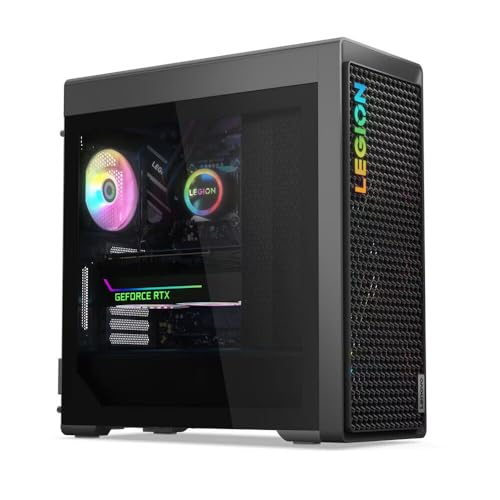
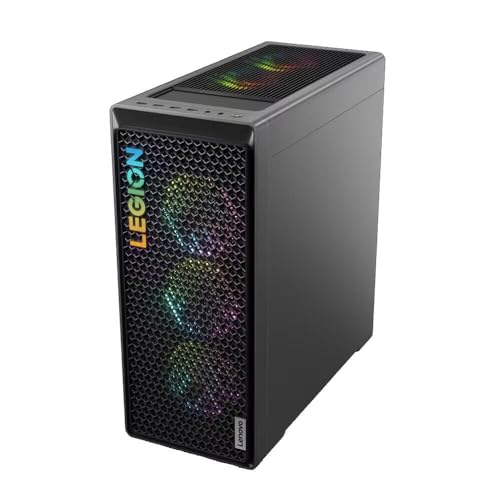
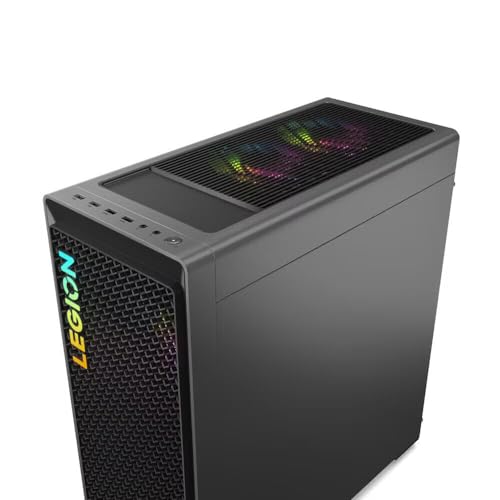
Lenovo Legion T7 34Irz8 PC i9-14900KF GeForce RTX 4080 Super 32GB 2TB SSD W11H
In Stock
Updated: May 25, 2026


As an Amazon Associate we earn from qualifying purchases. Product prices and availability are accurate as of the date/time indicated.
Member Alex W. shared a thoughtful thread last fall about the AA battery versus rechargeable debate that bears repeating. His position: rechargeable mice (like the G Pro X Superlight) are objectively better products in isolation, but the AA battery in the G305 means you can keep one spare battery in the desk drawer and never miss a gaming session because of a dead mouse. For a dorm context, where you might be gaming at 11 PM and not in a position to charge anything, the AA battery is a real practical advantage.
The premium community step up is the Logitech G Pro X Superlight 2 (rechargeable, 60 grams, around $160), and the budget alternative is the Razer Basilisk X Hyperspeed (AA battery, larger ergonomics, around $50). Members with specific hand size needs sometimes step outside these picks, with the Pulsar X2 and the Glorious Model O Wireless both showing up in community builds.
The mouse pad discussion in the community is less consistent than the mouse pick, but the dominant trend for dorm builds is a 12 by 10 inch or smaller cloth pad in a neutral color. Desk sized pads (extending the full keyboard width plus mouse area) are popular in non dorm builds but show up less often in dorm setups because they limit flexibility.
Community Pick 5: The Closed Back Headphone Consensus
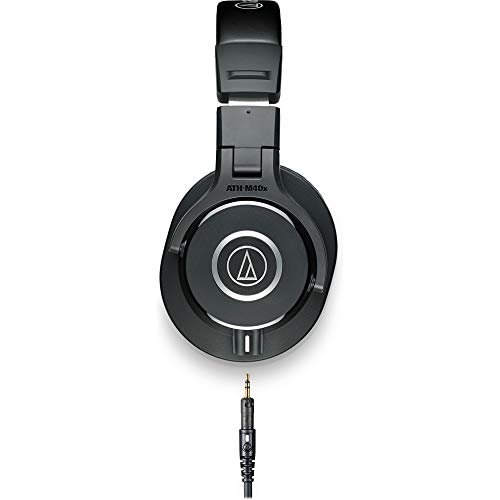
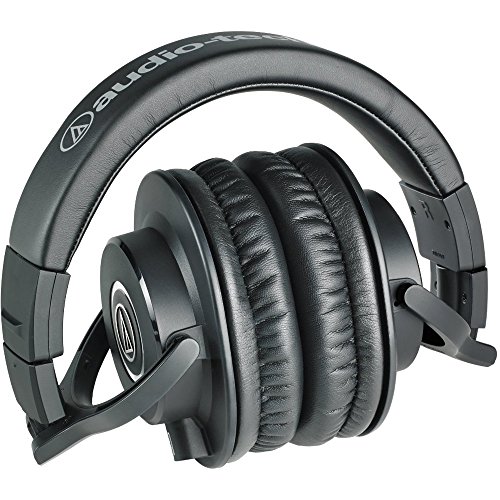
The community is unanimous on this category. Closed back headphones, no exceptions, in a shared dorm room. The Audio-Technica ATH-M40x is the most common pick, valued for the combination of price (around $99 at typical sale), build quality (members report multiple year lifespans even with rough handling), and sound profile (neutral enough for both gaming and music). It has been the community default closed back pick for so long that it shows up in nearly half of all submitted dorm builds.

21
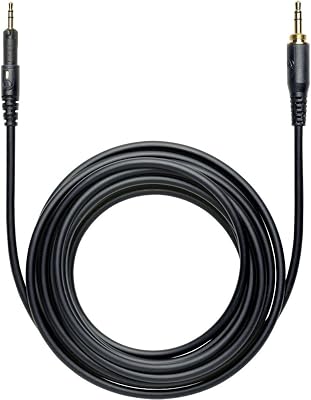
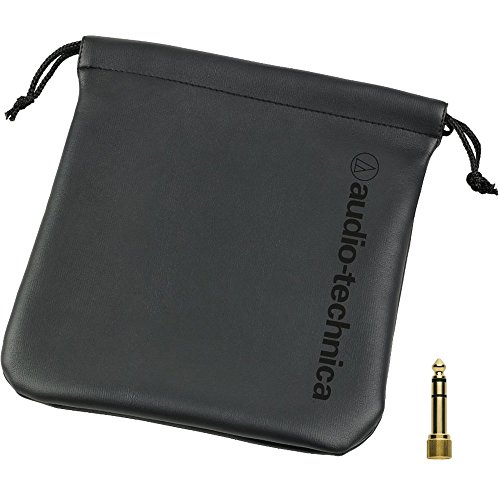
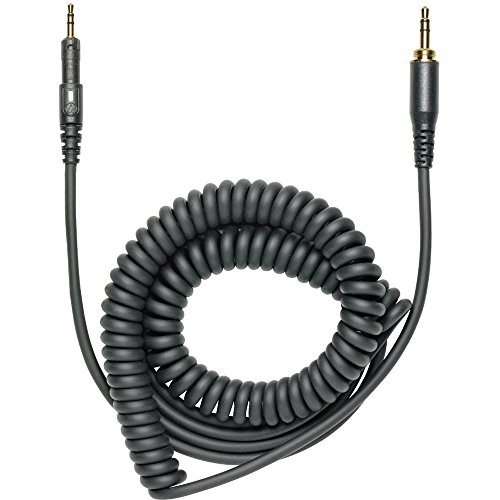
Audio-Technica ATH-M40x Professional Studio Monitor Headphone, Black, with Cutting Edge Engineering, 90 Degree Swiveling Earcups, Pro-Grade Earpads/Headband, Detachable Cables Included
In Stock
Updated: May 28, 2026







As an Amazon Associate we earn from qualifying purchases. Product prices and availability are accurate as of the date/time indicated.
Member Casey P. wrote what is probably the definitive community thread on the open back question last winter. Her position, which the community has largely adopted: open back headphones are objectively better for soundstage and imaging, but in a shared dorm room they are a non starter because the audio leak is loud enough that your roommate hears every game and every YouTube video clearly. Your roommate will not say anything for the first week, will start dropping hints in week two, and will be passive aggressive about it by week four. The closed back tradeoff is not a sonic compromise so much as a relationship investment.
The community step ups from the ATH-M40x include the ATH-M50x (slightly better bass, more refined sound, around $150), the Beyerdynamic DT 770 Pro (genuinely premium closed back, around $170), and the SteelSeries Arctis Nova 7 (wireless with built in mic, around $180). The community budget alternative is the Sony MDR-7506 at around $90, which is technically a professional monitoring headphone but has a strong following for dorm use because of its durability.
One member microphone tip worth highlighting. Members who need a microphone for voice chat or for streaming generally pair their closed back headphones with a separate clip on lavalier mic (around $30 to $50) rather than buying a gaming headset with a built in boom mic. The audio quality is significantly better, and the headphones can do double duty for music listening when the mic is not needed.
Community Pick 6: The Dorm Code Compliant Power Strip
The community has converged on the Anker 6 outlet surge protector with USB-C Power Delivery as the dominant pick for dorm builds, largely because it solves three problems at once. It provides surge protection that meets the universal dorm code requirement, it eliminates the need for a separate phone charger by including USB-C PD output, and its low profile design fits behind the desk in ways that bulkier surge protectors do not. Members report that RAs at multiple schools have specifically pointed to this product (or its near identical Belkin and AmazonBasics equivalents) as the kind of power strip they want to see.
7
Prime
Lenovo Legion T7 34Irz8 i9-14900KF GeForce RTX 4070 Ti Super 32GB 1TB SSD W11H
In Stock
Updated: May 25, 2026
As an Amazon Associate we earn from qualifying purchases. Product prices and availability are accurate as of the date/time indicated.
Member Riley J. shared a useful thread about the school by school surge protector requirements that gets reposted every August. The summary: most schools require UL listing, surge protection, and a direct wall plug (no daisy chaining). A growing number of schools now also require the strip to be without a mechanical on off switch, on the theory that the switch becomes a single point of failure when students turn the whole desk off and on repeatedly. The Anker pick above complies with the strictest of these rules.
The community alternative picks include the Belkin BSV804 (eight outlets, no USB), the AmazonBasics 6 outlet (cheaper, no USB-C), and the APC SurgeArrest (premium build, around $50). The community generally avoids any “tower” style surge protectors with twelve plus outlets, both for the desk space cost and because some schools specifically prohibit them.
One specific community tip. Several members have started using small power outlet cube extenders (the kind that plug into a single outlet and provide six total outlets in a small cube) as supplements to the surge protector for low draw devices like phone chargers and desk lamps. This is technically a power tap rather than a surge protector, but it is allowed at most schools as long as it does not connect to another power strip.
Community Pick 7: The Clip On Webcam Standard
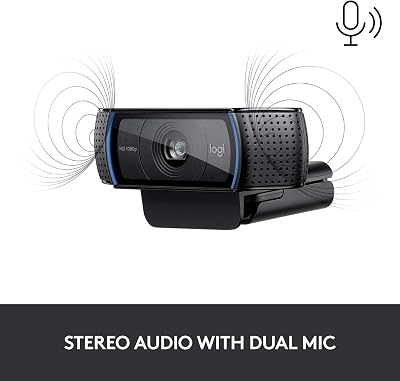
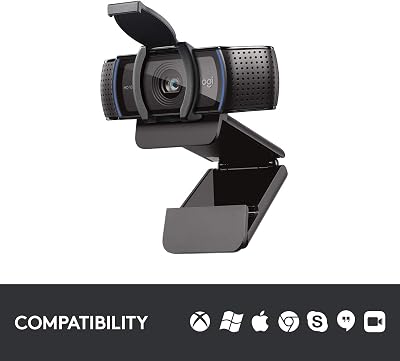
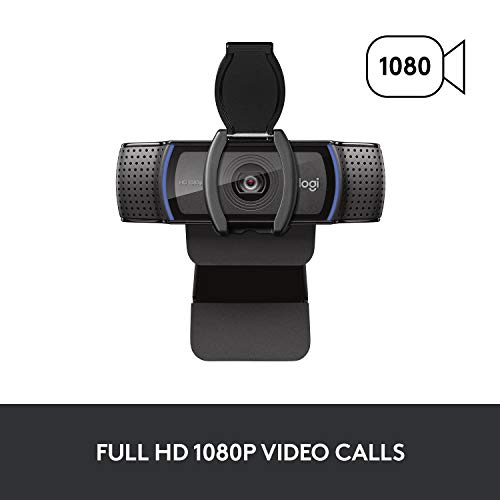
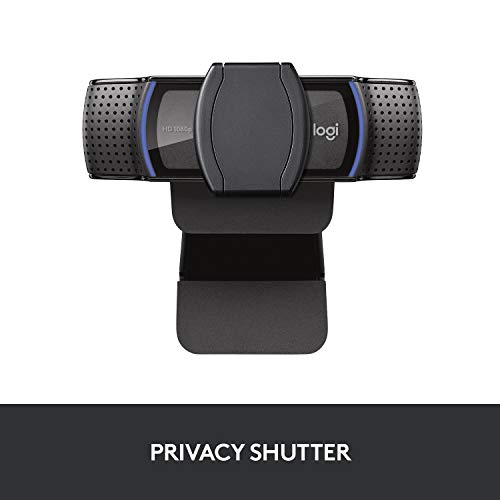
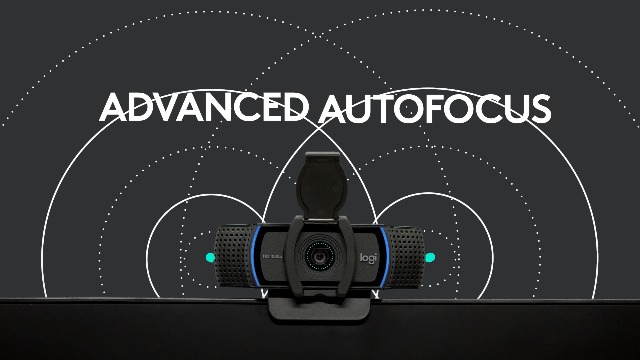
The Logitech C920s is the community default webcam for dorm builds, valued for the combination of acceptable 1080p image quality, the clip on form factor that eliminates desk footprint, and the privacy shutter that members appreciate in shared rooms. It has been the default pick in the community for years, partly because newer Logitech models (the C930e, the Brio 500) are marginal upgrades for the typical Zoom call use case.

16
Logitech C920S HD Pro Webcam, Full HD 1080p/30fps Video Calling, Clear Stereo Audio, Light Correction, Privacy Shutter, Works with Skype, Zoom, FaceTime, Hangouts, PC/Mac/Laptop/Tablet/Xbox | Full HD 1080p/30fps Video, Dual Stereo Mics, HD Autofocus, Automatic Light Correction, USB Plug-and-Play
In Stock
$69.99
Save $6.50
Updated: July 18, 2026









As an Amazon Associate we earn from qualifying purchases. Product prices and availability are accurate as of the date/time indicated.
Member Morgan F. shared a thread last semester comparing the C920s, the Brio 500, and the Anker PowerConf C200 in identical dorm room lighting conditions. Her conclusion: the Brio 500 has noticeably better low light performance but costs three times as much, the Anker is a strong budget alternative if you can find it on sale, and the C920s remains the best overall value for the typical dorm use case. Most members who responded to the thread agreed that they would not upgrade a working C920s unless their use case had specifically changed.
The community generally avoids any webcam that requires a separate tripod or desk stand. The exception is members who specifically stream, where a tripod mounted webcam at eye level produces a noticeably more flattering shot. For pure Zoom and meeting use, the clip on form factor is the community default.
Build Tips From Community Submissions
Across hundreds of member build photos, a few patterns recur often enough to be worth highlighting. The first is what members call “vertical stacking,” where the area above the desk under the lofted bed slats gets organized rather than left empty. Members use clamp on shelf brackets, tension rods, and hanging organizers to create dedicated zones for headphones, books, plants, and small decor. The result is a setup that uses the full vertical volume of the dorm cube rather than just the desk surface.
The second pattern is what one member called the “single light rule.” Dorm overhead fluorescent lighting is harsh, the ceiling lighting after sunset is too dim for evening computer use, and the combination produces eye fatigue. Members consistently report that adding a single small clamp on desk lamp or LED bar (often with a warm 2700K to 3000K color temperature) makes the setup feel dramatically more livable than relying on overhead lighting alone. A $20 desk lamp punches above its weight in the small space context.
The third pattern is the under desk peg board or wire grid system. Multiple members have shared photos of magnetic or adhesive backed peg boards mounted to the underside of the desk, used to hang headphones, organize cables, and store small peripherals like spare batteries and USB drives. This single addition consistently shows up as the change that most members say they wish they had done sooner.
The fourth pattern, and one specific to lofted bed setups, is what members call the “bed shelf bookend.” A clamp on bookend or small shelf attached to the bunk ladder or the bed frame creates an additional storage zone that does not compete with desk space at all. Members use these for everything from charging stations to drink rests to plant stands.
Budget Breakdown From Member Builds
Entry tier ($500-800 accessories): Members who hit this budget typically pair a previous generation mini PC (Beelink SER5 or Minisforum UM560 around $250 refurbished) with the HUANUO arm ($35), the Royal Kludge RK61 ($60), the Logitech G305 ($40), the Audio-Technica ATH-M40x ($99), the Anker surge protector ($45), and the Logitech C920s ($60). The total accessories land around $340, leaving room in budget for a 27 inch 1080p IPS monitor in the $130 to $160 range.
Mid tier ($1000-1500): The most common community mid tier build uses the Beelink SER9 ($800), the same accessory list as above ($340), and a 27 inch 1440p IPS monitor around $250 to $300. The total lands around $1400, which member reports consistently rank as the sweet spot for dorm builds in terms of performance per dollar.
Premium tier ($2000+): A handful of members have built true premium dorm setups using a NZXT H1 V2 SFF case ($300), a Ryzen 7 7700 ($300), an RTX 4070 Super ($600), 32GB DDR5 ($120), and a 1TB Gen 4 NVMe ($80), paired with a 27 inch 1440p OLED monitor (around $700) and premium peripherals (Keychron Q1 Pro at $200, G Pro X Superlight 2 at $160). The total crosses $2500 but produces a build that competes with full desktop performance in roughly the same dorm desk footprint.
Frequently Asked Questions From the Community
How do you handle summer storage when you have to move out? The most common community answer is that the mini PC, the monitor (in original box if possible), the keyboard, the mouse, and the headphones all fit in a single milk crate or large plastic bin. The monitor arm clamps off the desk without tools. The whole setup packs out in roughly thirty minutes if you plan it. Members who use SFF towers report longer pack out times and more careful handling needs.
What about gaming with a controller? Do I need a couch? No. Members who prefer controller gaming generally use a wireless Xbox or PS5 controller from the desk chair, with the monitor as the only display. The mini PC supports Bluetooth controller connection out of the box. A few members have added small ottoman style footrests under the desk for longer controller sessions.
How loud is too loud for the dorm? The community consensus, based on multiple noise meter readings shared in threads, is that anything under 30 dBA at one meter is essentially inaudible to a sleeping roommate, 30 to 40 dBA is noticeable but tolerable, and 40 plus dBA is a roommate negotiation. Mini PCs at idle typically measure under 25 dBA. SFF towers under load typically measure 35 to 45 dBA. This is one of the main reasons the community has shifted toward mini PCs for shared rooms.
Can I use my dorm gaming setup for school work and streaming? Yes, with caveats. The mini PCs in this guide handle school work (papers, spreadsheets, video calls, light coding) without breaking a sweat. Streaming is more demanding. The Ryzen AI 9 HX 370 in the Beelink SER9 can handle 1080p 30fps streaming of esports titles with reasonable settings, but 1080p 60fps streaming of AAA games is at the edge of what integrated graphics can do well. Members who stream seriously generally use the SFF tower path with a discrete GPU.
Final Verdict From the Community
The anchor pick that the community has consistently rallied around for dorm builds is the Beelink SER9 paired with the HUANUO single monitor arm and the Audio-Technica ATH-M40x. These three products together solve the three biggest dorm setup problems (size, desk footprint, audio etiquette) and form the foundation that members consistently report they would not change after a semester of use. Everything else in this guide is meaningful but flexible. Those three are the community core.
For more community submitted builds, photo showcases, and the ongoing dorm setup help threads, see the related community guides linked below.
- Community Mini PC Reviews
- Best Headsets Under $100 (Community Picks)
- Member Dorm Build Photo Showcase
- Best Budget Mechanical Keyboards
- PCGU Community Dorm Survival Guide
- Best Wireless Gaming Mice (Member Voted)
- SFF PC Build Showcase Threads
Related Guides
Related Articles
Looking for more on this topic? Browse the hand-picked guides below — each one applies the same scoring rubric used in this review.
Ready to decide? Our #1 pick for 2026 is the Core PC.
Live price & availability on Amazon.