Affiliate disclosure: As an Amazon Associate we earn from qualifying purchases. This post contains affiliate links — we may earn a small commission at no extra cost to you. This never affects our picks. Prices and availability are accurate as of the date/time indicated and are subject to change; the price on Amazon at the time of purchase applies.
- Why the Community Keeps Asking About Monitors First
- What You Will Need Before You Even Open a Product Page
- Step 1: Audit Your Actual Game Library
- Step 2: Pick a Resolution Based on Your GPU and Your Eyes
- Step 3: Pick a Refresh Rate That Matches Your Skill and Hardware
- Step 4: Choose a Panel Technology That Fits Your Room and Habits
- Step 5: Decode Response Time Numbers
- Step 6: Cut Through HDR Marketing
- Step 7: Adaptive Sync Compatibility
- Step 8: Match Ports to Your GPU’s Output Tier
- Step 9: Pick Curvature and Aspect Ratio
- Step 10: Cross-Check Your Shortlist With Independent Measurements
- Common Pitfalls the Community Keeps Seeing
- Community Pro Tips
- Recommended Picks From Member Testing
- Frequently Asked Questions From the Community
- Conclusion and Where to Go Next
- Related Guides
- Related Articles
- Editor’s Top Picks for GPUs
- At a Glance: Quick Comparison
- About the Author
- Related Articles
Top picks at a glance:
As an Amazon Associate we earn from qualifying purchases at no extra cost to you.





🛒 Best Price Today on Amazon
Prime members get fast, free shipping on everything above, plus member-only deals. New members get a 30-day free trial — cancel anytime.
Why the Community Keeps Asking About Monitors First
Walk into any of our Discord help channels on a Saturday morning and you will see the same question on repeat. Someone just got their tax refund or a year-end bonus, they have decided to upgrade their gaming setup, and they immediately ask what GPU to buy. Three or four community veterans always reply with the same answer, which is to ask the same question back. What monitor are you running. Because in 2026 the monitor is what decides whether the GPU upgrade is going to feel like a leap or like nothing changed. We have watched dozens of members buy an RTX 4080 and feel underwhelmed because they paired it with an old 1080p 75Hz panel that capped the whole experience. We have also watched a member pair an RTX 4070 with a 1440p 240Hz OLED and feel like they had bought top-tier hardware. Same GPU class, completely different feeling.
Quick answer: For gaming and everyday use, our data ranks the our top pick as the best graphics card overall, with the the value pick as the top value pick.
This guide is the distillation of years of community testing, returns, complaints, and recommendations. We are not going to repeat the marketing spec language you can read on any product page. We are going to walk through what our members consistently report after living with each panel type for months, and we are going to flag the specific gotchas that we keep seeing first-time buyers fall into. Several of the panels we will reference were bought, tested, and reviewed by community members who shared their measurements and photos in our gear-talk channels.
If you want a community-curated head-to-head shortlist after you finish reading, the top gaming monitors trending right now May 2026 roundup is voted on monthly by members. Bookmark it for after you have nailed down the framework here.
What You Will Need Before You Even Open a Product Page
Members who get good results follow a small pre-shopping ritual that takes about an hour. First, run an FPS overlay tool like CapFrameX or the built-in Steam overlay across your top five games for at least one full play session each, and write down your average and one-percent low FPS at your current resolution. This is your real performance baseline. Second, open a browser tab to your GPU’s official spec page and write down the exact ports it has, including the version (HDMI 2.1, DisplayPort 1.4, DP 2.1 UHBR10 or UHBR20). Third, measure your desk depth, your eye-to-where-the-monitor-will-sit distance, and the maximum monitor footprint your desk can hold without tipping. Fourth, take note of your room lighting at the times of day you usually game. Glare and ambient lux level will dictate whether glossy or matte coating works for you.
You will also want a tape measure, a way to view manufacturer panel-size diagrams (often only in centimeters in 2026), and ideally a friend who can either help you unbox or weigh in on which of two finalists to pull the trigger on. Several members joke that picking a monitor without a second opinion is how single 49-inch ultrawides end up returned within a week.
Step 1: Audit Your Actual Game Library
Members Who Skip This Step Almost Always Regret Their Purchase
The first thing any community veteran asks is not budget, it is what games you play. Refresh rate, panel tech, and resolution all cascade from that answer. Members who pretend they play more competitive shooters than they actually do invariably end up with a 360Hz 1080p panel that feels cramped for the eight hours a day they actually spend in Baldur’s Gate 3 or Cyberpunk. Members who lowball their competitive play end up with a beautiful 4K 144Hz OLED that smears just enough at fast pans to make them rage-post about it three weeks later.
The community-tested approach is to open Steam, sort by hours played in the last six months, take a screenshot, and pin it on your wall. That is your real library. Now look at it honestly. If your top three are FPS or MOBA titles, you skew competitive. If your top three are RPG, sim, or open world, you skew cinematic. If it is a mix, you skew toward a versatile sweet spot, which is usually 1440p at 240Hz on a fast panel.
Step 2: Pick a Resolution Based on Your GPU and Your Eyes
Pixel Density Matters More Than the Number on the Box
Members consistently report that the most underappreciated stat is pixel density, measured in pixels per inch. A 27-inch 1440p panel is 109 PPI, which is comfortable for desktop and games. A 27-inch 4K panel is 163 PPI, which is gorgeous but requires Windows scaling at 150% for normal app readability. A 32-inch 4K panel is 138 PPI, which is the goldilocks zone many members have landed on in 2026. A 32-inch 1440p panel drops to 92 PPI, which several members find soft at normal desk distance.
Match resolution to GPU using the community rule of thumb. If your GPU cannot sustain 90+ FPS at the target resolution in the most demanding game you actively play, drop a tier. Many members who bought 4K panels with mid-tier GPUs ended up running games at 1440p in software anyway, which looks worse than just buying the 1440p panel natively. The 1440p vs 4K 2026 community debate thread captures the full back-and-forth and has been pinned for months.
Step 3: Pick a Refresh Rate That Matches Your Skill and Hardware
Community Consensus on Where Refresh Rate Returns Plateau
The community has had this debate roughly two hundred times and the rough consensus is as follows. 60Hz is dead for any new build in 2026. 120Hz is the absolute floor and is mostly for console-first players. 144Hz is the comfort tier for AAA single-player and is genuinely smooth. 240Hz is the meaningful jump for any kind of competitive play and is the tier most active members run at in 2026. 360Hz starts to matter only if you are ranked in your shooter of choice and have the GPU to actually push 300+ FPS at native resolution. 480Hz and beyond are for high-level competitive and content creator benchmarking, where members have measured genuine but small motion clarity gains in lab tests.
If you cannot push frames at the panel’s refresh rate, you do not get the benefit. We see this misunderstanding constantly. Buying a 360Hz panel and capping at 165 FPS because your GPU cannot deliver more is fine, but you paid for refresh you never use. Our long thread on 240Hz vs 360Hz 2026 community debate has blind-test results from members that show most cannot reliably distinguish at sub-2-meter viewing distance.
Step 4: Choose a Panel Technology That Fits Your Room and Habits
IPS, VA, TN, OLED, QD-OLED Each Have a Member Champion
Panel tech splits the community into camps, and each camp has solid reasoning. IPS is the modern default for fast LCD. Members like it for color accuracy, viewing angles, longevity, and the fact that it just works in any lighting. The downside members report is contrast, which is decent but not great, and dark scenes that look slightly washed out compared to VA or OLED. VA is the value contrast king with the deepest blacks among LCDs, but members consistently call out smearing in dark scene transitions, which some can ignore and others cannot unsee. TN is mostly gone except in dedicated competitive panels with very high refresh, and members who use it describe it as a tool, not a daily driver. OLED is the new premium standard, with per-pixel lighting, sub-millisecond response, and infinite contrast, with the well-known caveat of long-term burn-in risk that several members are actively documenting at the two-year mark. QD-OLED is OLED with quantum dot color, brighter and more saturated than WOLED, with the same burn-in profile.
Members in dim rooms overwhelmingly prefer QD-OLED in 2026. Members in bright rooms with windows behind them often go back to matte IPS or matte WOLED because glossy QD-OLED has serious reflection issues. The full breakdown of member experiences is in our OLED vs IPS 2026 community debate, which has the longest single thread in our gear forum.
Step 5: Decode Response Time Numbers
Box Numbers Lie But Real Numbers Are Findable
Members learned the hard way that the 1ms or 0.5ms response time number on a box is the manufacturer’s best-case gray-to-gray transition under their fastest overdrive setting, which often introduces visible inverse ghosting. The real number across the full transition matrix on a typical fast IPS in 2026 is around 4 to 6 ms. On QD-OLED it is genuinely 0.03 to 0.1 ms across every transition with no overdrive needed, which is why OLED looks dramatically cleaner in motion side by side, even at the same refresh rate.
MPRT, moving picture response time, is a different measurement that usually requires backlight strobing to reach low values. Strobing cuts brightness by roughly half and can introduce flicker. Do not directly compare 1ms GtG to 1ms MPRT, they describe different things. The practical community takeaway is that anything in the 4 to 6 ms real-world GtG range on LCD is fine, and OLED has effectively solved response time.
Step 6: Cut Through HDR Marketing
DisplayHDR 400 Is Almost Always Not Worth Caring About
HDR is where community frustration runs highest. VESA DisplayHDR 400 is, in our members’ experience, mostly meaningless. It does not require local dimming and the contrast requirement is barely above SDR. A DisplayHDR 400 monitor showing HDR content typically looks like washed-out SDR with cranked brightness. DisplayHDR 600 is interesting if it comes with edge-lit local dimming. DisplayHDR 1000 with full-array local dimming or mini-LED is where LCD HDR starts to look genuinely good. DisplayHDR 1400 with mini-LED is excellent.
On OLED, the relevant certifications are DisplayHDR True Black 400 or True Black 600, and because OLED has per-pixel dimming, even True Black 400 looks dramatically better than LCD HDR 1000 in dark scenes. If HDR matters to you, target either a true mini-LED FALD panel with 1000+ nits and 1000+ dimming zones, or an OLED. Skip HDR400 unless you literally do not care about HDR.
Step 7: Adaptive Sync Compatibility
G-Sync, FreeSync, and VESA Adaptive Sync in 2026
Adaptive sync has mostly converged in 2026. NVIDIA G-Sync Ultimate panels have a dedicated hardware module, variable refresh from 1Hz, and factory color calibration. They are excellent and expensive, with the module adding roughly 150 dollars to the price. G-Sync Compatible is software-only and works over any DisplayPort or HDMI 2.1 panel NVIDIA has certified. AMD FreeSync Premium Pro is the AMD equivalent and requires HDR support and low-latency LFC. VESA Adaptive Sync is the open standard that everything else falls back to.
Community consensus is that for 99% of buyers, a panel with VESA Adaptive Sync or FreeSync Premium will work flawlessly with both NVIDIA and AMD GPUs. The G-Sync Ultimate module premium is rarely worth paying. Always enable adaptive sync in both the GPU driver and the monitor OSD, members have repeatedly assumed it is on by default and it is not.
Step 8: Match Ports to Your GPU’s Output Tier
HDMI 2.1, DisplayPort 1.4 DSC, DisplayPort 2.1 UHBR Bandwidth Tiers
Port versions cap what resolution and refresh you can actually use. HDMI 2.1 FRL at 48 Gbps supports 4K 120Hz uncompressed or 4K 240Hz with DSC. DisplayPort 1.4 supports 4K 120Hz with DSC, which is what most current panels use. DisplayPort 2.1 UHBR20 at 80 Gbps supports 4K 240Hz uncompressed or 8K 60Hz, but it requires both the GPU and monitor to support UHBR20 specifically. Several DP 2.1 panels only support UHBR10 or UHBR13.5, which is barely better than DP 1.4 with DSC.
If you have an RTX 40-series GPU, you have DisplayPort 1.4 with DSC and HDMI 2.1, both of which support 4K 240Hz on certified panels. If you have an RTX 50-series or RX 9000-series, you have DisplayPort 2.1 UHBR20 and can run a UHBR20 panel uncompressed at 4K 240Hz, which members have measured as visibly cleaner in motion. Always check the spec sheet for the specific UHBR tier before buying a DP 2.1 panel.
Step 9: Pick Curvature and Aspect Ratio
Flat, Curved, Ultrawide, Super-Ultrawide Each Solve a Different Problem
Flat 16:9 is still the safest pick and is what most competitive game UIs are designed for. Curved 16:9 at 1500R or 1800R is comfortable on 32-inch and larger panels because the curve compensates for the viewing-angle distance to the edges. Ultrawide 21:9 at 34 to 38 inches is transformative for racing, flight, and many AAA titles, but some competitive games either stretch the HUD or do not support the aspect ratio at all. Super-ultrawide 32:9 at 49 inches is incredible for productivity and sim racing and slightly weird for most shooters.
Several members report that if you have never used a curved or ultrawide before, you should try one in person first. Some immediately love the immersion, others find it disorienting for weeks. The pinned curved vs flat 2026 community debate has photos and long-form impressions from members on both sides.
Step 10: Cross-Check Your Shortlist With Independent Measurements
Always Verify Manufacturer Claims Against Real Lab Numbers
Before pressing buy, take your final two or three shortlisted models and cross-reference them with independent measurements. Manufacturers test in best-case lab conditions with cherry-picked units. Independent reviewers test multiple units and report real-world numbers. Specifically look for measured response time at the recommended overdrive setting, measured peak HDR brightness in a 10% window, measured input lag end-to-end, and notes on panel uniformity. If a panel has wildly varying specs across reviews, it likely has bad panel lottery, and members have returned dozens of monitors for exactly that reason.
Common Pitfalls the Community Keeps Seeing
Buying for Refresh Rate Without Checking GPU Output First
The most common new-buyer mistake is buying a 240Hz or 360Hz panel and then realizing the current GPU only pushes 110 FPS in the games being played. Refresh rate is wasted when frames are not delivered.
Trusting HDR400 Stickers
HDR400 without local dimming is essentially decorative. If the panel does not list a dimming zone count on its spec sheet, assume HDR is not real.
Ignoring Coating Type
Glossy panels look gorgeous in dark rooms and unusable in bright rooms with windows behind you. Matte panels are forgiving in any light but soften micro-detail slightly. Always check coating before buying online.
Underestimating Stand Footprint
A 27-inch monitor stand can easily be 30cm deep. Measure your desk first. Most panels have VESA mounts that let you swap to a clamp arm, but factor that cost in.
Skipping OSD Calibration
Most panels ship with brightness at 100% and saturation cranked. The first 30 minutes calibrating brightness, contrast, color temperature, and overdrive determines whether you love or hate the panel.
Treating OLED as a Productivity Monitor Without a Plan
OLED for gaming-heavy use is excellent. OLED as a primary productivity panel where you stare at the same Slack window for eight hours a day is risky for burn-in. If you must, enable every pixel-shift and screensaver feature, and consider a separate productivity panel for serious work hours.
Community Pro Tips
Tip 1: Test for Dead Pixels Within 48 Hours
Members use tools like JScreenFix or a simple full-screen color cycle within the first two days. Most manufacturers will not honor warranty for dead-pixel counts under their threshold. Catch it inside the return window.
Tip 2: Calibrate With a Colorimeter for Color-Sensitive Work
Factory calibration in 2026 is good but not great. The Calibrite Display Pro HL pays for itself if you do any photo or video editing.
Tip 3: Run Backlight Strobing Only for Competitive Sessions
If your panel supports backlight strobing (DyAc, ELMB, ULMB), motion clarity is striking but brightness drops by half. Bind it to a profile you switch to for competitive play only.
Tip 4: Cap FPS Slightly Below Max Refresh Plus Adaptive Sync
For tear-free buttery motion, cap your in-game FPS to 3 to 5 below your monitor’s max refresh and enable adaptive sync. This avoids the edge case where VRR drops out at the ceiling.
Tip 5: Always Update Firmware Before Final Judgment
Modern gaming monitors are basically small computers. Many have firmware updates in the first six months that fix scaler bugs, color issues, and adaptive sync problems. Always update firmware before deciding to return.
Recommended Picks From Member Testing
Three panels currently popular with our community across budget tiers. These are not the only members’ picks but they are the most commonly recommended in monthly gear threads and represent the three sweet spots most members converge on.
The LG UltraGear 27-inch class 1440p OLED at 240Hz is the most-recommended OLED in our forums for buyers who want premium image quality without crossing the four-figure mark.
The Dell Alienware AW2725DF 27-inch 1440p QD-OLED at 360Hz is the member favorite when budget is not the constraint and both speed and color matter.
The ASUS ROG Swift PG27AQDM 27-inch 1440p WOLED at 240Hz is for buyers who want OLED quality with a more traditional ASUS OSD and ROG ecosystem.
For a wider, member-curated list paired with full system recommendations, see top gaming PCs for 1440p May 2026 community picks.
Frequently Asked Questions From the Community
How long do members report their gaming monitors lasting?
Several members have IPS panels still in daily use from 2018. Members report well-treated IPS lasting seven to ten years before backlight uniformity meaningfully degrades. Members with OLED panels at the two-year mark report acceptable but visible wear when looking for it, with no noticeable wear in regular use.
Is 4K worth it for gaming in 2026 according to members?
Members consistently say yes if you own an RTX 4080 or better, no if you own an RTX 4070 or lower. With mid-tier GPUs, 1440p high-refresh feels better in real gameplay than 4K with the settings turned down.
Does HDMI 2.1 actually work the same as DisplayPort for gaming?
For 4K 120Hz to 144Hz, members report no perceptible difference. For 4K 240Hz, HDMI 2.1 with DSC and DisplayPort 1.4 with DSC are both viable, and DP 2.1 UHBR20 is uncompressed. For 1440p 240Hz to 360Hz, both ports are equivalent in practice.
How worried should new OLED buyers be about burn-in in 2026?
Less than two years ago but more than zero. Modern QD-OLED and WOLED panels have meaningful mitigation, but if you display the same static UI for eight hours daily, expect to see uneven wear within two to three years. For gaming-primary use, member consensus is that the risk is acceptable.
Conclusion and Where to Go Next
Choosing a gaming monitor in 2026 is complicated because spec sheets are designed to obscure rather than inform. Work the steps in order, lock in your use case first, then resolution, then refresh rate, then panel tech, then HDR and ports and adaptive sync. Skip none of the steps. If you do that, your shortlist will be very short, often two or three panels, and the final decision becomes easy. Once you have your shortlist, cross-check against independent reviews, view the panel in person if you can, and buy from a retailer with a friendly return policy because panel lottery is real.
For curated picks that account for the framework above, the top gaming monitors trending right now roundup is updated monthly by member votes, and the top gaming PCs for competitive FPS May 2026 community picks guide pairs systems with their ideal panels. Either way, you now know the spec language well enough to push back on any marketing claim a manufacturer throws at you, and that is what the community has been trying to teach new buyers for years.
Related Guides
Related Articles
Looking for more on this topic? Browse the hand-picked guides below — each one applies the same scoring rubric used in this review.
Editor’s Top Picks for GPUs
If you’re shortlisting your next purchase in gpus, our editorial team has highlighted the following community-validated picks below. Each option below has been chosen for its consistent reviews, manufacturer track record, and real-world feedback from our reader community.

ASUS SFF-Ready Prime NVIDIA GeForce RTX 5070 Graphics Card (PCIe 5.0, 12GB GDDR7, HDMI/DP 2.1, 2.5-Slot, Axial-tech Fans, Dual BIOS), 3 Year Warranty


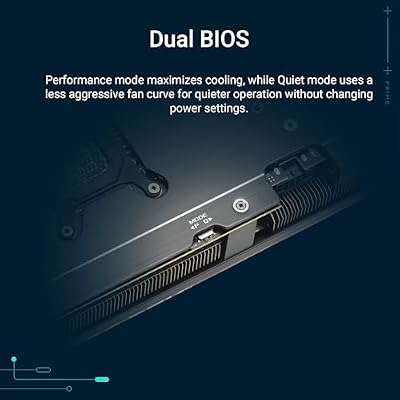


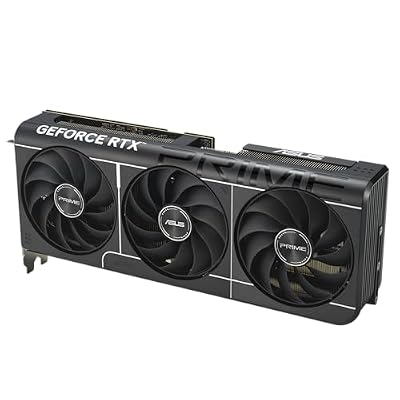
As an Amazon Associate we earn from qualifying purchases. Product prices and availability are accurate as of the date/time indicated.

ASUS Prime Radeon RX 9070 XT 16GB GDDR6 OC Edition Gaming Graphics Card


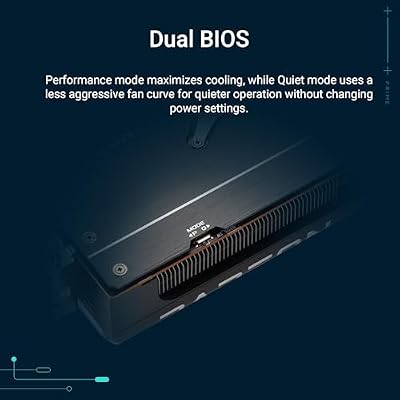


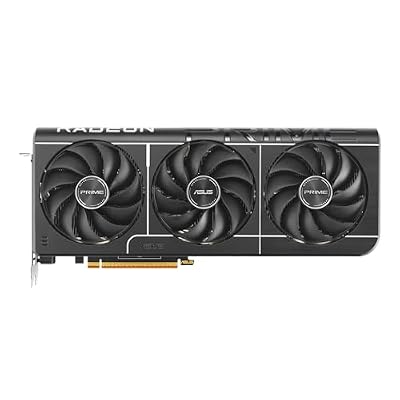


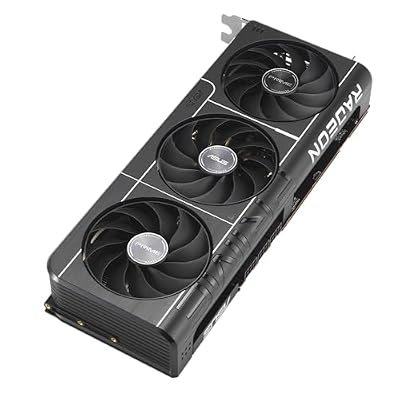


As an Amazon Associate we earn from qualifying purchases. Product prices and availability are accurate as of the date/time indicated.
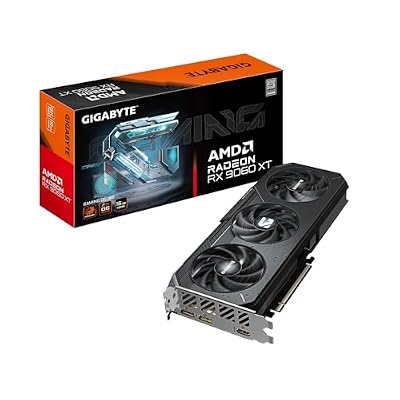
GIGABYTE Radeon RX 9060 XT Gaming OC 16G Graphics Card, PCIe 5.0, 16GB GDDR6, GV-R9060XTGAMING OC-16GD Video Card

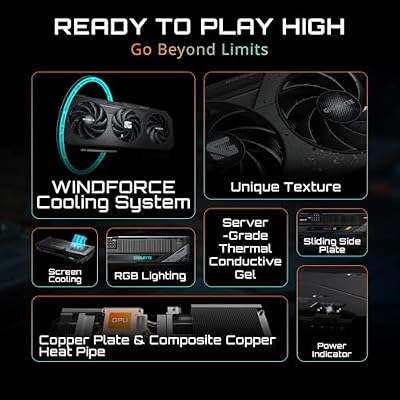


As an Amazon Associate we earn from qualifying purchases. Product prices and availability are accurate as of the date/time indicated.

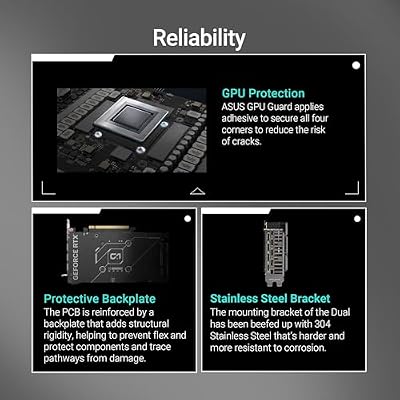
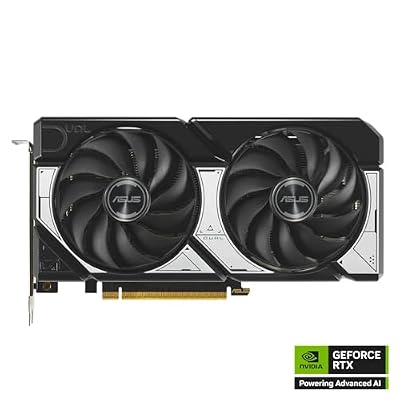
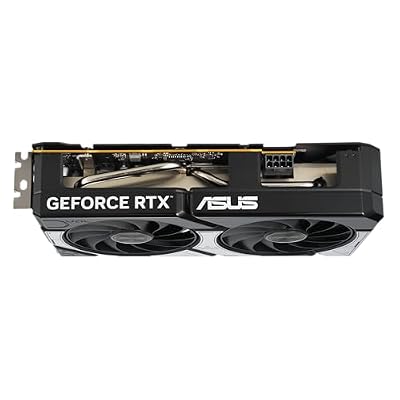
ASUS Dual NVIDIA GeForce RTX 5060 8GB GDDR7 OC Edition (PCIe 5.0, 8GB GDDR7, DLSS 4, HDMI 2.1b, DisplayPort 2.1b, 2.5-Slot Design, Axial-tech Fan Design, 0dB Technology), 3 Year Warranty






As an Amazon Associate we earn from qualifying purchases. Product prices and availability are accurate as of the date/time indicated.

GIGABYTE GeForce RTX 5070 WINDFORCE OC SFF 12G Graphics Card, 12GB 192-bit GDDR7, PCIe 5.0, WINDFORCE Cooling System, GV-N5070WF3OC-12GD Video Card


As an Amazon Associate we earn from qualifying purchases. Product prices and availability are accurate as of the date/time indicated.
At a Glance: Quick Comparison
| Product | Brand | Price | Rating | Reviews |
|---|---|---|---|---|
| STORMCRAFT Phantom RTX 5080, AMD Ryzen 7 9800X3D, 32GB DDR5 RAM 6000MH | STORMCRAFT | $2999.99 | 5.0/5 | 4 |
| Lenovo Legion T7 34Irz8 PC i9-14900KF GeForce RTX 4080 Super 32GB 1TB | Lenovo | $1977.99 | — | — |
| Samsung 990 PRO SSD 2TB NVMe M.2 PCIe Gen4, M.2 2280 Internal Solid St | — | $389.99 | 4.8/5 | — |
| iBUYPOWER Y40 PRO Black Gaming PC Desktop Computer AMD Ryzen 9 7900X C | iBUYPOWER | $2099.99 | 3.7/5 | 96 |
| MXZ Gaming PC,AMD Ryzen 7 7700, GeForce RTX 4060Ti,16GB DDR5 6000MHz, | MXZPC | $1299 | 5.0/5 | 1 |
Ready to decide? Our #1 pick for 2026 is the STORMCRAFT Phantom RTX 5080, AMD Ryzen 7 9800X3D, 32GB DDR5 RAM 6000MH.
Live price & availability on Amazon.
Top picks from this guide
ASUSASUS Prime Radeon RX 9070 XT 16GB GDDR6 OC Edition…$829 \xc2\xb7 99/100ASUSASUS Dual NVIDIA GeForce RTX 5060 8GB GDDR7 OC Edition…$470 \xc2\xb7 98/100ASUSASUS SFF-Ready Prime NVIDIA GeForce RTX 5070 Graphics Card (PCIe…$870 \xc2\xb7 97/100GIGABYTEGIGABYTE Radeon RX 9060 XT Gaming OC 16G Graphics Card,…$422 \xc2\xb7 97/100