DDR5 memory training taking too long does not always indicate a hardware failure. Initial boot, BIOS updates, RAM changes, and XMP or EXPO settings can trigger lengthy memory initialization. This guide explains normal training behavior, warning signs, and safe troubleshooting steps to restore predictable boot times.
What DDR5 Memory Training Really Comes Down To
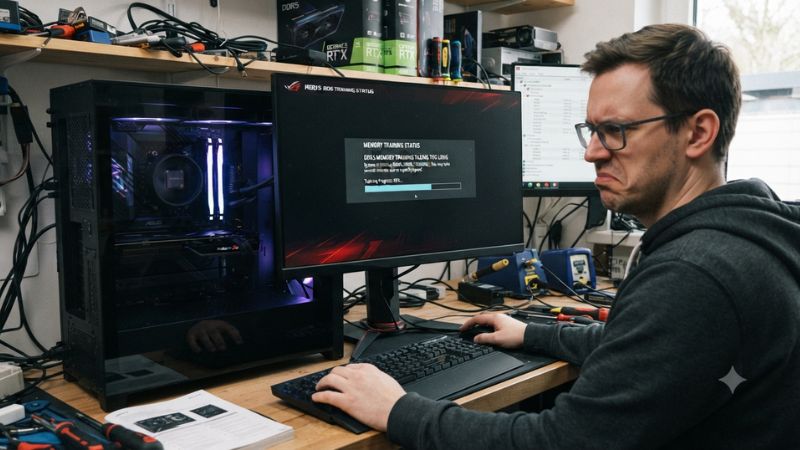
DDR5 memory training is a motherboard firmware process that calibrates communication between the CPU’s integrated memory controller and installed RAM. It happens during POST, before Windows loads. A longer first boot is often expected, but repeated delays, failed POST attempts, and persistent DRAM errors deserve investigation.
1. Why DDR5 Memory Training Takes Time
During memory training, the motherboard firmware establishes suitable memory timings and signal parameters for the installed configuration. It must account for the processor’s memory controller, DIMM characteristics, motherboard design, and selected operating settings.
This process commonly occurs during the first boot, after changing RAM modules or slots, following a CMOS reset, or after updating the BIOS. Enabling XMP or EXPO can also trigger fresh training because the system must initialize the memory using a different operating profile.
2. How Long Is Normal?
Kingston explains that some DDR5 desktop systems can take approximately 3–5 minutes to complete memory training. Its guidance also notes that server and workstation systems can take considerably longer. These figures are useful reference points, not universal limits for every motherboard.
Memory capacity, the number of installed modules, firmware behavior, and memory settings can affect the duration. Some motherboards also restart during training. A temporarily black screen or illuminated DRAM diagnostic LED does not automatically mean the computer has frozen.
3. When a Long Training Cycle Becomes a Problem
A long initial training cycle is less concerning when the computer eventually completes POST and starts normally. The more important warning sign is a system that repeatedly fails to initialize memory or becomes stuck at the same diagnostic stage.
Pay attention to the motherboard’s CPU, DRAM, VGA, and BOOT indicators. A persistent DRAM LED, repeated unsuccessful restarts, or failure to reach BIOS after a reasonable waiting period suggests that the system needs further diagnosis rather than repeated power cycling.
4. What Doesn’t Help
Repeatedly pressing the reset button, switching off the PSU, or removing power during an active training cycle can interrupt initialization. It does not make the firmware complete its work faster. Avoid treating every black screen as evidence that Windows or the graphics card has failed.
Likewise, immediately increasing DRAM voltage, manually tightening timings, or disabling training-related checks is not a sensible first response. Establish whether the system can boot at default memory settings before considering optional performance configurations.
How to Fix DDR5 Memory Training Taking Too Long: Step by Step
Start with the least disruptive checks before changing BIOS settings or removing hardware. Allow the motherboard to finish an initial training cycle, identify which diagnostic LED remains illuminated, and determine whether the problem started after a RAM, CPU, or firmware change. Then test memory at default settings before restoring performance profiles.
| Setting or Step | Where | Effect | Risk |
| Allow initial training | Motherboard POST | Gives firmware time to initialize RAM | Low |
| Disable XMP/EXPO | BIOS/UEFI | Tests memory at default settings | Low; reduced memory speed |
| Clear CMOS | Motherboard jumper or button | Resets potentially unstable memory settings | BIOS settings are reset |
| Test one DIMM | Recommended motherboard slot | Helps isolate module or slot problems | Low if installed correctly |
| Enable Memory Context Restore | BIOS/UEFI, if supported | Can reduce repeated training delays | May expose existing memory instability |
1. Let the First Training Cycle Finish
If you have just assembled your PC, installed new RAM, changed DIMM positions, or updated the BIOS, leave the computer powered on and allow the motherboard to complete initialization. Avoid pressing Reset or switching off the PSU while the DRAM indicator is active.
Watch the diagnostic LEDs or motherboard display if available. On some ASRock boards, the manual explicitly identifies a blinking DRAM status LED during training as normal behavior. The indicator should change as POST progresses. If the system eventually reaches BIOS or Windows, the initial delay alone does not establish a hardware fault.
2. Disable XMP or EXPO Temporarily
If the computer boots inconsistently after enabling a memory profile, return to the BIOS and test the default memory configuration. Enter UEFI using the Delete key during startup, locate the memory overclocking section, and change XMP, EXPO, or the motherboard-specific equivalent to Disabled or Auto.
Save the changes and restart. If the system now completes POST consistently, the selected memory profile may be too demanding for the current CPU, motherboard, or DIMM configuration. This does not necessarily mean the RAM is defective.
Run a memory diagnostic after reaching Windows, and verify that the computer remains stable at default settings. If the problem disappears, consider a lower memory frequency or less aggressive supported profile rather than immediately increasing voltage or manually changing timings.
3. Clear CMOS and Test Individual RAM Modules
If the system cannot reach BIOS, resetting CMOS can restore default memory settings. Shut down the PC, switch off the PSU, disconnect its power cable, and follow the motherboard manual’s instructions for the Clear CMOS button, jumper, or battery method. Never short unidentified pins or remove components while the board is powered.
After resetting CMOS, install one memory module in the motherboard’s recommended single-DIMM slot, commonly A2 on many four-slot boards, but always verify the specific manual. Try the other module separately if the first configuration fails. This helps distinguish a faulty DIMM from a slot, channel, or compatibility problem.
4. Check BIOS Compatibility and Memory Context Restore
Once the system boots at default settings, check the motherboard manufacturer’s support page for BIOS releases addressing memory compatibility or initialization. Match the exact motherboard model and hardware revision before downloading firmware. Do not flash BIOS simply because training takes several minutes if the computer otherwise operates normally.
On supported motherboards, Memory Context Restore can reduce subsequent POST delays by reusing saved memory training information when possible. Gigabyte’s AMD 600-series BIOS documentation describes this function as a way to avoid DRAM retraining and minimize POST latency. Find it in the relevant memory settings submenu; the exact location and availability vary by BIOS version. Enable it only after confirming memory stability, and disable it again if boot failures or crashes appear.
download.gigabyte.com+1
FAQ
1. Is DDR5 memory training taking too long normal?
Yes, longer training is normal after a first boot, BIOS update, CMOS reset, or memory configuration change. Kingston indicates that some desktop DDR5 systems can require 3–5 minutes. If the system eventually completes POST without errors, the delay alone is not a reason to replace the RAM.
Kingston Technology+1
2. Why does DDR5 retrain memory every time I restart?
Repeated training can result from firmware settings, unstable memory profiles, or a motherboard that does not reuse previously saved training information. Check whether Memory Context Restore is available and supported. If enabling it causes instability, return the setting to Auto or Disabled and investigate the underlying memory configuration.
3. Can XMP or EXPO cause long DDR5 training?
Yes, XMP and EXPO can trigger additional training and may cause boot problems when the selected profile is not stable on a particular CPU and motherboard combination. Disable the profile temporarily and test default memory settings. If startup becomes reliable, consider a less aggressive memory profile.
4. When should I replace my DDR5 RAM?
Replace RAM only after diagnostic testing provides evidence of a defective module. Test individual sticks in the motherboard’s recommended slots, check compatibility, and run a memory diagnostic at default settings. If errors follow one module across appropriate configurations, contact the memory manufacturer about warranty support.
Final Thoughts
DDR5 memory training taking too long is often a normal part of system initialization, particularly after hardware or BIOS changes. Persistent DRAM errors and repeated failed boots require further investigation. Start with default memory settings, test individual modules, and consider Memory Context Restore only after confirming stability.