🛒 Best Price Today on Amazon
Prime members get fast, free shipping on everything above, plus member-only deals. New members get a 30-day free trial — cancel anytime.
A best docking station for gaming laptop setup needs more than many USB ports. The key checks are the laptop’s Thunderbolt or USB4 support, dock power delivery, display bandwidth, Ethernet speed, and whether the dock can replace or merely supplement the laptop’s AC adapter.
How to Choose a Gaming Laptop Docking Station
A useful dock should match the laptop’s connection standard, power needs, monitor configuration, and peripheral load. Thunderbolt 5 models now offer higher bandwidth and up to 140W host charging, but a gaming laptop with a high-power discrete GPU can still require its original charger during demanding games.
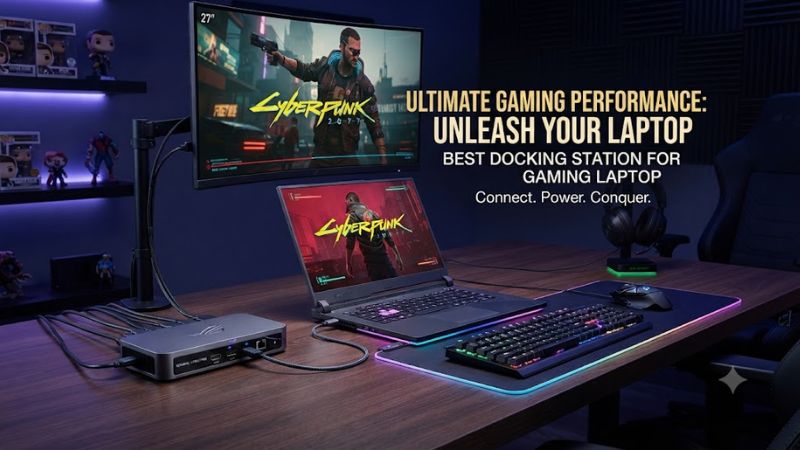
Check Thunderbolt or USB4 Compatibility
The first requirement for a best docking station for gaming laptop is the correct host connection. Thunderbolt 5 docks can work with Thunderbolt 4 and some USB4 systems, but the host determines available bandwidth and display capabilities. A USB-C port alone does not necessarily provide Thunderbolt or DisplayPort functionality.
For example, Razer states that its Thunderbolt 5 Dock works with Thunderbolt 4, Thunderbolt 5 and USB4 hosts, while CalDigit lists Thunderbolt 5, Thunderbolt 4 and compatible USB4 computers for the TS5. Check the laptop manual for the exact port capabilities before buying.
Match Power Delivery to the Laptop
Power delivery is especially important because gaming laptops can consume substantially more power than ordinary business notebooks. The current Thunderbolt 5 docks in this roundup provide up to 140W to the host, but that does not mean every gaming laptop can operate at full gaming performance from the dock alone.
Razer explicitly notes that its 140W dock is better suited to discrete-GPU laptops while the most powerful gaming laptops can still need a separate AC adapter. PCWorld also documented a power-delivery limitation during gaming on a Razer Blade test system.
Plan the Monitor Configuration
A best docking station for gaming laptop should match the resolution and refresh rate you actually intend to use. Thunderbolt 5 provides considerably more display bandwidth than Thunderbolt 4, but the laptop GPU, USB-C implementation, monitor inputs and cables still affect the final configuration.
CalDigit lists up to triple 4K at 144Hz on supported Thunderbolt 5 Windows PCs for the TS5 and TS5 Plus. Razer lists triple 4K at 144Hz for its Thunderbolt 5 Dock. These figures describe supported configurations, not a guarantee that every laptop can drive them.
Count Ports for Your Peripherals
Port selection matters when a gaming setup includes a keyboard, mouse, headset, external SSD, Ethernet and multiple displays. The best docking station for gaming laptop therefore depends on the accessories you actually use rather than the raw port count.
CalDigit’s TS5 provides 15 ports, while the TS5 Plus expands that to 20 and adds 10GbE. Razer adds an M.2 PCIe 4.0 SSD slot, while Anker provides 14 ports with Thunderbolt 5, USB, Ethernet, card readers and HDMI or DisplayPort output.
Top Picks
The table focuses on current Thunderbolt 5 docks with clear gaming-relevant specifications and documented limitations. Prices are US manufacturer prices checked on September 28, 2026, where current manufacturer listings were available; independent reviews are used for practical drawbacks rather than hands-on claims from PC Gaming Universe.
| Product | Best For | Key Spec | Compatibility | Watch Out For |
| Razer Thunderbolt 5 Dock Chroma | Best Overall | 140W host power, triple 4K/144Hz | Thunderbolt 4/5, USB4; Windows and compatible Macs | 1GbE, no native video output |
| CalDigit TS5 | Best Value | 15 ports, 140W, 2.5GbE | Thunderbolt 5/4, compatible USB4; Windows 11+ | No M.2 slot or Thunderbolt Share |
| CalDigit TS5 Plus | Best For Power Users | 20 ports, 140W, 10GbE | Thunderbolt 5/4 and supported systems | $499.99 price and large PSU |
| Anker Prime TB5 Dock | Best For Compact Setups | 14 ports, 140W, dual 8K | Windows 10/11, macOS 14.5+ | HDMI and DP cannot operate simultaneously |
Razer Thunderbolt 5 Dock Chroma — Best Overall
The best docking station for gaming laptop buyers who want gaming-focused features can consider Razer’s Thunderbolt 5 Dock Chroma. It combines three downstream Thunderbolt 5 ports, 140W host power, triple 4K/144Hz support, RGB lighting and an M.2 PCIe 4.0 SSD enclosure.
Its main weakness is connectivity balance. The dock has only 1Gb Ethernet and lacks a dedicated HDMI or DisplayPort output, while PCWorld also reported power-delivery behavior that deserves caution under a gaming load. Buyers whose laptop requires its full AC adapter should keep that charger connected.
CalDigit TS5 — Best Value
The CalDigit TS5 provides 15 ports, four Thunderbolt 5 connections, 140W host charging, 2.5Gb Ethernet and a 240W power supply at a current listed price of $399.99. It also supports up to triple 4K/144Hz displays on supported Thunderbolt 5 Windows PCs.
Its weakness is feature selection rather than basic connectivity. Unlike the TS5 Plus, it lacks 10GbE and dual USB controllers, and Windows Central notes that it also omits a built-in M.2 slot and Thunderbolt Share. It suits users who need many fast ports without paying the TS5 Plus premium.
CalDigit TS5 Plus — Best For Power Users
The TS5 Plus is aimed at demanding multi-device setups, with 20 ports, 140W host charging, three downstream Thunderbolt 5 ports, 10Gb Ethernet, DisplayPort 2.1 and dual USB 10Gbps controllers. CalDigit lists a $499.99 US price, making it a substantial investment for a gaming desk.
The real weakness is excess for simpler gaming systems. Its 330W power supply is physically large, while the dock itself provides more connectivity than a keyboard, mouse, headset and one monitor normally require. It makes more sense for users combining gaming with storage, networking and several high-bandwidth displays.
Anker Prime TB5 Dock — Best For Compact Setups
Anker’s Prime TB5 Dock offers 14 ports, 140W host charging, two downstream Thunderbolt 5 ports, 2.5Gb Ethernet and a choice of HDMI 2.1 or DisplayPort 2.1. The manufacturer lists Windows 10/11 and macOS 14.5 or later compatibility, with a current US price of $399.99.
Its main limitation is the display-output arrangement: HDMI 2.1 and DisplayPort 2.1 cannot be used simultaneously. Independent review data also found the dock close to direct Thunderbolt 5 SSD performance, while noting that Thunderbolt 5 is unnecessary for many ordinary setups.
FAQ
The right dock depends primarily on the laptop port, required power, display configuration and peripheral bandwidth. A Thunderbolt 5 model can provide substantial expansion, but the dock should be treated as an expansion and charging solution rather than automatically replacing a gaming laptop’s dedicated power adapter.
Can a Docking Station Replace a Gaming Laptop Charger?
Usually, no. A best docking station for gaming laptop may provide up to 140W through Thunderbolt 5, but many high-performance gaming laptops have power requirements above what a dock can continuously supply during demanding GPU workloads. The original AC adapter may therefore remain necessary.
This distinction matters even when the dock advertises 140W. Razer states that its Thunderbolt 5 dock can provide 140W, while Windows Central notes that high-end gaming laptops can still need their separate adapters. Check the laptop manufacturer’s rated input before relying on dock power.
Does Thunderbolt 5 Improve Gaming FPS?
Thunderbolt 5 does not automatically increase game FPS. Its main advantages are higher connection bandwidth, expanded peripheral capacity and stronger support for demanding external-display configurations, while game rendering remains primarily dependent on the laptop’s CPU and GPU.
A dock can also introduce display-routing limitations depending on the laptop. For competitive gaming, connecting a high-refresh monitor directly to a laptop video output can be preferable when the dock cannot provide the desired display path or refresh rate. Verify the laptop and dock display specifications together.
Can One Dock Run Multiple High-Refresh Monitors?
Yes, compatible Thunderbolt 5 docks can support multiple high-refresh displays, but the exact configuration depends on the host laptop and connection path. CalDigit and Razer both list triple 4K at 144Hz for supported Thunderbolt 5 Windows systems.
The laptop GPU and port implementation remain important. A dock’s advertised maximum does not mean every Thunderbolt 5 laptop can reproduce it, and cables must support the required signaling standard. Confirm the laptop’s external-display limits before buying a dock for a three-monitor setup.
Is a Thunderbolt 5 Dock Worth Buying for Gaming?
A Thunderbolt 5 dock is most useful when a gaming laptop has compatible Thunderbolt 5 or suitable USB4 connectivity and the setup needs multiple fast peripherals, high-resolution displays or high-speed external storage. It is less compelling when the laptop only needs a few basic USB devices.
The best docking station for gaming laptop should therefore be selected around the entire desk setup rather than the Thunderbolt version alone. For many systems, Thunderbolt 4 remains sufficient; Thunderbolt 5 becomes more relevant when the additional bandwidth, display support or high-speed storage can actually be used.
Final Thoughts
The best docking station for gaming laptop is the one that matches its host port, power requirement and monitor layout. Razer adds gaming-oriented storage and RGB features, CalDigit offers broad connectivity, and Anker combines Thunderbolt 5 bandwidth with a compact 14-port design. Keep the laptop’s AC adapter when its power demand exceeds dock delivery.