
🛒 Best Price Today on Amazon
Prime members get fast, free shipping on everything above, plus member-only deals. New members get a 30-day free trial — cancel anytime.
- Top Pick: DIERYA M1SE Wired Gaming Mouse with Honeycomb Shell, 12800DPI Optical Sensor, 6 Programmable Macros, Software Support for Custom Key Config, and RGB Settings for Windows 7/8/10/XP, Vista, Linux-Black
- Best Value: Miortior Corner Floor Lamp – Smart RGB LED Corner Lamp with App and Remote Control, 16 Million Colors & 68+ Scene, Music Sync, Timer Setting – Ideal for Living Rooms, Bedrooms, and Gaming Rooms
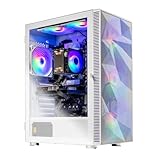
- Premium Choice: Skytech Gaming Crystal Gaming PC, Ryzen 5 8400F, RTX 5060
AMD Adrenalin Software sits between your GPU hardware and the games you play, intercepting every draw call and frame submission before it hits the display. That layer gives you enormous control over latency, visual fidelity, and frame pacing, but it also means a single wrong toggle can silently shave 20 FPS off a CPU-bound title or introduce micro-stutters that no in-game setting can explain.
Unlike a single game’s settings menu, Adrenalin operates at the driver level and behaves differently depending on the graphics API the game uses. Radeon Anti-Lag 2 requires DirectX 12 or Vulkan and only works when the driver detects API-level queue synchronization. Surface Format Optimization is a DX11-era relic that still affects some engines like Unreal Engine 4 in legacy rendering paths but does nothing in UE5 titles. Tessellation overrides can force tessellation multipliers into games that already handle it in the shader pipeline, producing visual artifacts in certain Call of Duty and Battlefield engine branches. Understanding these API interactions is what separates a good Adrenalin config from one that quietly tanks your frame times.
As an Amazon Associate we earn from qualifying purchases at no extra cost to you.




The presets below target three distinct scenarios: a competitive player chasing the lowest possible frame latency at any visual cost, a balanced gamer who wants high FPS without the image looking like a blur filter, and a budget GPU owner (RX 6600 or below) fighting for 60 FPS in AAA titles.
Quick Preset
| Setting | Competitive | Balanced | Low-End PC |
|---|---|---|---|
| Radeon Anti-Lag | Enabled | Enabled | Enabled |
| Radeon Chill | Disabled | Disabled | Enabled (Min 80 / Max 144) |
| Image Sharpening | 0% | 50-60% | Disabled |
| Texture Filtering Quality | Performance | Quality | Performance |
| Surface Format Optimization | Enabled | Enabled | Enabled |
| Tessellation Mode | Override: Off | Use Application Settings | Override: Off |
| Maximum Pre-Rendered Frames | 1 | Driver Default | 1 |
| Shader Cache | Enabled (Unlimited) | Enabled (Unlimited) | Enabled (Unlimited) |
| Radeon Enhanced Sync | Disabled | Disabled | Disabled |
| Frame Rate Target Control | Disabled | Disabled | Cap to display refresh |
| Wait for Vertical Refresh | Off, unless application specifies | Always Off | Always Off |
| GPU Scaling | Disabled | Disabled | Disabled |
| Display Scaling Mode | Preserve Aspect Ratio | Full Panel | Full Panel |
Settings That Matter Most
Radeon Anti-Lag
Anti-Lag works by inserting a small CPU-to-GPU throttle when the render queue is saturated, preventing the CPU from queuing frames far ahead of what the GPU can present. In practice this cuts input latency by roughly 1-2 ms in CPU-bound scenarios where the GPU is waiting on the next draw call. The competitive and balanced presets enable it globally. The tradeoff: in GPU-bound scenarios where the GPU is the bottleneck, Anti-Lag adds a negligible overhead (under 0.5 ms) because the queue never gets far enough ahead to trigger the throttle mechanism. Enable it unless you are running an RX 7900 XTX at 1080p low settings, where it is simply irrelevant.
Radeon Chill
Chill is a power-gating feature that dynamically lowers GPU clocks and voltage when frame output is below your configured ceiling. On a low-end card like an RX 6600 running Cyberpunk 2077 at 60 FPS, Chill reduces power draw by 15-25 watts and drops GPU temperature by 8-12C without measurable latency penalty. Set minimum to your target FPS (80-100 for competitive, 60 for AAA) and maximum to your display refresh rate. Do not enable Chill in competitive play if you are already GPU-limited: the frequency recovery from idle clocks adds 3-5 ms of latency variance on first frame after a lull, which feels inconsistent during flicking.
Texture Filtering Quality
This Adrenalin override replaces the in-game anisotropic filtering and mipmap quality decisions. On Performance, the driver forces bilinear filtering at oblique angles, which makes ground textures and road surfaces noticeably blurry at distance. In a shooter, that means spotting an enemy on a rooftop or a vehicle in a field becomes harder because detail falls off aggressively. Quality mode matches in-game AF16x behavior. The FPS difference is 3-5% in dense open-world games like Red Dead Redemption 2 or Far Cry 6, where texture filtering is already a minor GPU cost. Competitive players should accept the Performance setting; anyone else should leave this at Quality because the visual cost is disproportionate to the 3-5 FPS gain.
Tessellation Mode
Overriding tessellation to Off or 16x can rescue performance in poorly optimized DX11 titles where developers set tessellation multipliers too high (older Tomb Raider titles, certain Ubisoft engine games). In modern DX12 and Vulkan titles, tessellation is either handled by compute shaders or not used at all, so the override does nothing. Use this setting surgically: create per-game profiles rather than applying a global override. A global “Off” will flatten terrain and character geometry in games that still rely on it.
Shader Cache
AMD’s shader cache stores compiled pipeline states on disk so the GPU does not recompile them every session. Set this to Unlimited Size. The default 256 MB cap causes cache evictions in large games like Baldur’s Gate 3 or Hogwarts Legacy, resulting in shader compilation stutter when new visual effects appear for the first time in a session. Unlimited costs you roughly 1-2 GB of SSD storage per major game, which is a negligible penalty for the elimination of frame-time spikes.
Upscaling and Frame Generation
Adrenalin does not include its own upscaler; it defers to game-level FSR, DLSS, and XeSS implementations. However, the Image Sharpening toggle in Adrenalin interacts badly with in-game sharpening passes. If a game applies FSR 2.x or 3.x with its built-in sharpening (set at “sharp” or a numeric value), leave Adrenalin Image Sharpening at 0%. Stacking a driver-level CAS filter on top of FSR’s internal CAS produces excessive edge ringing and amplifies texture aliasing, particularly on foliage and wireframe geometry. For competitive titles without built-in upscaling (Counter-Strike 2, Valorant), Adrenalin Image Sharpening at 50-60% is a free way to recover perceived clarity when you are running at reduced render scale via in-game resolution or dynamic scaling.
Frame generation is entirely game-side. Adrenalin’s only relevant interaction is Frame Rate Target Control: if you enable frame gen in a game, disable FRTC or set it above the generated frame target, otherwise the driver will cap output and the game’s frame gen will produce phantom frames that the driver discards, wasting GPU cycles for nothing.
Outside the Game
Keep your Adrenalin driver on the latest “Recommended” branch unless you are in the first 48 hours after a new game launch, when WHQL “Optional” drivers sometimes contain day-one fixes that haven’t been QA’d yet. In Windows, set the power plan to High Performance or Ultimate and disable Hardware-Accelerated GPU Scheduling only if you are running an RX 6000 series card in a game that exhibits inconsistent frame pacing (certain Source 2 titles on DX11 path). Disable Xbox Game Bar overlay and the Windows Game DVR background recording: both insert a DXGI swap-chain layer that adds 0.5-1 ms of latency and can conflict with Adrenalin’s own overlay hooks.
Settings to Leave Alone
Radeon Enhanced Sync is a frame-pacing limiter designed for 2016-era engines that produce wildly inconsistent frame times (the original Doom, certain Unity DX11 titles). In modern DX12 and Vulkan games with proper present synchronization, Enhanced Sync introduces input latency without a corresponding stutter reduction. Leave it off globally. Also, the “Reset to Factory Defaults” button in Adrenalin profiles will silently revert your per-game settings; use it only when you are certain a profile corruption is causing visual glitches. The “GPU Scaling” and “Display Scaling Mode” options only matter if you render at a resolution below native and want the scaler to handle it at the display output level rather than letting the game handle its own rendering resolution.
FAQ
Do I need to restart games after changing Adrenalin settings?
Yes. Most Adrenalin driver-level settings are applied at device creation. Changing them while a game is running has no effect until the next launch. The exception is per-game profile changes, which require you to close the game, switch to the correct profile, and relaunch.
Why does Radeon Anti-Lag reduce my FPS slightly?
Anti-Lag prevents the CPU from submitting frames into the queue, which means at the exact moment the GPU finishes a frame, there may not be a next one waiting. This creates a brief idle gap. The FPS loss is typically 1-3% and is an acceptable tradeoff for the latency reduction in fast-paced titles. If your benchmark shows more than 5% loss, you are likely already GPU-bound and should leave Anti-Lag disabled for that specific game.
Does Shader Cache affect game loading times?
It affects first-session shader compilation stutter, not load screen duration. A full shader cache means no runtime compilation stalls during gameplay. Clearing your cache or running a new game for the first time will produce hitching as shaders compile; subsequent sessions load the cached pipeline states from SSD storage with virtually no overhead.
Can Adrenalin settings conflict with in-game settings?
Yes, primarily with tessellation, texture filtering, and vertical sync. If a game has its own VSync toggle and Adrenalin is set to “Always On” for vertical refresh, the game’s setting is overridden. Texture Filtering Quality in Adrenalin overrides the in-game anisotropic filter and mipmap detail settings entirely. Check these three categories whenever a game behaves visually differently than expected.











