🛒 Best Price Today on Amazon
Prime members get fast, free shipping on everything above, plus member-only deals. New members get a 30-day free trial — cancel anytime.
How to clean a mouse pad depends on its surface and whether it contains electronic components. A standard cloth gaming pad can usually be cleaned gently with mild soap and water, while an RGB model needs a damp-cloth method. This guide explains the supplies, cleaning steps, drying precautions, and common mistakes that can damage your setup.
What Cleaning a Mouse Pad Really Comes Down To
The safest cleaning method depends on three things: the pad’s material, its electronic components, and the manufacturer’s care instructions. Ordinary cloth pads can often tolerate gentle hand washing, but RGB pads must stay away from soaking. Hard plastic and glass surfaces need different treatment to avoid scratches or damage.
1. Identify Your Mouse Pad’s Material
Before cleaning, determine whether your pad has a cloth surface, hard plastic, glass, or built-in RGB lighting. Check its label, packaging, or manufacturer’s support documentation. A large desk mat follows similar principles to a cloth mouse pad, but its size may make rinsing and drying more difficult.
If the surface has a printed design, stitched edges, a special coating, or a textured finish, use extra care. Aggressive brushing can wear down the fabric or damage its treatment. When the material is uncertain, start with a lightly damp microfiber cloth rather than immersing the entire pad.
2. Gather Gentle Cleaning Supplies
You generally need a clean microfiber cloth, a small amount of mild liquid soap, room-temperature or lukewarm water, and a dry towel. A soft-bristled brush can help loosen dust from a conventional cloth pad, but it should never be abrasive. Keep the cleaning solution simple.
Avoid bleach, strong solvents, abrasive sponges, and concentrated cleaning chemicals unless the manufacturer specifically approves them. Products containing harsh chemicals may affect dyes, coatings, adhesives, or surface texture. Test a suitable cleaning solution on a small, inconspicuous area before treating the whole surface.
3. Decide Whether the Pad Can Be Submerged
A standard, non-electronic cloth pad may be suitable for gentle hand washing if its manufacturer permits it. A hard pad may need only a wipe-down. An RGB or wired model should not be submerged because water can reach its lighting components, controller, wiring, or connectors.
When checking how to clean a mouse pad, treat the manufacturer’s instructions for your exact model as the deciding factor. For example, SteelSeries advises wiping its QcK Prism RGB surface with a lightly damp microfiber towel and leaving it flat to dry for at least 24 hours. That is different from the hand-washing method used for compatible cloth pads.
What Doesn’t Help
More soap, harder scrubbing, and hotter water do not automatically produce a better result. Excessive friction can damage surface treatments, while heat can affect adhesives, coatings, and pad shape. Bleach and abrasive cleaners may also discolor or wear the surface.
Avoid assuming that every mouse pad is machine-washable. Even if a pad looks like ordinary fabric, its backing, stitching, adhesive layers, or printed finish may have different care requirements. Check the manufacturer’s instructions before using a washing machine or any powered drying method.
How to Clean a Mouse Pad: Step by Step
Once you know which cleaning method suits your pad, work from loose debris to stubborn stains, then remove any soap residue before drying. The main goal is to clean the surface without damaging its weave, coating, backing, stitching, or electronics. Use the least aggressive method that removes the dirt.
| Setting or Step | Where | Effect | Risk |
| Remove loose debris | Entire surface | Lifts dust, crumbs, and hair | Aggressive brushing can damage fabric |
| Wipe with mild soap | Cloth, plastic, or compatible surfaces | Removes surface oils and grime | Excess water or strong cleaners can damage the finish |
| Hand-wash if permitted | Sink or basin | Cleans compatible cloth pads more thoroughly | Soaking can damage unsuitable backing or coatings |
| Air-dry completely | Flat, ventilated area | Removes moisture before use | Heat, sunlight, or premature use may cause problems |
Step 1: Remove Dust and Loose Debris
Disconnect your mouse and move the pad away from your keyboard and other electronics. Shake loose debris off a removable pad or use a soft brush to lift dust and crumbs. For a large desk mat, work across the surface in sections rather than dragging debris into the fabric.
If you are learning how to clean a mouse pad after a food or drink spill, absorb the liquid first by gently blotting it with a clean, absorbent cloth. Avoid rubbing a fresh spill, since that can spread the stain or push moisture deeper into the material. Remove crumbs before applying water.
Step 2: Clean a Standard Cloth Mouse Pad
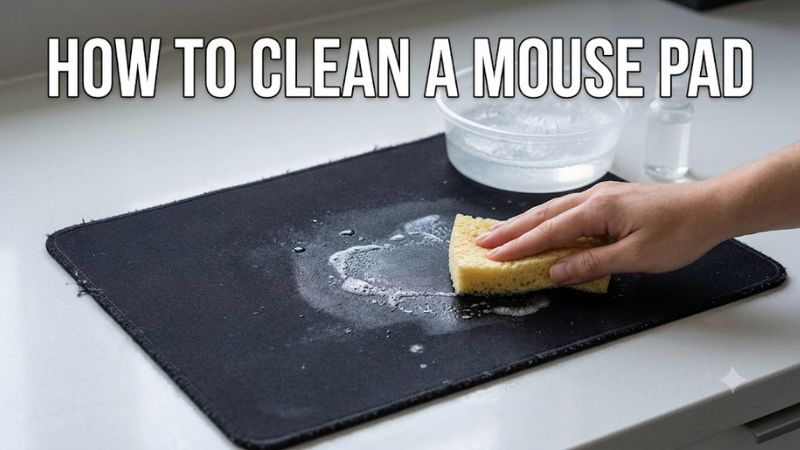
For a compatible non-electronic cloth pad, place it in a basin with room-temperature or lukewarm water and a small amount of mild liquid soap. Follow the manufacturer’s instructions about immersion and water temperature. Gently work the solution across the fabric using your fingertips or a soft sponge without stretching the material.
Pay attention to areas where your palm and wrist rest, since these spots often collect oils and sweat. Use gentle, short movements rather than forceful scrubbing. Rinse thoroughly with clean water until the soap is gone, taking care not to twist or wring the pad, which can deform its backing.
Step 3: Clean an RGB or Hard-Surface Mouse Pad
For an RGB pad, switch it off and unplug it before cleaning. Use a microfiber cloth dampened with mild soapy water, wringing it out until it no longer drips. Wipe the surface gently, keeping moisture away from the cable connection, controller housing, ports, and exposed electronics.
Use a second cloth lightly dampened with clean water to remove soap residue, followed by a dry microfiber cloth to absorb remaining moisture. For plastic or glass pads, use a soft cloth and a cleaner approved for the surface. Avoid abrasive pads and harsh solvents that could scratch or damage the finish.
Step 4: Dry the Pad Before Gaming
Drying is an essential part of how to clean a mouse pad safely. Lay a conventional cloth pad flat in a well-ventilated indoor area, following its care instructions. A dry towel can absorb excess moisture if you press it gently against the surface. Do not twist the pad or stretch its edges to speed up drying.
Avoid tumble dryers, radiators, direct heat, and prolonged direct sunlight unless the manufacturer explicitly permits a particular method. Wait until the entire pad, including its backing and edges, is completely dry before placing it back on your desk. For RGB models, follow the specified drying period; SteelSeries recommends at least 24 hours for its QcK Prism surface.
FAQ
Can You Put a Mouse Pad in the Washing Machine?
Only use a washing machine if the manufacturer explicitly confirms that your particular mouse pad is machine-washable. Otherwise, hand washing or gentle surface cleaning is the safer choice. Never put a wired RGB pad in the washer, and avoid machine drying unless the product instructions specifically permit it.
How Often Should You Clean a Gaming Mouse Pad?
Clean a gaming mouse pad when visible dirt, sticky patches, odors, or changes in surface feel indicate that it needs attention. For routine maintenance, NZXT recommends wiping its mouse pads every one to two weeks and cleaning spills promptly. Your ideal schedule depends on use, perspiration, pets, dust, and the pad’s material.
Can You Use Dish Soap to Clean a Mouse Pad?
Yes, a small amount of mild dish soap is suitable for many compatible cloth and hard-surface mouse pads. Check the manufacturer’s instructions first, dilute the soap as appropriate, and remove all residue with a clean, damp cloth or thorough rinsing where permitted. Avoid bleach, abrasive cleaners, and unapproved solvents.
How Long Does a Mouse Pad Take to Dry?
A mouse pad must dry completely before use, and the time varies with its thickness, backing, material, and ventilation. Some manufacturers specify at least 24 hours for particular models. Do not assume a dry-looking top means the underside is ready; check the edges and backing before reconnecting an RGB pad.
Final Thoughts
Knowing how to clean a mouse pad helps keep your gaming setup comfortable without unnecessarily wearing out the surface. Identify the material first, use mild cleaning methods, and allow sufficient drying time. If your pad has RGB lighting or a specialized coating, follow its model-specific care instructions before using water.