🛒 Best Price Today on Amazon
Prime members get fast, free shipping on everything above, plus member-only deals. New members get a 30-day free trial — cancel anytime.
- Best Webcam for Laptop: Quick Comparison
- 1. EMEET S600: Best Webcam for Laptop Overall
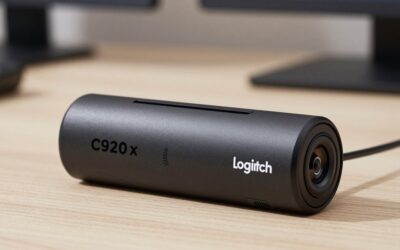
- 2. Logitech C920x: Best Proven All-Rounder
- 3. Logitech Brio 101: Best Budget Webcam for Laptop
- 4. OBSBOT Meet 2: Best Compact Webcam for Travel
- 5. Elgato Facecam 4K: Best for Streaming Image Quality
- 6. Anker PowerConf C200: Best for Meetings and Shared Desks
- 7. Lenovo Essential FHD Webcam Gen 2: Best Simple Office Upgrade
- Also Consider
- How We Chose
- Buying Guide: Choosing an External Webcam for Laptop Use
- External Webcam for Laptop vs Built-In Camera
- How to Set Up a Webcam on a Laptop
- Which One Should You Buy?
- Frequently Asked Questions
- Sources
The best webcam for laptop users in 2026 is the EMEET S600 for most people: it records 4K at 30 fps or 1080p at a smooth 60 fps, has fast phase-detection autofocus and built-in microphones, and is light enough to sit on a thin laptop lid. If you just want a reliable upgrade over a grainy built-in camera, the Logitech C920x and the budget Logitech Brio 101 are safe choices, while streamers chasing the sharpest picture should look at the Elgato Facecam 4K.
Below are seven picks for different needs, a comparison table, and a buying guide that explains what actually improves a laptop video call: sensor size, autofocus, field of view, lid fit and lighting.

NIVEOLI Webcam 1080P with Microphone & Privacy Cover for PC/Laptop, USB Computer Camera Plug & Play with Auto Light Correction for Video Calls, Live Streaming Gaming & Online Meetings
Included for 'Best Webcam for Laptop: External Upgrades Worth Buying' because the listing specifies Live Streaming Gaming & Online Meetings, details this guide uses to compare options.
View on Amazon
1080P HD Webcam with Microphone, Noise Cancellation, Privacy Cover, Wide-Angle Lens, Auto Light Correction, Plug & Play USB Webcam for Laptop, Desktop, PC, Mac, Zoom, Skype, Streaming (Black)
Included for 'Best Webcam for Laptop: External Upgrades Worth Buying' because the listing specifies Noise Cancellation and Privacy Cover, details this guide uses to compare options.
View on Amazon
Shcngqio 1080P HD Webcam with Microphone, Noise Cancellation, Auto Light Correction, Plug & Play USB Webcam for Laptop, Desktop, PC (Black-Gray)
Included for 'Best Webcam for Laptop: External Upgrades Worth Buying' because the listing specifies Noise Cancellation and Auto Light Correction, details this guide uses to compare options.
View on Amazon
1080P HD Webcam with Microphone, Streaming Computer Camera for Laptop PC | 30fps Webcam, Plug & Play USB, Auto Light Correction, for Remote Work, Online Teaching & Video Calls
Included for 'Best Webcam for Laptop: External Upgrades Worth Buying' because the listing specifies Streaming Computer Camera for Laptop PC and 30fps Webcam, details this guide uses to compare options.
View on AmazonKey takeaways
- Most laptop cameras are 720p or 1080p with tiny sensors; an external webcam for laptop use mainly improves low-light noise, focus and framing.
- For video calls, 1080p is plenty; 4K helps when you crop or zoom, and 1080p at 60 fps helps streaming.
- Check weight and clip design: heavy cameras can tip a thin laptop lid backward.
- A 65-80 degree field of view suits a single person; wider views show more of your room.
- Lighting in front of you improves image quality more than any upgrade in camera price tier.
Best Webcam for Laptop: Quick Comparison
| Pick | Best for | Max video | Field of view | Focus | Mic | Price tier |
|---|---|---|---|---|---|---|
| EMEET S600 | Best overall | 4K30 / 1080p60 | Up to 73° | PDAF autofocus | Dual | Mid |
| Logitech C920x | Proven all-rounder | 1080p30 | 78° | Autofocus | Stereo | Mid |
| Logitech Brio 101 | Budget | 1080p30 | About 70° | Fixed | Built-in | Budget |
| OBSBOT Meet 2 | Travel and AI framing | 4K30 / 1080p60 | 79.4° | Autofocus | Dual | Upper mid |
| Elgato Facecam 4K | Streaming image quality | 4K60 | About 90° | Manual controls in app | None | Premium |
| Anker PowerConf C200 | Meetings, adjustable view | 2K30 | 65 / 78 / 95° | Autofocus | Dual stereo | Budget to mid |
| Lenovo Essential FHD Gen 2 | Simple office upgrade | 1080p30 | 85° | Fixed | Dual | Budget |
1. EMEET S600: Best Webcam for Laptop Overall
4K30 · 1080p60 · Sony 1/2.55-inch sensor · PDAF autofocus · 40-73° adjustable FOV · dual mics
The EMEET S600 hits the sweet spot for laptop users who want a real step up without studio pricing. Its Sony sensor is notably larger than the pinhole sensors in most laptop bezels, which means cleaner images in a dim home office, and phase-detection autofocus locks onto your face quickly when you lean in to show a document. The 1080p60 mode makes it a credible starter streaming camera too.
- 4K at 30 fps, 1080p at 60 fps or 30 fps.
- Sony 1/2.55-inch sensor with PDAF autofocus.
- Field of view adjustable from about 40° to 73° at 1080p (fixed 73° at 4K) in EMEET’s software.
- Two noise-reducing microphones and a built-in privacy cover.
- Universal clip for laptop lids and monitors, plus a tripod thread.
Best for: remote workers, students and casual streamers who want one camera that does everything. Skip if: you need a wide view of a whole room or auto-tracking.
Pros
- Large sensor for the price tier
- Fast, reliable autofocus
- 1080p60 for smooth streams
- Privacy cover built in
Cons
- No auto-framing or tracking
- Best settings live in an optional companion app
2. Logitech C920x: Best Proven All-Rounder
1080p30 · 78° FOV · autofocus · stereo mics · USB-A
The Logitech C920 family has been the default office webcam for years, and the C920x is the current version. It does not chase 4K; instead, it delivers dependable 1080p at 30 fps, solid autofocus and automatic light correction that works with every major video app without drivers. If you manage laptops for a family or small team, it is the camera least likely to cause support calls.
- Full HD 1080p at 30 fps (720p at 30 fps for weaker connections).
- 78-degree diagonal field of view.
- Autofocus and automatic low-light correction.
- Two microphones on either side of the lens.
- Universal clip and tripod thread; USB-A cable.
Best for: video calls, classes and anyone who values compatibility over specs. Skip if: you want 60 fps or a USB-C-only connection without an adapter.
Pros
- Works with Zoom, Teams and Meet out of the box
- Natural color and good autofocus
- Very wide software support
Cons
- 30 fps maximum at 1080p
- Low-light image is noisier than newer large-sensor models
- USB-A plug needs an adapter on many new laptops
3. Logitech Brio 101: Best Budget Webcam for Laptop
1080p30 · fixed focus · auto light balance · built-in mic · privacy shutter · USB-A
The Brio 101 is Logitech’s entry model and a meaningful upgrade over a 720p laptop camera for very little money. It uses fixed focus, which is fine at normal laptop distance (roughly an arm’s length), plus automatic light balance and a sliding privacy shutter. It is the pick for students, occasional callers and anyone buying several cameras at once.
- Full HD 1080p at 30 fps.
- Fixed focus tuned for typical desk distance.
- Auto light balance and built-in microphone.
- Integrated privacy shutter.
- Lightweight clip that suits thin laptop lids.
Best for: budget buyers and classroom or family laptops. Skip if: you often hold objects close to the camera, since fixed focus will blur them.
Pros
- Budget tier with a trusted brand
- Privacy shutter
- Light, stable on thin lids
Cons
- No autofocus
- Basic microphone
4. OBSBOT Meet 2: Best Compact Webcam for Travel
4K30 · 1080p60 · 1/2-inch sensor · f/1.9 · 79.4° FOV · AI framing · about 40 g
The OBSBOT Meet 2 is tiny, about the size of a matchbox and weighing roughly 40 grams, yet it packs a 1/2-inch sensor, one of the largest in this list, with a bright f/1.9 lens. That combination is exactly what a laptop on the move needs: it will not tip a thin ultrabook lid, it slips into a pocket, and it handles hotel-room lighting better than most. AI framing keeps you centered when you shift in your seat, and gesture controls let you zoom without touching the laptop.
- 4K at 30 fps, 1080p at 60 fps.
- 1/2-inch sensor with f/1.9 aperture.
- 79.4-degree diagonal field of view with up to 4x digital zoom.
- AI auto-framing, gesture control, and portrait or landscape recording.
- Dual omnidirectional microphones; magnetic mount system.
Best for: travelers, ultrabook owners and creators who want auto-framing. Skip if: you want the simplest plug-in camera; the extra features are managed in OBSBOT’s app.
Pros
- Very small and light
- Large sensor, bright lens
- Useful AI framing
Cons
- Upper-mid price tier
- Features depend on companion software
5. Elgato Facecam 4K: Best for Streaming Image Quality
4K60 · Sony STARVIS 2 1/1.8-inch sensor · about 90° FOV · HDR up to 4K30 · USB-C · no mic
If your laptop doubles as a streaming rig, the Elgato Facecam 4K is the image-quality pick. Its 1/1.8-inch Sony STARVIS 2 sensor is the largest here, it records 4K at 60 fps, and Elgato’s Camera Hub software exposes manual controls for shutter, ISO and white balance, much like a mirrorless camera. It even accepts 49 mm lens filters. The catch for laptop users: there is no built-in microphone, and at roughly 112 g without its mount it is heavier than most webcams, so it is best on a monitor or small tripod rather than a thin lid.
- 4K at 60 or 30 fps, 1080p at 60 or 30 fps.
- Sony STARVIS 2 1/1.8-inch sensor; HDR up to 4K30.
- About 90-degree field of view.
- USB-C connection; needs a USB 3.0 port for full-resolution modes.
- Threaded front for 49 mm filters; no microphone.
Best for: streamers and creators who already use a separate microphone. Skip if: you need an all-in-one camera and mic for calls.
Pros
- Best image quality in this list
- True 4K60
- Pro-style manual controls
Cons
- No microphone
- Heavier than typical lid-mounted webcams
- Premium price tier
6. Anker PowerConf C200: Best for Meetings and Shared Desks
2K30 · 65 / 78 / 95° switchable FOV · autofocus · dual stereo mics · privacy cover · USB-A
The PowerConf C200 stands out for its switchable field of view: 65 degrees for a tight head-and-shoulders shot, 78 degrees for normal calls, or 95 degrees when two people share a laptop or you want to show a whiteboard. Its 2K sensor gives a little more detail than 1080p cameras for cropping, and its dual microphones with noise reduction are better than most laptop mics.
- 2K (2560 x 1440) at 30 fps; 1080p at 30 fps.
- Field of view switchable between 65°, 78° and 95° in Anker’s software.
- Autofocus and low-light correction.
- Dual stereo microphones with noise reduction.
- Integrated privacy cover; about 2.9 oz.
Best for: hybrid workers, tutors and couples who share calls. Skip if: you need 60 fps.
Pros
- Flexible field of view
- Good built-in mics
- Privacy cover
Cons
- FOV changes require the companion app
- 30 fps maximum
7. Lenovo Essential FHD Webcam Gen 2: Best Simple Office Upgrade
1080p30 · 85° FOV · fixed focus · dual mics · USB-A
Lenovo’s Essential FHD Webcam Gen 2 is a no-fuss, plug-and-play 1080p camera with a slightly wider 85-degree view and two microphones. It is the kind of camera an IT department hands out: it simply works with Windows, macOS and ChromeOS without extra software, and its clip is designed for laptop screens as well as monitors.
- Full HD 1080p at 30 fps.
- 85-degree field of view.
- Dual microphones.
- Fixed focus; USB-A connection.
Best for: office laptops and anyone who wants zero setup. Skip if: you care about low-light quality or autofocus.
Pros
- Plug and play, no software needed
- Wider view than many 1080p webcams
- Budget tier
Cons
- Fixed focus
- Basic low-light performance
Also Consider
- EMEET C960 4K (4K · PDAF autofocus · 73° FOV · dual mics): a cheaper 4K option from EMEET if the S600 is out of budget.
- Acer A640 4K Webcam (4K · Sony 1/2.8-inch sensor · PDAF · 1080p60 · AI noise-canceling mic): a value 4K camera with phase-detection focus.
- NexiGo N60 (1080p · fixed focus · privacy cover · software controls): a basic budget alternative to the Brio 101.
- AOC 4K Webcam (4K · 80° FOV · noise-canceling mic · privacy cover): an inexpensive 4K camera for users who mainly want more pixels to crop.
How We Chose
We compared manufacturer specifications for current webcams (sensor size, resolution and frame rate, field of view, focus type, microphones, connection and weight) and read independent published reviews and patterns in owner feedback, focusing on problems specific to laptops: lid fit, weight, USB-C needs and low-light performance in typical home rooms. We did not personally use these webcams. We kept to models sold in 2026, limited the list to two picks per brand, and favored cameras that improve on a typical built-in laptop camera in a way you would actually notice on a call.
Buying Guide: Choosing an External Webcam for Laptop Use
Resolution and frame rate: what you actually need
Video apps compress your image heavily. Zoom, Teams and Meet commonly send 720p or 1080p even when your camera can do more, and their published requirements put HD group video at only a few megabits per second of upload. So:
- 1080p at 30 fps is enough for nearly all calls and classes.
- 1080p at 60 fps matters for streaming and for smoother motion when you gesture a lot.
- 4K is useful when you want to crop or digitally zoom, record local video, or use the camera as a document camera.
Sensor size is the real quality upgrade
Bigger sensors gather more light, which reduces noise and blotchy skin tones in dim rooms. As a rough guide, laptop bezel cameras use very small sensors, mainstream webcams use about 1/2.9-inch to 1/2.8-inch, and the best laptop-friendly models step up to 1/2.55-inch, 1/2-inch or even 1/1.8-inch. If your room is lit only by a ceiling light or a window behind you, prioritize sensor size over resolution.
Field of view
| Field of view | What it shows at about 2 feet | Best for |
|---|---|---|
| 60-70° | Head and shoulders | Solo calls, small or messy rooms |
| 75-85° | Upper body plus some background | Most laptop users |
| 90-95° | Two people side by side, more room | Shared calls, whiteboards |
| 100°+ | Wide room view with edge distortion | Small meeting rooms |
Autofocus vs fixed focus
Fixed-focus cameras are sharp at typical sitting distance, about 1.5-3 feet. Autofocus helps if you hold up products or papers, lean in often, or move around. Phase-detection autofocus (PDAF) is faster and hunts less than older contrast-detect systems.
Laptop fit, weight and connection
- Lid thickness: most clips grip lids from about 0.2 inch upward; check that the clip’s rear foot sits flat on very thin ultrabook lids.
- Weight: cameras under about 100 g are safest on a thin lid; heavier units can pull the screen backward. Put heavier cameras on a monitor or small tripod.
- Port: many new laptops have only USB-C. A USB-C camera or a simple USB-C to USB-A adapter both work.
- USB speed: uncompressed 1080p30 video is about 1 Gbps (1,920 x 1,080 pixels x 2 bytes x 30 fps), more than USB 2.0’s 480 Mbps, so webcams compress internally. 4K60 models often need a USB 3.0 port for their best modes.
Microphone and privacy
A webcam’s microphones are usually better than a laptop’s because they sit away from the keyboard and fan. For streaming or podcasts, a separate USB mic still wins. A physical shutter or cover gives peace of mind that software toggles cannot.
Windows Hello and built-in features
Most external webcams do not support Windows Hello face sign-in, which needs an infrared sensor; check for “Windows Hello” in the spec if you rely on it. Background blur and eye-contact effects are usually provided by your video app or the laptop’s own software, so they work with most cameras.
What each price tier gets you
- Budget tier: 1080p at 30 fps, fixed focus, a single basic mic and a small sensor. A clear step up from a 720p laptop camera in good light, less so in a dim room.
- Mid tier: autofocus (often PDAF), larger sensors around 1/2.55 inch, dual mics, 1080p60 or 4K30, and software for framing and exposure. This is where most laptop users get the best value.
- Upper-mid tier: AI framing, gesture control, bright lenses and 1/2-inch sensors in compact bodies, aimed at travelers and hybrid workers.
- Premium tier: 4K60, the largest sensors, HDR and manual camera-style controls for streaming and content creation, sometimes without a mic because creators use a separate one.
Lighting: the free upgrade
Put your main light in front of you, ideally a window or lamp behind the laptop, and avoid a bright window behind your head. Raise the laptop so the camera is at eye level; a stack of books works. These two changes improve image quality more than moving up a price tier.
External Webcam for Laptop vs Built-In Camera
Laptop makers have improved their cameras, and many 2026 models ship with 1080p or even 5 MP modules. So is an external camera still worth it? It depends on what bothers you about your current picture.
| Factor | Typical built-in camera | Mid-tier external webcam |
|---|---|---|
| Resolution | 720p-1080p (some 5 MP) | 1080p-4K |
| Sensor size | Very small, limited by bezel depth | About 1/2.9 to 1/1.8 inch |
| Low-light noise | High | Lower, especially on large sensors |
| Focus | Fixed | Fixed or autofocus |
| Camera angle | Below eye level, looks up at you | Can be raised to eye level on a stand |
| Microphones | Near keyboard and fan noise | Away from keyboard, often dual mics |
| Windows Hello IR | Common on business laptops | Rare |
If your laptop already has a good 1080p camera and you call from a well-lit room, the gain from a budget webcam will be modest; go for a larger-sensor model or simply improve lighting. If your laptop camera is 720p, sits in a dim room, or you dock the laptop to a monitor with the lid closed, an external webcam is one of the most noticeable upgrades you can buy.
How to Set Up a Webcam on a Laptop
- Clip it to the center of the lid so you look roughly into the lens when reading the screen. Off-center cameras make you appear to look away.
- Raise the laptop so the lens is at or slightly above eye level; a laptop stand or a few books under the base works. Looking down into a camera is the least flattering angle.
- Plug directly into the laptop rather than a crowded unpowered hub, which can cause the camera to drop out.
- Select the camera in your app. In Zoom, Teams or Meet, open video settings and choose the external webcam; the app may otherwise keep using the built-in one.
- Set exposure and white balance once. Most companion apps let you lock these so the image does not pulse as you move.
- Check your microphone choice. Pick the webcam mic or a headset mic deliberately; leaving both active can cause echo.
- Docked with the lid closed? Mount the webcam on your external monitor instead, at the top center.
Which One Should You Buy?
- Best for most people: EMEET S600.
- Reliable, widely compatible office camera: Logitech C920x.
- Lowest cost upgrade: Logitech Brio 101.
- Thin, light laptop or travel: OBSBOT Meet 2.
- Streaming with a separate mic: Elgato Facecam 4K.
- Two people on one call: Anker PowerConf C200.
Frequently Asked Questions
Is an external webcam better than a laptop camera?
Usually, yes. External webcams have larger sensors, better lenses and better microphones than the thin modules in laptop bezels, which shows most in low light. Many also add autofocus and a better angle when the laptop is raised.
Do I need a 4K webcam for Zoom or Teams?
No. Video apps send 1080p or less, so a good 1080p webcam looks almost the same on a call. 4K is useful for cropping, recording or streaming.
Will a webcam work with a USB-C-only laptop?
Yes. Use a USB-C webcam or a small USB-C to USB-A adapter. For 4K60 cameras, plug into a port that supports at least USB 3.0 speeds.
How do I make my laptop use the external webcam?
In Zoom, Teams or Meet, open video settings and select the external camera. In Windows 11, you can also manage cameras under Settings > Bluetooth & devices > Cameras.
Why does my webcam look grainy?
Graininess is almost always low light. Add a light in front of you, close blinds behind you, and turn off any digital zoom.
Can computer cameras for PC also work on a laptop?
Yes. Webcams are standard USB video devices, so the same camera works on desktops and laptops running Windows, macOS or ChromeOS. Just check the clip fits your lid and the weight suits it.
Is a webcam with a ring light worth it?
Built-in ring lights help a little in a dark room, but they are small and sit right next to the lens, which can create flat lighting and reflections in glasses. A separate desk lamp or LED panel placed slightly to the side and in front of you usually gives a more natural result.
Sources
EMEET, Logitech, OBSBOT, Elgato, Anker and Lenovo product specifications; Tom’s Guide and TweakTown webcam reviews; Zoom and Microsoft Teams bandwidth requirements.
Last updated: October 2026