
🛒 Best Price Today on Amazon
Prime members get fast, free shipping on everything above, plus member-only deals. New members get a 30-day free trial — cancel anytime.
- Likely Causes
- Fix 1: Lower the team-fight settings
- Fix 2: Turn off Dynamic Render Scale and set Render Scale manually
- Fix 3: Rebuild the shader cache after a patch
- Fix 4: Disable overlays and background load
- Fix 5: Fix the frame cap and V-Sync interaction
- Fix 6: Update the GPU driver
- Fix 7: Check power mode and thermals
- Fix 8: Reset Settings_v0.ini and run Scan and Repair
- If Nothing Works
- FAQ
- Related Guides
Overwatch 2 is built to hold a very high, very steady frame rate on modest hardware, so when it drops, the drop is almost always tied to a specific trigger rather than general weakness. The usual pattern is a frame rate that sits comfortably at your cap during the walk out of spawn and then collapses when three ultimates fire at once, when a Mei wall and a Sigma barrier fill the screen with refraction, or when a payload rounds a corner into a fog-heavy section of a map. That points at effects, fog, refraction and dynamic reflection settings rather than resolution. The second pattern is a periodic drop every few seconds regardless of what is happening, which usually means a background process, an overlay, or Battle.net’s own update scanner. The third is a sudden loss of performance right after a season patch, when shader caches are rebuilt and drivers may not yet have a profile for the new content. Blizzard’s engine keeps its settings in a plain text file at %USERPROFILE%\Documents\Overwatch\Settings\Settings_v0.ini, which is worth having open while you work through the fixes below in 2026.
Likely Causes
| Cause | How to confirm | Fix difficulty |
|---|---|---|
| Effects, Local Fog, Refraction and Dynamic Reflections set high | Drops coincide with team fights and ultimates; steady otherwise | Easy |
| Dynamic Render Scale misbehaving | Image blurs and sharpens as FPS moves; drops feel inconsistent | Easy |
| Stale shader cache after a season patch | Drops began on patch day and hit on first sight of new heroes or maps | Easy |
| Overlays and background applications | Periodic drops unrelated to on-screen action | Easy |
| Battle.net background scanning or updates | Battle.net shows disk or network activity while you play | Easy |
| Frame cap and V-Sync interaction | FPS oscillates around the cap; frame time graph uneven | Easy |
| Outdated GPU driver | Driver predates the current season | Moderate |
| Windows power mode or thermal throttling | Clocks drop under load; laptop hot to the touch | Moderate |
Fix 1: Lower the team-fight settings
How to check
Enable the in-game performance overlay under Options, Video, Display Performance Stats, with Show Framerate and Show GPU Temperature ticked. Play a match and watch whether the drop lines up with heavy ability usage. If it does, the culprits are Effects Detail, Local Fog Detail, Refraction Quality and Dynamic Reflections.

Thermalright Peerless Assassin 120 SE CPU Cooler, 6 Heat Pipes AGHP Technology, Dual 120mm PWM Fans, 1550RPM Speed, for AMD:AM4 AM5/Intel LGA 1700/1150/1151/1200/1851,PC Cooler
Included for 'Overwatch 2 FPS Drops: Causes, Checks and Fixes' because the listing specifies 6 Heat Pipes AGHP Technology and Dual 120mm PWM Fans, details this guide uses to compare options.
View on Amazon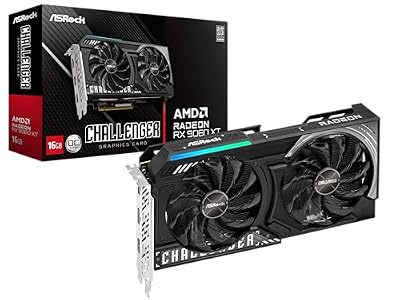
ASRock Radeon RX 9060 XT Challenger 16GB OC, RDNA 4, 3290MHz Boost, 16GB GDDR6 128-bit, PCIe 5.0, Dual Fans, 0dB Silent, LED Indicator, DisplayPort 2.1a, HDMI 2.1b
Included for 'Overwatch 2 FPS Drops: Causes, Checks and Fixes' because the listing specifies RDNA 4 and 3290MHz Boost, details this guide uses to compare options.
View on AmazonWhat to do
Set Effects Detail to Low, Local Fog Detail to Low, Refraction Quality to Low, and Dynamic Reflections to Off. These four have the largest swing between calm and chaotic moments, and lowering them flattens that swing without touching the settings that matter for visibility, such as Texture Quality and Model Detail. Leave Shadow Detail at Medium or lower; Ultra shadows are expensive on every map.
How to undo it
Raise each option in Options, Video, Graphics Quality, Advanced.
Fix 2: Turn off Dynamic Render Scale and set Render Scale manually
How to check
Dynamic Render Scale lowers internal resolution automatically to hold your target frame rate. When it is chasing a target it cannot reach, the image quality swings and the frame rate still dips, which feels worse than a steady lower setting.
What to do
Set Dynamic Render Scale to Off. Set Render Scale to 100 percent if your GPU has headroom, or 75 percent if it does not. Check that Resolution matches your monitor’s native mode and refresh rate, and that Display Mode is Fullscreen rather than Borderless Windowed for the lowest overhead.
How to undo it
Turn Dynamic Render Scale back on and set its target frame rate.
Fix 3: Rebuild the shader cache after a patch
How to check
If the drops started the day a new season went live and hit hardest the first time you see a new hero or map, cached shaders are being rebuilt or have been invalidated.
What to do
Close the game and Battle.net. Delete %LOCALAPPDATA%\NVIDIA\DXCache and %LOCALAPPDATA%\NVIDIA\GLCache on NVIDIA systems, or %LOCALAPPDATA%\AMD\DxCache on AMD. Steam users should also delete Steam\steamapps\shadercache\2357570. Launch the game and spend a few minutes in the Practice Range or a custom game with every hero to warm the cache before ranked play.
How to undo it
Nothing to revert.
Fix 4: Disable overlays and background load
How to check
Drops that appear on a regular interval, unrelated to gameplay, typically come from outside the game. Discord overlay, the NVIDIA App overlay, RivaTuner, Xbox Game Bar and browsers playing video are the common sources.
What to do
Turn off the Discord in-game overlay, the NVIDIA App or GeForce Experience in-game overlay, Xbox Game Bar and its background recording, and close RivaTuner if you are not using it. In Battle.net Settings, Downloads, set the client to not update games while you play and consider limiting background download bandwidth. Close browsers.
How to undo it
Re-enable each item as needed.
Fix 5: Fix the frame cap and V-Sync interaction
How to check
In Options, Video, look at Limit FPS. If it is set to Display-Based on an adaptive-sync monitor with V-Sync also on, the two fight and produce oscillation around the cap.
What to do
With G-Sync or FreeSync, set V-Sync Off, Limit FPS to Custom at roughly three below your refresh rate, and enable Reduce Buffering. NVIDIA users should enable NVIDIA Reflex (Enabled or Enabled + Boost) which manages latency well and can replace Reduce Buffering. On a fixed-refresh monitor, use in-game V-Sync alone.
How to undo it
Restore the previous Limit FPS and V-Sync values.
Fix 6: Update the GPU driver
How to check
Compare your driver’s release date with the current season’s launch date. New seasons regularly ship alongside driver updates that add profiles for new maps and effects.
What to do
Install the current driver from NVIDIA, AMD or Intel with the clean installation option, reboot, and repeat Fix 3 because the new driver invalidates shaders.
How to undo it
Roll back through Device Manager or install the previous version.
Fix 7: Check power mode and thermals
How to check
The in-game performance overlay shows GPU temperature. If it climbs into the high eighties Celsius and the drops follow, thermal throttling is likely. On laptops, also open Windows Settings, System, Power, and check the mode.
What to do
Set Windows power mode to Best performance and plug in laptops. Clean dust from intakes and make sure fans are not blocked. If a laptop has a manufacturer performance mode, use it while playing. Lower Render Scale a step to reduce heat if the throttling persists.
How to undo it
Return the power mode to Balanced.
Fix 8: Reset Settings_v0.ini and run Scan and Repair
How to check
If the Video menu shows values that do not seem to apply, or if performance is far below players with similar hardware, the settings file may contain stale or conflicting entries.
What to do
Close the game. Rename %USERPROFILE%\Documents\Overwatch\Settings\Settings_v0.ini to Settings_v0.ini.bak. In Battle.net, click the gear icon next to Play and choose Scan and Repair; Steam users use Verify Integrity of Game Files. Launch, regenerate defaults, and rebuild your settings. Note that keybinds and crosshairs are also stored in that file, so back it up rather than deleting it.
How to undo it
Delete the regenerated file and restore the backup.
If Nothing Works
Test in the Practice Range with the performance overlay on. If the frame rate is steady there and drops only in live matches, the remaining variables are effects density and network, and Fix 1 is the strongest lever. If even the Practice Range struggles, test a fresh Windows user account, confirm the game is running on the discrete GPU in Windows Graphics settings, and try the other launcher (Steam or Battle.net) to rule out a client issue. Blizzard’s forums usually have a pinned known-issues thread on patch days; if your drop is widespread, the answer is likely a hotfix rather than anything on your machine.
FAQ
Why does my FPS only drop during team fights?
Effects, fog and refraction cost far more when many abilities overlap. Lowering those four settings flattens the difference between calm and chaos.
Is Dynamic Render Scale worth using?
Only if your GPU is close to your target. When it cannot reach the target, a fixed lower Render Scale gives steadier results.
Should I use Reduce Buffering or NVIDIA Reflex?
Reflex if you have a supported NVIDIA card; it manages latency and pacing together. Reduce Buffering is the alternative on other hardware.
Does Fullscreen matter compared with Borderless?
Fullscreen has the lowest overhead and the most predictable frame pacing in this engine. Borderless is fine if you need quick alt-tabbing, but expect slightly more variance.








