- Top Pick: Thumb Grip with Touchpad Skin and Back Button Trigger Sticker for 2026 Steam Controller 2 Accessories, 4 High Rise and 4 Low Rise Joystick Cover, 4 Carbon Fiber Trackpad Trigger Protector, Black
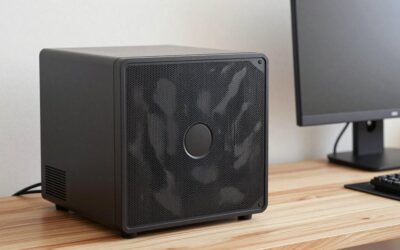
- Best Value: Faceplate Compatible with Valve Steam Machine | Decorative Front Cover with Narrow Slat Texture Magnetic Design for Gaming Desks Home Entertainment and Setup Customization
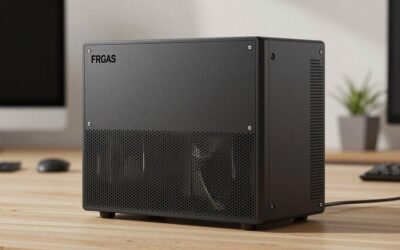
- Premium Choice: Faceplate Compatible with Valve Steam Machine (Green) | Magnetic Front Cover Panel, Decorative Shell, Gaming Device Appearance Accessory
To turn on the Steam Overlay, open the Steam client, click Steam in the top-left corner, choose Settings, select the In Game tab, and enable “Enable the Steam Overlay while in-game”. Restart any game that is already running for the change to take effect. Once active, press Shift+Tab during gameplay to open it.
As an Amazon Associate I earn from qualifying purchases.
There is also a per-game switch that overrides the global setting, which is the single most common reason the overlay appears in some titles and not others. This guide covers both settings, the default and custom hotkeys, and a full troubleshooting order for when Shift+Tab does nothing at all.
| Game | Platform | Genre | Why It’s Great | Rating |
|---|---|---|---|---|
| Counter-Strike 2 | PC (Steam) | Tactical shooter | Free to play and the definitive competitive FPS on PC | 8.9/10 |
| Baldur’s Gate 3 | PC, PS5, Xbox Series X|S | CRPG | Extraordinary reactivity and writing across a hundred-hour campaign | 9.7/10 |
| Elden Ring | PC, PS4/PS5, Xbox One/Series | Action RPG | Open-world design that respects player curiosity above all | 9.6/10 |
| Stardew Valley | PC, Switch, PS4, Xbox, mobile | Farming sim | Endlessly replayable with a thriving Workshop mod scene | 9.6/10 |
| Hades | PC, Switch, PS, Xbox | Roguelike | Perfect run-based pacing with genuinely great writing | 9.3/10 |
| Cyberpunk 2077 | PC, PS5, Xbox Series X|S | Open-world RPG | Night City is a landmark achievement in environmental design | 9.0/10 |
| Deep Rock Galactic | PC, PS, Xbox | Co-op shooter | Four-player mining chaos with fully destructible caves | 9.0/10 |
| Portal 2 | PC, PS3, Xbox 360 | Puzzle | Flawless puzzle design and one of gaming’s best scripts | 9.8/10 |
🛒 Best Price Today on Amazon
Prime members get fast, free shipping on everything above, plus member-only deals. New members get a 30-day free trial — cancel anytime.
How to turn on Steam Overlay in the client settings
Open Steam and click the Steam menu at the top left, then Settings — on macOS it is labelled Preferences. Select the In Game tab in the left-hand list. The first option is “Enable the Steam Overlay while in-game”, and it must be switched on for the overlay to work anywhere.
Below it you will find the overlay shortcut key settings, an option for showing the framerate counter, and a toggle for using the Big Picture overlay when a Steam Input enabled controller is connected. Confirm your changes, then fully close and relaunch any game already running. The overlay hooks into a game at launch, so it cannot be attached to a session that started before you enabled it.
How to turn on Steam Overlay for one specific game
Each game has its own overlay switch that can override the global one. Go to your Library, right-click the game, choose Properties, and look under the General tab for “Enable the Steam Overlay while in-game”. If that box is unchecked, the overlay will not appear in that title no matter what the global setting says.
This per-game control exists because a handful of older or unusual games crash when the overlay hooks in, so users disable it selectively. If you inherited a Steam account, used a guide once, or ran a “fix stuttering” script, this is very often where the setting was changed without you noticing.
Changing the overlay hotkey
The default hotkey is Shift+Tab. In Settings, In Game, you can set an alternative combination if a game already uses Shift+Tab for something important — strategy games and MMOs frequently do. Options include a single key or a modifier combination, and Steam will warn you if the choice conflicts with common bindings.
On a keyboard where Tab or Shift is unreliable, the overlay can appear to be broken when the real issue is hardware. Membrane keyboards with worn contacts under high-traffic keys are a common culprit, and a mechanical keyboard buying guide is worth reading if this keeps happening across multiple games.
What the Steam Overlay actually gives you
The overlay is not just a friends list. It provides in-game screenshots with F12, an embedded web browser, friends chat and voice, the Steam guides and community hub for the current game, achievement progress, the Steam Input controller configurator, Steam Notes for keeping text alongside gameplay, and access to the store without leaving the game.
Critically, Steam’s built-in Game Recording feature depends on the overlay. If the overlay is disabled, background recording and clip capture will not function, which surprises a lot of people who assumed recording was independent. Anyone recording seriously should still compare that against dedicated hardware, and a capture card buying guide explains when external capture is genuinely better.
Troubleshooting when the Steam Overlay will not turn on
Work through these in order. First, confirm both the global and per-game settings are enabled. Second, restart Steam entirely — not just the game — since the client loads its overlay module at startup. Third, on Windows, right-click the Steam shortcut and run it as administrator, which resolves a large share of hook failures caused by permission mismatches.
Fourth, disable competing overlays. Discord, NVIDIA’s in-game overlay, AMD Adrenalin, MSI Afterburner and RivaTuner, Razer utilities and OBS game capture hooks all inject into the same rendering pipeline, and two hooks fighting over one process is the classic cause of a missing or flickering overlay. Turn them off one at a time rather than all at once so you learn which one was responsible.
Fifth, verify the game’s files through Properties, Installed Files, Verify integrity of game files. Sixth, check your antivirus quarantine for gameoverlayrenderer.dll, which some security suites flag incorrectly. Steam’s own file integrity check will restore it if it was removed. Repeated verification passes are painfully slow on mechanical drives, so an SSD buying guide is a worthwhile read if you do this often.
Games where the overlay genuinely will not work
Some titles are structurally incompatible. Games that launch through a second launcher — EA app, Ubisoft Connect, Battle.net, Rockstar Games Launcher — often have the overlay hook the launcher process instead of the game itself. The workaround is adding the game’s actual executable to Steam as a non-Steam game and launching it that way.
Exclusive fullscreen mode can also block the overlay in older DirectX 9 and some DirectX 12 titles; switching the game to borderless windowed usually fixes it immediately. A small number of games with aggressive anti-cheat also block overlay injection deliberately. Playing in borderless windowed has a minor performance cost that is easier to absorb on a higher refresh rate panel, so a gaming monitor buying guide is a reasonable follow-up read.
The Steam Overlay on Steam Deck and with controllers
Steam Deck does not use Shift+Tab. Press the STEAM button for the main menu or the Quick Access button for the sidebar, which together provide the overlay’s functionality in a handheld-appropriate layout. The Deck’s overlay also exposes per-game performance settings, TDP limits and frame limiters that the desktop overlay does not.
On desktop with a controller, enabling the Big Picture overlay option gives a controller-navigable interface, which matters if you play from a sofa. Steam Input configuration lives entirely inside the overlay, so it must be enabled to remap a pad — a point worth knowing before you read a PC gaming controller buying guide and start customising bindings. If you also use the overlay for voice chat, a gaming headset buying guide covers microphone quality, which Steam voice does not flatter.
Frequently Asked Questions
How to turn on Steam Overlay if Shift+Tab does nothing?
Check both the global setting in Steam Settings under the In Game tab and the per-game checkbox in the game’s Properties, since either can disable it independently. Then restart Steam completely, run it as administrator on Windows, and temporarily disable Discord, NVIDIA and AMD overlays which frequently conflict.
Does the Steam Overlay reduce performance?
The impact is very small on modern hardware, typically a frame or two, because the overlay only renders actively while it is open. Older or CPU-limited systems may notice a brief stutter the moment it appears, but leaving it enabled is the right default for almost everyone.
Is the overlay required for Steam screenshots and recording?
Yes. The F12 screenshot key and Steam’s built-in Game Recording feature both depend on the overlay being enabled and successfully hooked into the running game. If the overlay is disabled globally or for that specific title, neither screenshots nor clip capture will function at all.
Can I use the Steam Overlay with non-Steam games?
Often yes. Use “Add a Non-Steam Game to My Library” from the Games menu, point it at the game’s executable rather than a launcher shortcut, and launch it through Steam. The overlay will hook many titles this way, though games with strict anti-cheat may still block it.
As an Amazon Associate we earn from qualifying purchases at no extra cost to you.