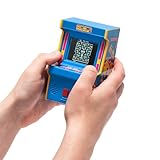
- Top Pick: Arcade Classics – Retro Mini Arcade Game, Full Color Screen, Classic Handheld Electronic Game Console, 90s Toy, Great Gift for Kids 8+, Pac-Man
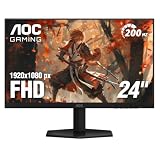
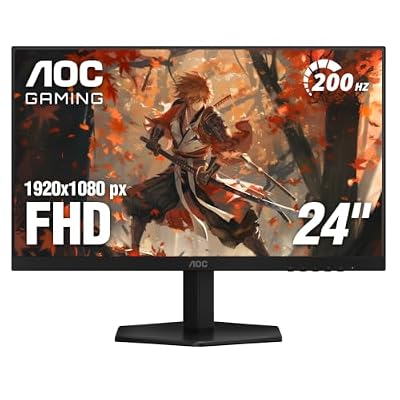
- Best Value: AOC 24" Gaming Monitor FHD 200Hz IPS NVIDIA G-SYNC Compatible 0.3ms 24G42HE
- Premium Choice: Arcade Classics – Retro Mini Arcade Game, Full Color Screen, Classic Handheld Electronic Game Console, 90s Toy, Great Gift for Kids 8+, Ms. Pac-Man
The quickest way to full screen games on a PC is to press Alt and Enter together, which toggles most DirectX titles between windowed and fullscreen instantly. If that does nothing, open the game’s video or display settings and change Display Mode from Windowed to Fullscreen or Borderless Windowed, then set the resolution to match your monitor’s native resolution. For browser-based games, F11 is the equivalent shortcut, and on macOS you use Control plus Command plus F or the green window button. If a game still refuses to fill the screen, the cause is almost always a scaling setting in your graphics driver rather than the game itself.
As an Amazon Associate I earn from qualifying purchases.
Here are eight PC games with genuinely excellent display and scaling options, worth using as reference points when testing a new setup.
| Game | Platform | Genre | Why It’s Great | Rating |
|---|---|---|---|---|
| Baldur’s Gate 3 | PC, PS5, Xbox Series X|S, macOS | CRPG | Exceptional graphics menu with full ultrawide and multi-monitor handling | 9.6/10 |
| Elden Ring | PC, PS5, Xbox Series X|S | Action RPG | Landmark open-world design, though its display options are famously minimal | 9.5/10 |
| The Witcher 3: Wild Hunt | PC, PS5, Xbox Series X|S, Switch | Action RPG | The next-gen update added modern scaling tech and proper borderless support | 9.5/10 |
| DOOM Eternal | PC, PS5, Xbox Series X|S, Switch | First-Person Shooter | One of the best-optimised engines ever shipped, with granular display control | 9.2/10 |
| Forza Horizon 5 | PC, Xbox Series X|S | Racing | Superb triple-monitor and ultrawide support plus a built-in benchmark tool | 9.1/10 |
| Cyberpunk 2077 | PC, PS5, Xbox Series X|S | Action RPG | The most complete graphics settings menu on PC, including HDR calibration | 9.0/10 |
| Hades II | PC, Switch, PS5, Xbox Series X|S | Roguelike | Runs beautifully on almost anything and handles resolution changes flawlessly | 9.0/10 |
| Counter-Strike 2 | PC | Tactical Shooter | Full control over aspect ratio and stretched resolutions for competitive play | 8.5/10 |
🛒 Best Price Today on Amazon
Prime members get fast, free shipping on everything above, plus member-only deals. New members get a 30-day free trial — cancel anytime.
How to Full Screen Games: The Universal Shortcuts
Start with keyboard shortcuts before touching any settings menu, because they resolve the majority of cases in a second.
Alt and Enter is the long-standing Windows convention for toggling fullscreen in games and has been supported by DirectX titles for decades. F11 handles fullscreen in every major browser, which covers HTML5, Flash-era emulated titles and cloud gaming clients. On macOS, Control plus Command plus F maximises a window to fullscreen, and many Mac games also respond to the green traffic-light button. Some engines use their own binding — a handful of older titles use Alt and Return only from the main menu, not mid-match.
Choose the Right Display Mode
Nearly every modern game offers three options, and picking the wrong one causes most fullscreen complaints.
Exclusive Fullscreen hands the display over entirely to the game. It generally gives the lowest input latency, the most reliable variable refresh rate behaviour, and proper HDR handling in older titles. The trade-off is slow alt-tabbing and occasional flickering when notifications appear. Borderless Windowed renders a window with no frame sized to your whole screen, which makes alt-tabbing instant and multi-monitor use painless at a small latency cost. Windowed is a plain resizable window. If your game looks fullscreen but has a thin border or a visible taskbar, you are in borderless or maximised windowed mode rather than true fullscreen.
Match Your Native Resolution
A game set to a lower resolution than your panel will either be upscaled to fill the screen or displayed centred with black borders around it, depending on your scaling configuration. Find your display’s native resolution in Windows Settings under System and Display, then set the game to the same value. On a 1440p or 4K panel this is also the single biggest visual improvement available for free, since running below native introduces blur that no anti-aliasing setting can undo. If you are unsure which resolution your panel actually is, our gaming monitor buying guide explains how to read panel specifications properly.
Fixing Black Bars and Stretched Images With GPU Scaling
When a game runs at a resolution or aspect ratio that does not match your monitor, something has to decide how to fill the gap. That decision lives in your graphics driver.
NVIDIA Control Panel
Open NVIDIA Control Panel, go to Display, then Adjust desktop size and position. Set Scaling mode to Full-screen to stretch content edge to edge, or Aspect ratio to preserve proportions with black bars. Crucially, set Perform scaling on to GPU rather than Display, and tick the option to override the scaling mode set by games and programs. Without that override, older titles will keep applying their own scaling and ignore the driver entirely.
AMD and Intel Equivalents
In AMD Software Adrenalin Edition, open Display settings and enable GPU Scaling, then choose a Scaling Mode: Full Panel stretches, Preserve Aspect Ratio adds bars, and Centered renders at native pixel size in the middle. Intel Graphics Command Center offers the same choices under Display, with Scale Full Screen as the stretch option. On laptops with switchable graphics, make sure you are configuring the GPU the game actually runs on — our gaming laptop buying guide covers how hybrid graphics routing works and why it trips people up.
Old 4:3 and 16:10 Games
Games from the CRT era were built for 4:3 and simply have no widescreen mode. Stretching them to a 16:9 panel distorts characters and HUD elements; preserving aspect ratio gives you correct geometry with pillarbox bars either side. Purists choose the latter. Many older titles can also be coaxed into widescreen through community patches or by editing a resolution value in a config file, though field-of-view side effects are common.
Launch Options, Config Files and Windows Settings
Force Fullscreen With Launch Parameters
If a game launches windowed every time and will not remember your choice, force it at startup. In Steam, right-click the game, choose Properties, and add a parameter to Launch Options. Common ones include -fullscreen, -windowed, -borderless, and for Unity-based titles -screen-fullscreen 1 along with -screen-width and -screen-height values. Source engine games accept -full and -w plus -h for width and height. These parameters override whatever is stored in the game’s own configuration.
Failing that, edit the config file directly. Most games keep one in Documents or in AppData under the publisher’s folder, containing readable lines such as Fullscreen=0 or WindowMode=1. Change the value, save, and set the file to read-only if the game keeps rewriting it.
Windows Compatibility and Scaling Fixes
Right-click the game’s executable, open Properties, then the Compatibility tab. Tick Disable fullscreen optimizations for older titles that flicker or refuse to go truly fullscreen. Under Change high DPI settings, enable the override and set scaling to be performed by the application — this fixes games that appear as a small image in the corner of a high-resolution display. Windows 11 also has an Optimizations for windowed games toggle in Graphics settings that reduces latency for windowed titles, worth enabling if you prefer borderless mode.
Multi-Monitor and Controller Considerations
If a game opens on the wrong screen, set your intended gaming display as the Windows primary monitor before launching, since many engines simply target the primary adapter output. In borderless mode you can also drag the window across with Windows plus Shift plus an arrow key. Games that minimise the instant you click your second monitor are running exclusive fullscreen — switch to borderless if you need a browser or chat window alongside. For living-room play, Steam Big Picture forces a consistent fullscreen presentation, and a good pad makes it usable from the sofa: see our gaming controller buying guide. If your GPU cannot sustain native resolution, upscaling is a better answer than dropping to a non-native mode, and our graphics card buying guide explains which tiers handle 1440p and 4K comfortably.
Exclusive fullscreen can also break some capture software’s window-capture method, which is why streamers often use borderless or a dedicated hardware capture path instead. Our capture card buying guide covers devices that sidestep the problem entirely by capturing the display output. And if a game only exposes its display settings through keyboard navigation, a reliable board helps — see our mechanical keyboard buying guide.
Frequently Asked Questions
Why won’t Alt and Enter full screen my game?
Some engines never implemented the shortcut, and others deliberately disable it so that display mode can only be changed from the settings menu. Vulkan and OpenGL titles in particular often ignore it entirely. In those cases, change Display Mode inside the game’s video options or force it with a Steam launch parameter instead.
Is exclusive fullscreen or borderless windowed better for gaming?
Exclusive fullscreen typically delivers slightly lower input latency and more dependable variable refresh rate and HDR behaviour, making it the choice for competitive play. Borderless windowed is far more convenient for alt-tabbing, second monitors and streaming overlays, and on modern Windows builds the latency gap has narrowed considerably.
How do I remove black bars when a game runs fullscreen?
Black bars mean the rendered aspect ratio does not match your panel. Either set the game to a resolution with the same aspect ratio as your display, or change your graphics driver’s scaling mode to Full-screen or Full Panel and enable the option that overrides the game’s own scaling. Note that stretching a 4:3 game to a widescreen panel will distort the image.
How do I full screen games on a Mac?
Press Control plus Command plus F, or click the green button in the top-left of the window. Many Mac ports also respond to Fn plus F. If the game fills the screen but looks soft, check that its internal resolution matches your display rather than relying on macOS to upscale a lower setting.
As an Amazon Associate we earn from qualifying purchases at no extra cost to you.