🛒 Best Price Today on Amazon
Prime members get fast, free shipping on everything above, plus member-only deals. New members get a 30-day free trial — cancel anytime.
- Network Switches at a Glance
- What a Switch Actually Does for Gaming
- Choosing the Port Speed
- Unmanaged, Smart or Managed
- Power over Ethernet
- Switch Features That Matter
- Cabling and Compatibility Notes
- Budget Tiers
- Pick X If… Decision Table
- Alternatives to a Standalone Switch
- Setup Tips
- Frequently Asked Questions
For most gamers and PC builders, an unmanaged 2.5 gigabit switch with five or eight ports is the best network switch, a plain gigabit unmanaged switch is enough if your internet plan is under one gigabit and you only need more wired ports, and a 10 gigabit switch makes sense only if you move large files to a NAS or between workstations. A switch does not speed up your internet connection; it multiplies wired ports and lets devices on your network talk to each other quickly.
This guide covers the switch types that suit a gaming desk or home office, the specifications the makers publish, and how to match a switch to your router, NAS, console and PC. It also explains when a managed or Power over Ethernet switch is worth the extra complexity.
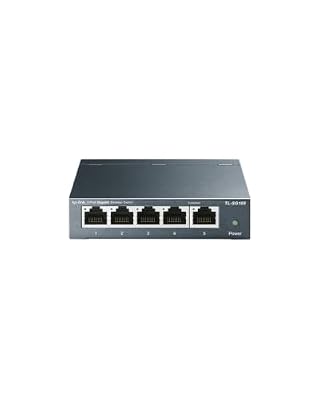
TP-Link TL-SG105, 5 Port Gigabit Unmanaged Ethernet Switch | Network Hub, Ethernet Splitter, Plug & Play, Fanless Metal Design, Shielded Ports, Traffic Optimization
Included for 'Best Network Switch: Buyer's Guide' because the listing specifies 5 Port Gigabit Unmanaged Ethernet Switch and Network Hub, details this guide uses to compare options.
View on Amazon
NETGEAR 5-Port Gigabit Ethernet Unmanaged Network Switch (GS305) | Home Network Hub, Office Ethernet Splitter, Plug-and-Play, Silent Operation, Desktop or Wall Mount, Essentials Model
Included for 'Best Network Switch: Buyer's Guide' because the listing specifies Home Network Hub and Office Ethernet Splitter, details this guide uses to compare options.
View on Amazon
TP-Link 8 Port Gigabit Ethernet Network Switch - Ethernet Splitter | Plug & Play | Fanless | Sturdy Metal w/ Shielded Traffic Optimization | Unmanaged | Lifetime Protection (TL-SG108)
Included for 'Best Network Switch: Buyer's Guide' because the listing specifies Ethernet Splitter and Plug & Play, details this guide uses to compare options.
View on AmazonNetwork Switches at a Glance
| Switch | Best for | Key stated specs | Limits |
|---|---|---|---|
| TP-Link TL-SG105 / TL-SG108 | Basic gigabit expansion on a budget | 5 or 8 gigabit ports, unmanaged, plug and play, metal case | No 2.5G, no management |
| Netgear GS305 / GS308 | Reliable plug-and-play gigabit | 5 or 8 gigabit ports, unmanaged, fanless | No 2.5G, no VLANs |
| TP-Link TL-SG105-M2 / TL-SG108-M2 | Gamers and creators with 2.5G PCs and routers | 5 or 8 ports at 2.5 gigabit, unmanaged, fanless | Uplink and every device need 2.5G to use full speed |
| TP-Link TL-SX105 | NAS and workstation 10G links | 5 ports at 10 gigabit over copper, unmanaged | Runs warmer, higher cost tier, needs good cabling |
| Ubiquiti UniFi Flex 2.5G or Lite series | Managed networks with VLANs and PoE | Managed through UniFi software, 2.5G and PoE variants | More setup, controller required for full features |
| TP-Link easy smart (TL-SG108E class) | Light management such as VLANs and port mirroring | 8 gigabit ports, web interface, QoS and VLAN support | Interface is basic, firmware updates vary |
What a Switch Actually Does for Gaming
A network switch connects wired devices on your local network. Your router still handles the connection to the internet. If your game console, gaming PC, NAS and streaming box all need a wired connection and your router has only four ports, a switch gives you more. It does not change your internet speed or lower ping to a game server. What it can do is avoid congestion on your local network when you transfer files while someone else streams, and it removes the need for a long cable run to each device.
For online play, a wired connection to your router, through a switch if necessary, is almost always better than Wi-Fi for stability. A good unmanaged switch adds only a tiny delay measured in microseconds, which is not noticeable in games.
Choosing the Port Speed
Gigabit (1G)
Gigabit remains the baseline, and it is enough for internet plans up to one gigabit, console downloads and normal home use. Unmanaged gigabit switches are the lowest cost tier and extremely common. If your router and devices are all gigabit, you gain nothing by paying for 2.5G.
2.5 gigabit (2.5G)
Many current motherboards, including most mid-range and high-end AM5 and LGA1851 boards, include a 2.5G Ethernet port. Routers and mesh systems with 2.5G ports are also common. A 2.5G switch lets a PC reach a 2.5G NAS or router at full speed and handles multi-gigabit internet plans. Each device, and the link between them, needs to support 2.5G to benefit. It works over standard Cat5e and Cat6 cable at normal home distances.
10 gigabit (10G)
A 10G copper switch is for moving large video, game libraries or backups to a NAS. The makers list 10GBASE-T ports that work with Cat6 cable for shorter runs and Cat6a for 100 meters. These switches draw more power and may run warm, and you also need 10G adapters or onboard ports in your devices. For most gamers it is more than necessary.
Unmanaged, Smart or Managed
An unmanaged switch has no settings. You plug cables in and it works. This is the right choice for nearly all gaming desks. A smart or easy smart switch adds a web interface for VLANs, port mirroring, link aggregation and quality of service. A fully managed switch adds more advanced features such as detailed monitoring and, on some models, command-line control.
Features like QoS on a switch are less useful than they sound. Most home congestion happens at the internet connection, so the router’s Smart Queue Management is more important than the switch. Choose a managed switch only if you want to separate devices into VLANs, such as a guest or IoT network, or if you run a home lab.
Power over Ethernet
PoE switches supply power through the Ethernet cable to devices like security cameras, wireless access points and VoIP phones. Gaming PCs do not need PoE. If you plan to add an access point or camera, a PoE-capable switch simplifies wiring. Check the maker’s total PoE budget in watts and the standard supported (802.3af or 802.3at), and only connect devices rated for that standard. Use a licensed electrician for any permanent wiring in walls.
Switch Features That Matter
- Port count: buy a few more ports than you need. Five ports fill up fast with a PC, console, NAS, router uplink and a streaming box.
- Fanless design: most small unmanaged switches are silent. Larger 10G switches may use fans, which matters on a desk.
- Metal versus plastic case: metal cases dissipate heat better, and the makers of many popular models use metal for that reason.
- Energy-efficient Ethernet: many makers list power-saving features that reduce draw on idle ports.
- Jumbo frames: useful for NAS transfers on some setups. Support varies; check the maker’s specification.
- Backplane capacity: a non-blocking switch lists switching capacity equal to all ports at full speed in both directions. Most reputable models are non-blocking.
- Warranty and firmware: managed models receive firmware updates; unmanaged ones do not need them.
Cabling and Compatibility Notes
Use at least Cat5e cable for gigabit and 2.5G, Cat6 or Cat6a for 10G. Cheap, damaged or long cables are the most common reason a link negotiates at a lower speed than expected. If a device connects at 100 megabit instead of gigabit, replace the cable first. Place the switch where it has airflow, away from direct heat from a PC tower. Switches use a modest power adapter; use the one supplied rather than a replacement from another device.
If your router supports 2.5G on its LAN ports, connect the switch to one of those ports so that the uplink is not the bottleneck. If the router has only gigabit ports, a 2.5G switch still helps for traffic between two 2.5G devices, such as your PC and a NAS, but internet traffic is limited to gigabit by the router.
Budget Tiers
- Budget tier: 5-port or 8-port unmanaged gigabit from TP-Link or Netgear. Good for consoles, streaming boxes and basic expansion.
- Mid-range tier: 5-port or 8-port 2.5G unmanaged, or an easy smart gigabit switch with VLAN support. Good for modern PCs, NAS devices and fast internet plans.
- Premium tier: 10G copper or managed PoE switches from Ubiquiti and similar makers. Good for home labs, editing workflows and larger networks.
Pick X If… Decision Table
| Pick this | If you… |
|---|---|
| Unmanaged gigabit, 5 or 8 ports | have a router with too few ports and an internet plan up to one gigabit |
| Unmanaged 2.5G, 5 or 8 ports | have a 2.5G motherboard, a multi-gigabit internet plan or a 2.5G NAS |
| 10G switch | move very large files to a NAS often and have 10G adapters |
| Easy smart gigabit | want VLANs, port mirroring or basic traffic control without full management |
| Managed PoE switch | power cameras or access points and want central control |
Alternatives to a Standalone Switch
- A router with more LAN ports: some gaming routers include four or five 2.5G ports, which avoids a separate switch.
- Powerline or MoCA adapters: a fallback if running Ethernet cable is not possible.
- Wi-Fi 7 access point or mesh node with an Ethernet port: a node placed near your console can offer a wired port and wireless backhaul.
- Multi-port network card or a PC with built-in switching: for advanced setups only.
Setup Tips
- Connect the switch to the router with a single cable; do not connect two ports of the same switch to each other, which creates a loop.
- Plug devices that need the lowest latency, like your gaming PC, directly into the switch.
- Label cables so you can find the right device later.
- For managed models, set a strong admin password and keep the firmware up to date.
- Keep the switch on a surge protector, and consider a small UPS for a NAS.
Frequently Asked Questions
Does a network switch reduce ping in games?
No. A switch adds more wired ports and has a negligible effect on latency. Ping depends on your internet provider, routing and the game server, not on the switch. A wired connection is more stable than Wi-Fi.
Do I need a 2.5G switch for gaming?
Not for gaming alone. Online games use very little bandwidth, so gigabit is plenty. A 2.5G switch makes sense if your internet plan is faster than gigabit or if you copy large files to a 2.5G NAS.
Can I plug a switch into a switch?
Yes, connecting switches in a chain works fine for home use. Keep the layout simple, use one cable between them and avoid loops. Each extra step in the chain adds a small delay and shares the uplink speed.
Is a managed switch worth it for a home gaming setup?
Usually not. Managed switches suit networks that need VLANs, monitoring or PoE control. A basic gaming desk works well with an unmanaged switch that needs no configuration.
What cable do I need for a 2.5G or 10G switch?
Cat5e usually works for 2.5G at home distances, and Cat6 or Cat6a is the safer choice for 10G. If a link runs slower than expected, swap the cable before blaming the switch.
Why is my switch getting warm?
Some warmth is normal, especially on 10G models. Make sure the switch has airflow, is not covered, and uses its original power adapter. If it becomes too hot to touch or smells of burning, unplug it and contact the maker.