- Top Pick: WetKeys "Flex Touch Full-Size Flexible Silicone Washable Keyboard with Touchpad and ON/Off Switch (USB) (Black) | KBWKFC103STi-BK
- Best Value: WetKeys Case of (10) KBWKFC103STi-BK Flex Touch Full-Size Flexible Silicone Waterproof Keyboard with Touchpad and ON/Off Switch (USB) (Black) | KBWKFC103STi-BK-C10
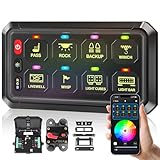
- Premium Choice: Bzgnl RGB 8 Gang Switch Panel,12-24V Bluetooth APP 230FT 433MHZ Long Range, Auxiliary Backlit Off Toggle Flash Multifunction Toggle Switch Momentary Circuit Control Relay System Box Universal for Car
Nothing ruins a clutch round faster than a stray palm brush on the trackpad that yanks your crosshair into the sky. Laptop gaming is genuinely good now, but the built-in pointing device is the one piece of hardware you almost always want silenced before you plug in a real mouse. This guide walks through every reliable way to switch off a touchpad on Windows and macOS, and which method to trust when the others fail.
As an Amazon Associate I earn from qualifying purchases.
🛒 Best Price Today on Amazon
Prime members get fast, free shipping on everything above, plus member-only deals. New members get a 30-day free trial — cancel anytime.
How to Switch Off Touchpad: The Fast Answer
On Windows 11 or Windows 10, open Settings, go to Bluetooth & devices (Devices on Windows 10), select Touchpad, and flip the Touchpad toggle to Off. On macOS, the trackpad cannot be switched off outright, but you can make the system ignore it: open System Settings, go to Accessibility, choose Pointer Control, and enable “Ignore built-in trackpad when mouse or wireless trackpad is present.” Most gaming laptops also have a keyboard shortcut — usually Fn plus one of the function keys marked with a small crossed-out touchpad icon — that toggles the pad instantly without leaving your game.
Once the pad is off and a proper mouse is connected, these are the games where the difference is immediately obvious. Every one of them is mouse-critical in a different way.
| Game | Platform | Genre | Why It’s Great | Rating |
|---|---|---|---|---|
| Counter-Strike 2 | PC (Windows, Linux) | Tactical FPS | The purest test of raw aim in gaming; every millimetre of mouse movement counts | 9.2/10 |
| Valorant | PC (Windows) | Tactical FPS | Precise gunplay plus agent abilities, and it runs on almost any laptop | 9.0/10 |
| Apex Legends | PC, PS5, Xbox, Switch | Battle royale FPS | Best-in-class movement that punishes any input hiccup | 8.9/10 |
| Overwatch 2 | PC, PS5, Xbox, Switch | Hero shooter | Hitscan heroes reward clean tracking; projectile heroes reward prediction | 8.4/10 |
| Diablo IV | PC, PS5, Xbox | Action RPG | Thousands of clicks an hour, which is exactly why palm rejection matters | 8.5/10 |
| Age of Empires IV | PC, Xbox | Real-time strategy | Drag-select and hotkey play that a trackpad simply cannot keep up with | 8.8/10 |
| StarCraft II | PC (Windows, macOS) | Real-time strategy | Still the benchmark for actions-per-minute precision, and free to start | 9.4/10 |
| Civilization VI | PC, Switch, PS5, Xbox, Mobile | Turn-based strategy | Endlessly replayable and the friendliest of the list to laptop hardware | 8.7/10 |
How to switch off touchpad in Windows 11 settings
The Settings route is the one to use first because it survives reboots and does not confuse Windows Update. Press Windows + I, choose Bluetooth & devices in the left sidebar, then click Touchpad. The master toggle at the top turns the device off entirely. Directly beneath it you will find a checkbox labelled “Leave touchpad on when a mouse is connected” — unchecking that gives you the behaviour most gamers actually want: the pad works when you are on the sofa and disables itself the second your USB receiver goes in. Expand the Taps, Scroll & zoom, and Three/Four finger gestures sections if you would rather keep the pad alive but kill only the gestures that misfire mid-game.
Using the keyboard shortcut to toggle the pad instantly
Nearly every laptop brand maps a touchpad toggle to the function row. Look along F1 to F12 for a small rectangle with a diagonal line through it. On many ASUS and Lenovo machines it lives on F6 or F10; HP often uses F5; Dell frequently pairs it with F3 or a dedicated double-tap zone in the top-left corner of the pad itself. Hold Fn and press that key. If nothing happens, the shortcut usually depends on the vendor’s hotkey service — ASUS Armoury Crate, Lenovo Vantage, HP System Event Utility or the Dell Touchpad driver — so install the manufacturer’s utility from their support page and try again. A dedicated pointing device makes the whole question moot, and our best gaming mouse buying guide breaks down sensor, weight and polling-rate differences that actually change your aim.
Disabling the touchpad in Device Manager
When the Settings toggle is greyed out — common on machines running generic PS/2 drivers instead of Windows Precision Touchpad — go to Device Manager instead. Right-click the Start button, choose Device Manager, and expand either “Human Interface Devices” or “Mice and other pointing devices.” Look for an entry containing Synaptics, ELAN, Precision Touchpad or I2C HID Device. Right-click it and choose Disable device. This is the most decisive method, but be aware of two things: Windows can re-enable the device after a major update, and disabling the wrong HID entry can take your keyboard with it, so read the device name carefully before confirming.
How to switch off touchpad on a MacBook
Apple deliberately offers no hard off switch, because losing your only pointer on a machine with no other input would be a support nightmare. The Accessibility route is the supported workaround: System Settings, Accessibility, Pointer Control, then enable “Ignore built-in trackpad when mouse or wireless trackpad is present.” Pair or plug in your mouse and the trackpad goes quiet. In the same panel you can also raise the double-click and scroll thresholds, which reduces accidental input if you prefer to keep the pad live. Mac gamers should also check Trackpad settings and disable “Force Click and haptic feedback” — it fires far more often than you would expect during click-and-drag strategy games.
Handling stubborn drivers and gaming utilities
Some laptops layer a vendor gaming app on top of Windows, and that app can override your setting. If the pad keeps reactivating, open Armoury Crate, MSI Center, Lenovo Legion Space, Alienware Command Center or the equivalent and look for a touchpad or “keyboard lock” section — turning it off there makes the change stick. It is also worth checking whether a game itself is grabbing the pad as a second cursor; a few titles that support touch input do this, and toggling the game’s raw input setting fixes it. If your laptop’s own keyboard also feels mushy for gaming, an external board is a bigger upgrade than most people expect, and our mechanical keyboard buying guide explains switch types in plain language.
What to do when the touchpad will not come back on
Reversing any of these steps is straightforward, but the order matters. Press the Fn shortcut first, then check Settings, then check Device Manager for a disabled device with a small down-arrow icon and choose Enable device. If the pad vanished after a Windows update, the fastest fix is usually to right-click the touchpad entry, choose Update driver, then “Browse my computer” and select the generic Precision Touchpad driver. A full driver reinstall from your laptop maker’s support site clears the rest. Keep a wired mouse in your bag as insurance so you are never stuck without a pointer.
Building a laptop setup where the touchpad never matters
The real fix is a desk arrangement that makes the pad irrelevant. A low-latency wireless mouse, a large cloth pad, an external display and a decent headset turn a gaming laptop into a proper battlestation in about five minutes of setup. Our gaming monitor buying guide covers refresh rate versus resolution at laptop GPU power levels, the gaming headset buying guide compares wired and wireless latency, our laptop cooling and docking accessories guide handles thermals and single-cable setups, and the Wi-Fi 7 router buying guide is worth reading if your ping spikes whenever someone else streams.
Frequently Asked Questions About How to Switch Off Touchpad
Does switching off the touchpad improve gaming performance?
It does not raise your frame rate, but it removes accidental cursor jumps, unintended gestures and phantom clicks caused by your palms resting near the pad. In practice that means fewer misclicks in strategy games and no sudden camera swings during a firefight, which feels like a real performance gain.
Can I switch off the touchpad only while a game is running?
Windows has no built-in per-application rule, but unchecking “Leave touchpad on when a mouse is connected” achieves nearly the same result because the pad disables itself whenever your gaming mouse is plugged in. Third-party tools can also bind a hotkey to toggle the device on demand.
Why is the Windows touchpad toggle missing from my Settings app?
The master toggle only appears on laptops using Windows Precision Touchpad drivers. If your machine runs an older Synaptics or ELAN driver, the panel shows fewer options, and you should either install the vendor’s own touchpad control panel or disable the device from Device Manager instead.
Is it safe to disable the trackpad on a MacBook permanently?
Apple’s Accessibility option is safe because it only ignores the trackpad while an external mouse is connected, so you automatically get your pointer back the moment you unplug. Avoid unofficial kernel-level hacks, which can break after macOS updates and leave you without any working input device.
As an Amazon Associate we earn from qualifying purchases at no extra cost to you.